Every Monday morning, DroneBundle emails workspace owners and project managers a weekly report: a short PDF with the week’s flights, the jobs that were finished, everything that needs attention, what is coming up next week, and where every project stands. Nobody has to build it, export anything, or remember to send it.
A drone operation produces a lot of small facts in a week. Flights land in the log, jobs change status, a battery gets flagged, a scan finishes processing, an audit comes due. Each of those is already in DroneBundle, in the place it belongs. What was missing was one page that pulls the week together, so the person responsible for the operation can see it in two minutes without clicking through ten screens.
If you have ever spent Monday morning assembling a status update from the flight log, the jobs page, and the maintenance list, the weekly report is that update, already written. It is switched on for every workspace with an active plan or trial.
The Week at a Glance
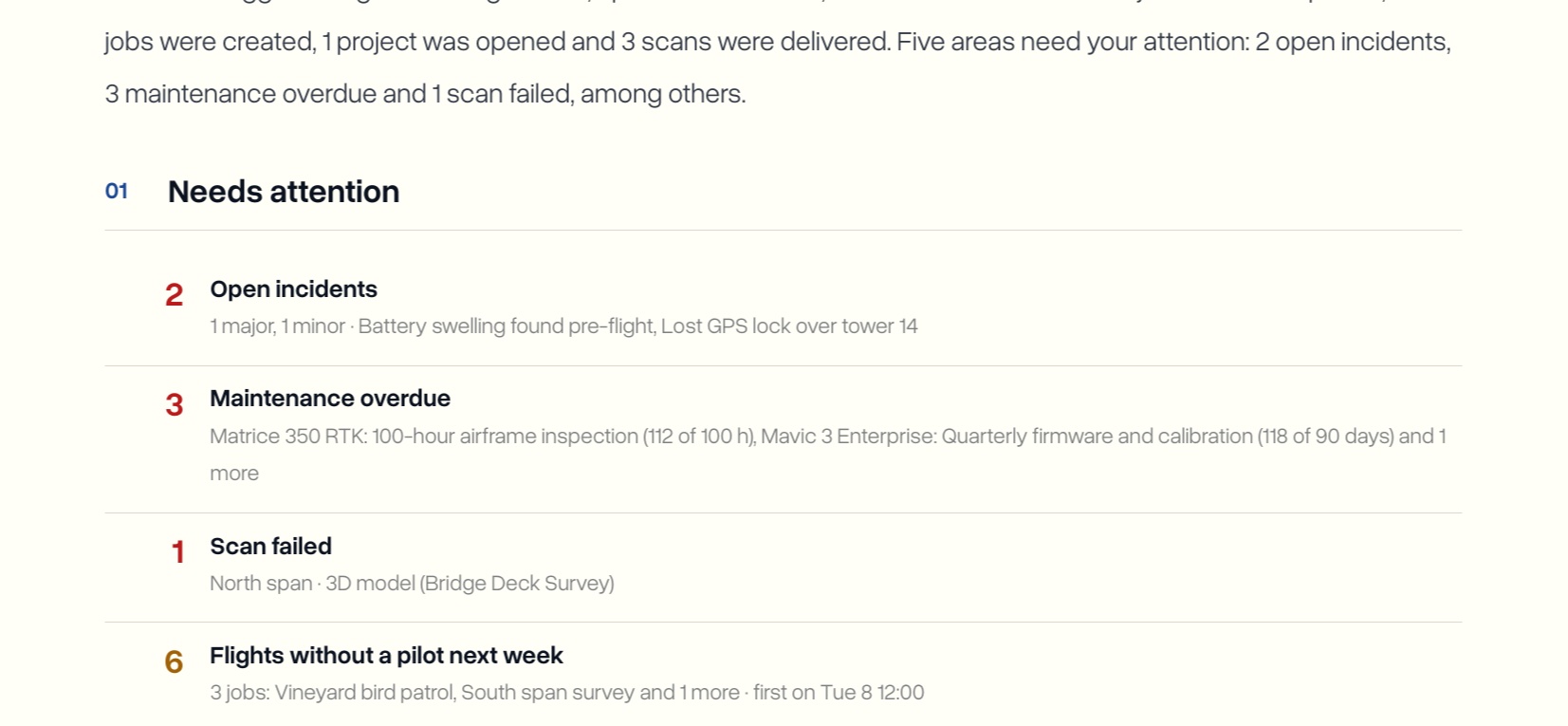
The report opens with up to five numbers for the week: flights, flight time, jobs completed, areas that need attention, and scans delivered. Each count shows how it compares with the week before, so a quiet week or a busy one is obvious straight away.
Below the numbers sits a short summary written out in plain sentences. For example: the team logged 14 flights totalling 5h 18m, up from 6 last week, 5 of them from the dock, 4 jobs were completed and 3 scans were delivered. It reads like the note a good operations lead would write, and it only mentions what actually happened.
The numbers adjust to the workspace. A team that does not log flights in DroneBundle sees jobs in progress in place of flights and flight time. A team that has never started a scan does not get a scans number. Nothing on the page is a zero for a feature you do not use.
Needs Attention Comes First
The first section is the one that matters most on a Monday: a short list of everything that needs someone to act. Red items are problems now, amber items will become problems soon, and grey items are worth knowing about.
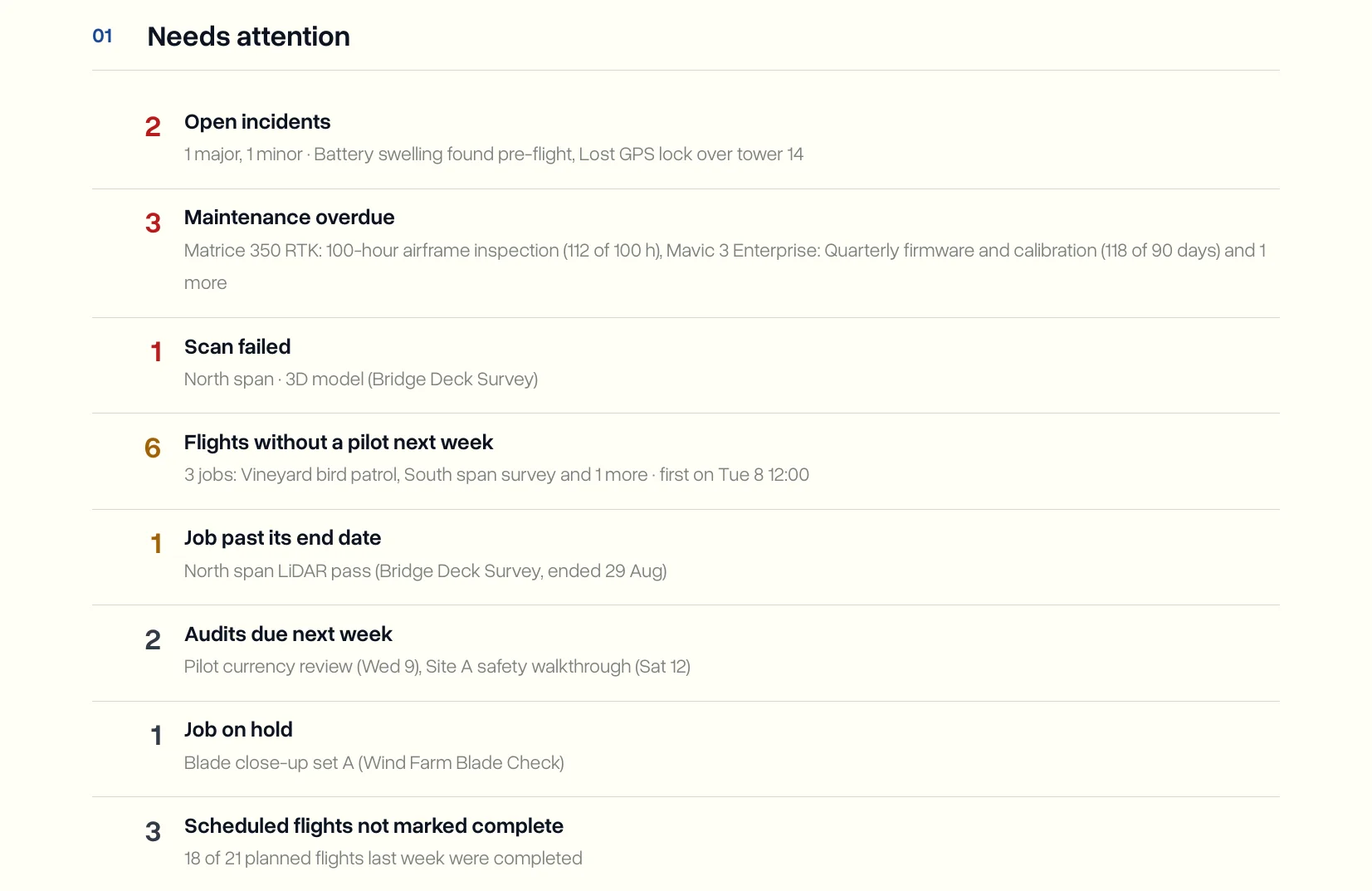
The list draws on every part of the workspace:
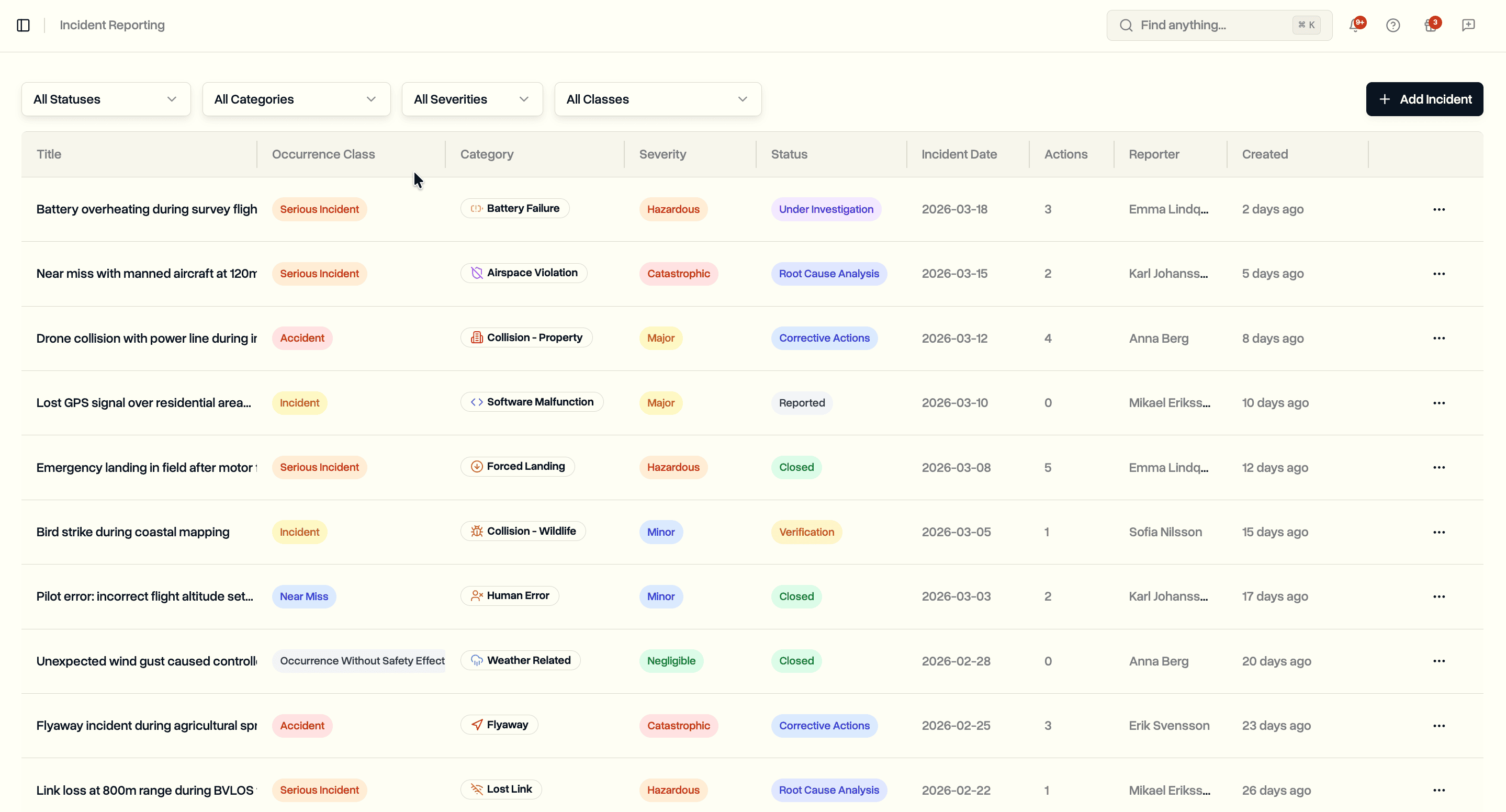
- Open incidents, with their severity and names, from incident reporting
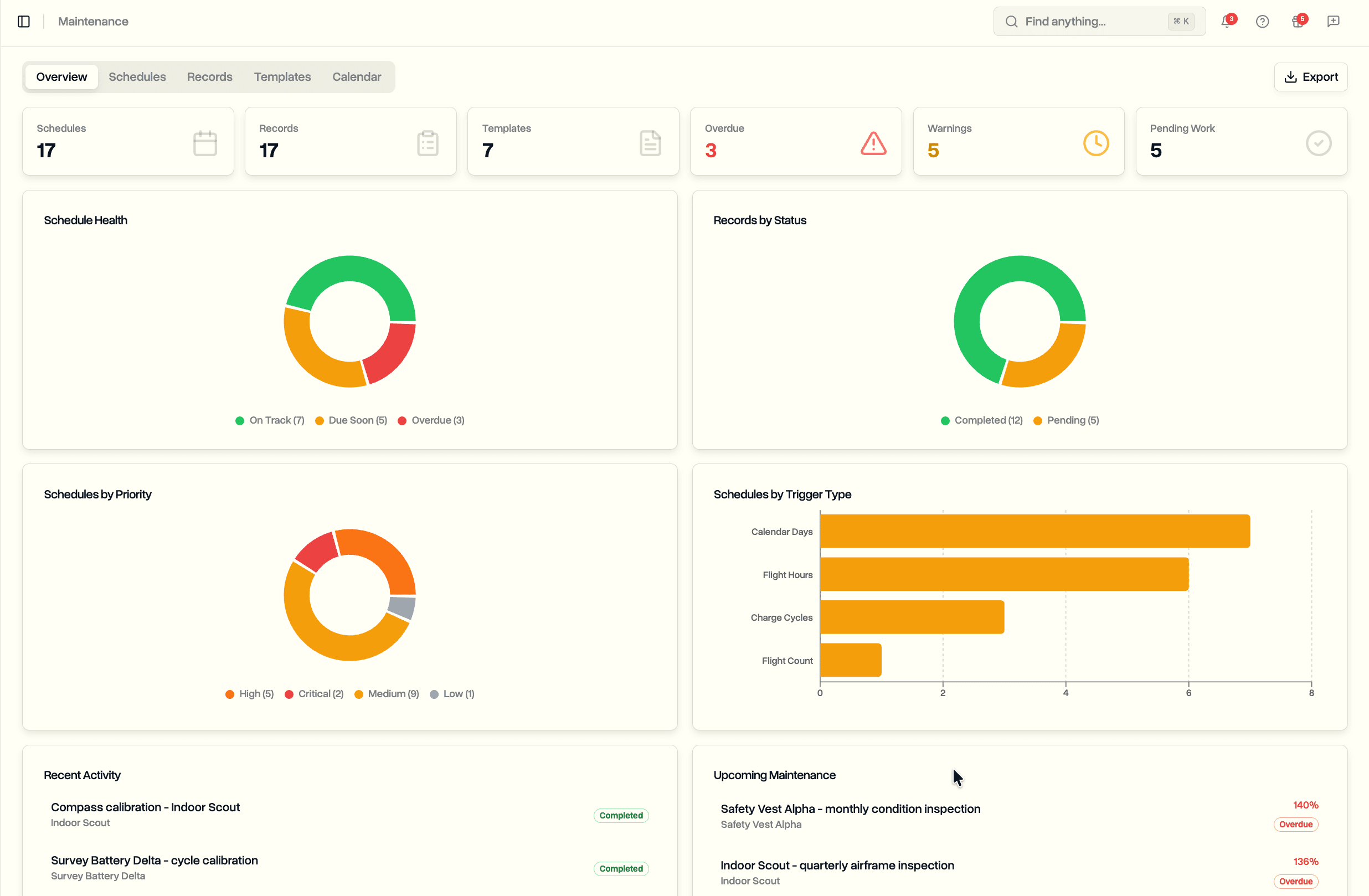
- Maintenance overdue or due soon, per drone, battery, or dock, from maintenance schedules and flight counters
- Scans that failed, so they can be restarted before anyone waits on them
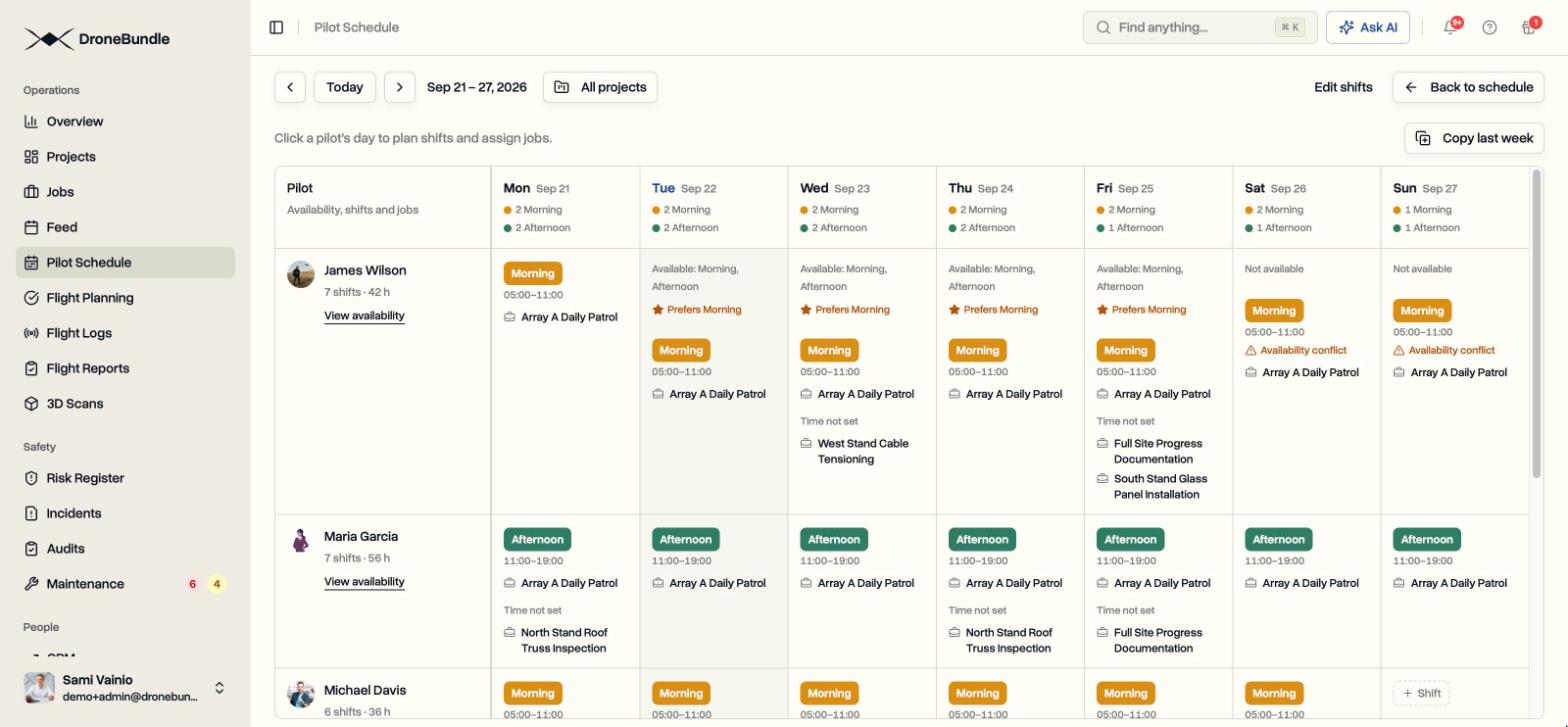
- Flights next week with no pilot, straight from Pilot Schedule, with the first one’s day and time
- Jobs past their end date that are still active
- Audits due next week, from audit scheduling
- Jobs on hold, kept apart from overdue work so a paused job is never counted as late
- Scheduled flights not marked complete, for example 18 of 21 planned flights last week
The count at the top of the report is the number of areas, not the number of items. Five areas need attention reads very differently from 231 overdue things, and it is the number that tells you how your Monday will go.
Every Project in One Table
The second section is a row per project that had anything happen that week: flights, air time, jobs done, new jobs, scans, and incidents. The client’s name sits under each project, so a report covering several clients still reads at a glance.
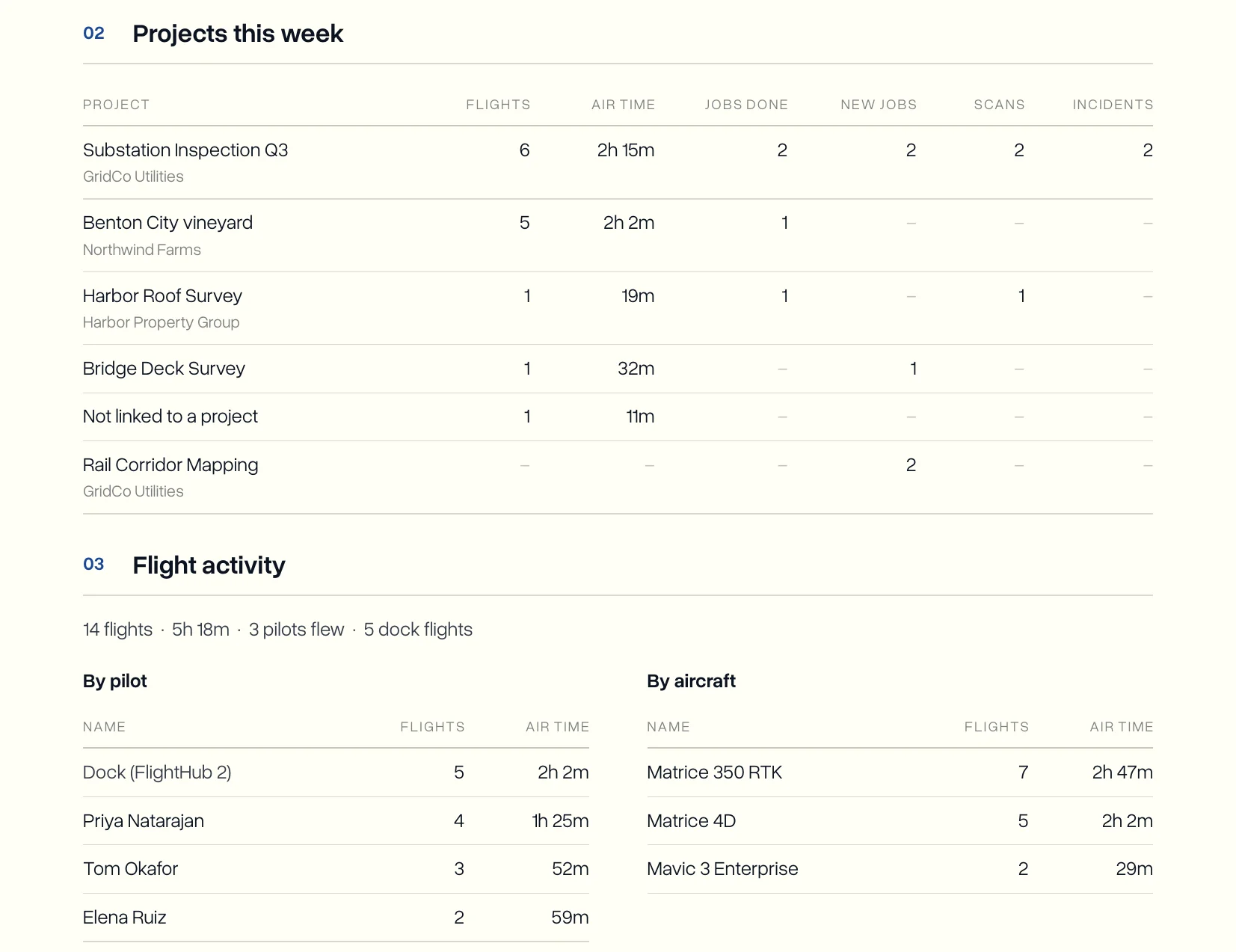
The columns follow the work. A workspace that does not run scans does not get a scans column, and a flight with no project still shows up on its own row, so nothing drops out of the totals.
Flights by Pilot and by Aircraft
Flight activity splits the week two ways. By pilot shows who flew and for how long, which lines up with the flight hours on each pilot’s record. By aircraft shows which drones did the work, useful when one airframe is carrying more than its share.
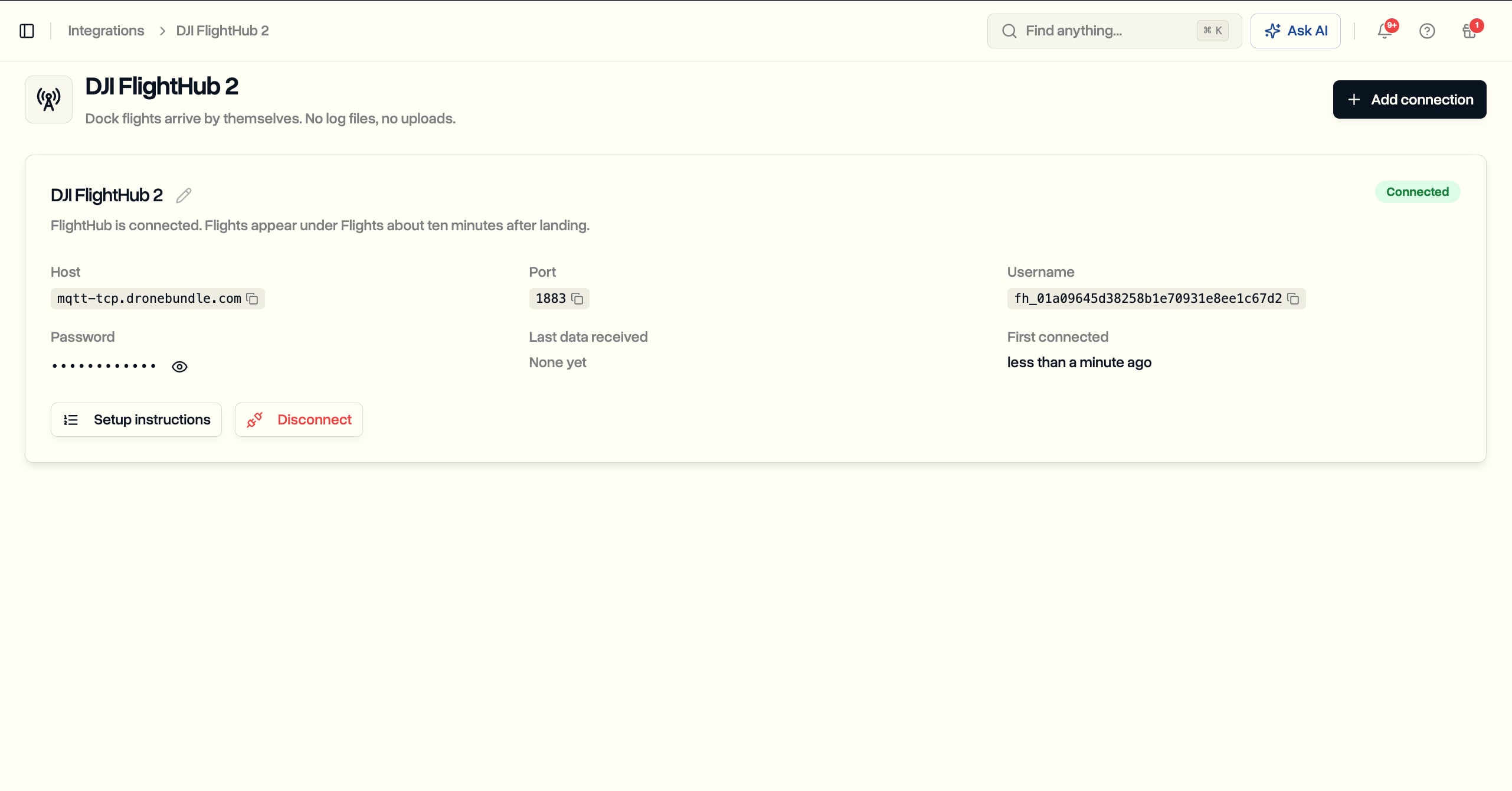
Flights that come in from a DJI dock through FlightHub 2 sync get their own row, so dock hours and crew hours are never mixed together. The section only appears in weeks with flights.
Next Week Before It Starts
The report also looks forward. A seven-day strip shows how many flights are scheduled each day of the coming week and flags any day that has flights without a pilot. Underneath is a dated list of jobs starting, audits due, and maintenance coming up.
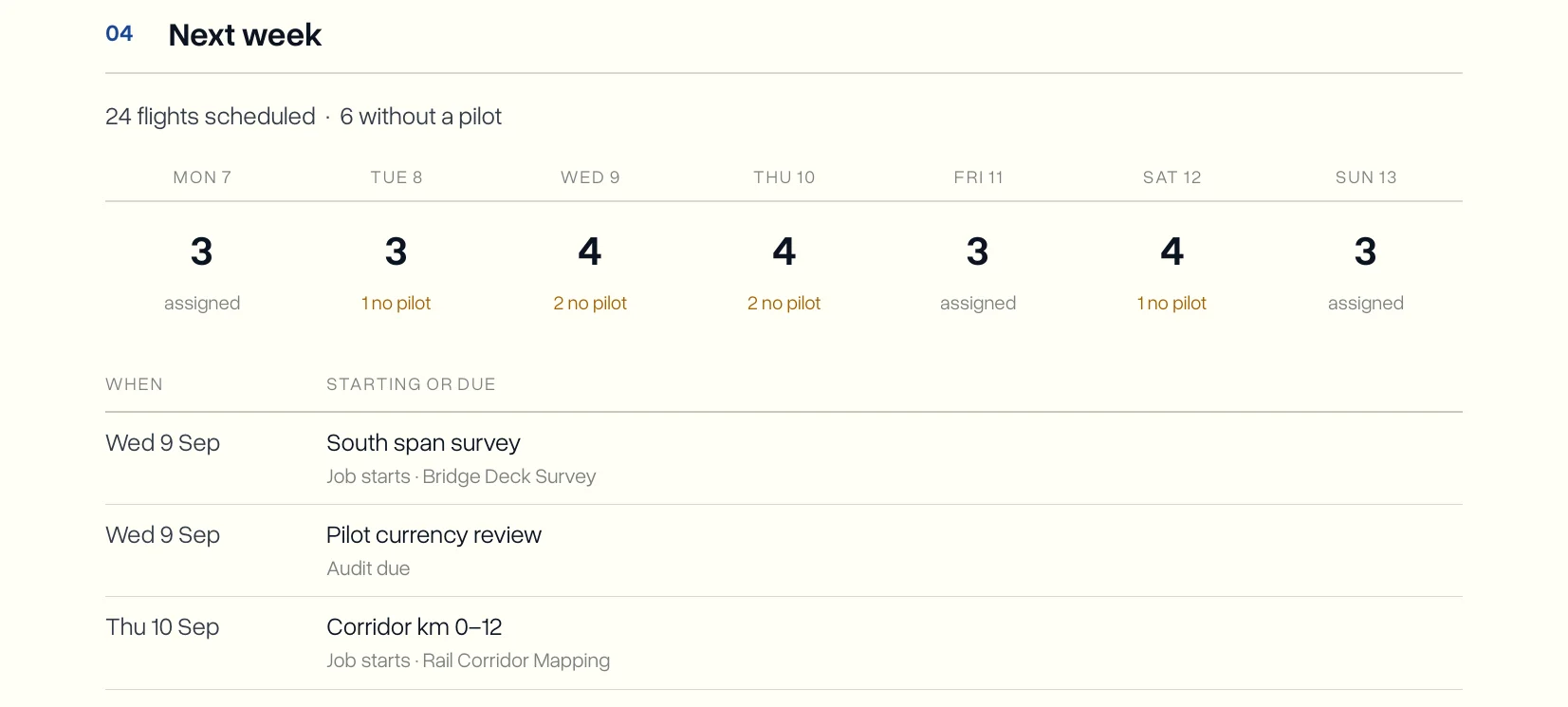
Reading this on Monday morning gives you the whole week ahead. If Tuesday shows one flight with no pilot, it gets fixed in the schedule before Tuesday arrives.
Scans, Safety, and the Fleet
Further down, each part of the workspace gets a short section, and only when it is in use:
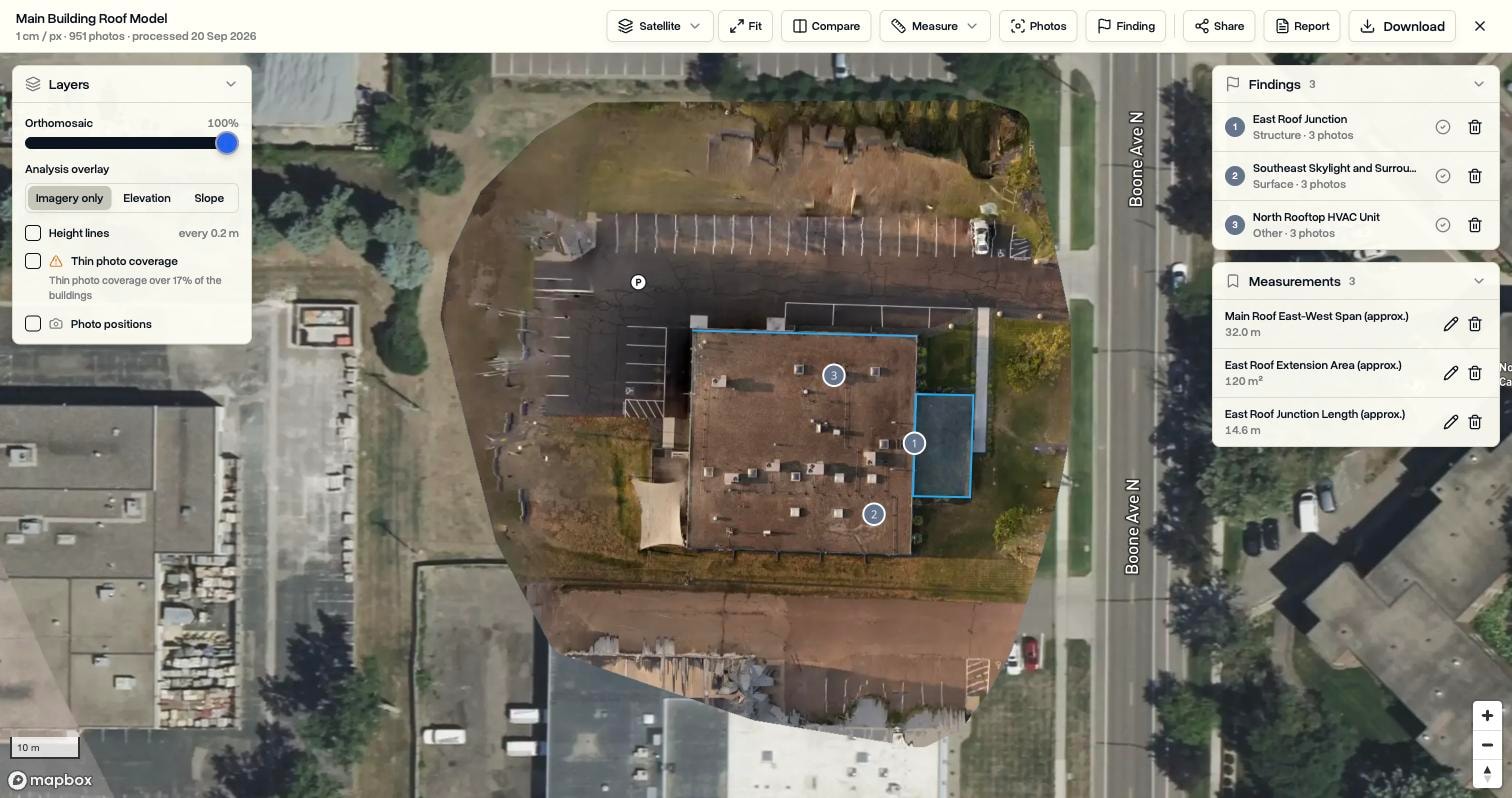
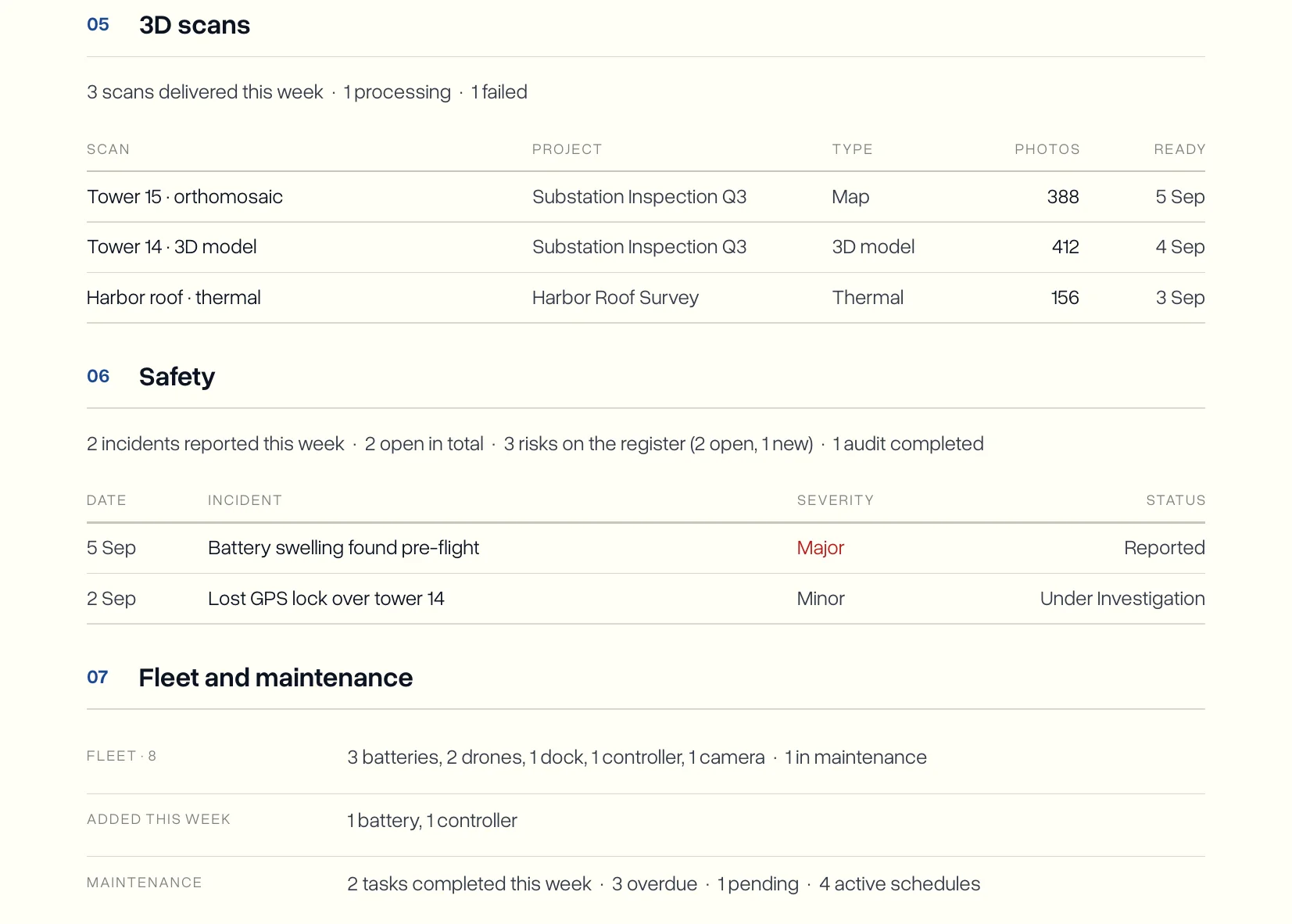
- 3D scans lists the maps, 3D models, and thermal maps delivered that week, with their project and photo count, plus anything still processing or failed. See 3D Scans for how scans work.
- Safety covers incidents reported that week, how many are still open, the state of the risk register, and audits completed.
- Fleet and maintenance counts drones, batteries, docks, and other equipment, what was added that week, and maintenance done, overdue, and pending.
Where Things Stand
The last section shows every project and job in the workspace by status, as simple bars. It uses your own status names, so if your workspace runs custom status pipelines with stages like Awaiting permit or Client review, those are the labels on the page.
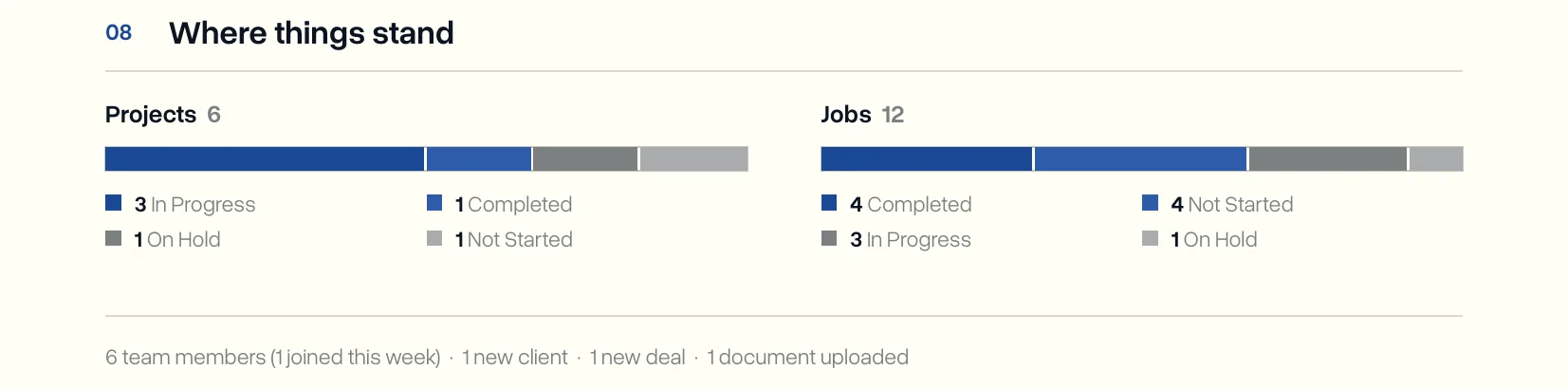
A closing line rounds off the rest of the week: new team members, new clients and deals, and documents uploaded.
The Email Is the Short Version
The report arrives as an email with the PDF attached. The email on its own answers the question most people have on a Monday: do I need to do anything today.
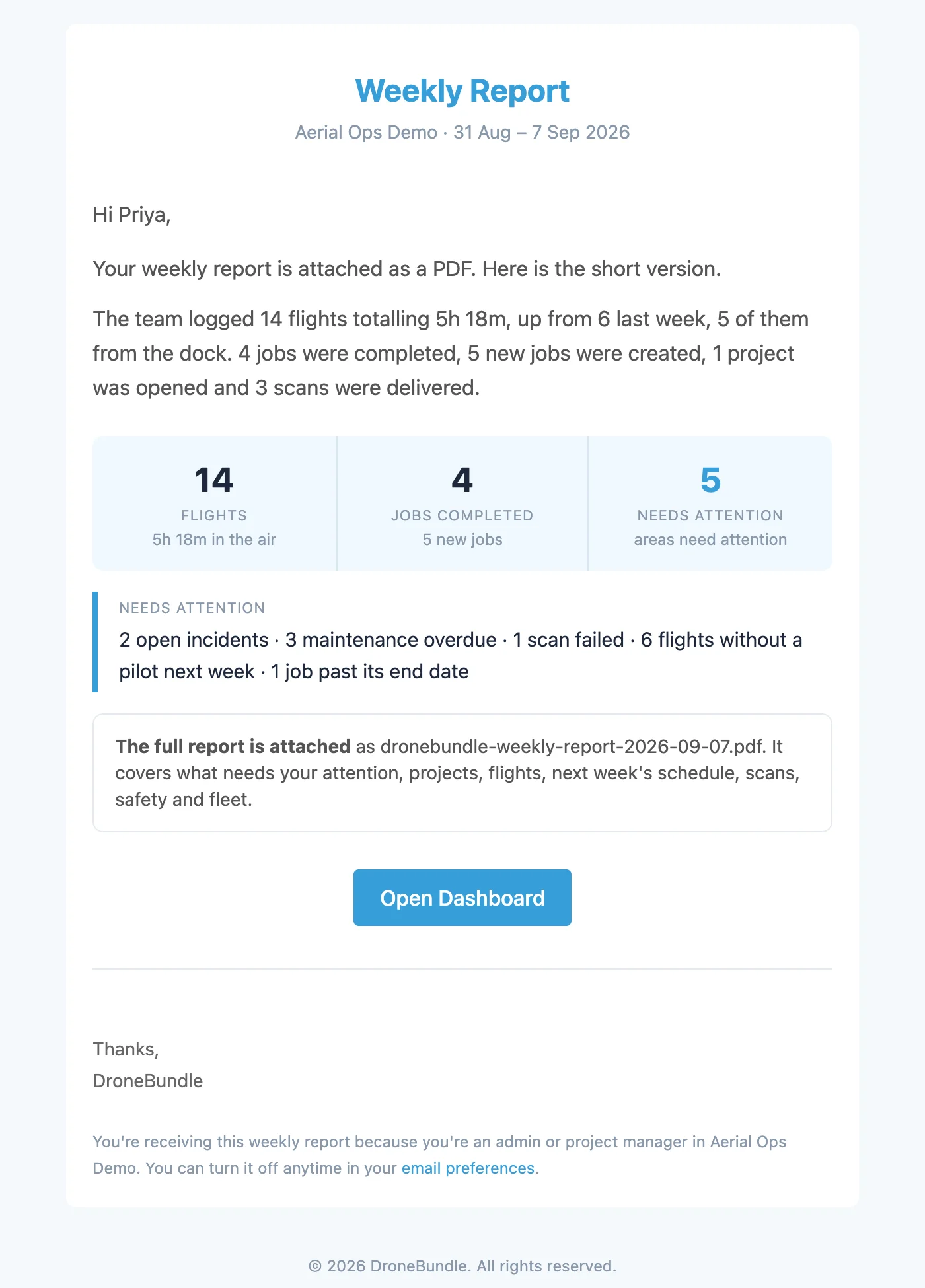
It carries the summary, three numbers (flights, jobs completed, and areas needing attention), and a one-line list of what needs attention, or “All clear” when nothing does. The full PDF is attached for anyone who wants the detail, and it is easy to forward to someone who does not use DroneBundle.
The PDF is usually two or three pages. Sections only appear when they have something in them, so a small workspace gets a short report and a busy one gets a full one.
Your Brand on Enterprise
On Enterprise workspaces with custom branding, the report carries your workspace name at the top and your logo on the page, and the “Generated by DroneBundle” line is removed. It reads as your own operations report, which matters when it gets forwarded outside the team.
Use Cases
The Monday check-in. Open the email, read the needs attention line, and know before the first call whether anything is overdue, unassigned, or open.
Operations across several sites. For example, a team running docks on several sites sees every dock’s flights, every project’s activity, and every pilot gap for the coming week on the same two pages.
Keeping leadership informed. Forward the PDF to someone who does not log in. They get flights, completed jobs, safety, and fleet in a format that needs no explanation.
Catching maintenance before it grounds a drone. Overdue and due-soon tasks show up every week, per aircraft, so an inspection that is ten hours away gets planned instead of discovered.
Availability
The weekly report is on for every DroneBundle workspace with an active plan or free trial, on every plan. There is nothing to set up. It goes out every Monday at 06:00 UTC to the workspace’s active owners and project managers, and covers the seven days before.
Weeks with no activity are skipped, so a quiet workspace never gets an empty report. Anyone who does not want it can turn it off under Settings, Notifications, in the Reports group.
The report is built from the data already in your workspace. The more of your operation runs in DroneBundle, from flight logs to maintenance to the feed and timeline, the more the report has to show.
Start your free trial and get your first weekly report next Monday.
Book a demo to see a full weekly report for a workspace with flights, scans, safety, and maintenance.