See all your jobs on a timeline. Filter by status, pilot, priority, and more. Group and sort however you want. Share a filtered view with a link.
When you have thousands of jobs spread across hundreds of projects, clicking into each project to check on things is not realistic. Which jobs are scheduled this week? Which pilots are overloaded? What high-priority work is still unassigned? These questions require a view that cuts across your entire workspace.
The new feed page gives you that. It pulls every job into a single timeline view with seven filter types, grouping, sorting, and customizable display settings. The feed loads incrementally, so it handles large workspaces without slowing down.
Timeline View
The timeline shows jobs as horizontal bars spanning their scheduled dates. Each bar is color-coded by status. Hover over any bar to see details. Click to navigate to the job.
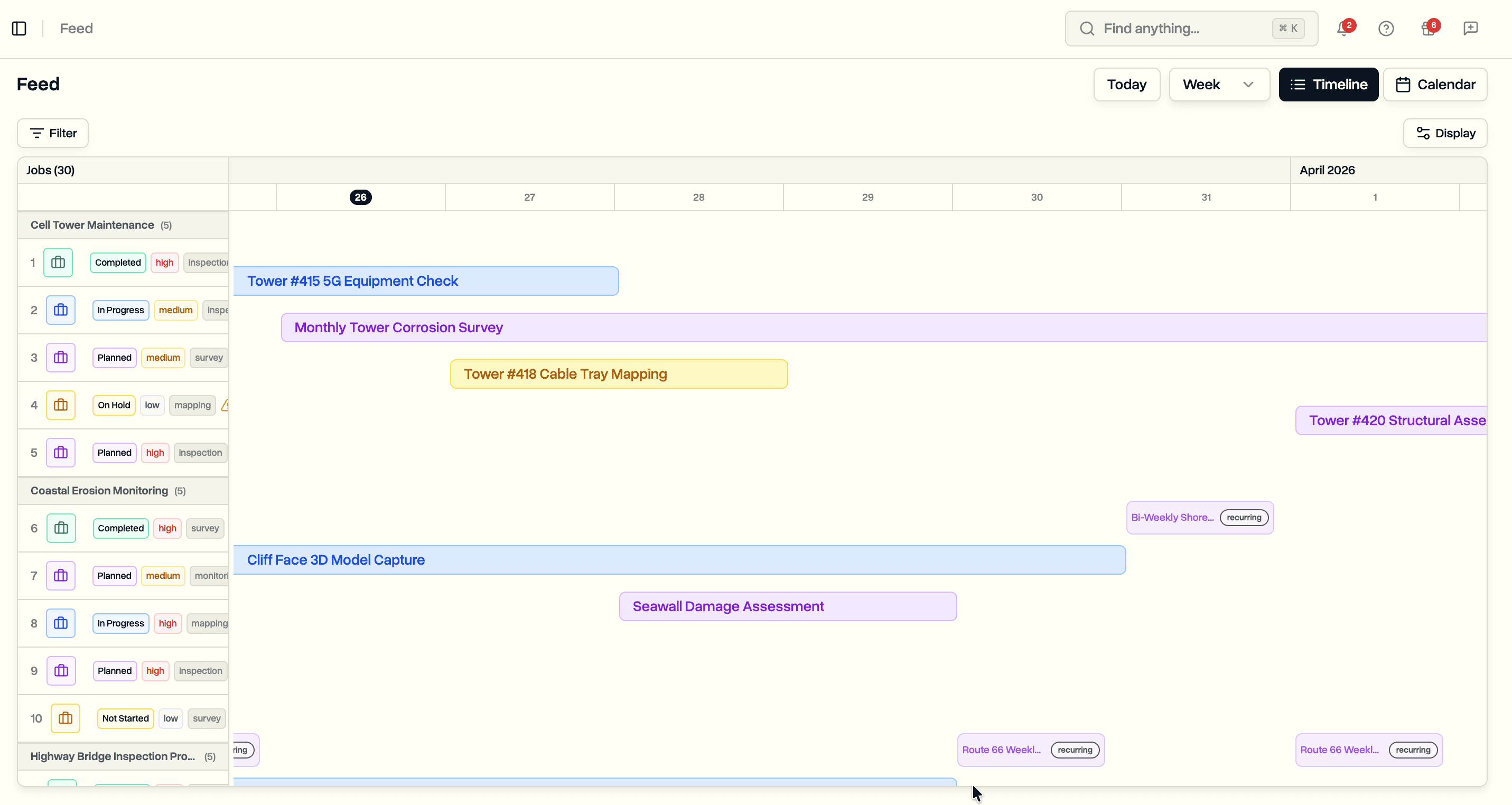
A resizable sidebar on the left lists jobs with key details. Drag the sidebar edge to adjust its width. The sidebar scrolls independently from the timeline. Jobs load progressively as you scroll down, so even workspaces with thousands of jobs stay fast.
Job names stay visible as you scroll horizontally. When a bar extends off the left edge of the view, the label slides to remain readable instead of disappearing.
Recurring jobs expand into individual occurrences on the timeline. A weekly inspection job shows a bar for each scheduled week. Monthly jobs respect their week-of-month patterns.
Filtering
The filter bar sits at the top of the feed. Seven filter types let you narrow down what you see:
- Status. Filter by one or more job statuses (e.g. show only In Progress and Scheduled jobs).
- Job Type. Filter by type of work (inspection, delivery, survey, etc.).
- Priority. Show only high, medium, or low priority jobs.
- Pilot. Filter by assigned pilot, or show only unassigned jobs.
- Project. Show jobs from a specific project.
- Job Pattern. One-time jobs, recurring jobs, or both.
- Search. Free-text search across job names.
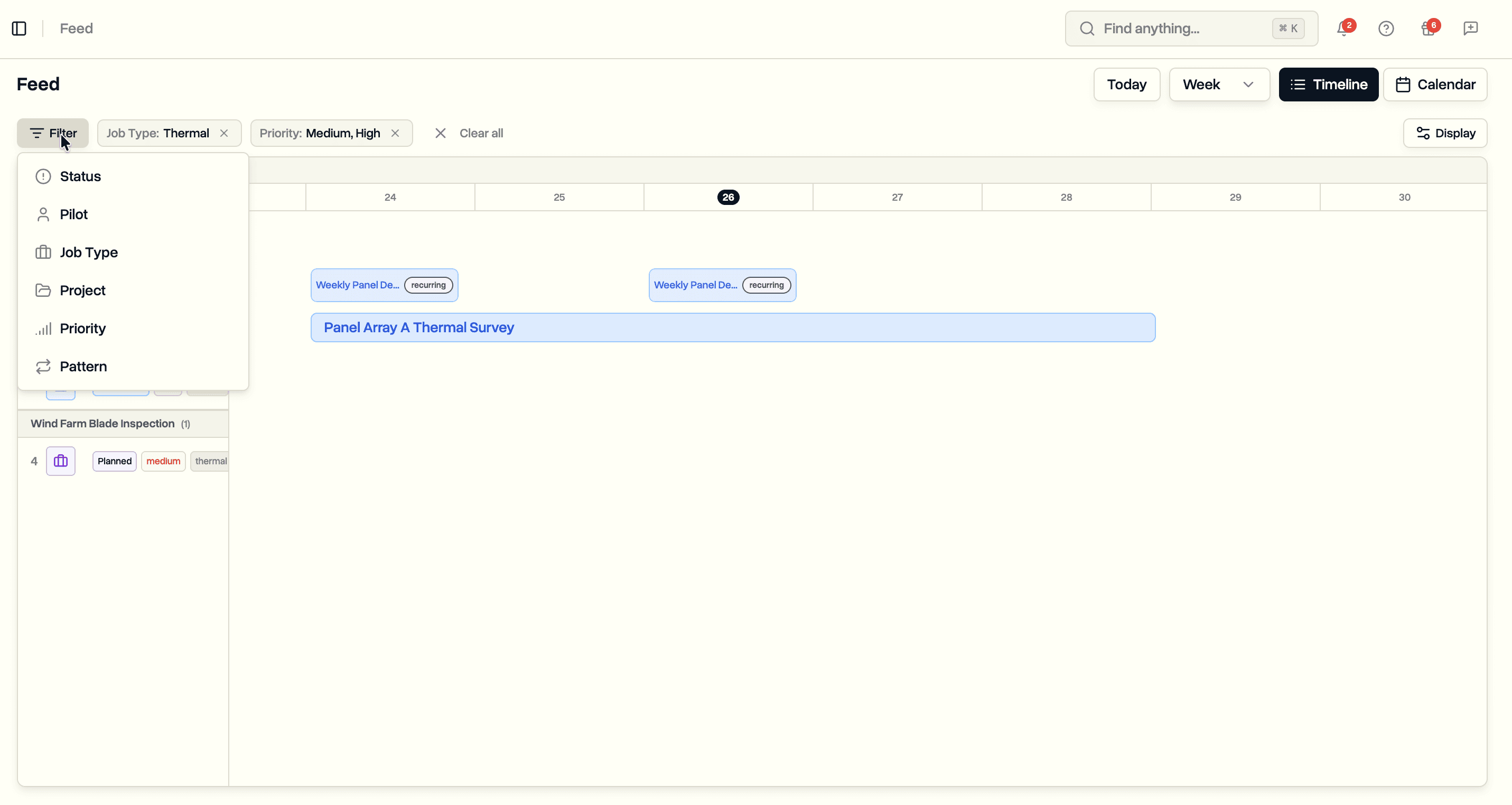
Active filters show as pills below the filter bar. Remove individual filters by clicking the X on each pill, or clear everything at once.
Filters apply to both the timeline and calendar views. Switch between views and your filters stay in place.
Role-Based Defaults
The feed adjusts its default filters based on your role. Pilots and ops leads see their own assigned jobs by default. Clients see all jobs across projects they have access to. You can always clear the defaults and view everything.
Grouping and Sorting
Open the display settings panel to change how jobs are organized.
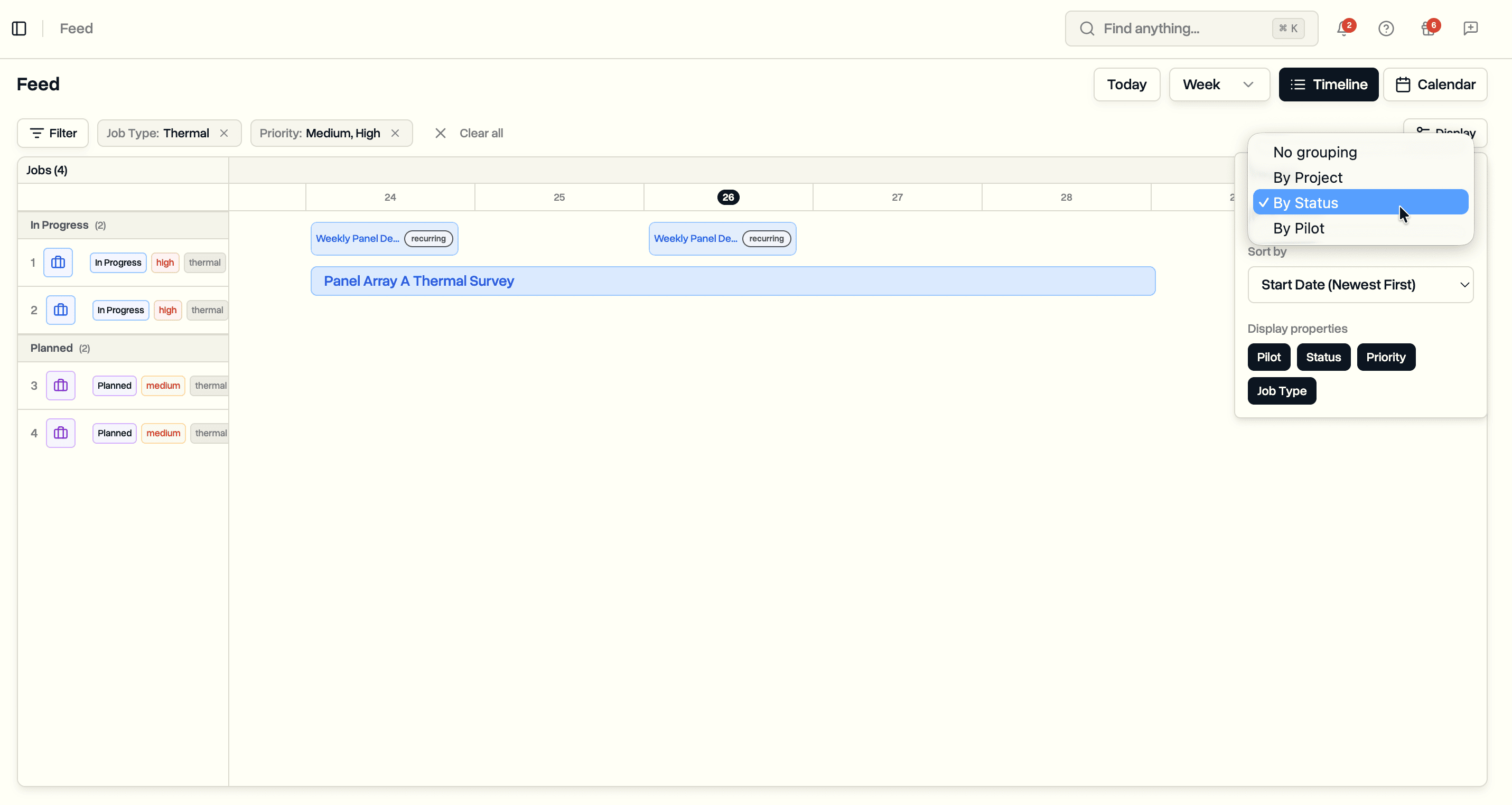
Grouping options:
- No grouping (default)
- Group by Project
- Group by Status
- Group by Pilot
Group headers appear in the sidebar and timeline, showing the group name and a count of jobs in each group.
Sorting options:
- Start Date, newest first (default)
- Start Date, oldest first
- Name A to Z
- Name Z to A
Display Properties
Toggle which details appear alongside each job in the timeline sidebar:
- Pilot. Show assigned pilot names. Jobs with multiple pilots show the first name with a "+N" indicator. Unassigned jobs show a warning icon.
- Status. Show status badges with color coding.
- Priority. Show priority level with color indicators (red for high, amber for medium, gray for low).
- Job Type. Show the type of work as a tag.
Pilot and status display by default. Priority and job type are off by default but available when you need them.
Shareable Views
Every filter, sort, and display setting syncs to the URL. Copy the URL and send it to a teammate. They will see the exact same filtered view.
Settings also save to your browser so the feed remembers your preferences when you come back.
Use Cases
Operations managers planning across a large fleet. Group by pilot to see everyone's workload for the week. Filter to high-priority only to focus on what matters. Share the filtered URL in a team channel so everyone sees the same picture.
Pilots reviewing their own schedule. The feed defaults to showing your assigned jobs. Switch to calendar view for a day-by-day breakdown of what is coming up.
Project managers monitoring a specific project. Filter by project name to pull just those jobs out of the larger workspace. Sort by status to see what is done, what is in progress, and what hasn't started.
Dispatch and scheduling teams triaging unassigned work. Filter for unassigned jobs across the entire workspace, sort by priority, and work through the backlog.
Availability
The job feed is available now for all DroneBundle users. Access it from the Feed tab in the dashboard.
Start your free trial to see your operations on a timeline.
Book a demo to see how the feed works for your team.