Enable pilot mode if you also fly. Switch between manager and pilot views from the sidebar. Assign yourself to jobs. One account, both roles.
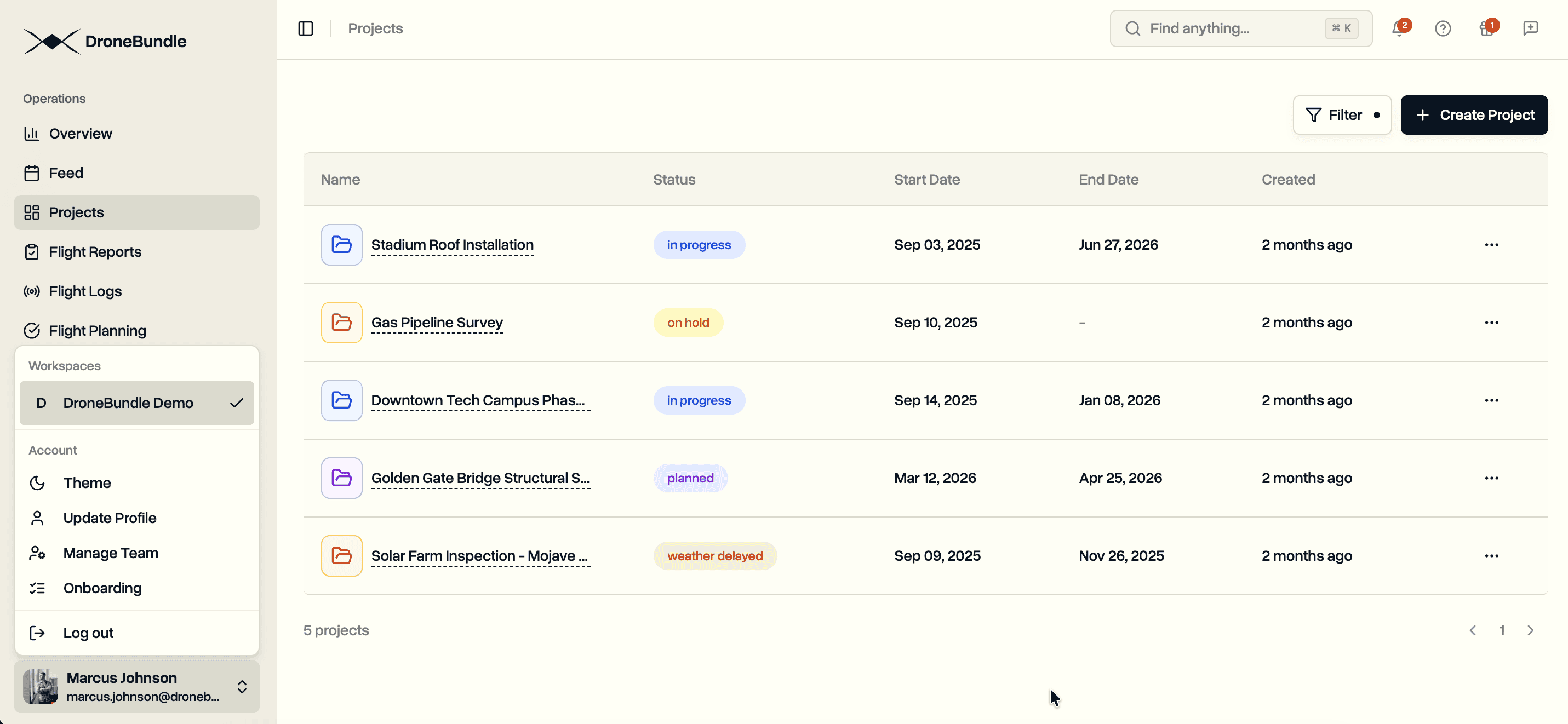
Many drone operation founders and project managers also fly. They manage teams, plan projects, and approve flights. Then they grab a controller and fly missions themselves. In DroneBundle, these were separate workflows. Managers could not be assigned to jobs. They could not mark flights complete. They could not see the pilot-focused interface designed for field work.
The workaround was creating a second account with a pilot role. Two logins. Two email addresses. No shared context between the management view and the pilot view. Equipment assignments, flight logs, and project data split across accounts.
DroneBundle now supports pilot mode for project managers and admins. Enable it once in your profile. Switch between manager and pilot views whenever you need to. No second account required.
How Pilot Mode Works
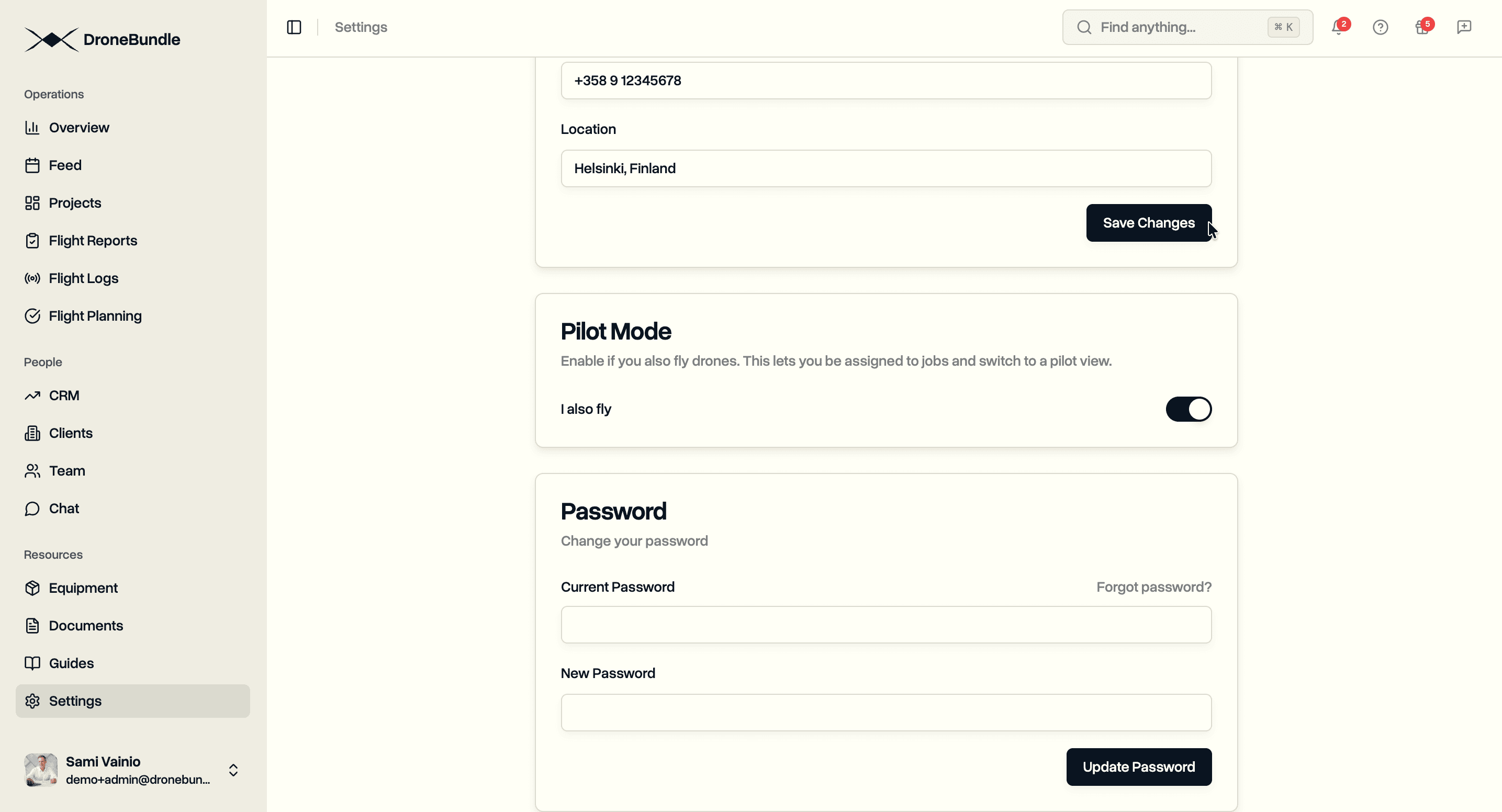
Enable. Go to Settings > Profile. Toggle "I also fly" to enable pilot mode. The system creates a pilot profile linked to your existing account. Your manager permissions remain unchanged.
Disable. Toggle pilot mode off at any time. Your pilot statistics and assignment history are preserved. The system deactivates your pilot profile but does not delete it. Re-enable later without losing data.
Permissions. Only project managers and admins can enable pilot mode. The feature is not available for other roles since they already have their own dedicated interfaces.
View Switcher
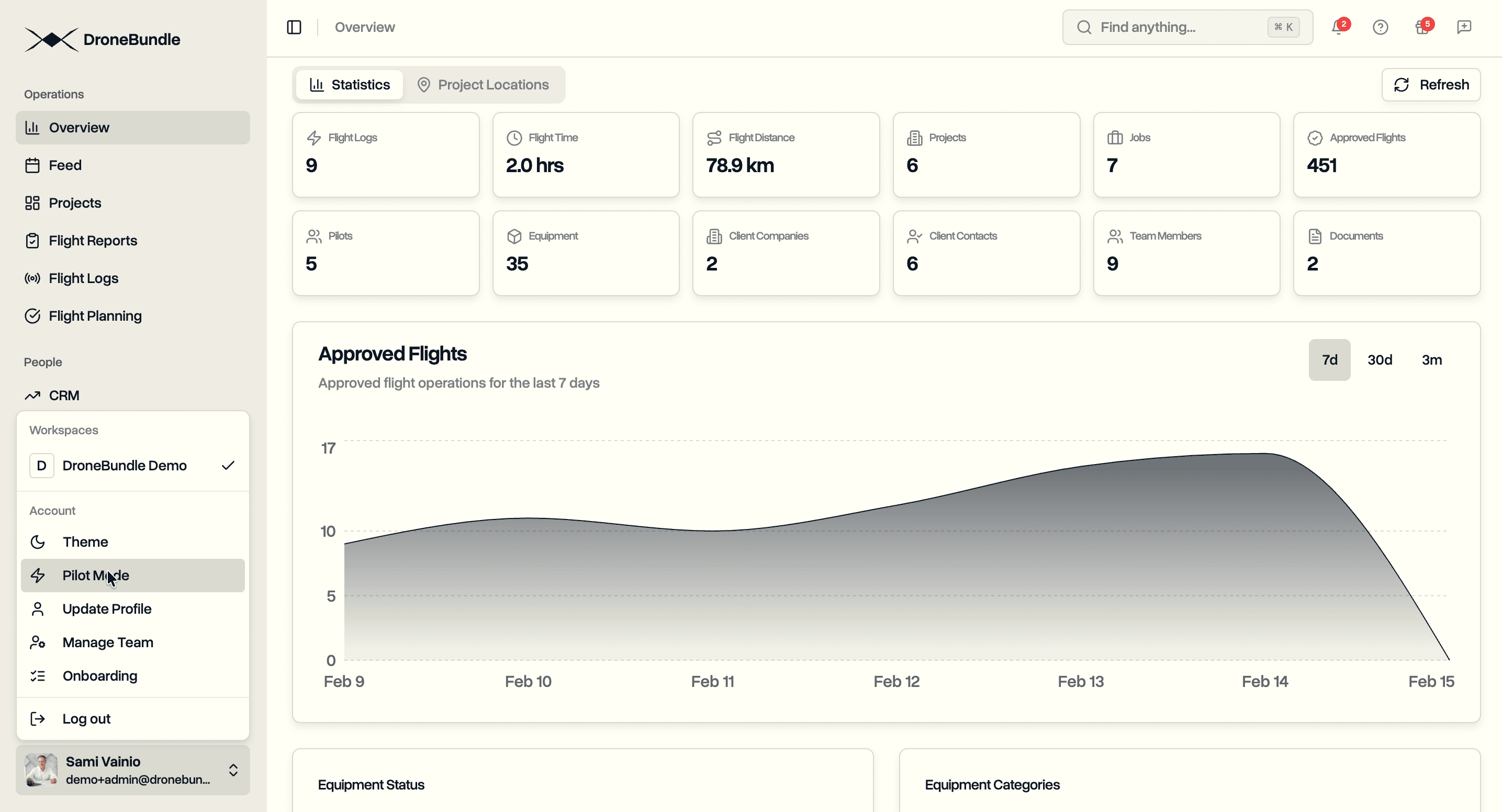
Once pilot mode is enabled, a view switcher appears in your sidebar menu.
Manager view. Full access to projects, team management, flight approvals, CRM, and all administrative functions. This is your default view.
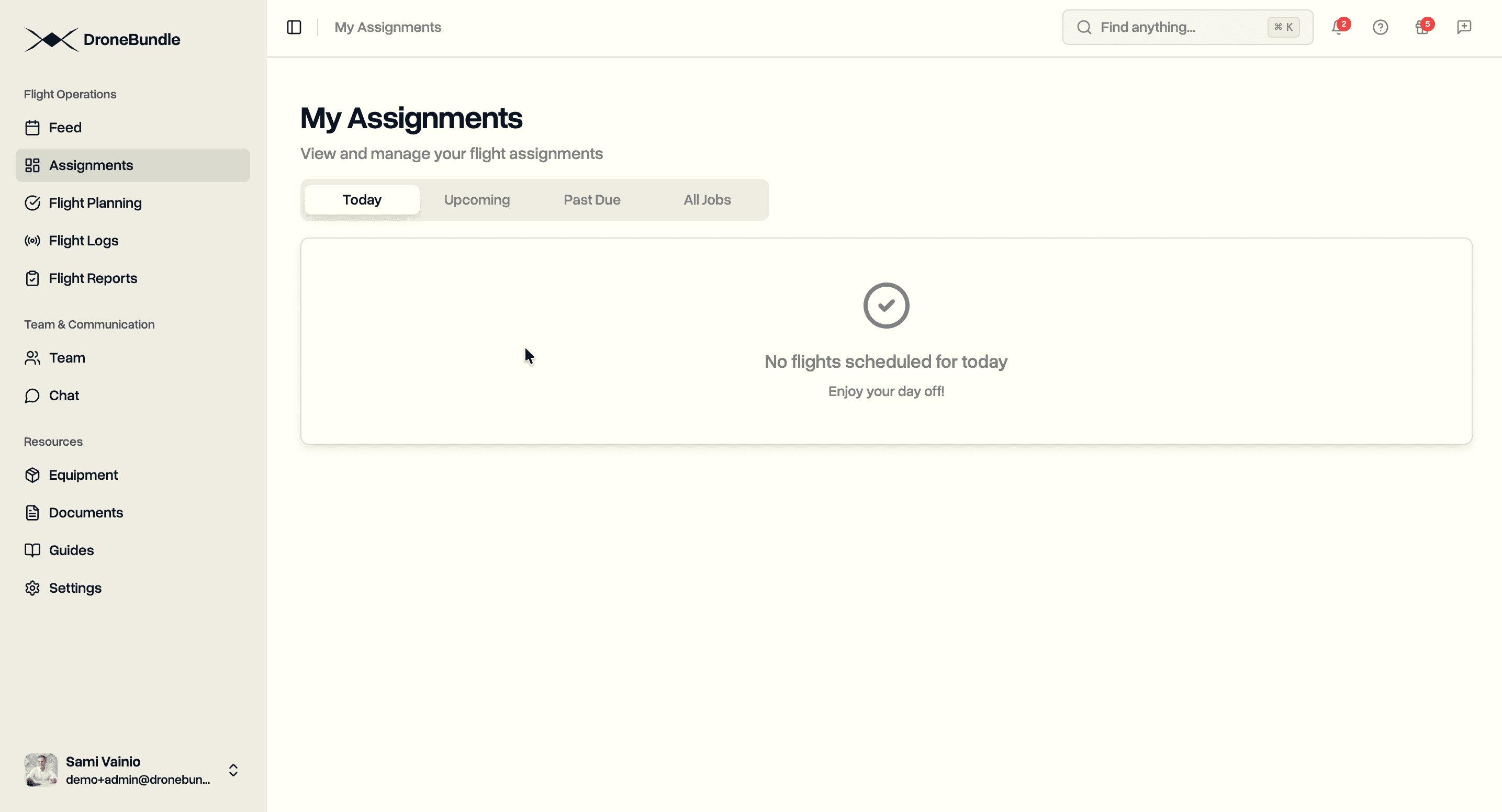
Pilot view. Focused interface showing your assignments, daily missions, and flight completion workflows. The sidebar navigation switches to pilot-specific pages. Same interface your pilots see.
Your selected view persists across sessions. Switch back anytime from the sidebar menu.
Self-Assignment
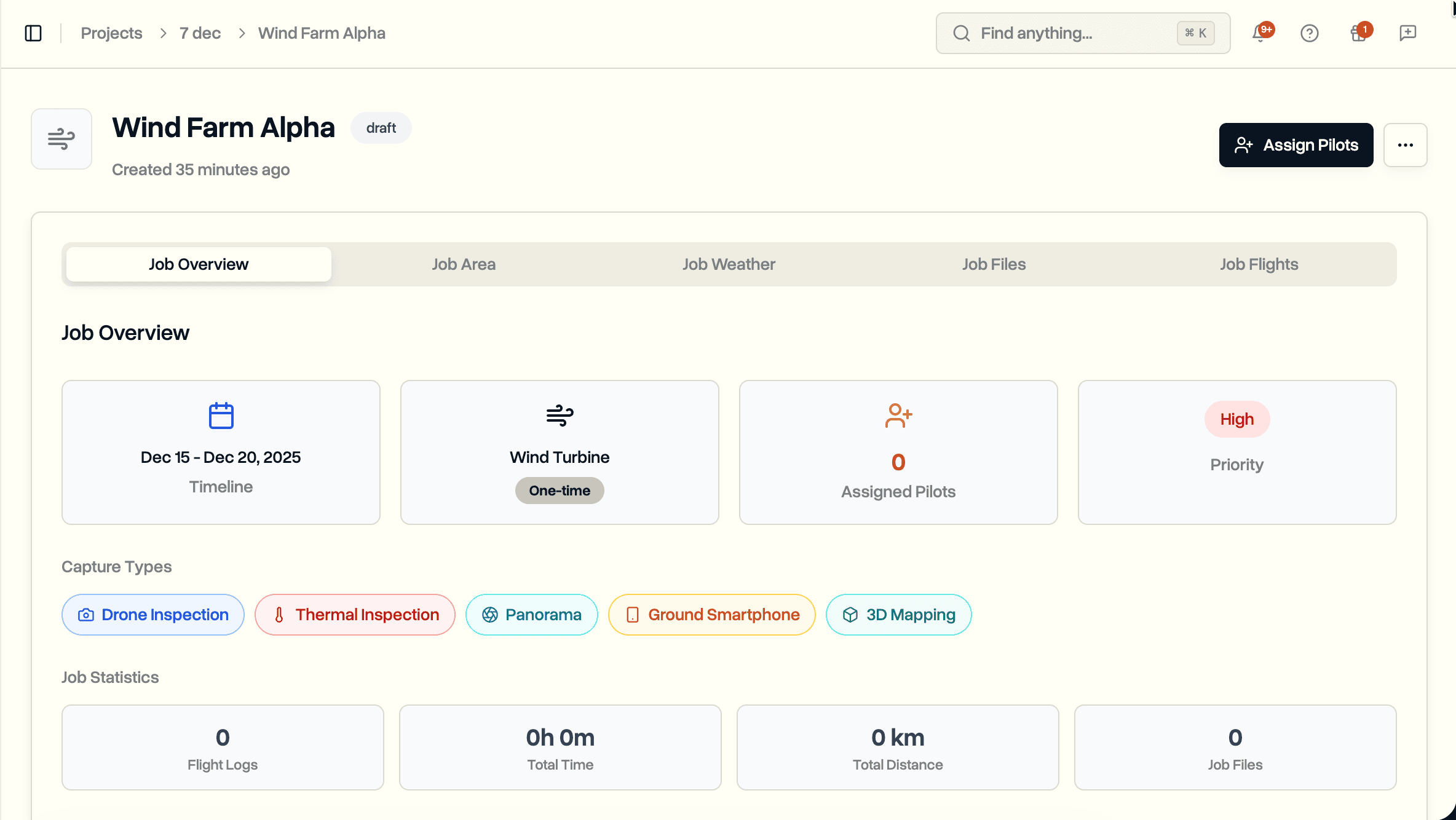
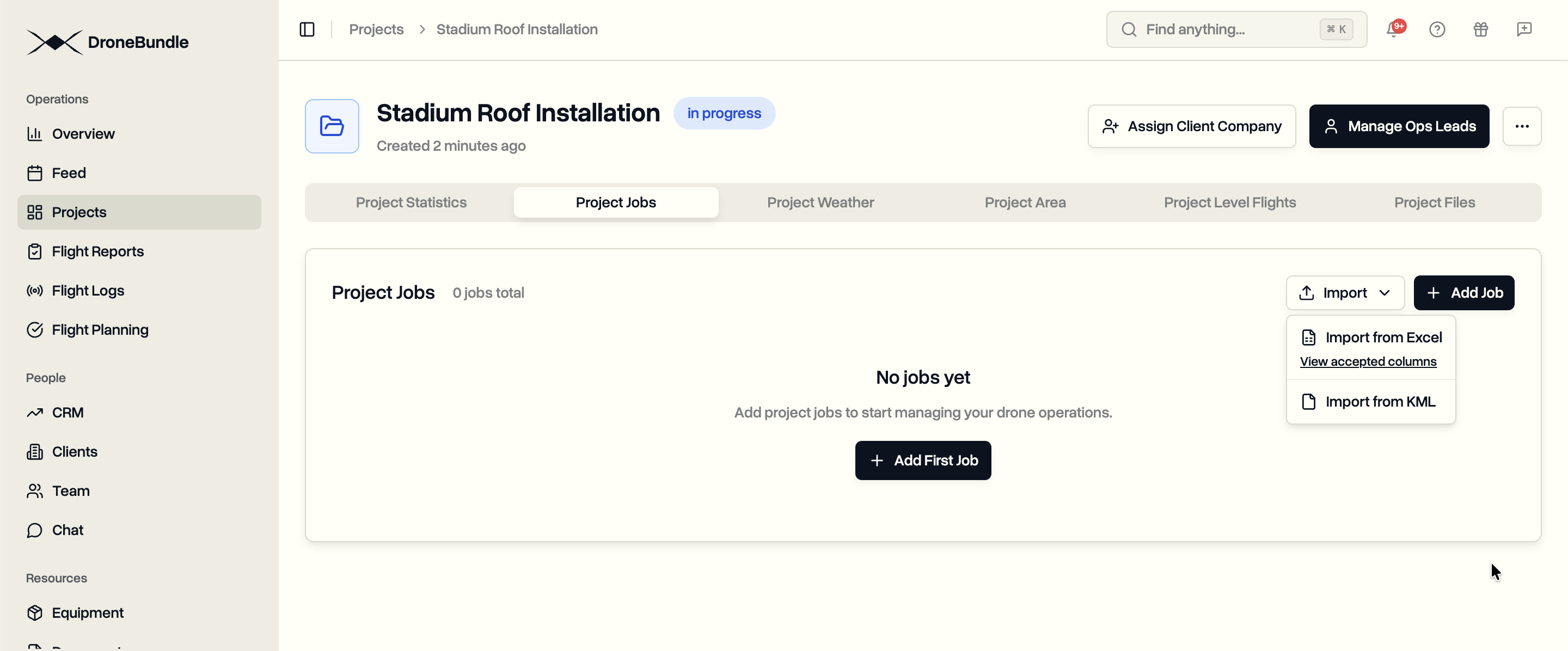
With pilot mode enabled, you appear in the pilot assignment list when creating or editing jobs. Assign yourself alongside your team members.
Assigned jobs appear in your pilot view under Assignments. Mark flights complete, add completion notes, and submit for approval just like any other pilot on your team.
Smart Notifications
When you complete a flight and approve it yourself, the system skips redundant email notifications. No email telling you that you approved your own flight. No notification that your own flight was marked complete.
The system identifies self-actions and suppresses duplicate notifications automatically. Other team members still receive their normal notifications for your flights.
Use Cases
Owner-Operators. Solo operators or small companies where the founder manages the business and flies missions. Full management capability plus a clean pilot interface for field days.
Field Managers. Project managers who occasionally cover pilot shifts. Switch to pilot view for the day, complete assigned missions, switch back to management view.
Training Operations. Managers who fly training missions alongside new pilots. Assign yourself to the same jobs as trainees. Review their submissions from the manager view afterward.
Backup Coverage. When a pilot is unavailable, project managers can self-assign and cover the mission without creating temporary accounts or reassigning through workarounds.
Availability
Pilot mode is available now for all project managers and admins on DroneBundle. Enable it from Settings > Profile.
Start your free trial to manage your team and fly missions from one account.
Try the live demo to see pilot mode in action.