Upload an Excel spreadsheet to create multiple drone inspection jobs at once. Each row becomes a job with its own location on the map. The system recognizes common column names automatically.
Large drone inspection projects involve dozens or hundreds of individual job sites. Wind farm inspections cover multiple turbines. Solar installations span acres of panels. Transmission line surveys follow miles of infrastructure. Creating each job manually wastes hours clicking through forms and entering coordinates.
Existing bulk import solutions demand rigid templates. Column names must match exactly. Missing fields cause import failures. Users spend time reformatting spreadsheets to match system requirements instead of flying missions.
DroneBundle now supports flexible Excel bulk import. Upload any spreadsheet with job locations. The system recognizes common column names and fills in what it can. Review everything in a preview before creating jobs. Complete missing fields during preview rather than fixing spreadsheets.
How It Works
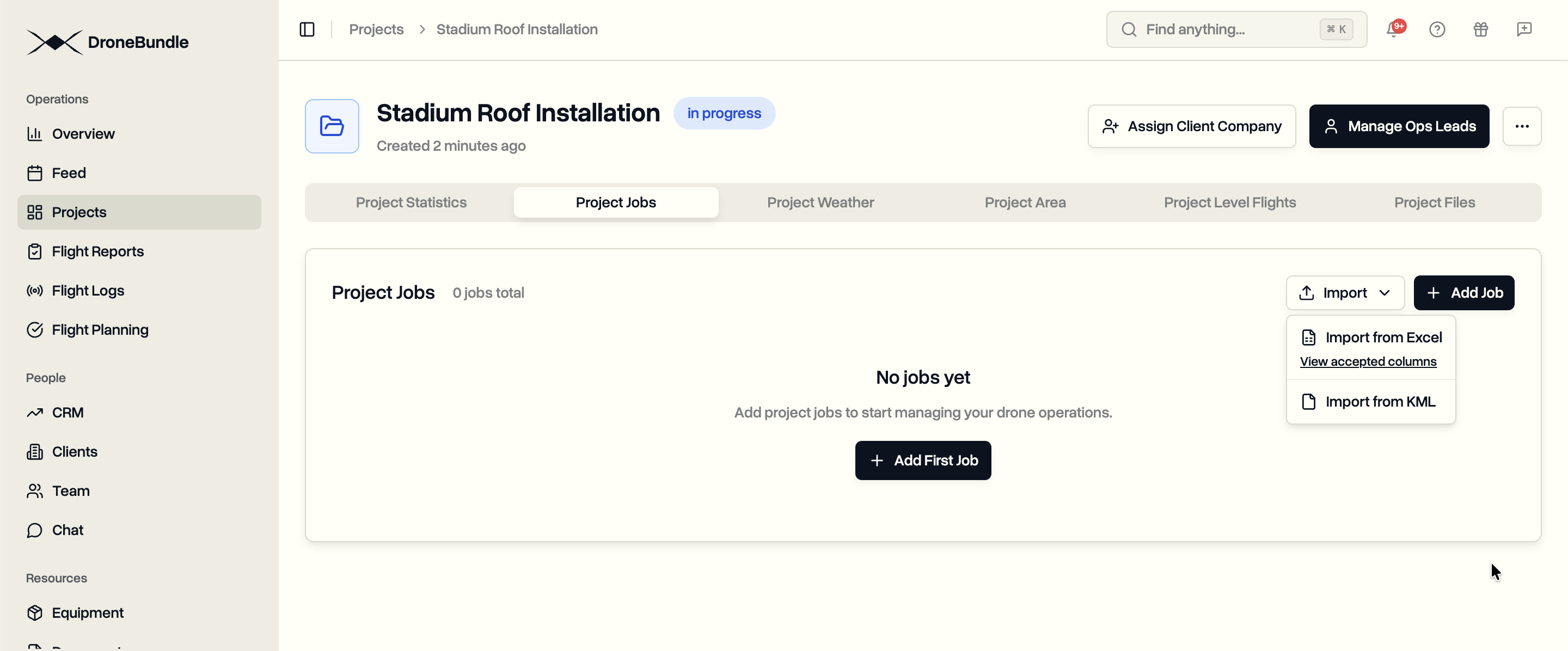
Upload. Navigate to your project's Jobs tab. Click Import, then Import from Excel. Select your .xlsx or .xls file (up to 10MB).
Automatic Column Matching. The system scans your column headers and matches them to job fields. Column names are case-insensitive. Common variations are recognized automatically.
Preview and Edit. Every imported row appears as a job card with a map preview. Edit any field directly. Fill in missing information. Deselect jobs you don't want to create.
Create Jobs. Click Create Jobs when ready. Each selected row becomes a job with its own circular work area on the map.
Accepted Columns
The system recognizes these fields from your Excel file:
| Field | Accepted Column Names |
|---|---|
| Name | name, Job Name, Code, Location Code |
| Type | type, Job Type, Geotype, Category |
| Latitude | latitude, Lat |
| Longitude | longitude, Lon, Long, Lng |
| Description | description, Address, Location, Details |
| Notes | notes, Note, Comment, Comments, Restrictions, Remarks |
| Priority | priority, Priority |
| Status | status, Status |
| Start Date | start_date, Start Date, Date, Scheduled Date |
| End Date | end_date, End Date, End, Completion Date |
Column names are case-insensitive. "latitude", "Latitude", and "LATITUDE" all work.
No Required Fields
Unlike rigid import systems, DroneBundle does not reject files with missing columns. Include whatever data you have. The system imports what it recognizes. Fill in missing fields during the preview stage.
Have a spreadsheet with just coordinates? Import it. Add names and job types during preview.
Have location codes but no coordinates? Import it. The system shows which fields need completion before job creation.
Use Cases
Wind Farm Inspections. Import turbine location databases directly. Each turbine becomes a job with its GPS coordinates already mapped.
Solar Panel Surveys. Upload panel array coordinates from site planning documents. Create inspection jobs for each array section.
Transmission Line Patrols. Import tower location lists from utility databases. Generate inspection jobs along the entire route.
Construction Progress Monitoring. Convert site survey coordinates into recurring inspection jobs. Track progress across multiple locations.
Agricultural Surveys. Import field coordinates from farm management systems. Create crop monitoring jobs for each field section.
Availability
Excel bulk import is available to all DroneBundle users. Access it from any project's Jobs tab through the Import menu.
View the complete column reference for detailed formatting guidance.
Try the live demo to test bulk import with sample data.