Pilot Schedule
Every flight has a pilot before the week starts.
A week view of your whole operation: one row per pilot, their flights by day and hour, and a count of every flight that still has nobody on it. Set up shifts once, plan each pilot’s week, and assign a whole shift or a single flight.
Included on Team and Enterprise, and in every free trial.
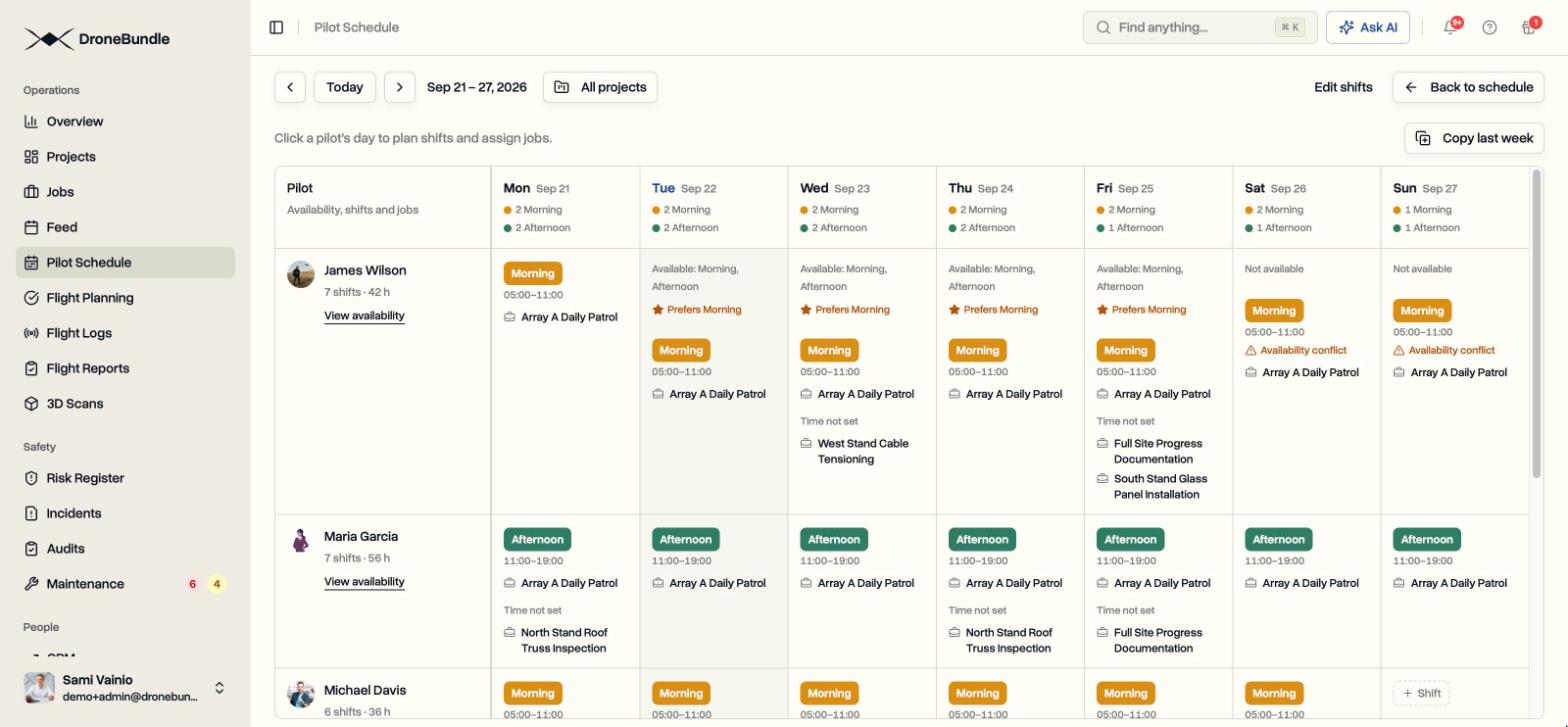
One week. Three ways to read it.
Monday to Sunday, filtered to one project or the whole workspace, with times that follow each job’s own timezone. A single line above the grid counts the flights that still need a pilot, and clicking it takes you straight to them.
- By pilot
- One row per pilot, every flight drawn at its time on an hour scale, with the job, the first and last flight, and the shift they are planned on. Working hours and time off show on each day.
- By job
- The same week from the other side. One row per job, the pilot on each block, and every gap highlighted as Needs pilot with an Assign pilots link right on it.
- Plan shifts
- A grid of pilots and days. Click a cell to give a pilot a shift for that day and put them on the jobs flying inside it. Copy last week when the pattern repeats.
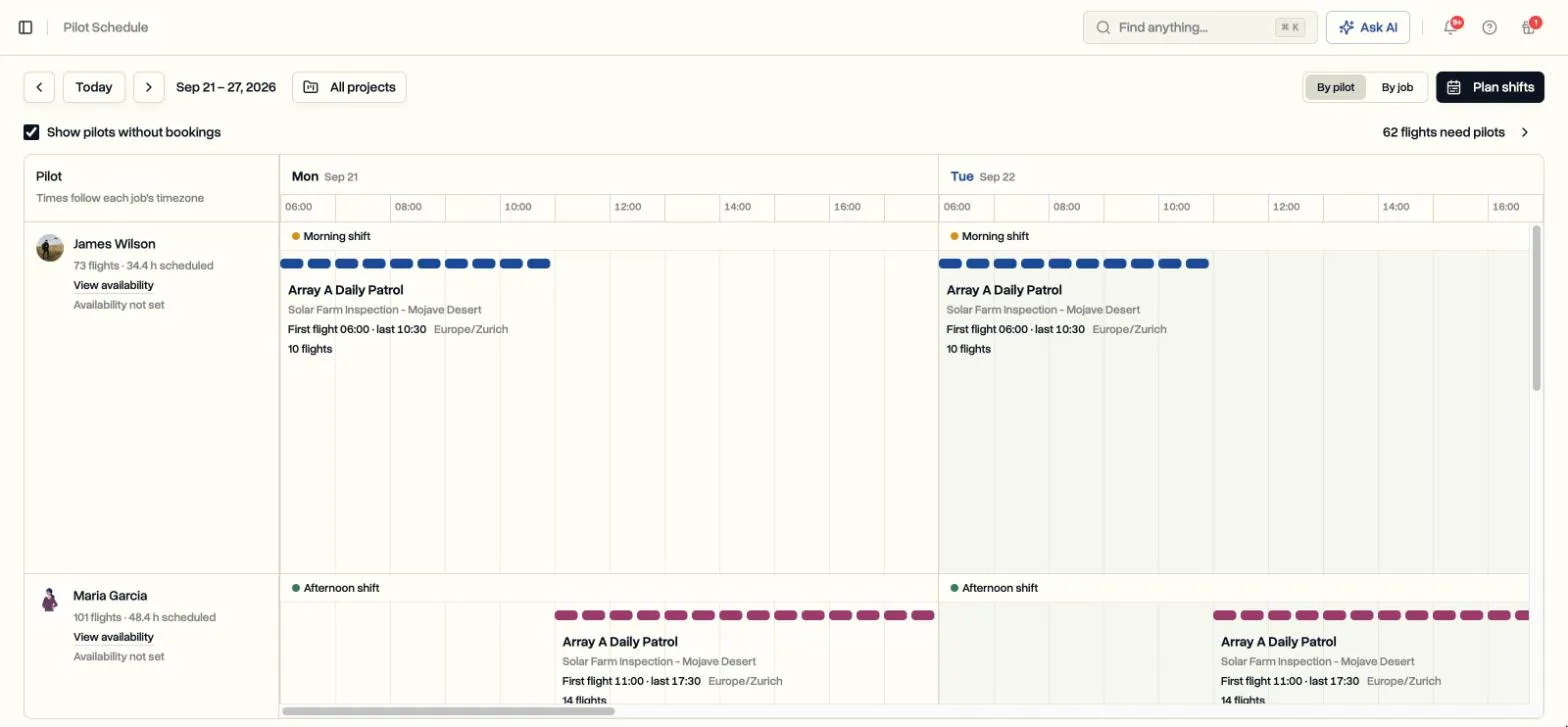
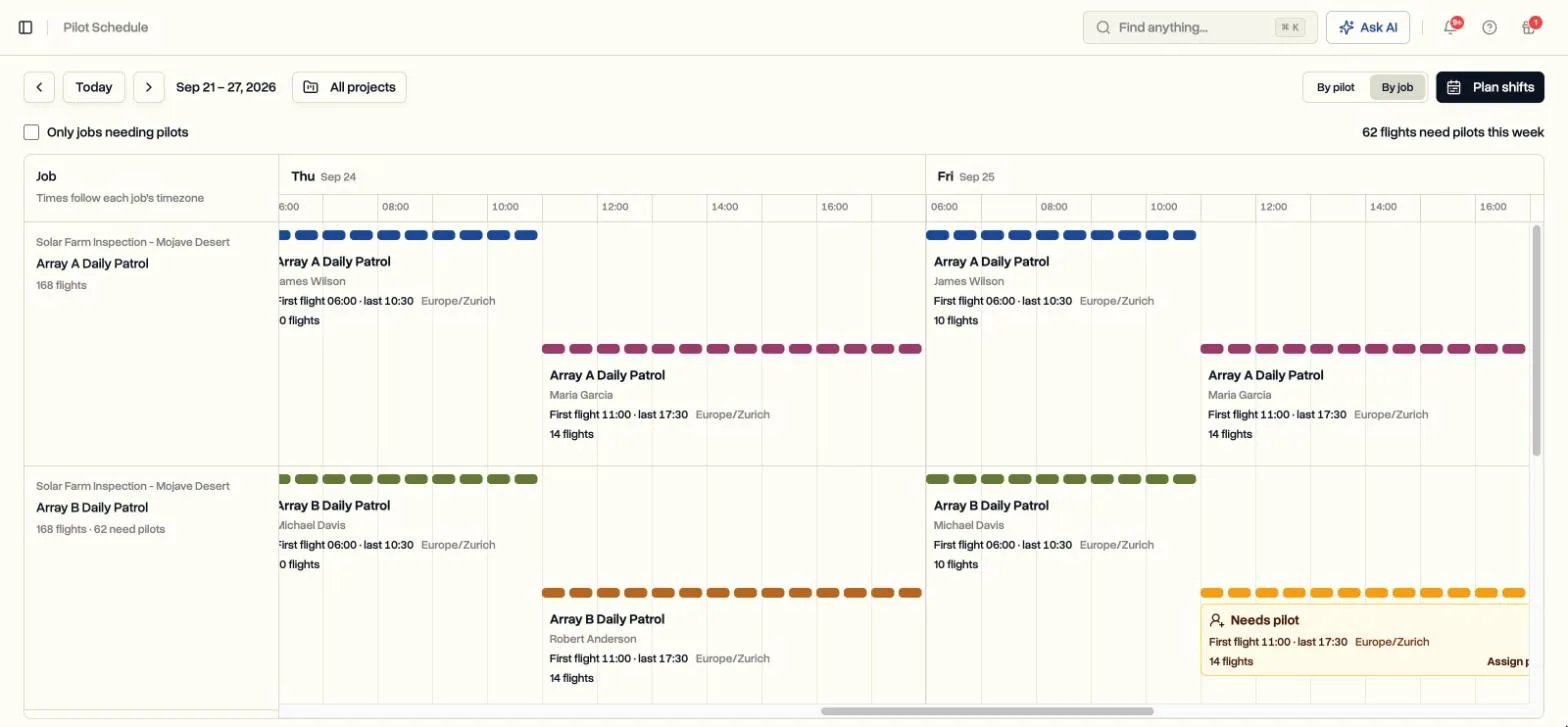
Plan each pilot’s week, one day at a time.
Name your shifts once, then click a pilot’s day and tick the shift they are working. The panel lists every job flying that day and shows exactly which of its flights fall inside the shift, so one tick puts the pilot on those flights and no others.
Apply to more days repeats the same assignment across the dates you tick. Planning a shift on its own never assigns flights.
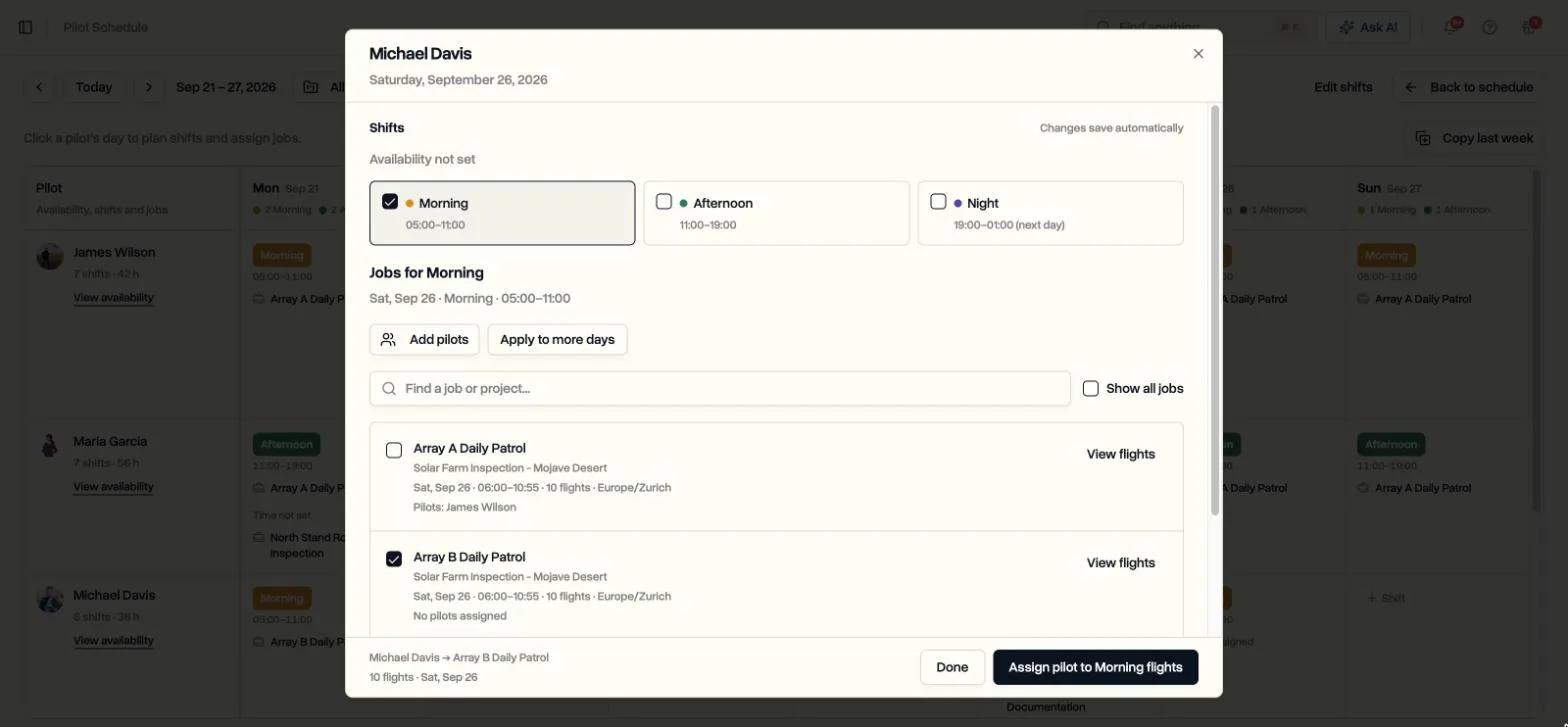
Assign a shift, a day, or a single flight.
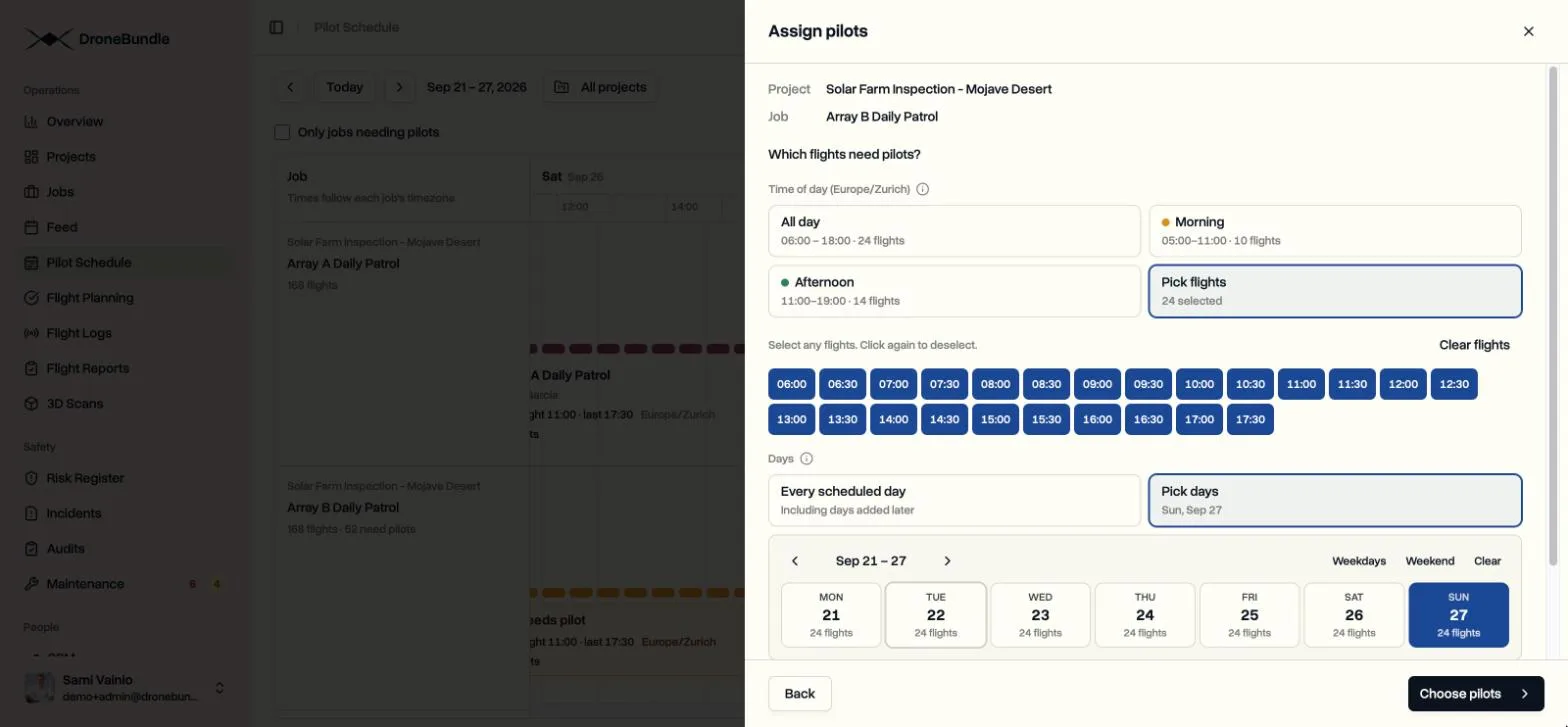
When a job has more than one flight, the assign dialog asks which flights need pilots. Choose all day, one of your named shifts, or pick individual flight times. Then choose every scheduled day, including days added later, or tick the dates you mean.
Each pilot in the list shows the shift they are planned on, whether the flights fit their working hours, and any other job they are already booked on. Warnings advise, they never block.
Pilots tell you when they can fly.
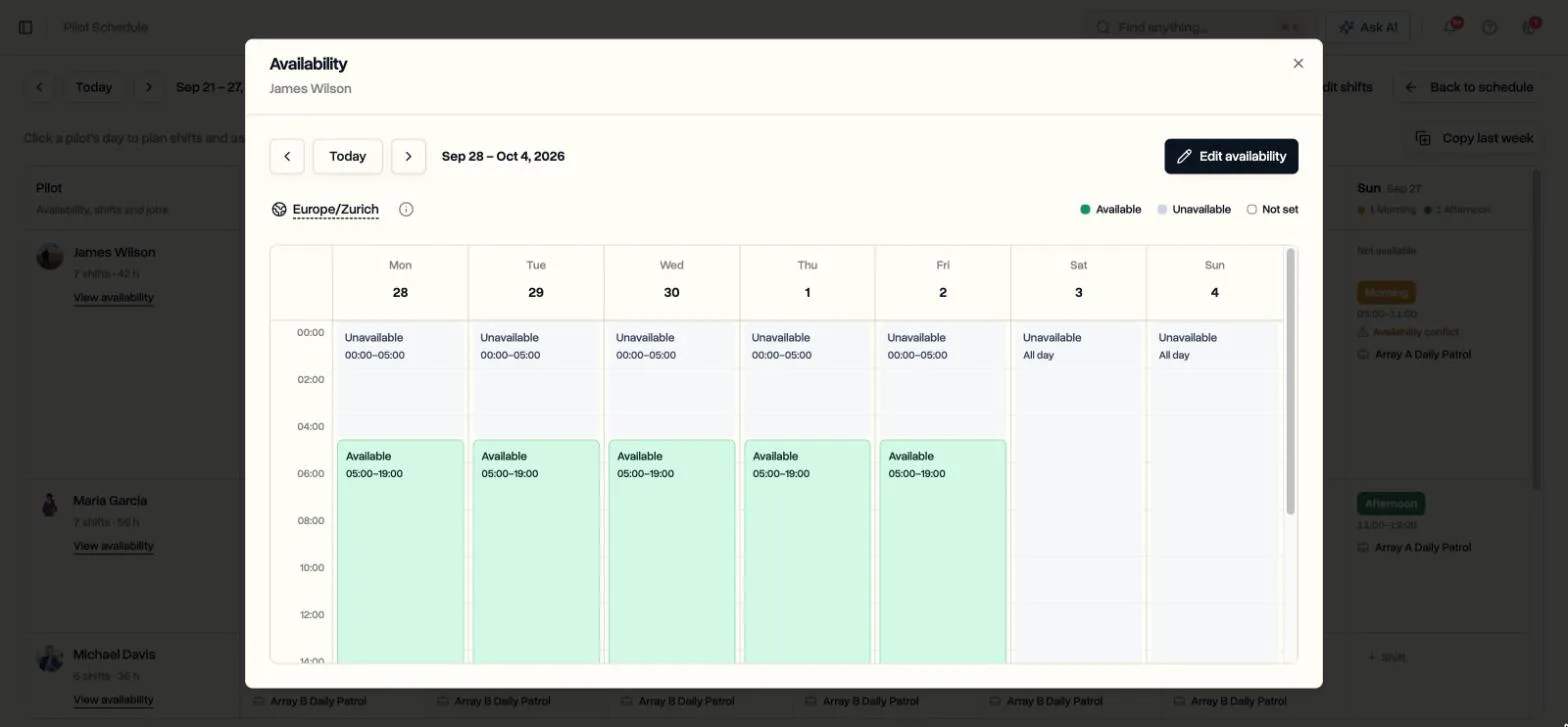
Every pilot has a My Availability page. For each weekday they choose not available, all day, a set of your named shifts with a star on the ones they prefer, or custom hours, and add time off for specific dates. Managers can edit the same hours for any team member.
Hours nobody has entered count as unknown, not unavailable. The schedule shades hours outside availability, flags bookings that fall outside them, and the assign dialog checks every flight before you confirm.
The pilot sees it on their phone.
An assigned pilot gets an email the moment the assignment is saved. Their Assignments page lists the flights with their times, and the schedule, the shift plan, and availability are all in the iPhone and Android app.
Dock flights close the loop on their own.
Flights are marked complete from the same list, and managers can complete a whole day of a job’s flights at once. With DJI FlightHub 2 sync, dock flights match their scheduled flight, complete it, and credit the rostered pilot.
Plan next week pilot by pilot.
Pilot Schedule, shifts, per-flight assignment, and pilot availability are included on Team and Enterprise, and in every free trial. There is nothing to switch on. It is in the sidebar under Operations, right after Feed.
Before your first week
Do I have to use shifts?
No. Shifts are optional. Without them, the assign dialog offers Before noon and Noon onward, and you can always pick individual flights. Shifts make sense once you plan the same pattern week after week.
What does a job need for the schedule to show its flights by hour?
Fixed flight times. Any recurring job can have them, set on the job as a first flight, a finish time, and the gap between flights. Jobs with dates but no flight times still appear on the schedule, marked Time not set.
Who can plan shifts and assign flights?
Workspace owners and project managers plan shifts, assign flights, and edit any pilot’s availability. Operations leads can open the schedule. Pilots see their own assignments and manage their own availability, on the web and in the iPhone and Android app.
What happens when a dock flies the scheduled flights?
With DJI FlightHub 2 sync connected, each dock flight is matched to the scheduled flight whose window covers its takeoff, marked complete, and credited to the rostered pilot. The week you planned turns into flight hours without anyone retyping it.