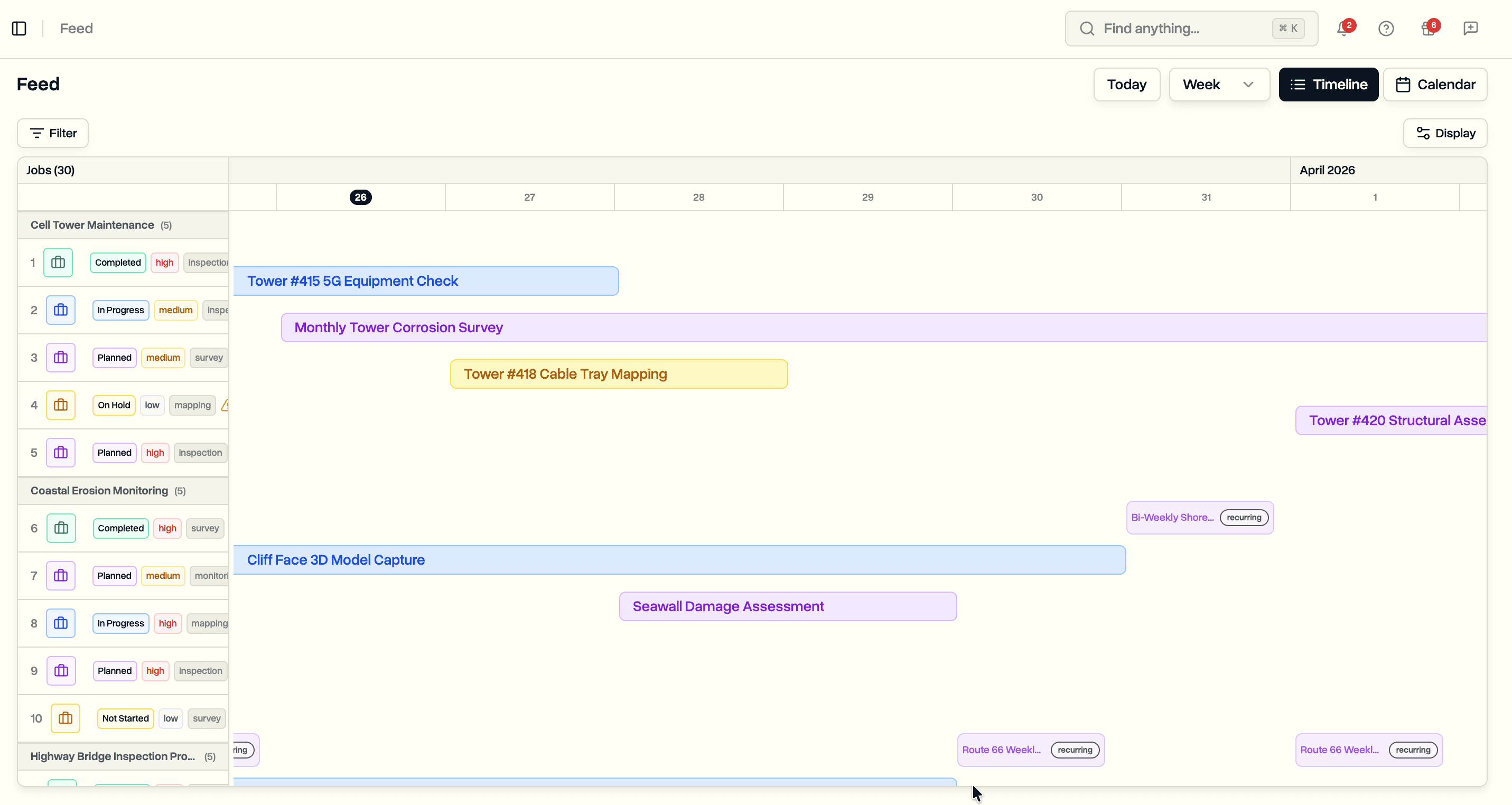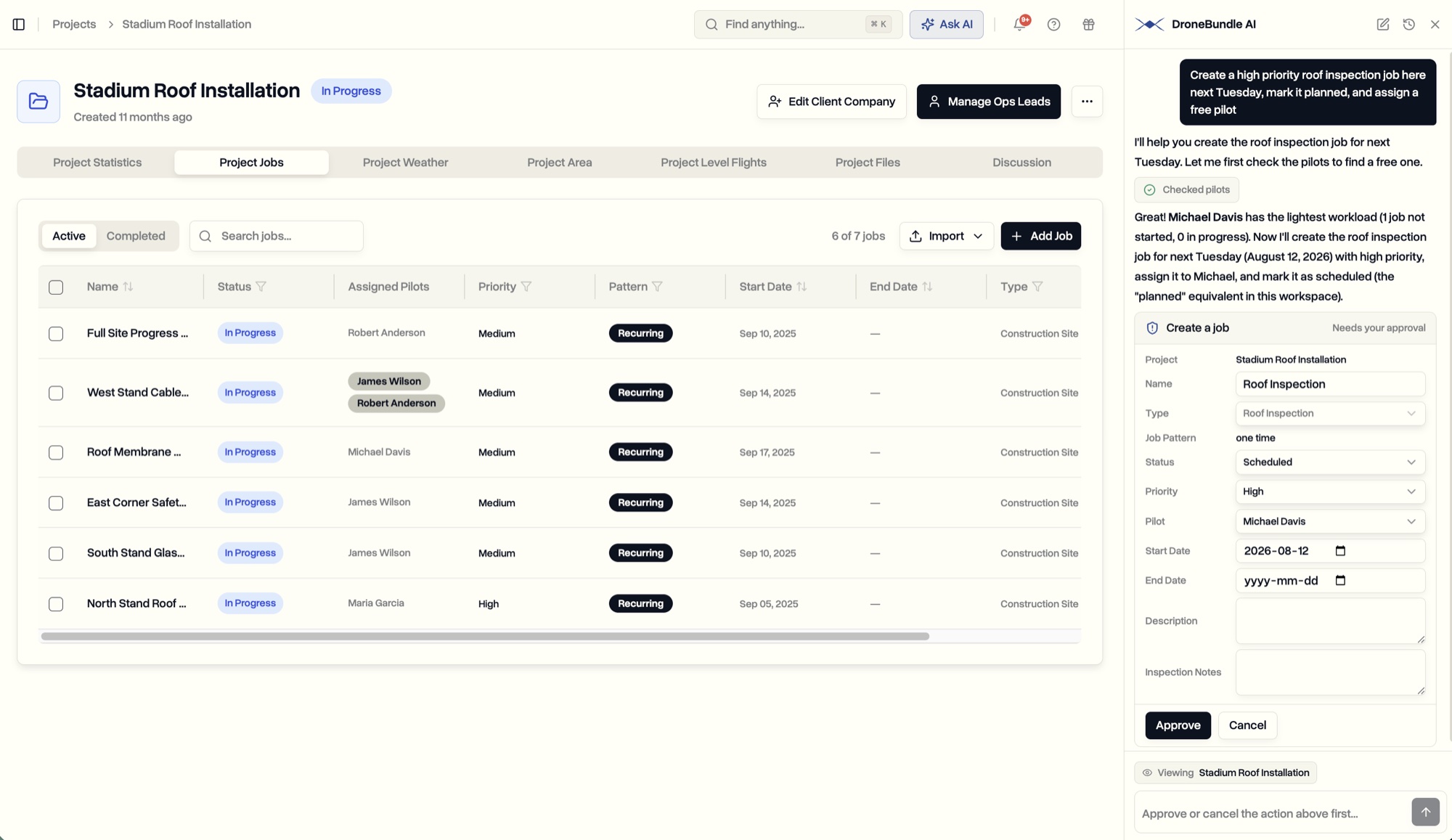
Pilot Schedule is a week view of your whole operation: one row per pilot, their flights laid out by day and hour, and a count of every flight that still has nobody on it. Set up your shifts once, plan each pilot’s week, assign a whole shift or a single flight, and the pilot sees it on their phone.
A job in DroneBundle can carry a lot of flights. A site that gets flown every morning for a month is one job with thirty flights. A dock that runs every half hour from six to six is one job with twenty-four flights a day. That has been easy to set up for a while. What was missing was the other half: who is flying each of those flights, and can you see the whole week at once.
Assigning a pilot to a job used to mean assigning them to all of it. That works when one person owns a site. It falls apart the moment two pilots split a day, or one pilot covers the mornings on three sites, or someone is off on Wednesday and their flights need to go somewhere. The answer lived in a spreadsheet next to the app, and the spreadsheet was never quite in sync with the jobs.
Pilot Schedule replaces the spreadsheet. It is in the sidebar under Operations, right after Feed, and it is switched on for every workspace on Team and Enterprise.
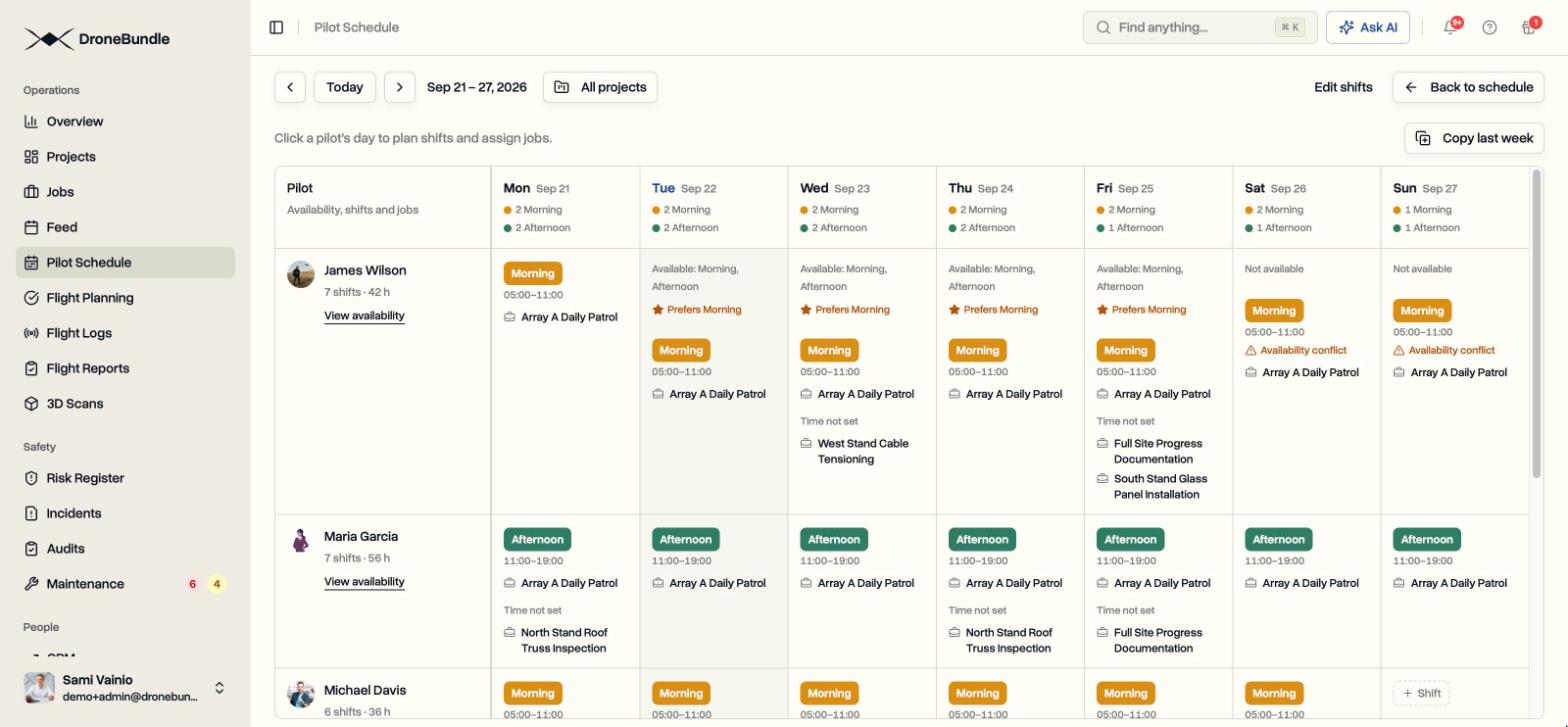
The Whole Week on One Screen
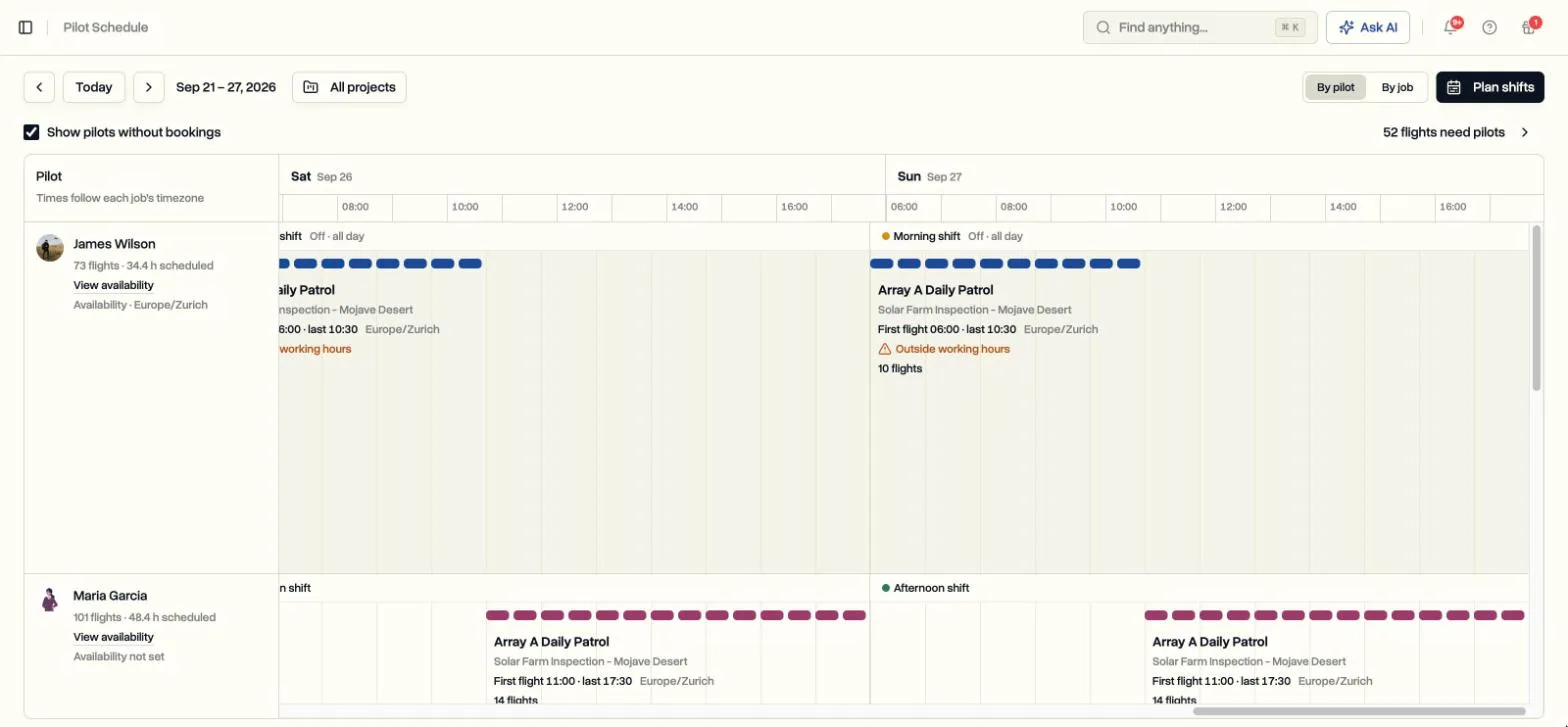
Open Pilot Schedule and you get the current week, Monday to Sunday, with a row for each pilot and an hour scale across each day. Every flight a pilot is booked on sits at its time as a bar, grouped by job, with the project, the first and last flight, and the number of flights written underneath. The shift they are planned on is labelled at the top of the day. Flights that overlap are stacked in lanes, so a pilot covering two docks on the same morning shows two rows of bars rather than one hiding the other.
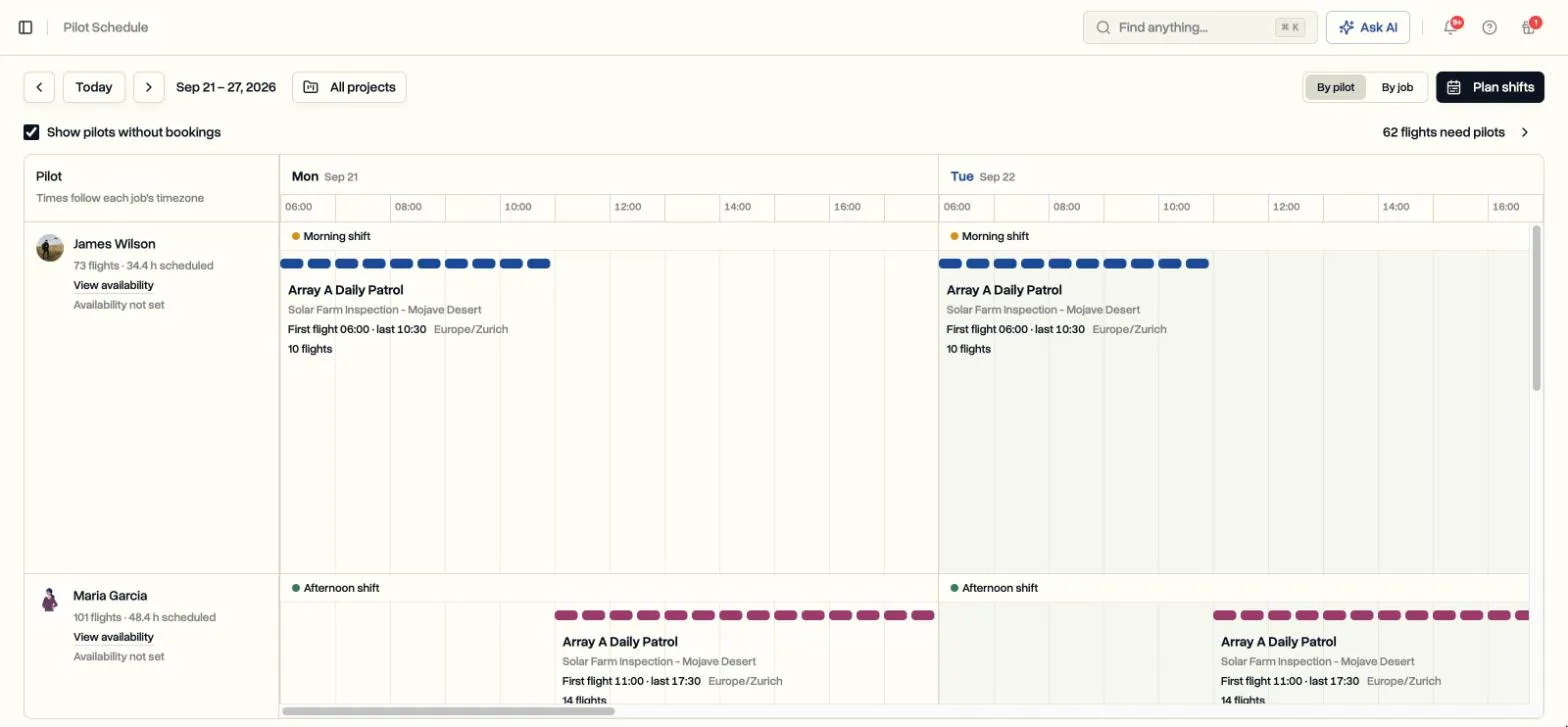
Above the grid, a single line tells you what matters: how many flights this week still need a pilot. Click it and the view flips to By job, filtered to only the jobs with a gap.
The By job view is the same week seen from the other side. One row per job, the flights across the days, and the pilot on each block. Anything without a pilot is highlighted as Needs pilot with an Assign pilots link right on the block. It answers the question a site manager asks, which is not “what is Maria doing on Thursday” but “is somebody flying Array B on Thursday afternoon”. Both views share the same project filter, so you can narrow the week to one site or one client.
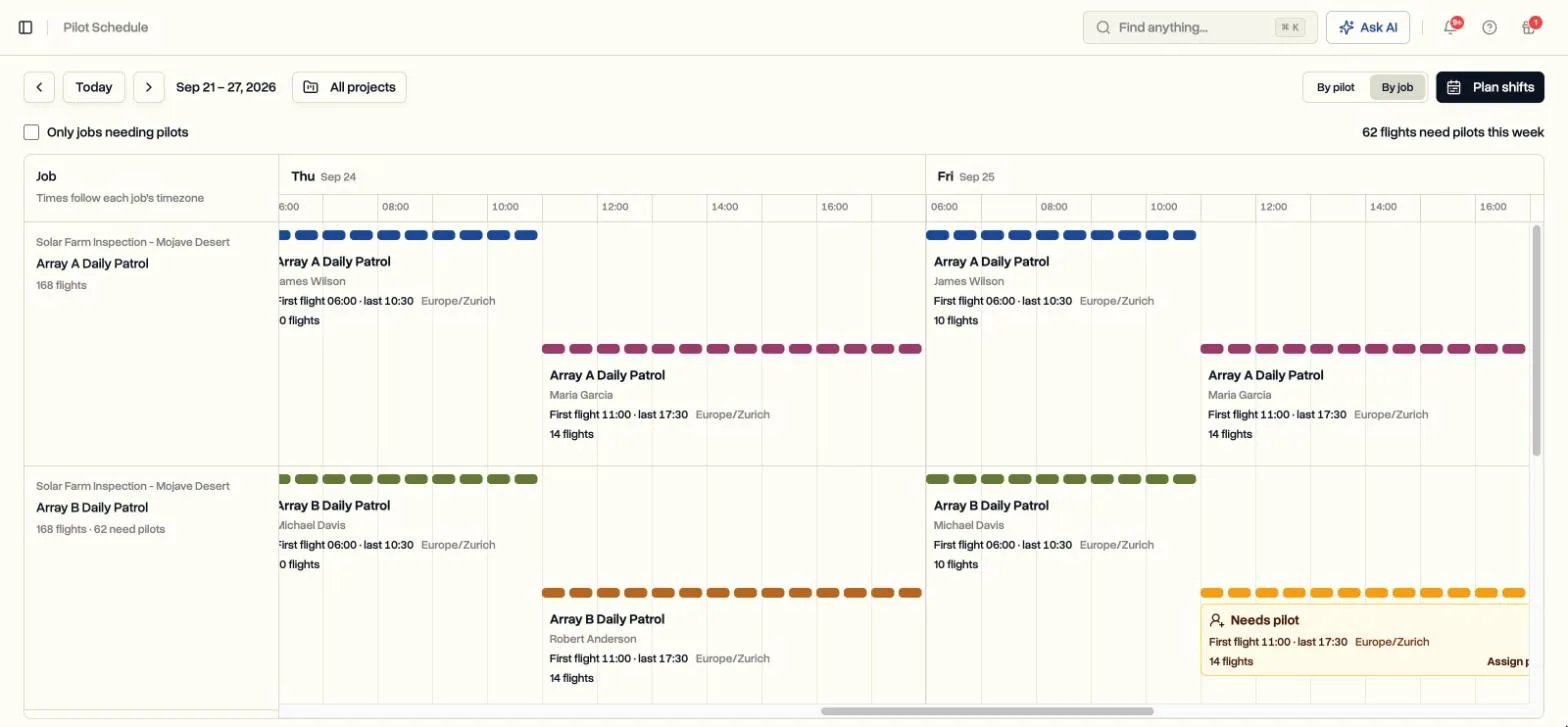
Times follow each job’s own timezone, so a week that spans sites in two time zones reads correctly in each row. Jobs that have dates but no fixed flight times still appear, marked Time not set, so nothing scheduled is left out.
Set Up Your Shifts Once
Most teams that run flights all day already think in shifts. DroneBundle lets you name yours. Open Plan shifts from the schedule and press Edit shifts, or find the same thing under Settings and Customization. Each shift has a name, a start time, and an end time. A workspace without shifts opens on a suggested three, Morning, Afternoon, and Night, which you can rename, retime, or delete before saving.
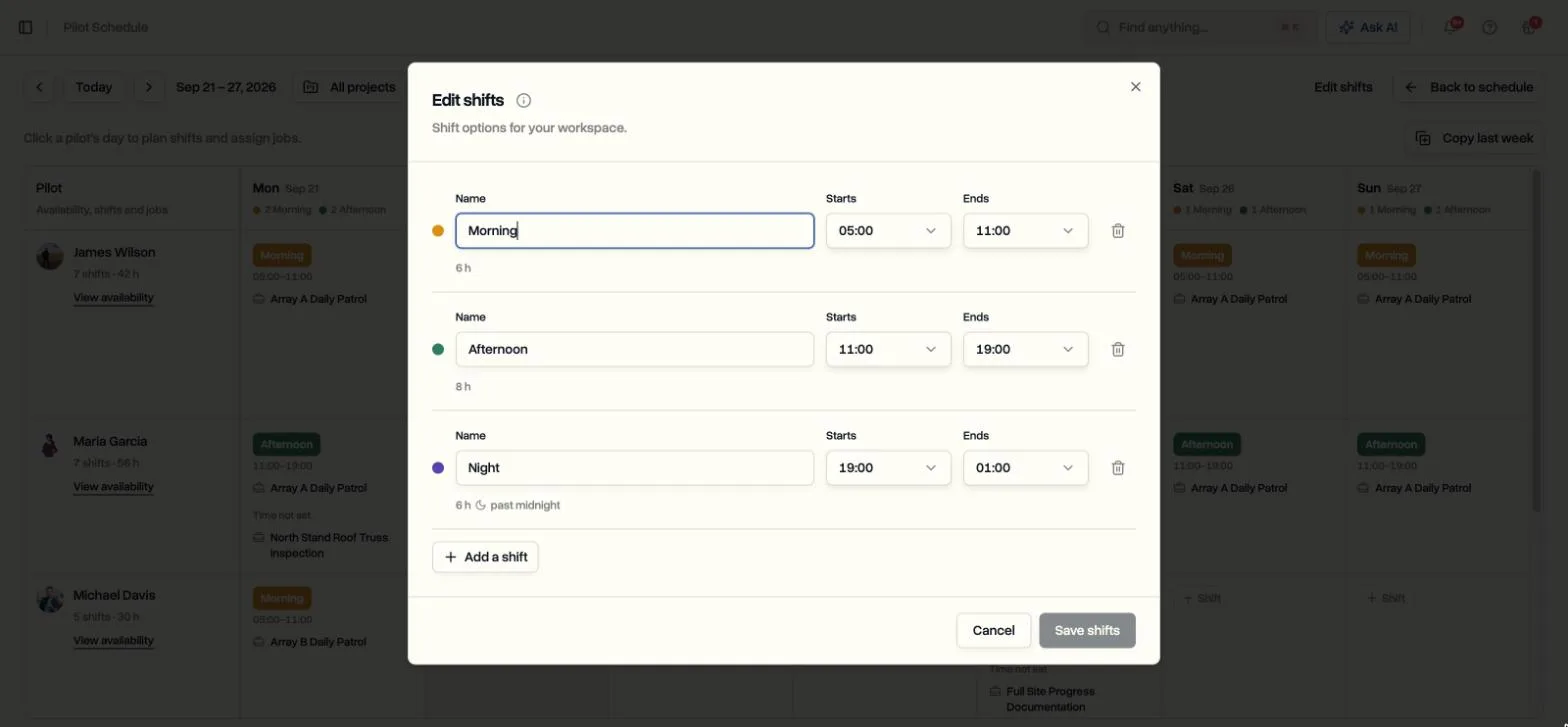
Shifts can cross midnight. A shift from 19:00 to 01:00 belongs to the day it starts and includes the following morning, so a night crew is planned on the evening they clock in, not split across two dates.
Plan Each Pilot’s Week
Press Plan shifts and the grid changes to one cell per pilot per day. Click a cell and a panel opens for that pilot and that date. Tick their shift and it saves on its own. Below the shift, the panel lists every job with flights on that day and shows exactly which of its flights fall inside the shift: the Morning shift on a dock job might read 06:00 to 10:55, 10 flights. Tick the job and press Assign, and the pilot is on those flights and no others.
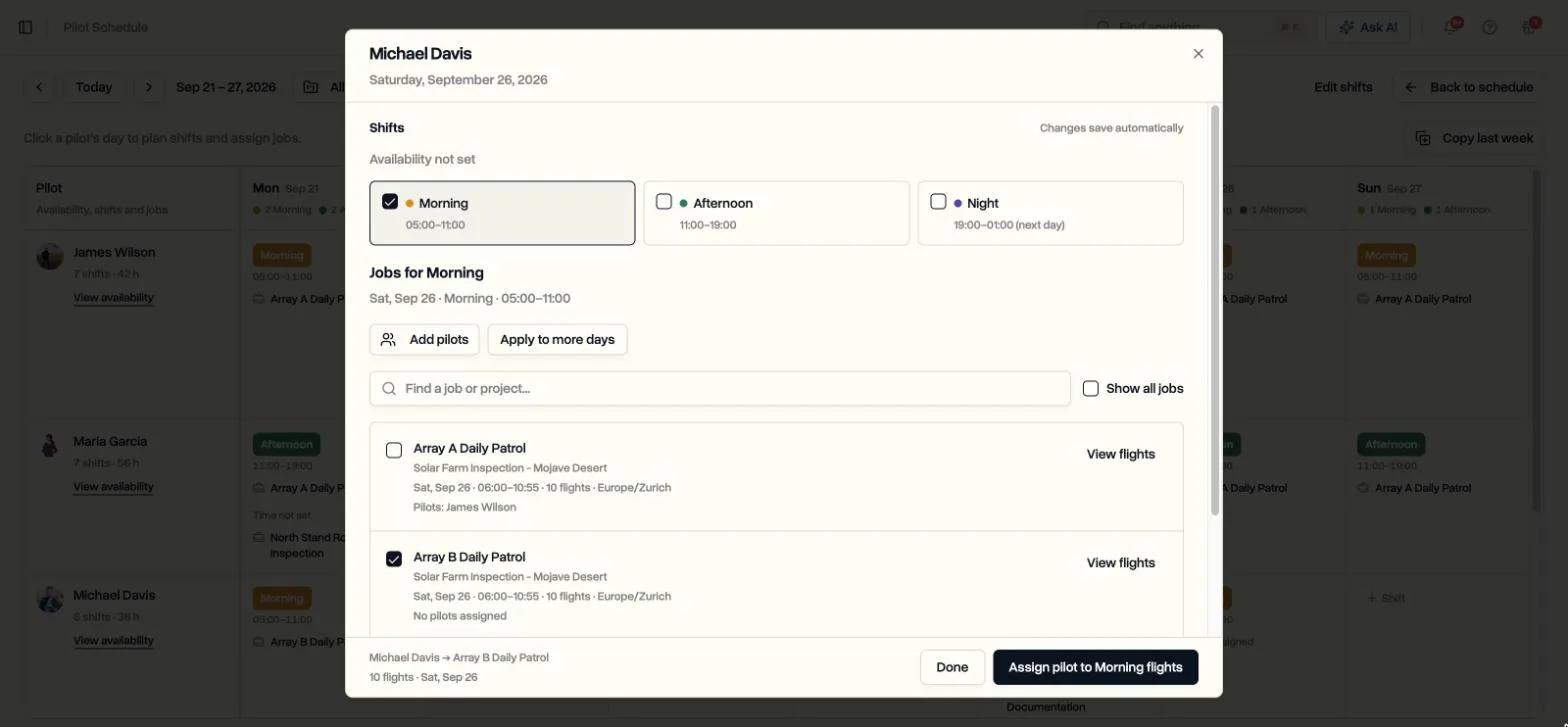
Planning a shift on its own assigns nothing. It is the frame you assign into, and the panel says so. When the same pilot should take the same job for the rest of the week, Apply to more days lets you tick the other dates and assign all of them in one go. Jobs whose flights all fall outside the chosen shift say so instead of quietly assigning nothing.
Back on the grid, each cell shows the shift, the jobs assigned that day, the hours the pilot has said they are available, and a warning if a booking falls outside them. When next week looks like this week, Copy last week gives every pilot the same shift they had on the same weekday. Only the shifts are copied, never the flight assignments, so you decide the jobs fresh.
Assign a Shift, a Day, or a Single Flight
Every place in DroneBundle that assigns pilots uses the same dialog, and when a job has more than one flight it now asks one question first: which flights need pilots?
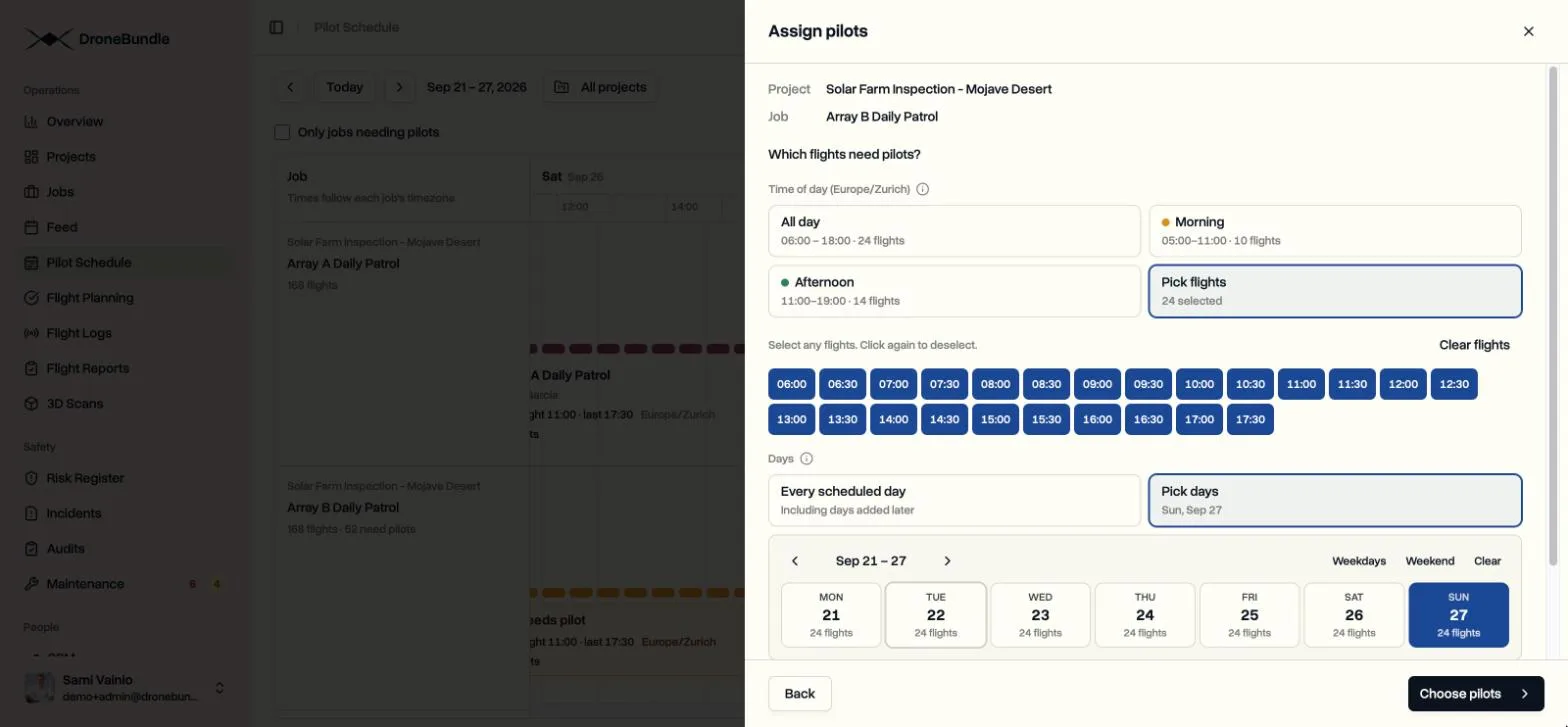
Time of day is answered with one click. All day takes every flight. Your named shifts appear as cards with the hours and the number of flights they cover, so Morning takes every flight that starts inside the morning shift. If a workspace has no shifts, the choices are Before noon and Noon onward. Pick flights shows every flight time as a chip you can turn on and off, for the one day that does not fit any pattern.
Days works the same way. Every scheduled day covers the flights the job has now and the ones it adds later, for example when next month’s dates are generated for a recurring job. Pick days shows the week with a flight count under each date, with Weekdays and Weekend shortcuts, which is how you cover Wednesday for someone who is off.
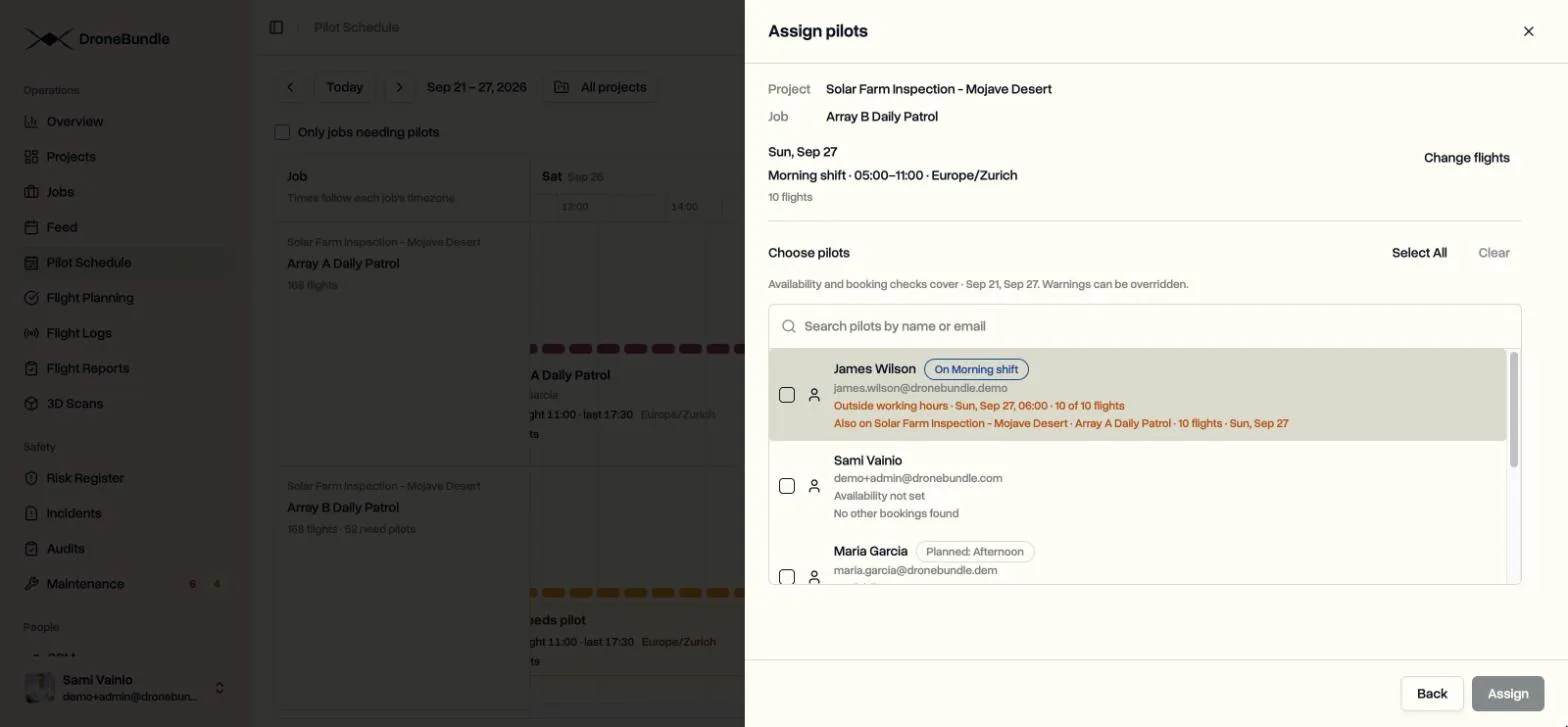
Then you choose the pilots. Each name carries what you need to decide: the shift they are planned on that day, whether the selected flights fall inside their working hours, and any other job they are already booked on, with the number of flights and the dates. A pilot with nothing else on simply reads No other bookings found. Warnings advise and never block, so you can put someone on a flight outside their hours on purpose.
Click a single flight on the schedule and you get a smaller version of the same thing for that flight only, with a one-button option to assign the whole block instead. Changing or removing a pilot works the same way, from the block on the schedule or from the job.
Pilots Tell You When They Can Fly
Pilots have a My Availability page in the sidebar, right below Assignments. For each weekday they choose Not available, Available all day, a set of your named shifts, or custom hours, and they can star the shifts they prefer. One button copies Monday to the rest of the working week. Time off or different hours for specific dates go on top as date exceptions. Managers can view and edit the same hours for any team member, and hours nobody has entered count as unknown, not as unavailable, so nobody is silently dropped from the roster.
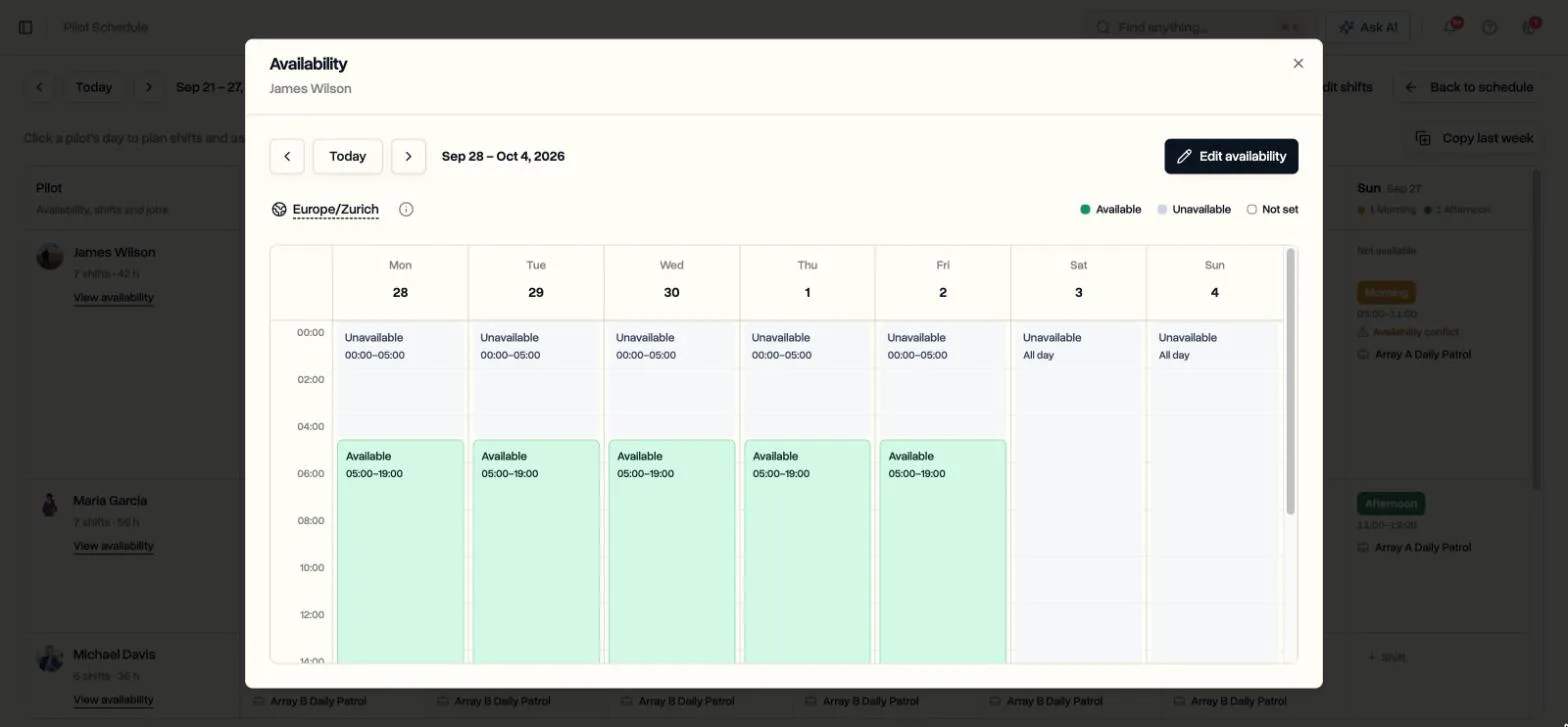
Those hours show up wherever you plan. The By pilot view labels each day with the pilot’s working hours or time off and flags any booking that falls outside them. The shift plan shows which shifts a pilot is available for and which one they prefer. The assign dialog checks every selected flight against their hours before you confirm. And DroneBundle AI can answer “who is free on Thursday afternoon” from the same data.
What the Pilot Sees
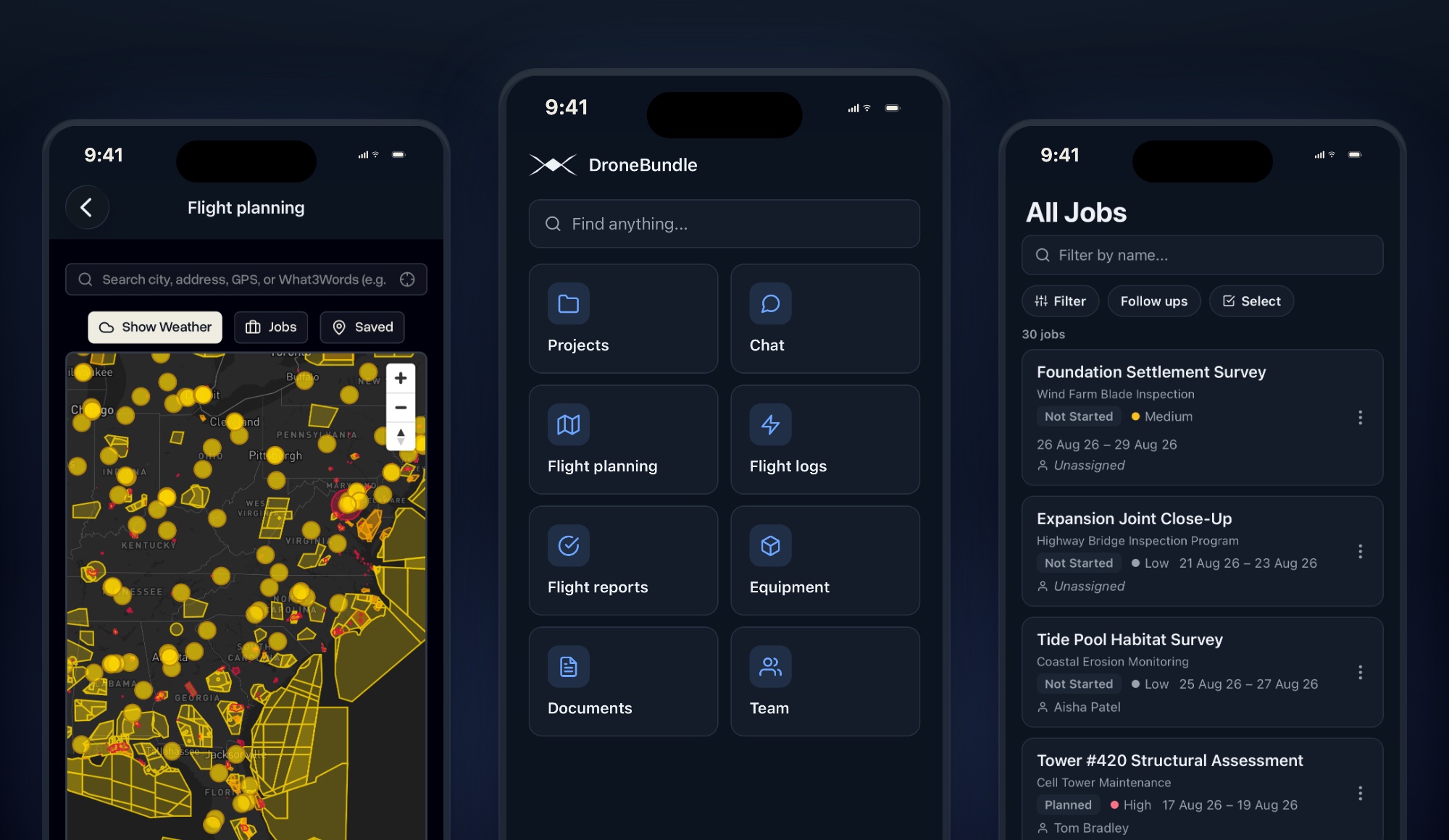
An assigned pilot gets an email the moment the assignment is saved, and their Assignments page lists the flights with their times rather than a bare job name. In the iPhone app the schedule, the shift plan, and the availability page are all on the phone, so a pilot can check tomorrow’s flights and report a day off from the field.
When the flight is flown, it is marked complete from the same list. Managers can mark a whole day of a job’s flights complete at once, and if the flights come from a DJI dock, FlightHub 2 sync closes them out on its own and credits the rostered pilot. The schedule you planned on Monday turns into flight hours by Friday without anyone retyping it.
The schedule can also come to you. The Slack app posts tomorrow's flights to a channel every day, grouped by pilot, with any flight that still has no pilot listed last.
Use Cases
Docks that fly all day. One recurring job per dock with fixed flight times, three shifts, and two or three pilots per site. Plan the week on Friday, assign each pilot’s shift to the docks they cover, and the By job view confirms every half-hour flight has a name on it.
A crew across several sites. A pilot covers mornings at one site and afternoons at another. Two assignments, each scoped to a shift, and the schedule shows both without overlap.
Covering a day off. A pilot adds Wednesday as time off. The schedule marks it, the flights on that day show up in the needs-pilots count, and Pick days puts a colleague on Wednesday only.
Long inspection programmes. A site flown every morning for a month is one job. Assign one pilot to every scheduled day, or split the month between two pilots by date.
Availability
Pilot Schedule, shifts, per-flight assignment, and pilot availability are available now on the Team and Enterprise plans, and in every free trial. There is nothing to switch on. Workspace owners and project managers plan shifts and assign flights. Operations leads can open the schedule. Pilots see their own assignments and manage their own availability.
Jobs need flight times for the schedule to place them by hour. Any recurring job can have fixed flight times, set on the job as a first flight, a finish time, and the gap between flights, and the feed and timeline show the same flights alongside everything else in the workspace.
Start your free trial and plan next week’s flights pilot by pilot.
Book a demo to see how a week of shifts, assignments, and availability fits together in DroneBundle.