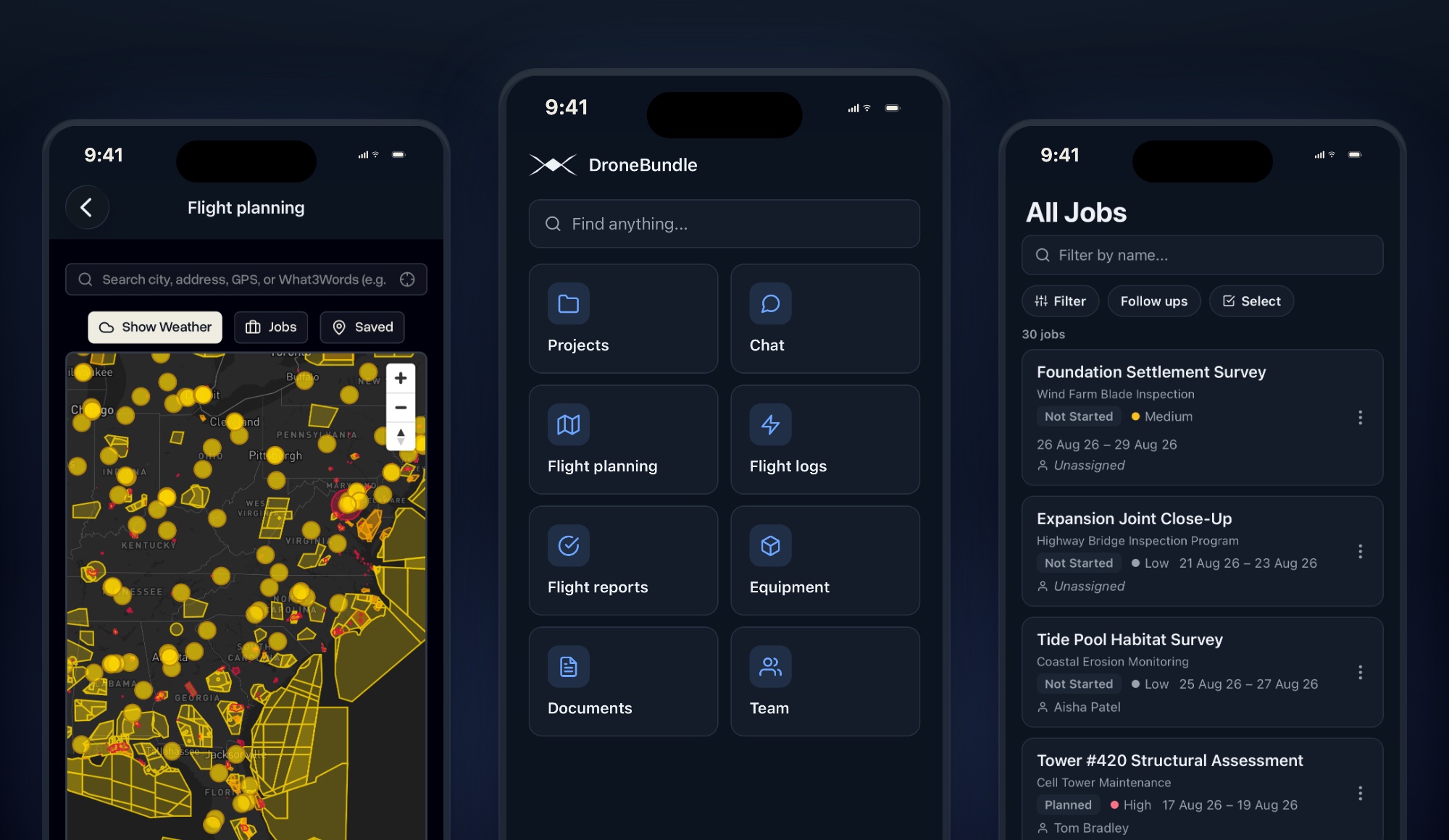
The DroneBundle app is on the App Store. Sign in with the account you already have, and the parts of the job that happen away from a desk happen on your phone: today's work, status updates, site photos, the schedule, the airspace, and the team.
Drone work is planned at a desk and carried out somewhere else. The job gets created in the dashboard, the pilot drives to a site, flies, packs up, and drives home. The status stays on Not Started until someone gets back to a laptop. The photos sit on a phone until someone remembers to send them. The client asks how it went and the honest answer is that nobody has written it down yet.
That gap is what the app closes. It is not a second product and there is nothing new to learn. It is the same workspace, the same jobs, the same people, on the device that is already in your pocket on site.
Download it on the App Store, or read the short version on the mobile app page. The Android version is on the way.
Sign In With the Account You Already Have
There is no signup in the app and nothing to configure. Open it, enter the email and password you use for DroneBundle, and you are in your workspace with everything already there. If your admin created your account this morning, it works this afternoon.
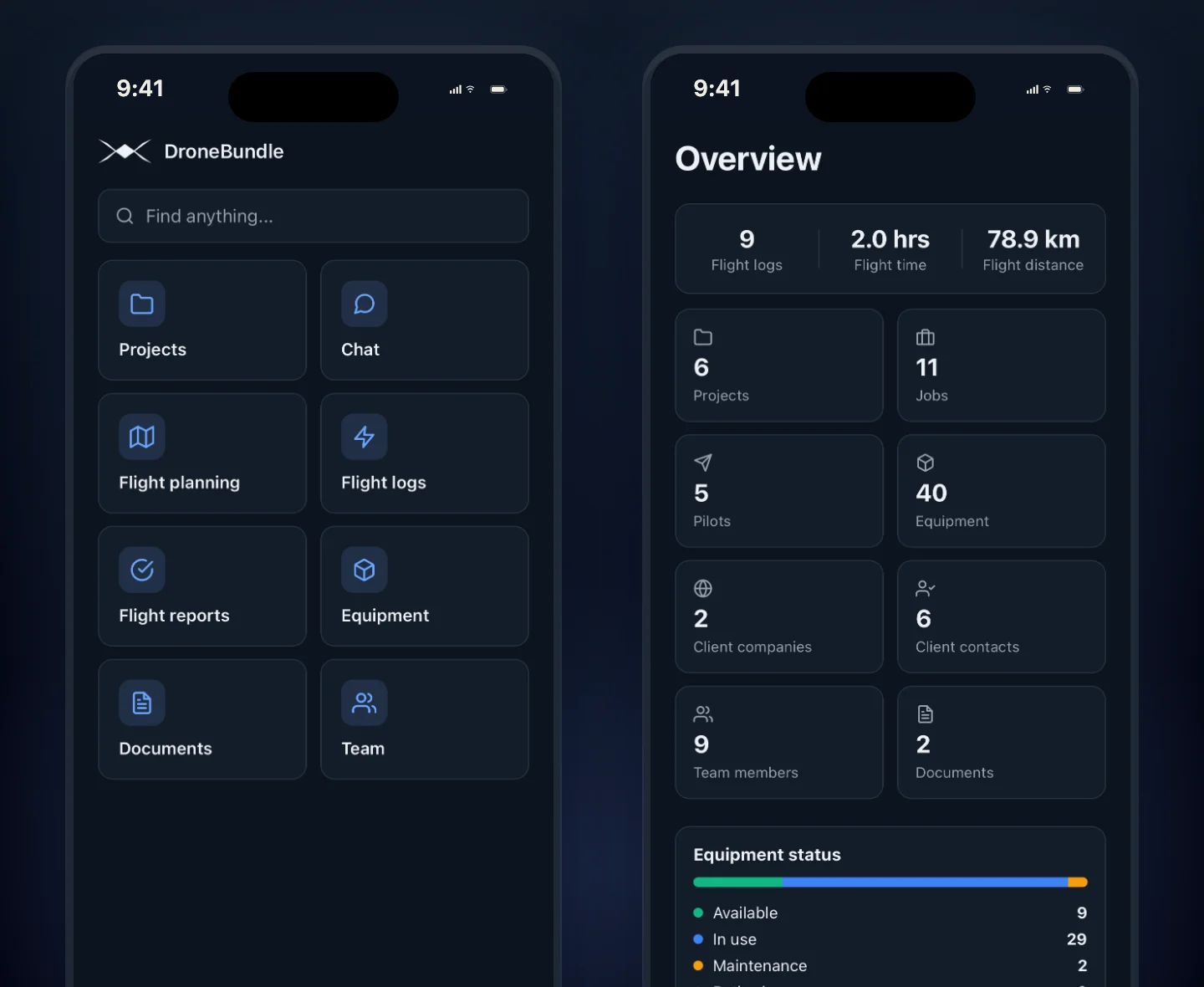
The app then arranges itself around your role. Pilots open straight onto their own assignments, because that is the only list that matters when you are standing next to a van. Managers land on an overview of the whole operation: flights logged, hours flown, distance covered, and counts for projects, jobs, pilots, equipment, clients, and documents, with a breakdown of what equipment is available, in use, or in for service.
Nobody sees more than their permissions allow, exactly as on the web. The app does not widen anyone's access.
The home screen is the rest of the workspace as a grid: projects, chat, flight planning, flight logs, flight reports, equipment, documents, and the team, with the ones your role cannot open simply absent. Admins and project managers get Find anything above it, one box that reaches projects, jobs, pilots, clients, equipment, and documents at once, with your recent searches waiting when you open it.
Your Jobs, On Site
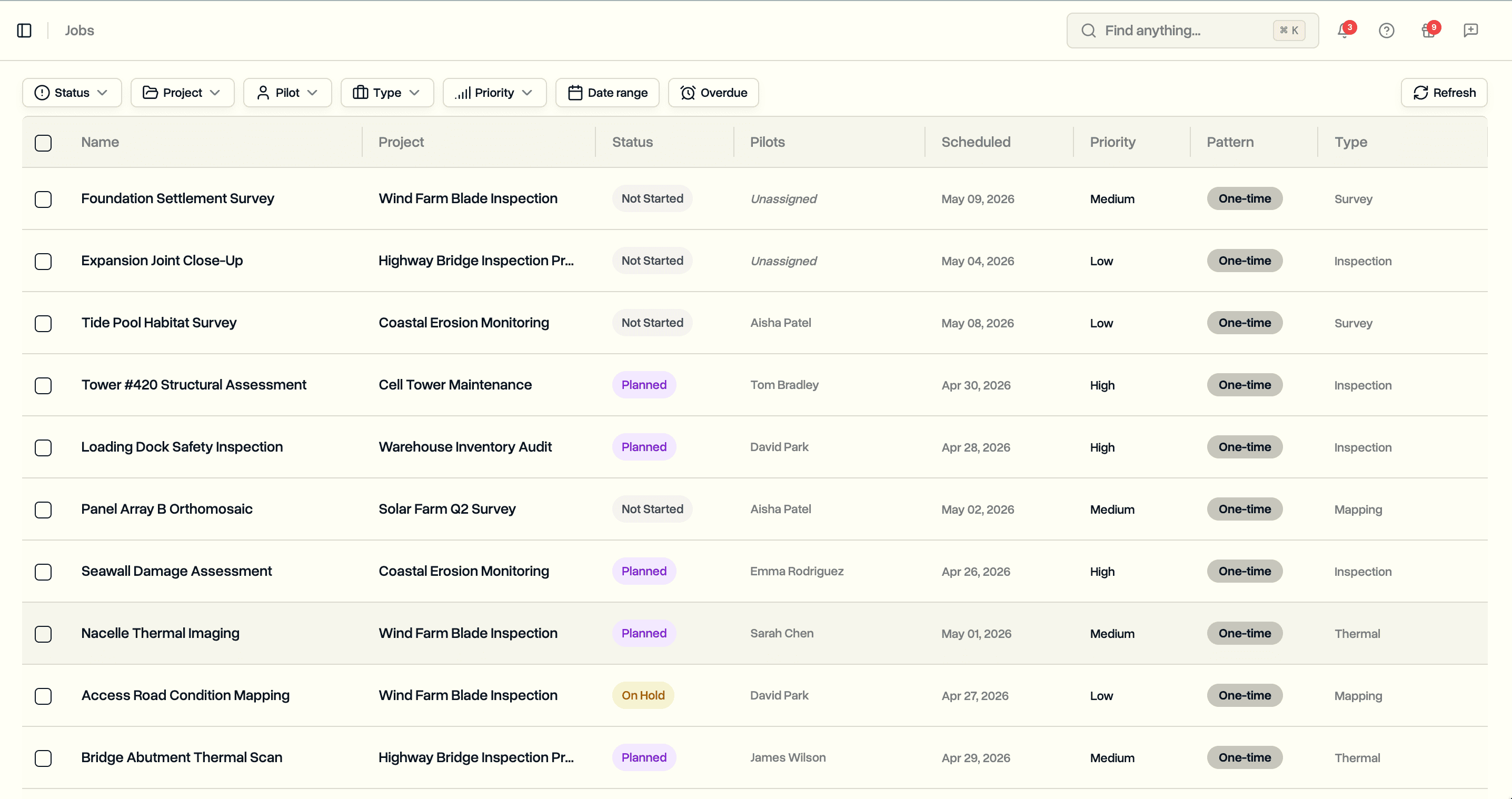
The Jobs tab is every job you are allowed to see, with a running count at the top. Filter by name, narrow by status, priority, pilot, project or type, or jump to the work you have moved into follow ups. Each row carries the project it belongs to, the status, the priority, the dates, and who is assigned, so you can read the list without opening anything.
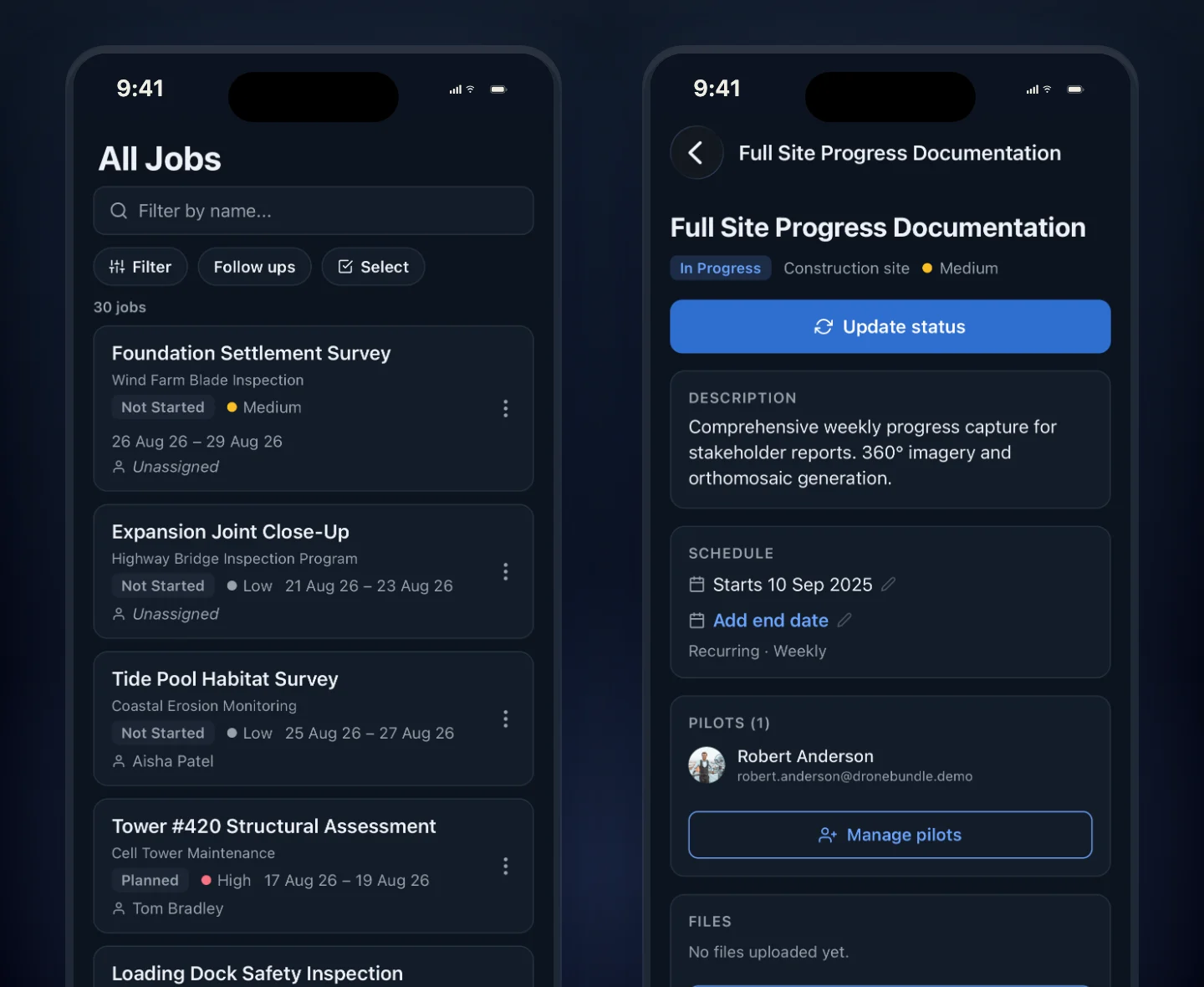
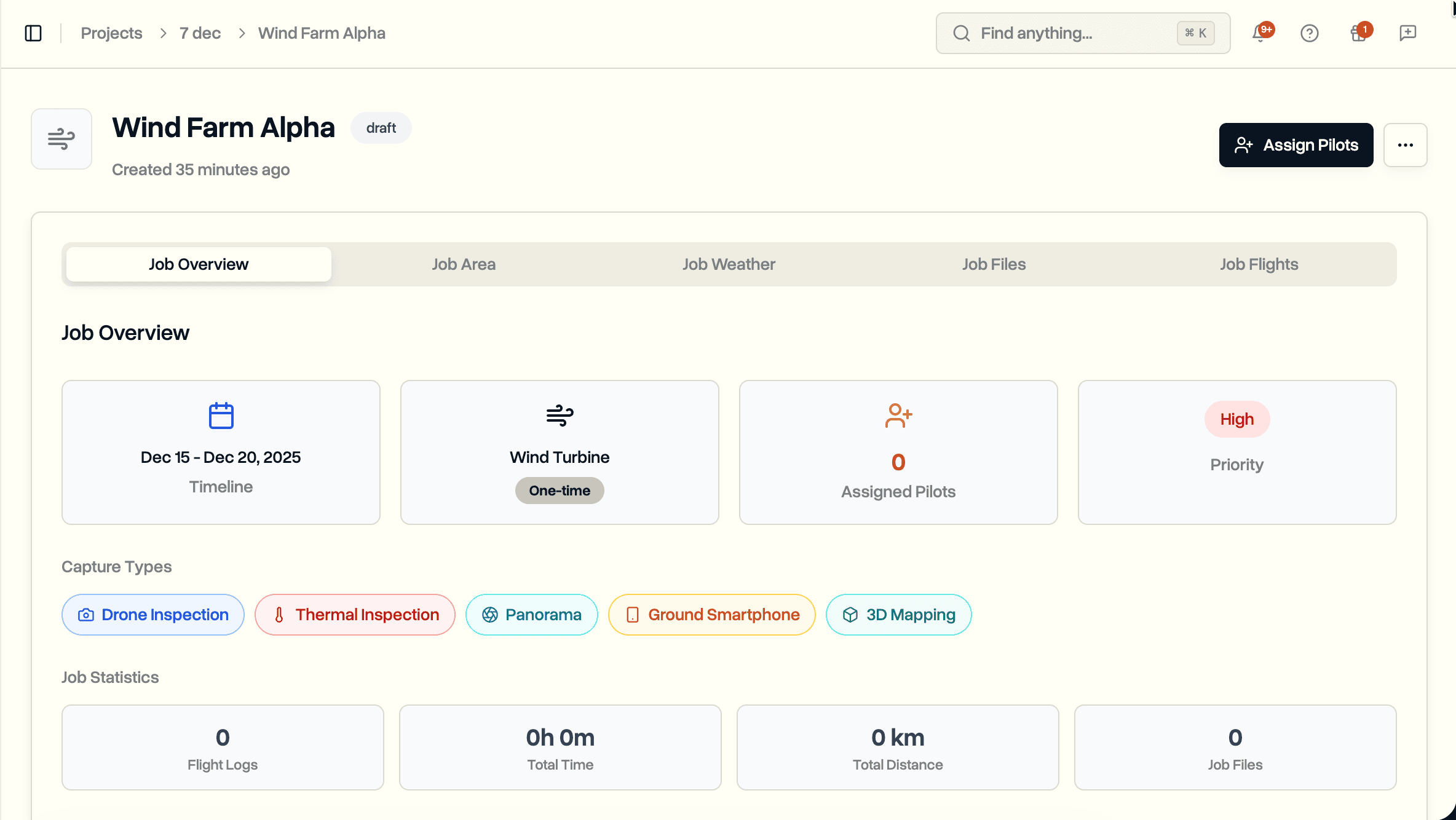
Open a job and the first thing on the screen is Update status. That is deliberate. Changing the status is the thing people do most often in the field and the thing that most often gets forgotten, so it sits above everything else rather than behind a menu. If your workspace uses its own status pipeline, your stages are the ones you get.
Under it is the whole job: the description, the schedule with start and end dates you can change on the spot, whether it repeats, the pilots on it, the location, the capture requirements, the inspection notes, the files, and the flights already logged against it. Pilots can be added or swapped from the same screen, which is the fix for the pilot who calls in sick an hour before a survey.
Photos Before You Leave the Site
Take photos with the camera or pick them out of your library, then put them on the job or the project in the right category: before, during, after, or general. Each one shows its progress as it uploads, and anything that fails can be sent again without starting over.
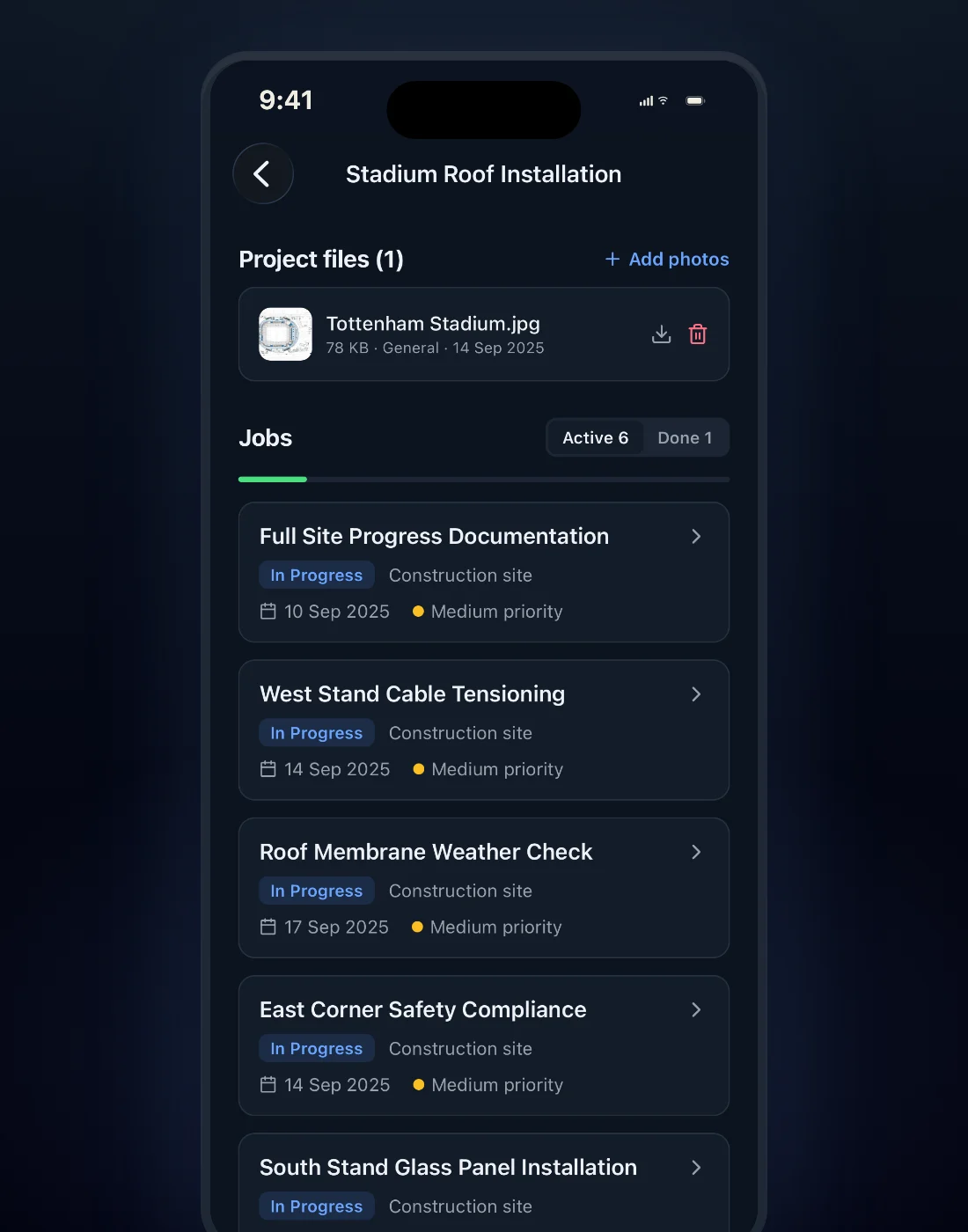
Photos taken on site and filed on site are photos that are already where the client will look for them. It is a small change to the day and it removes an evening of admin, along with the risk that the one photo that mattered never left somebody's camera roll.
The Whole Schedule, Sideways
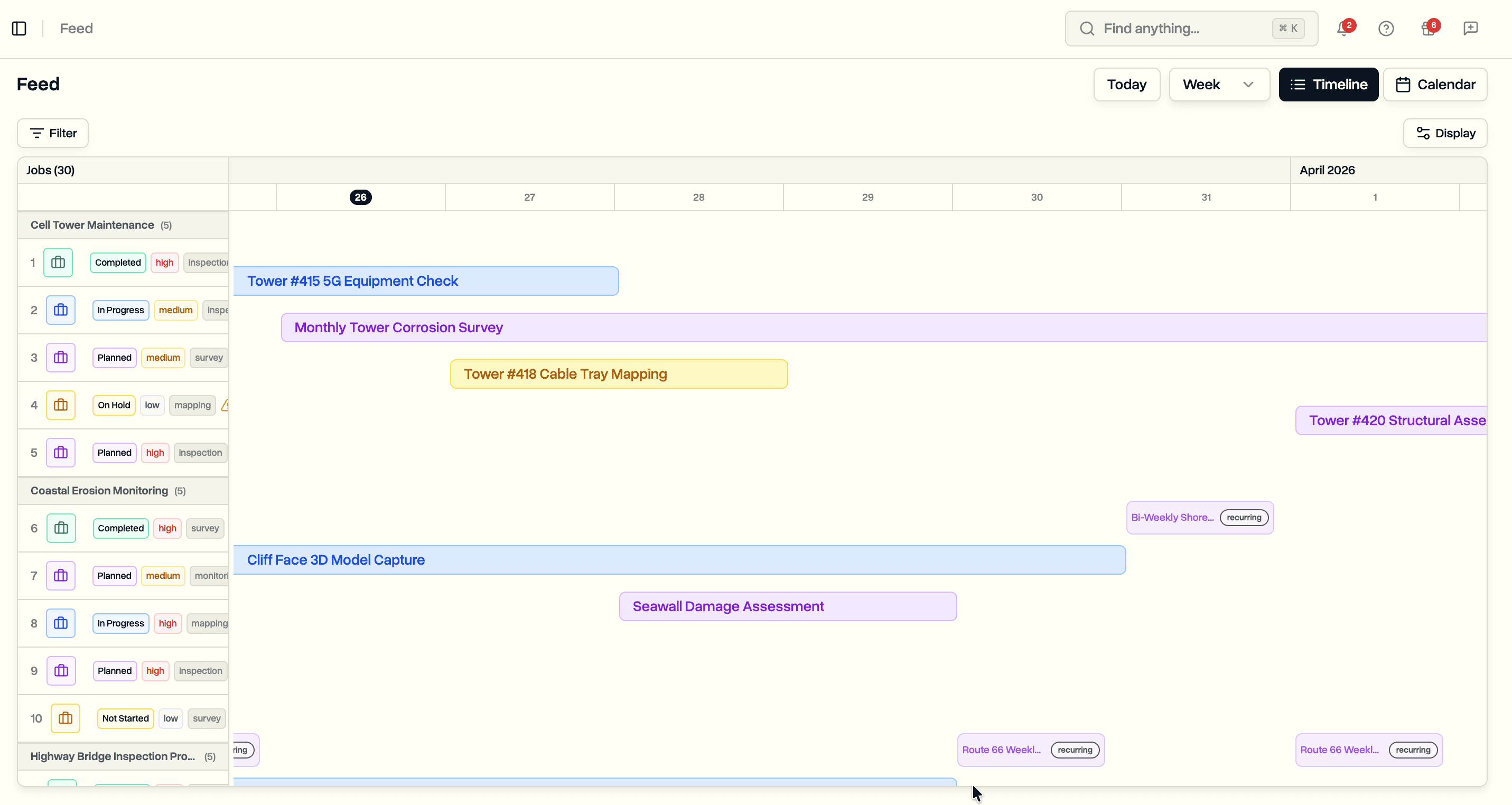
Managers get the job feed on the phone, and it opens in landscape on purpose. A schedule is a wide thing. Trying to read a week of work down a narrow screen helps nobody, so turn the phone and the timeline fills it.
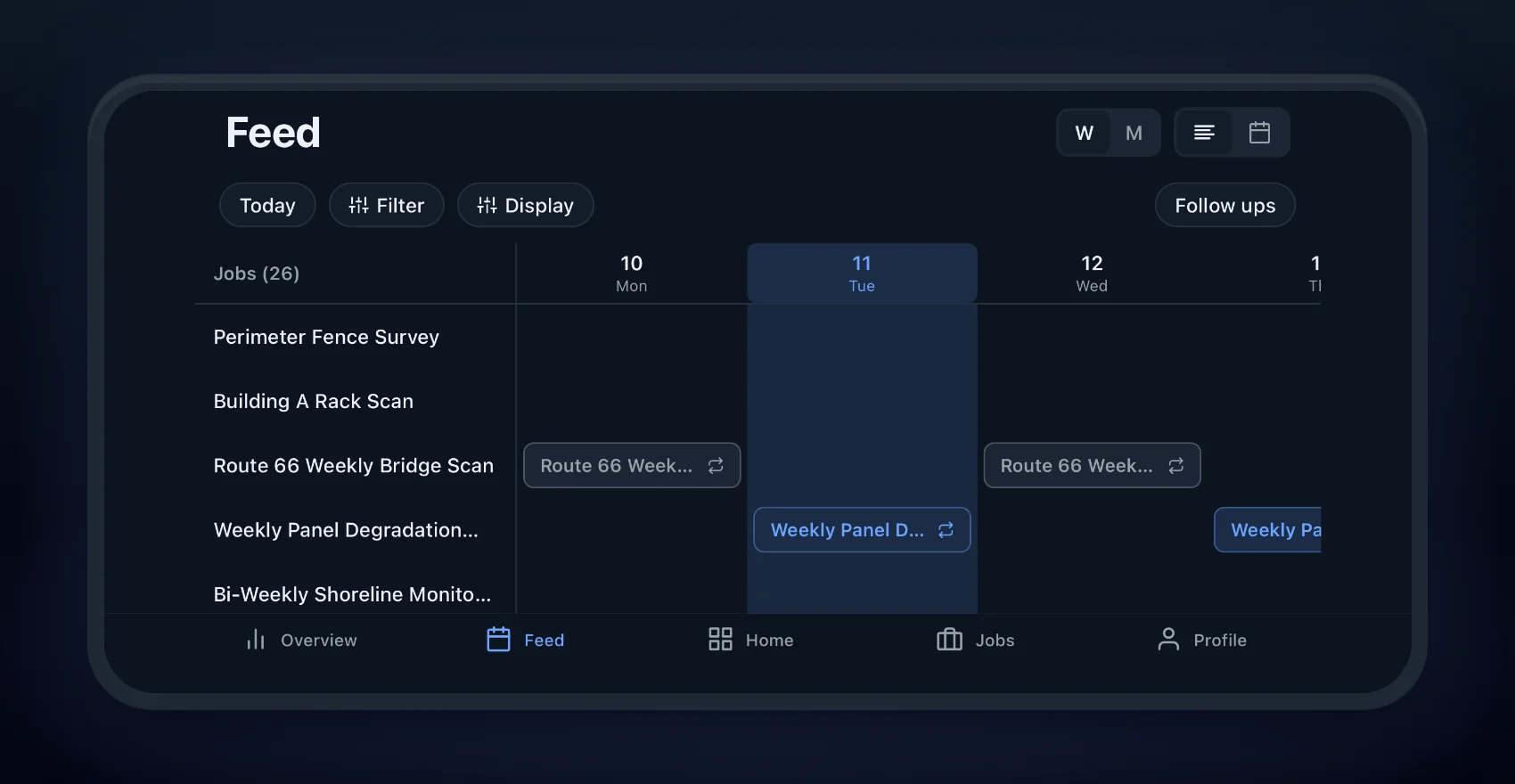
The timeline runs by week or by month, with recurring work drawn as each of its occurrences. Tap Filter to cut it down to a pilot, a project, a status, or a priority. Tap Display to change what shows on each row. Today snaps you back to now.
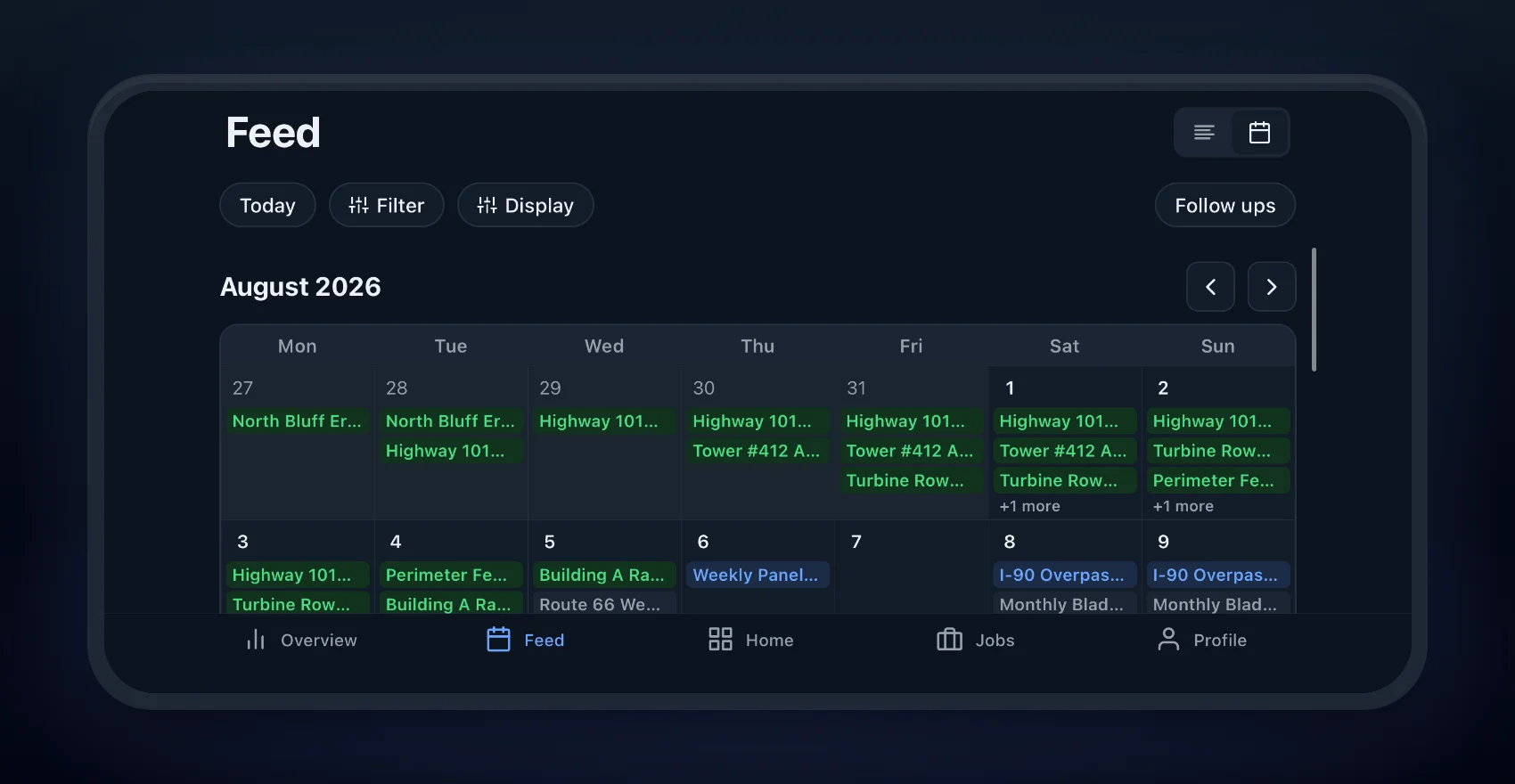
Switch to the calendar and the same jobs land on a day-by-day grid. That is the view you want when a client asks whether you can take on something the week after next and you would rather answer than promise to check.
Check the Airspace Before You Fly
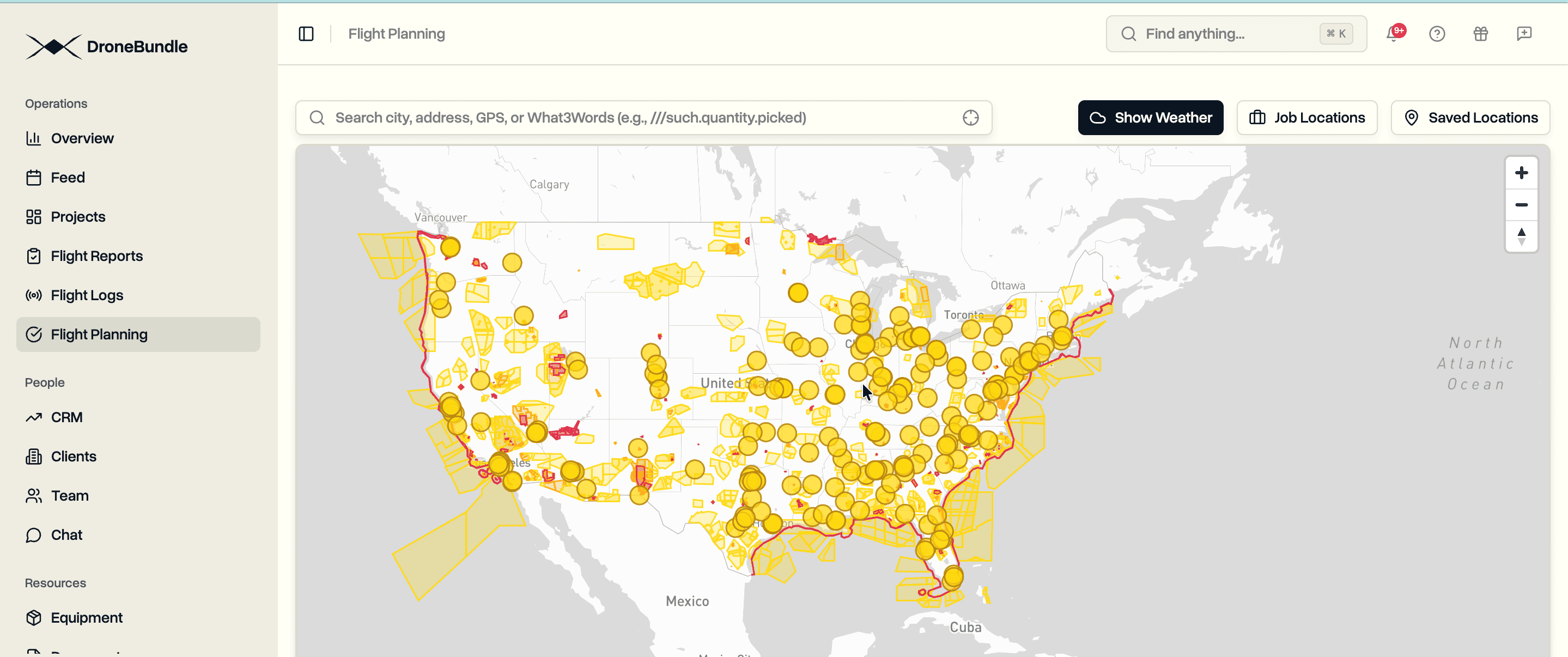
Flight planning is the map, on the phone, where you actually need it. Search a city, an address, coordinates, or a What3Words location and the map goes there.
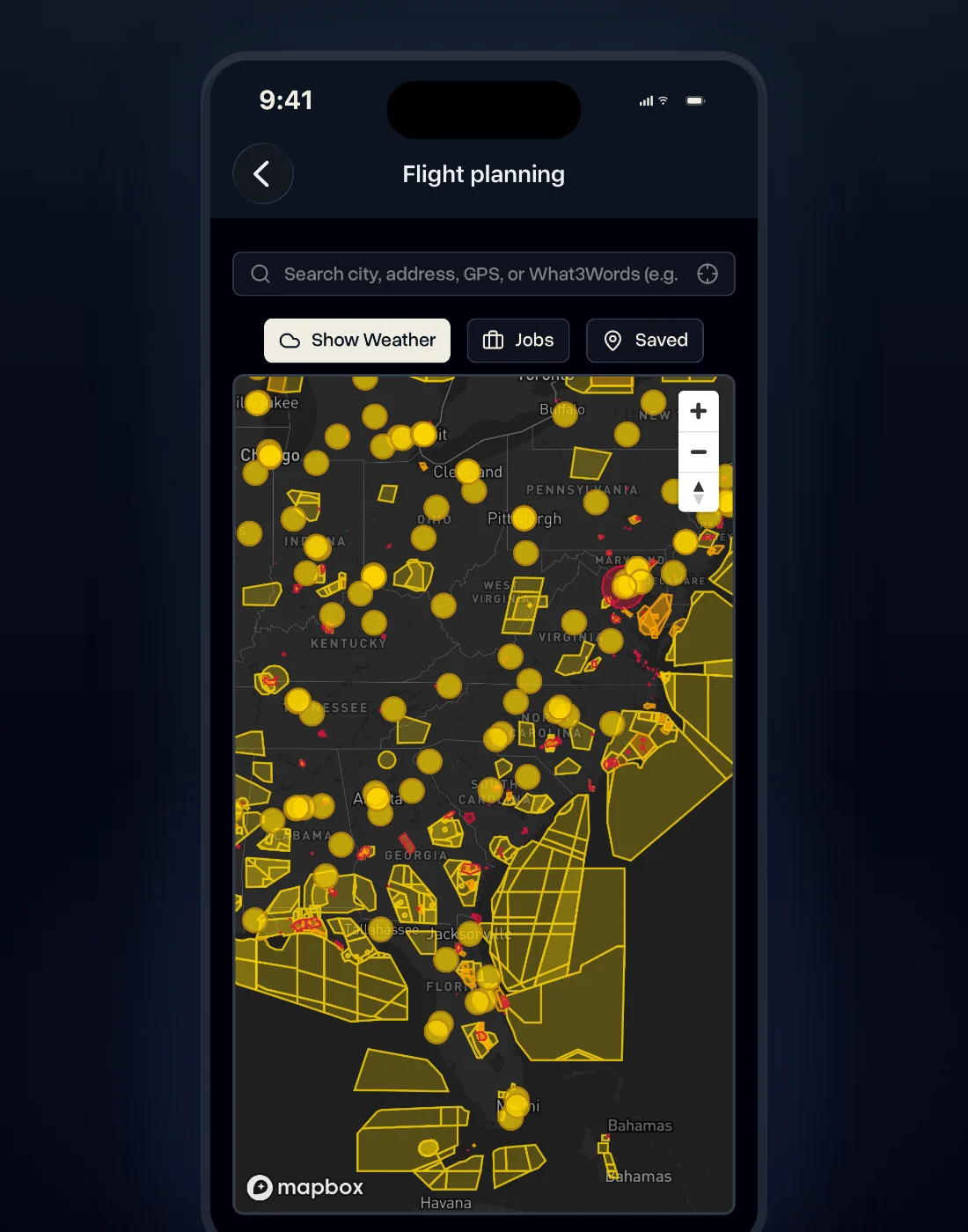
The airspace draws itself around the site: zones for the United States and across Europe, from the same official sources the dashboard uses. Turn on the weather to see what the site is doing, put your jobs on the map to see what is near you, and save the places you keep going back to so they are one tap away next time.
It is advisory, the same as the dashboard version. It shows you what is there. It does not give you permission to fly, and the pre-flight checks are still yours to make.
Projects, Files, and the Conversation About Them
Projects come across whole: active, on follow ups, archived, or pinned, each with its status and start date. Open one and you get the description, the client, the dates, the flight activity logged against it, its files, and its jobs split between active and done.
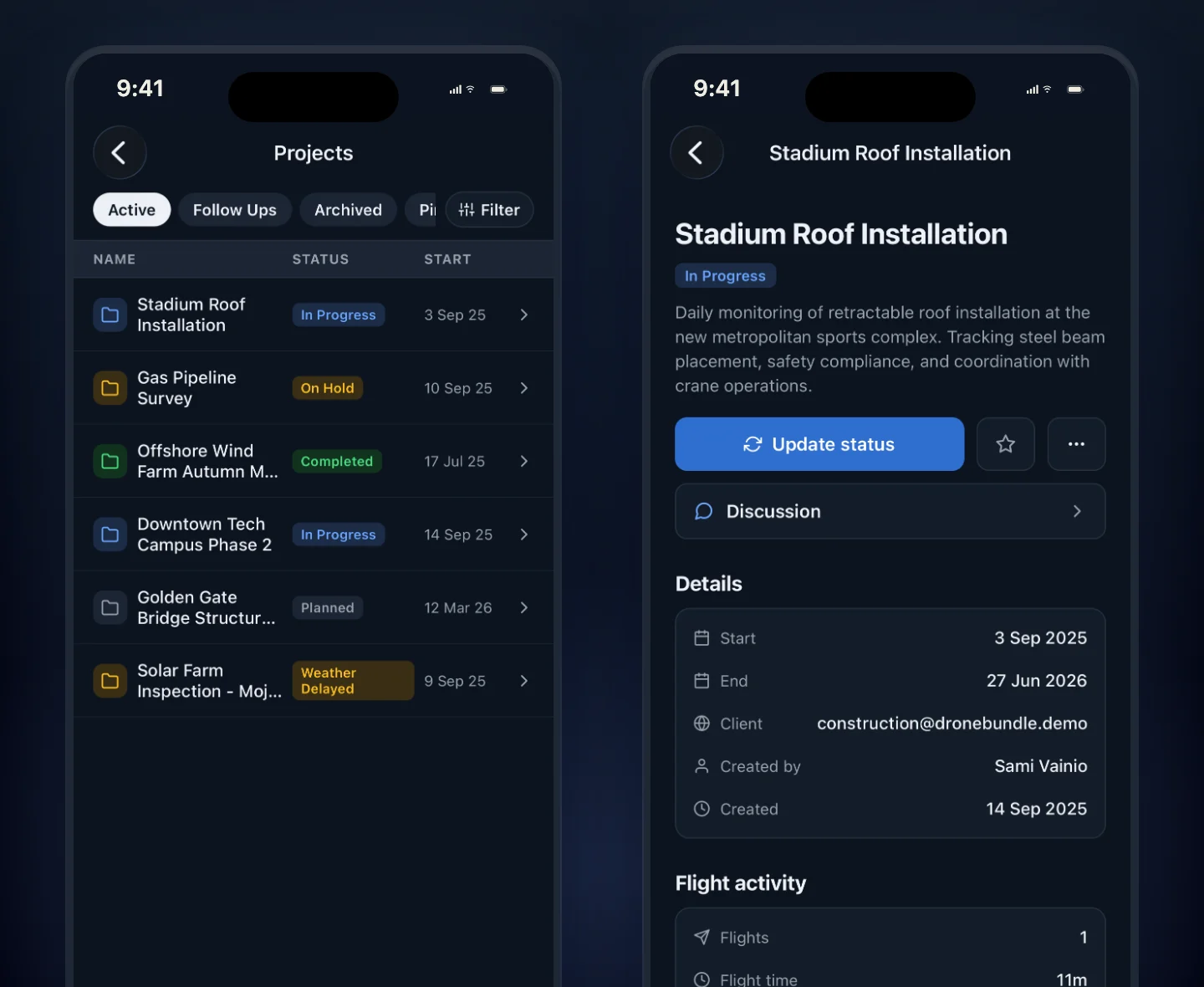
Every project carries its discussion, so the conversation about the work stays attached to the work. Mention someone directly and they hear about it. Send something to specific people only, set it to expire, or put a password on it, the same way secure messages behave on the web. A message that names a client's access code should not sit in a group thread forever, and it does not have to.
Files are there to open, download, or add to, so the document somebody needs on a roof is on the phone that went up with them rather than on a laptop in the car. The documents your team keeps for the whole workspace are in the app too, along with equipment and who is holding what, and the team list with everyone's role and contact details.
Flights Get Reviewed From Anywhere
Pilots mark a flight complete and it goes for review. Managers see what is waiting, read the pilot's note, and approve or reject it with a reason. An approval that turned out to be wrong can be reverted, again with a reason, so the record shows what happened rather than quietly changing.
Approving a flight is a two-minute job that holds up billing and reporting when it waits for someone to be at a desk. Doing it from a train is the entire point.
Make It Yours
The app follows your phone's light or dark setting, or you can pin it to one. Distances, pressure, and wind speed follow the units you already chose, so a team working in feet and miles per hour is not converting anything in their head. Your flight hours window, the one used for weather suggestions, comes across as well.
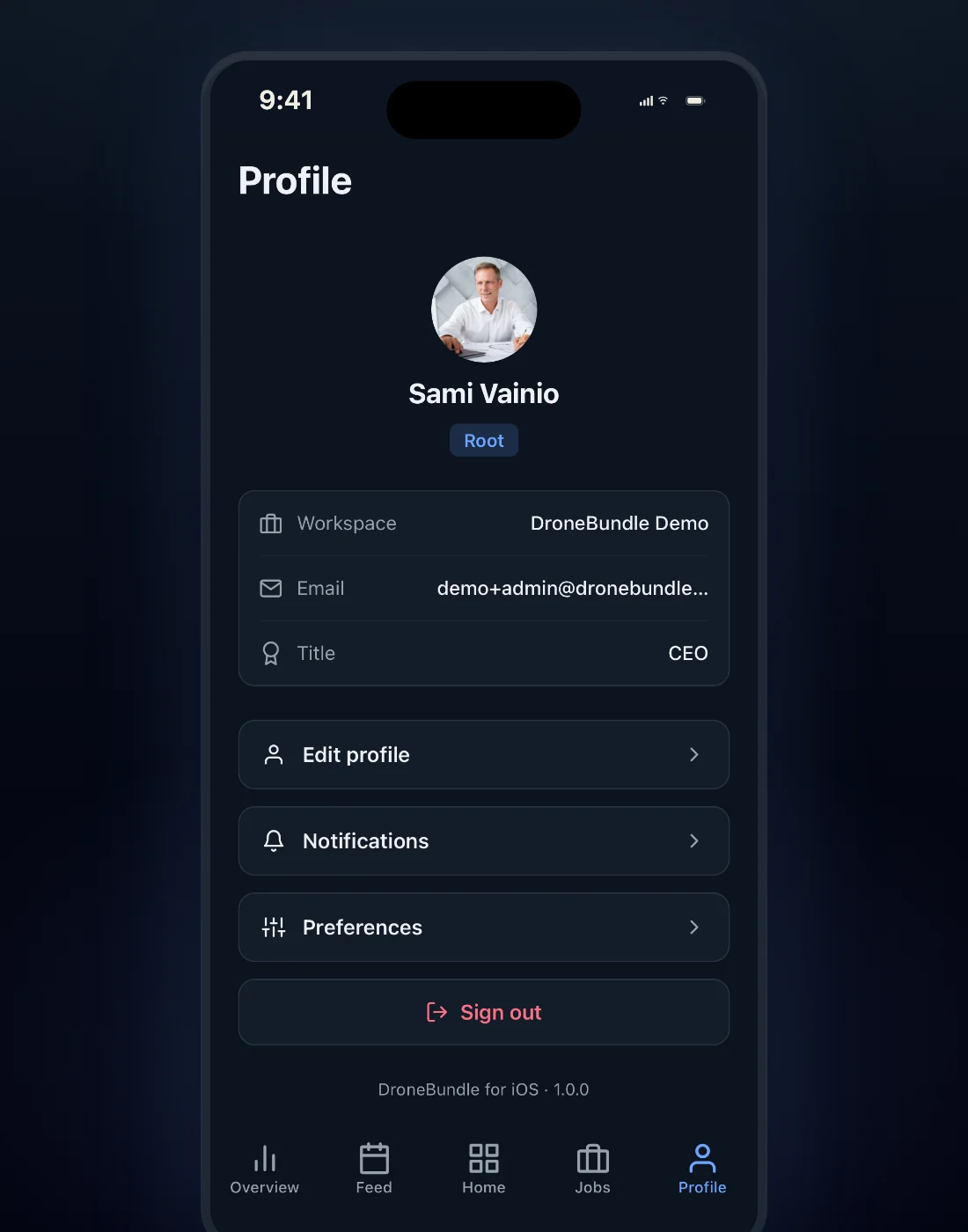
Email preferences are editable from the phone too. If flight approval emails are landing on you at the weekend, turn that one off from the sofa rather than making a note to do it on Monday.
Use Cases
The pilot who never opens a laptop. Assignments on arrival, status updated on the spot, photos filed against the job before the van doors close. The office sees the work land as it happens instead of on Friday.
The manager who is out of the office. The schedule in landscape on a phone, filters to cut it down, and enough of the overview to answer the question you were called about.
Rescheduling from a wet field. Weather turns, the job cannot happen. Change the dates, change the status, say so in the project discussion. Everyone who needed to know already knows before you have packed the case.
A last-minute site check. Search the site on the map, read the airspace and the weather around it, and save the spot if you will be back.
Clearing the approvals queue. Flights marked complete get read and approved between other things, rather than piling up until someone sits down with them.
Availability
The app is on the App Store now, free with every DroneBundle account, on every plan. There is nothing to switch on and no separate subscription. The Android version is coming to Google Play.
It needs an existing account, because there is no signup in the app by design: workspaces are created on the web and your admin adds your team. Creating projects, invoicing, and account administration stay on the web dashboard as well. The app covers the parts of the job that happen away from a desk.
Your data lives where it already lived, on European servers, on the same terms as the rest of the platform. Adding a phone to the mix does not move it anywhere, and there is nothing here that reads your location.
Download DroneBundle on the App Store and sign in with your account.
Start your free trial to set up a workspace, then put it in your team's pocket.
Book a demo to see how DroneBundle runs a drone operation from the office and the field at once.