Browse every job in the workspace from one page. Filter across projects, pilots, and dates. Change status, assign or unassign pilots, or delete many jobs at once without opening each project.
Jobs used to live inside one project. If you needed to reassign a pilot's workload, you had to open one project, change the assignments, close it, open the next, and repeat for every project that pilot was on. Same story for marking a batch of jobs complete after a delivery day, or cleaning up cancelled jobs after a client change.
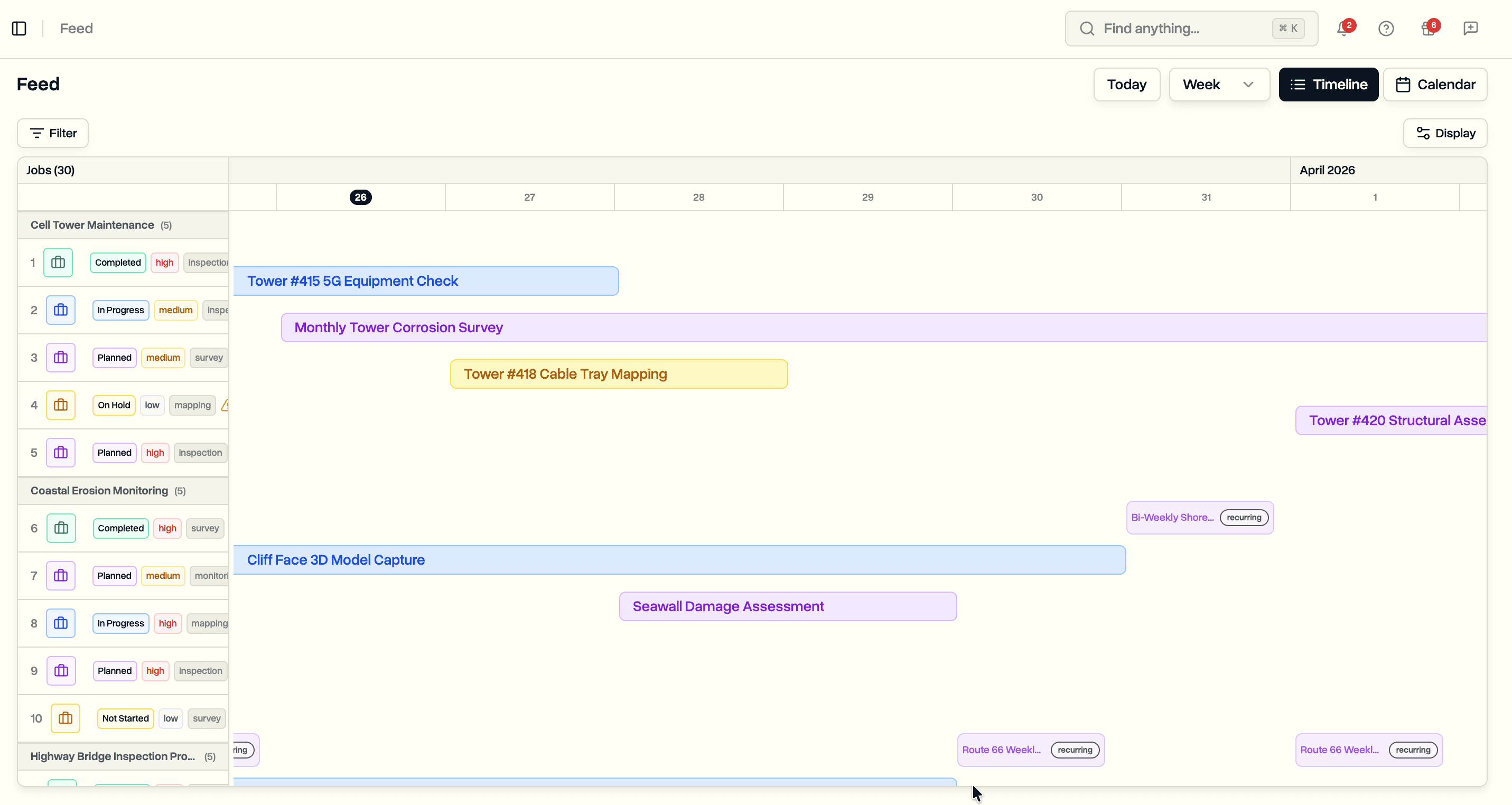
The Feed page already shows activity across projects, but it is read-only. Nothing to act on, just a view.
The new Jobs page is built for that action. One list of every job in the workspace, with the filters you actually use and four bulk actions that work across projects in one go.
The Page
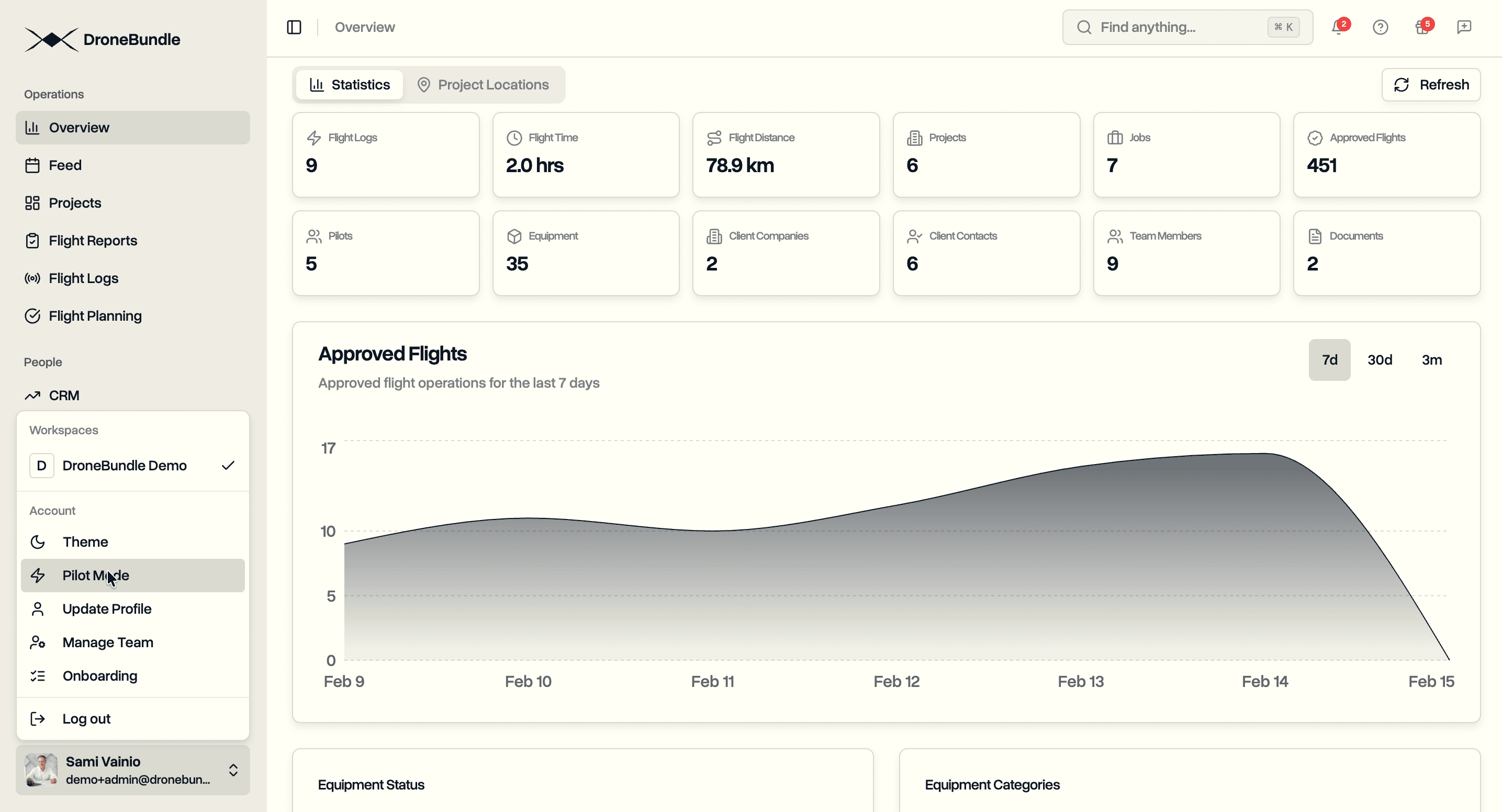
Open Jobs from the sidebar under Operations, next to Projects, Flight Reports, and Flight Logs. Workspace admins and project managers see it. Pilots and clients keep the views that fit their work.
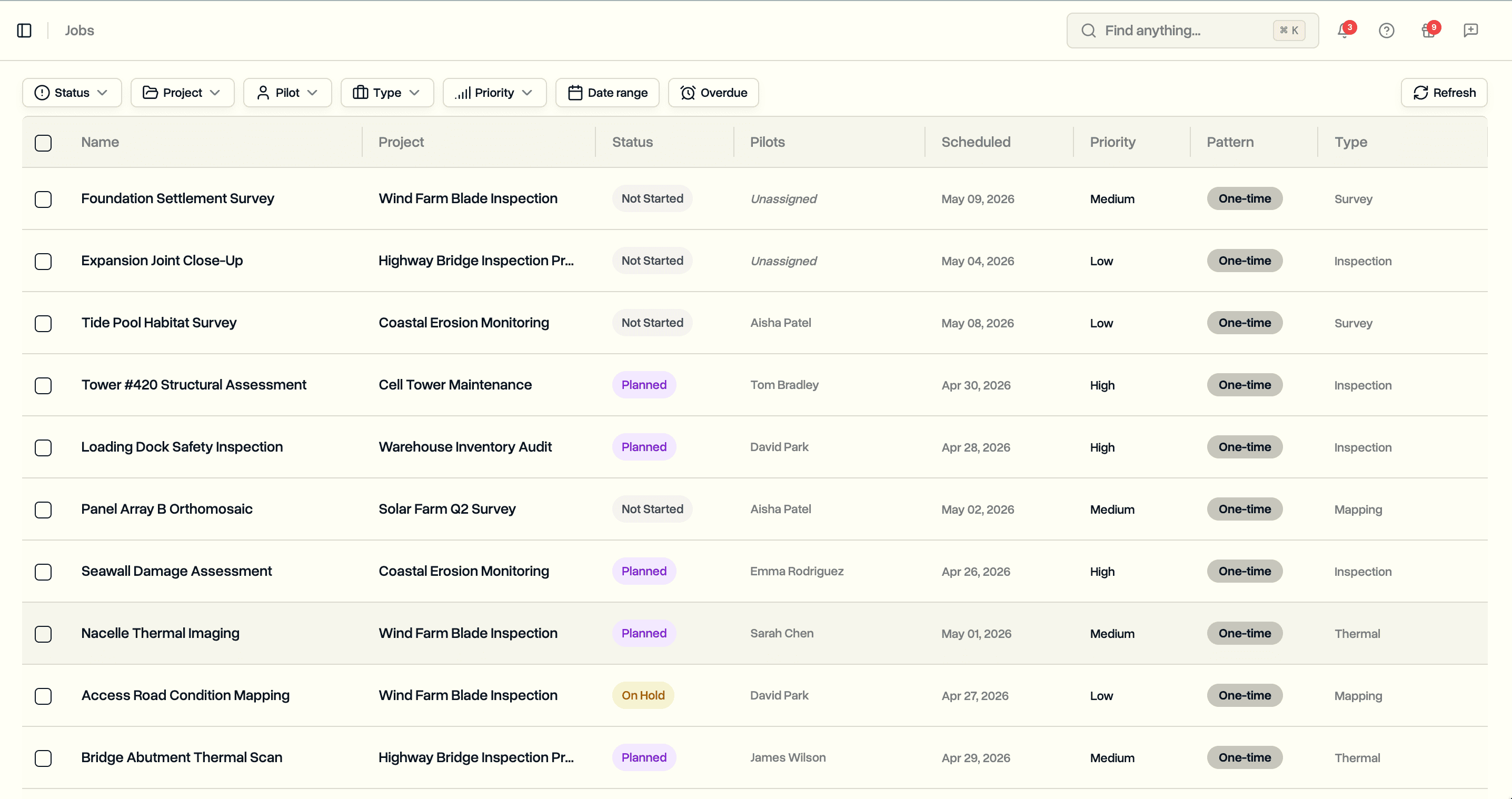
The table shows job name, project, status, assigned pilots, scheduled date, priority, and type. Click a project name to jump into that project. The newest jobs sit at the top by default so the list stays steady while you are working in it. Sort by status or scheduled date from the column headers when you want a different order.
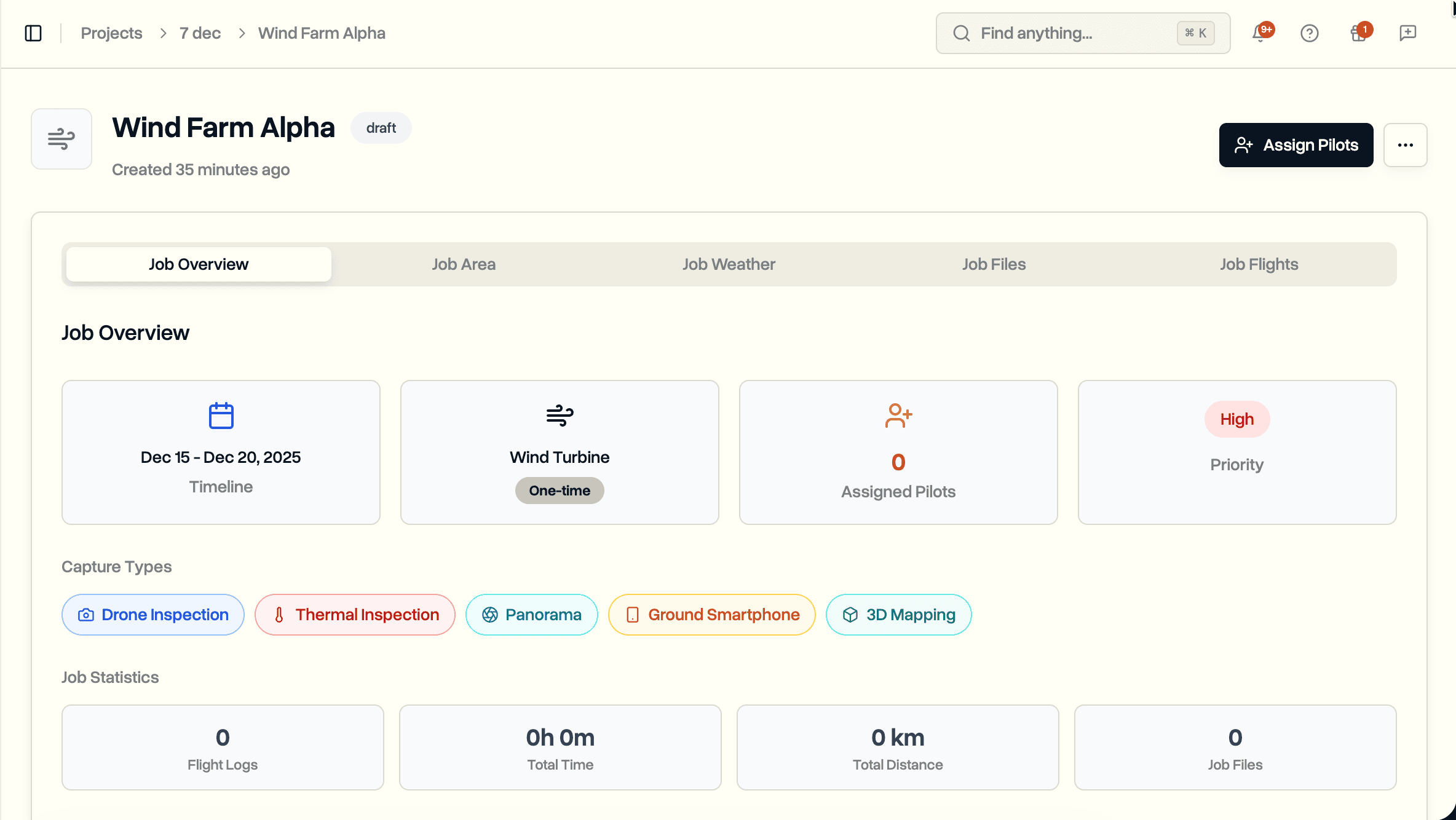
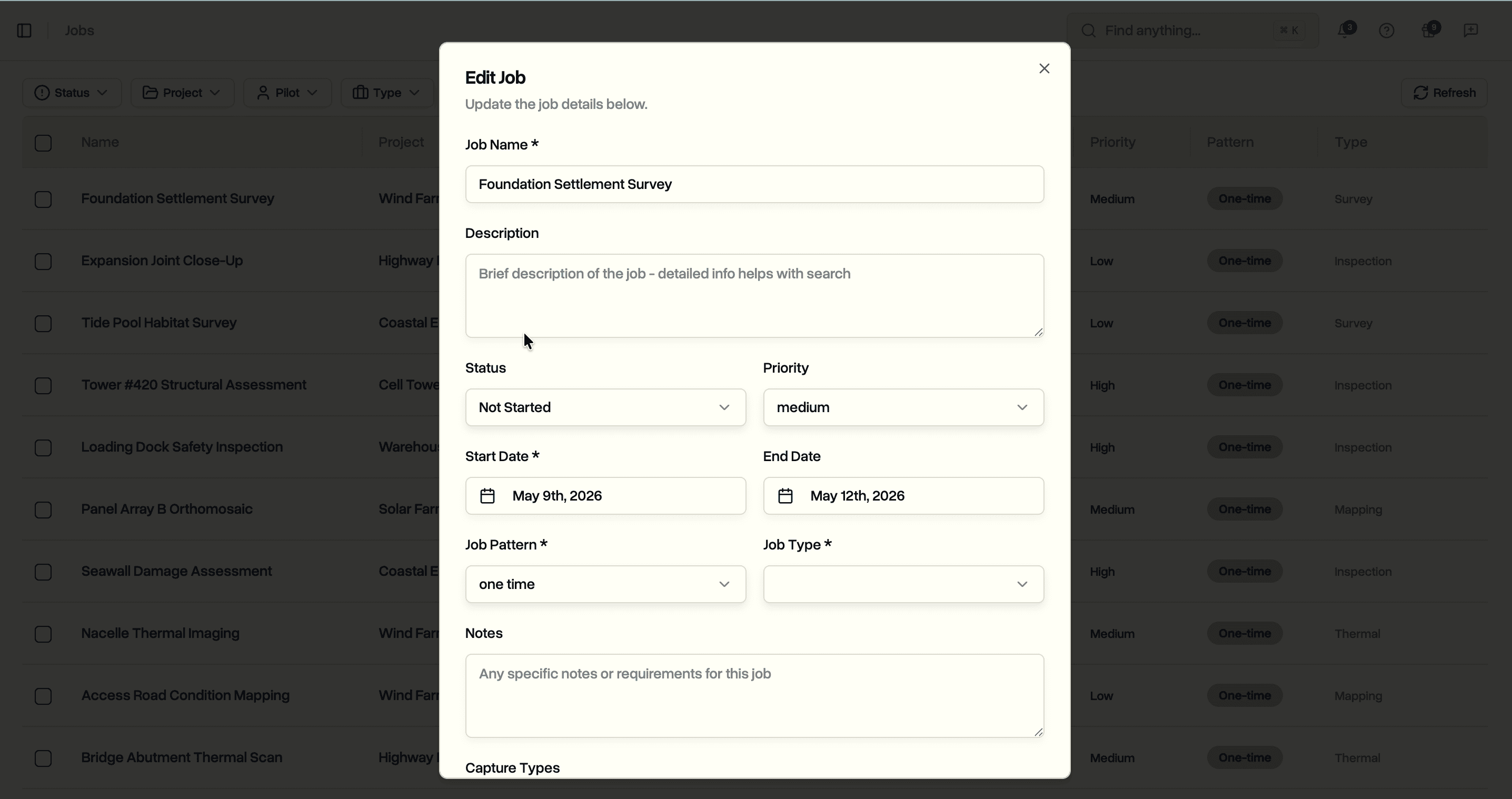
Click any row to open an edit panel with the full job. Name, description, inspection notes, capture types, recurring schedule, every field from the in-project edit view is here. Saves go to the same place the project page saves to, so nothing falls out of sync.
Filtering
The filter bar is built for the questions you actually ask.
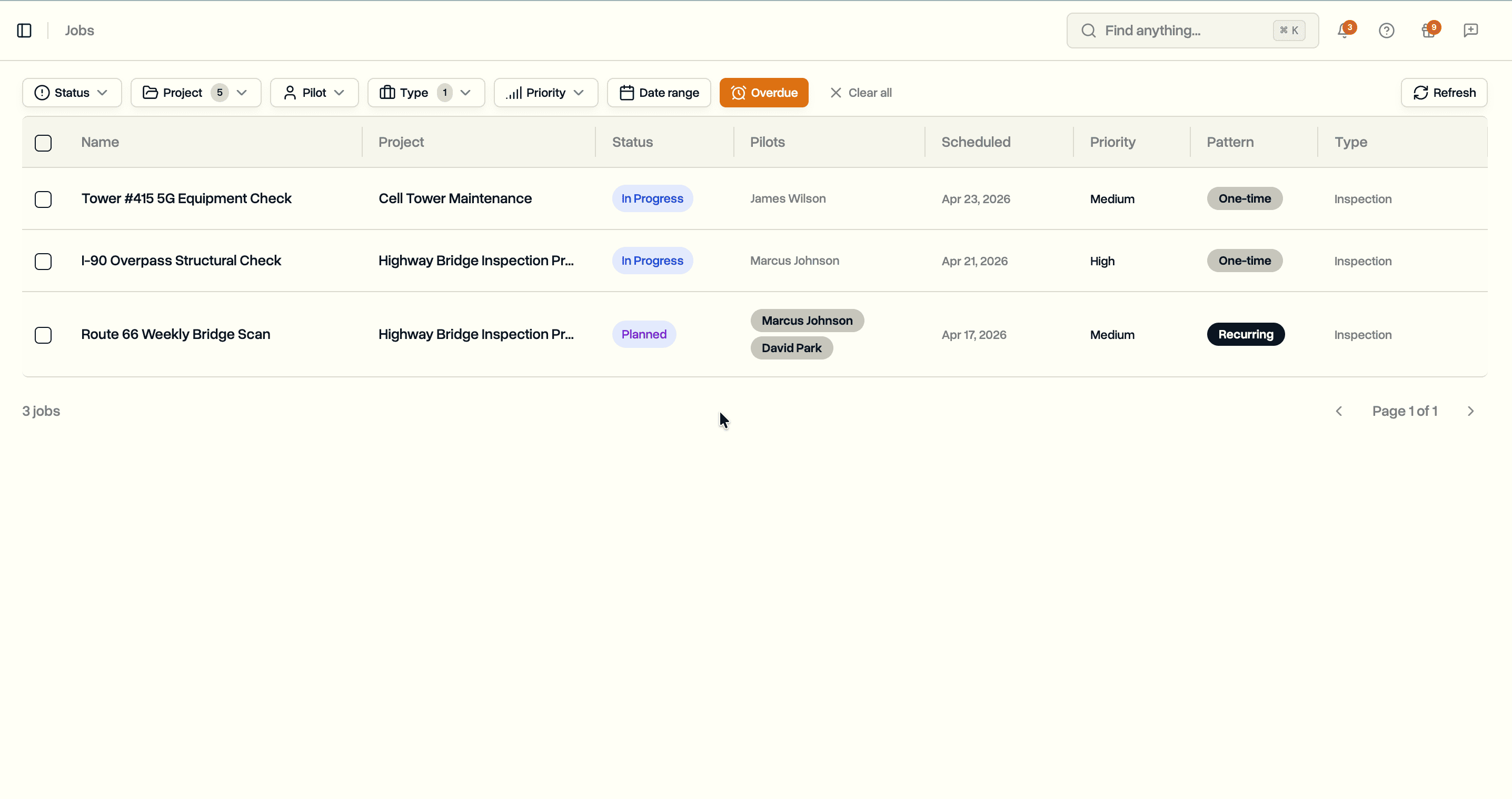
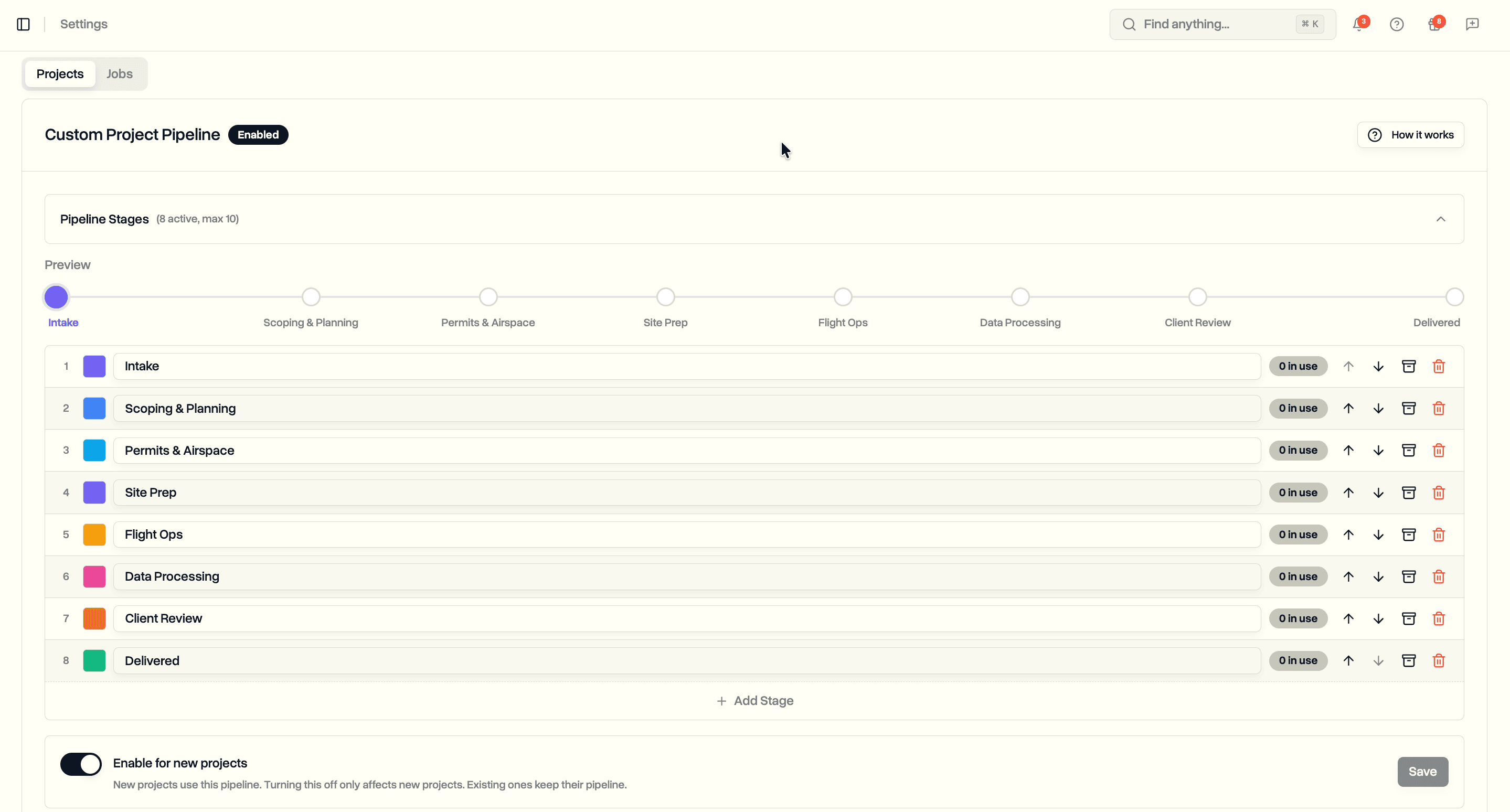
- Status. Pick one or more statuses. If your workspace uses a custom job pipeline, you also see the custom stages in a second tab.
- Project. Pick one or more active projects. Archived projects are hidden by default.
- Pilot. Pick any number of pilots, or choose Unassigned to see jobs with no pilot on them yet.
- Job type and priority. Pick one or more of each.
- Date range. Limit the list to jobs scheduled in a window.
- Overdue toggle. Show only jobs whose scheduled date has already passed and that are not marked complete.
Every filter you pick ends up in the URL. Bookmark a view like "all overdue jobs in the Downtown Tower project assigned to Alice" and share the link with a teammate. Open it later and the same list is right there.
Bulk Actions
Select one or more rows and a toolbar appears with four buttons. Each button does one thing on purpose, so there is no guessing about what a click will do.
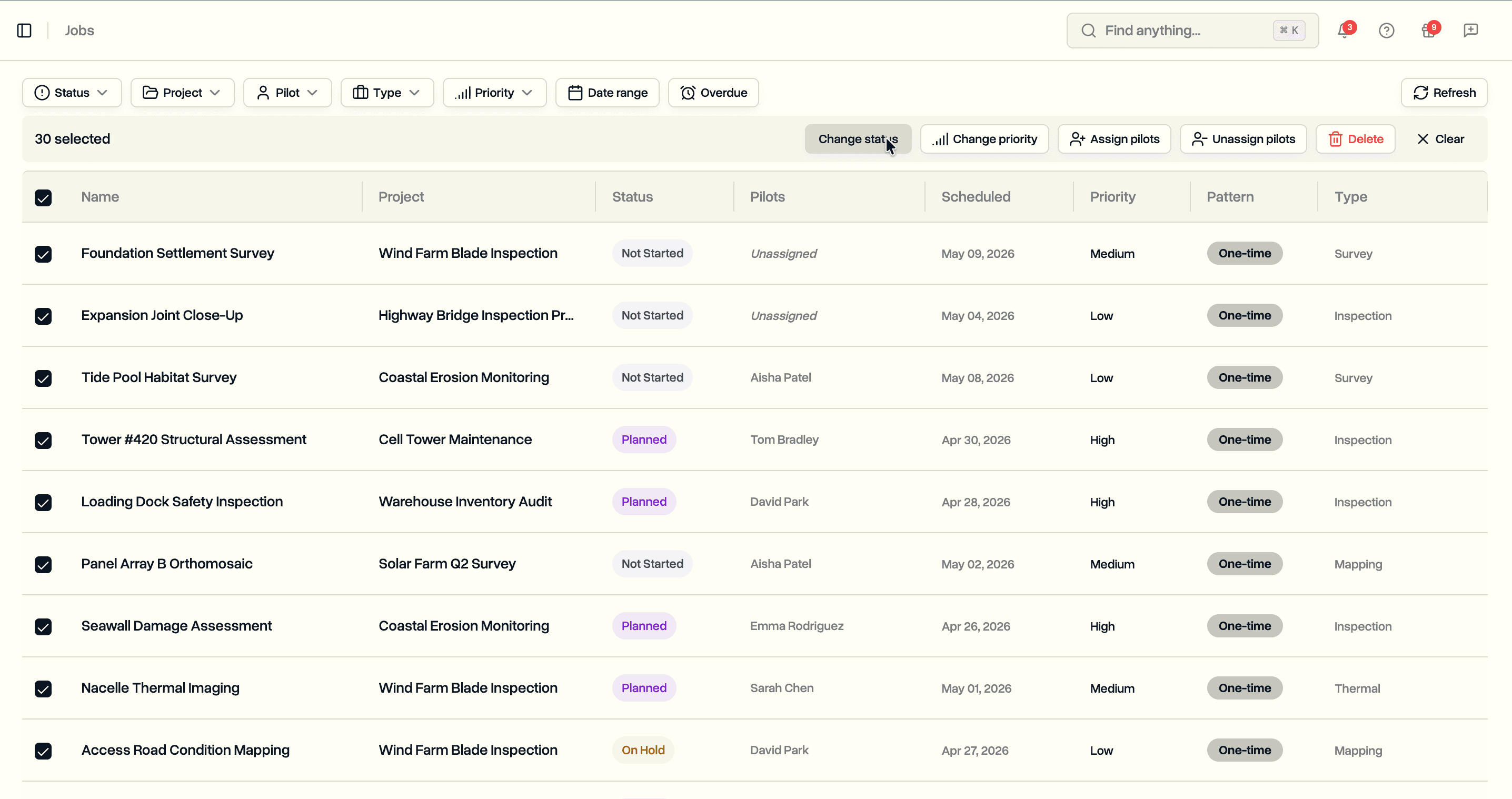
- Change status. Opens a status picker. If the selection is all default-status jobs, or all custom-pipeline jobs, the picker is ready to go. If the selection mixes both kinds, the dialog asks which group you want to update first and keeps the other group selected for a second pass.
- Assign pilots. Add one or more pilots to every selected job. If a pilot is already on a job, that job is skipped.
- Unassign pilots. Pick pilots to remove. The list only shows pilots currently on the selected jobs, not the full roster, so you see the right names right away. Jobs that do not have any of the chosen pilots are skipped.
- Delete. A simple confirm button with the row count so the scale of the action is clear.
There is no built-in "reassign" action because two clicks cover it cleanly. To move Alice's workload to Bob: filter by pilot Alice, select all, unassign Alice, then assign Bob. The selection stays put between the two clicks.
Progress and Retry
While a bulk action runs, each job in flight shows a small spinner and the toolbar shows a live counter: "Updating 23 of 87…". The selection stays put the whole time, so nothing gets lost if you look away.
When the batch finishes cleanly, a success toast appears and the selection clears. If something failed, the jobs that succeeded drop from the selection and the failed ones stay selected. The toolbar shifts into an error banner with three buttons:
- Retry failed reopens the dialog with the same settings and runs it again on the jobs that are still selected.
- View errors shows a list of every failed job with its project and the exact error message, so you can tell a permission problem apart from a one-off glitch.
- Dismiss clears the banner and the selection.
The failed jobs behave like any other selection, so you can unselect ones you no longer want to retry or add more jobs before hitting Retry.
Notifications on Bulk Actions
Clicking a bulk tool is a sign you are working at scale. Nobody needs 87 emails or push notifications from one click.
Every bulk action on this page skips the per-job notifications. The bulk status and bulk assign dialogs inside projects do the same, so the behavior is the same everywhere. A small tooltip on the bulk Assign pilots button reminds you: "Bulk assignments don't send per-job notifications. Inform pilots separately."
Editing a single job the normal way still sends notifications the same as before.
Pagination
The page loads 100 jobs at a time with a next-page button. That same 100 is the most you can bulk-action in one go.
Permissions
Workspace admins and project managers see the Jobs entry and can use it. Pilots and clients do not see the page. It is available on every plan with no setup.
Use Cases
Reassigning a pilot's workload. Filter by pilot, select all, unassign, then assign the replacement. Two clicks instead of one loop per project.
Closing out a delivery batch. Filter by project and scheduled date, select what is finished, and bulk-change to Delivered (or whatever your custom pipeline calls that stage). Per-job emails stay quiet so the client's inbox is not hit 87 times.
Chasing overdue work. Flip on the overdue toggle for a workspace-wide list of jobs past their scheduled date. Open them one at a time to review, or bulk-assign a catch-up pilot to the ones that just need coverage.
Cleanup after a cancelled engagement. Filter by project, select the jobs that are no longer happening, and bulk-delete.
Prep for a maintenance window or freeze. Filter by status and date range for a clean list of what is in flight. Share the URL with stakeholders and use it as the working list during the freeze.
Availability
The Jobs page is available now on every plan for workspace admins and project managers. No setup required: open DroneBundle and the Jobs entry is under Operations in the sidebar.
Try it now at app.dronebundle.com/jobs.