Define ordered status pipelines for projects and jobs at the workspace level. Pick stages, colors, and categories that match how your team runs. Every record renders with a stepper showing where it sits and what comes next.
Every drone operation runs its work a bit differently. A construction inspection team has a flow that looks nothing like a survey crew or a film production unit. Until now DroneBundle shipped one fixed list of eleven project statuses and one fixed list of eleven job statuses. Teams renamed what they could, hid what they did not use, and worked around the rest.
That approach works for most teams. It does not work for operators with a defined internal process, like Prep → Flight → Post-Processing → QA → Delivered, who want the platform to reflect it. The dropdown was unordered, the labels were generic, and there was no sense of progression through the work.
DroneBundle now supports custom status pipelines for both projects and jobs. Workspace admins define an ordered list of stages, each with a label, color, and position. Every new project or job in the workspace renders against that pipeline with a horizontal stepper on the detail page and a vertical one in the edit dialog, so it's always obvious which stage the record sits on and what comes next. The default eleven statuses stay available for teams that prefer them.
Pipelines at the Workspace Level
Custom pipelines live under Settings → Customization. There are two sections, one for projects and one for jobs, each independent. Enable one, both, or neither.
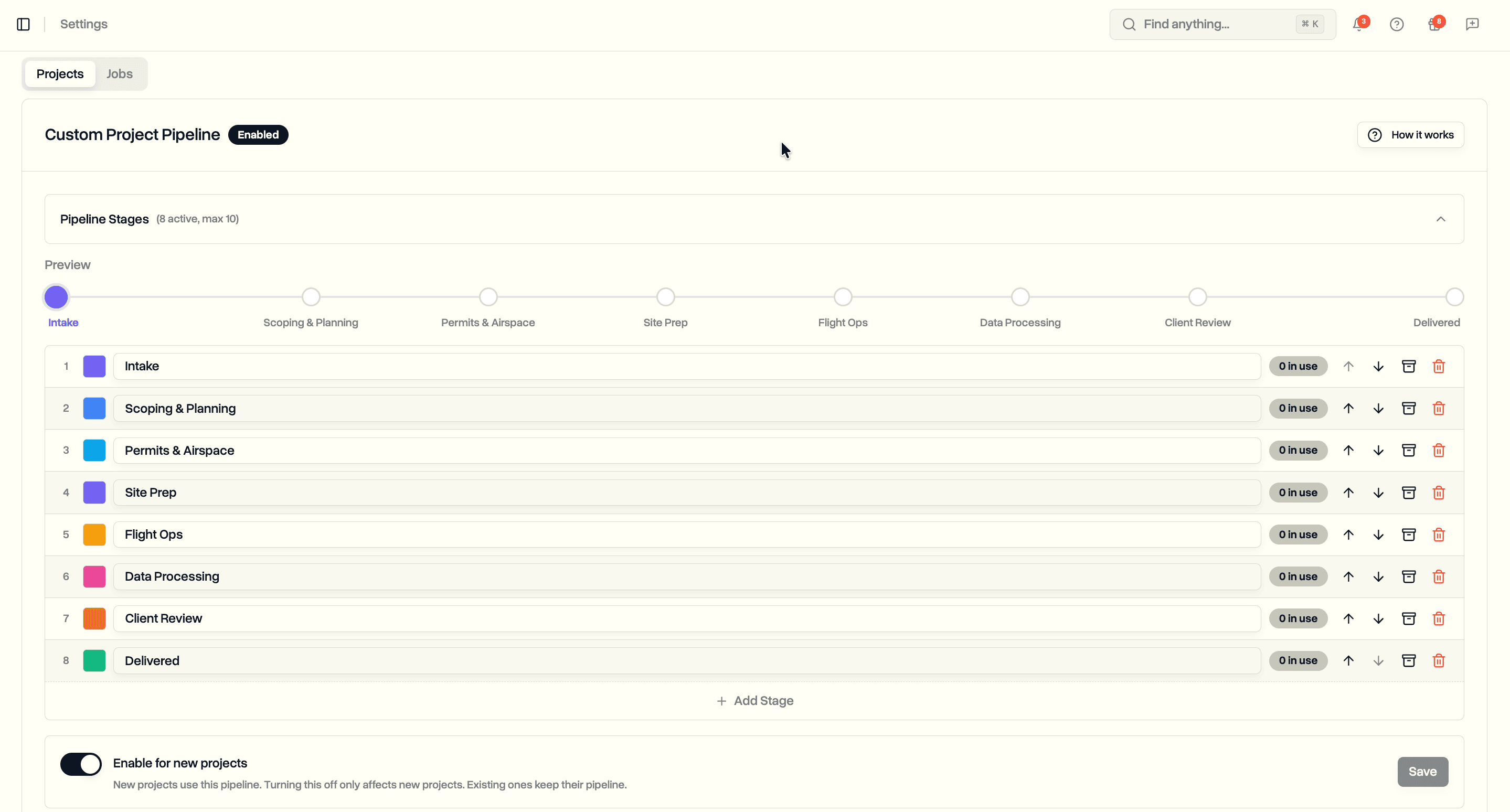
Each stage carries four fields:
- Label. The human-readable name shown across the UI, up to 30 characters.
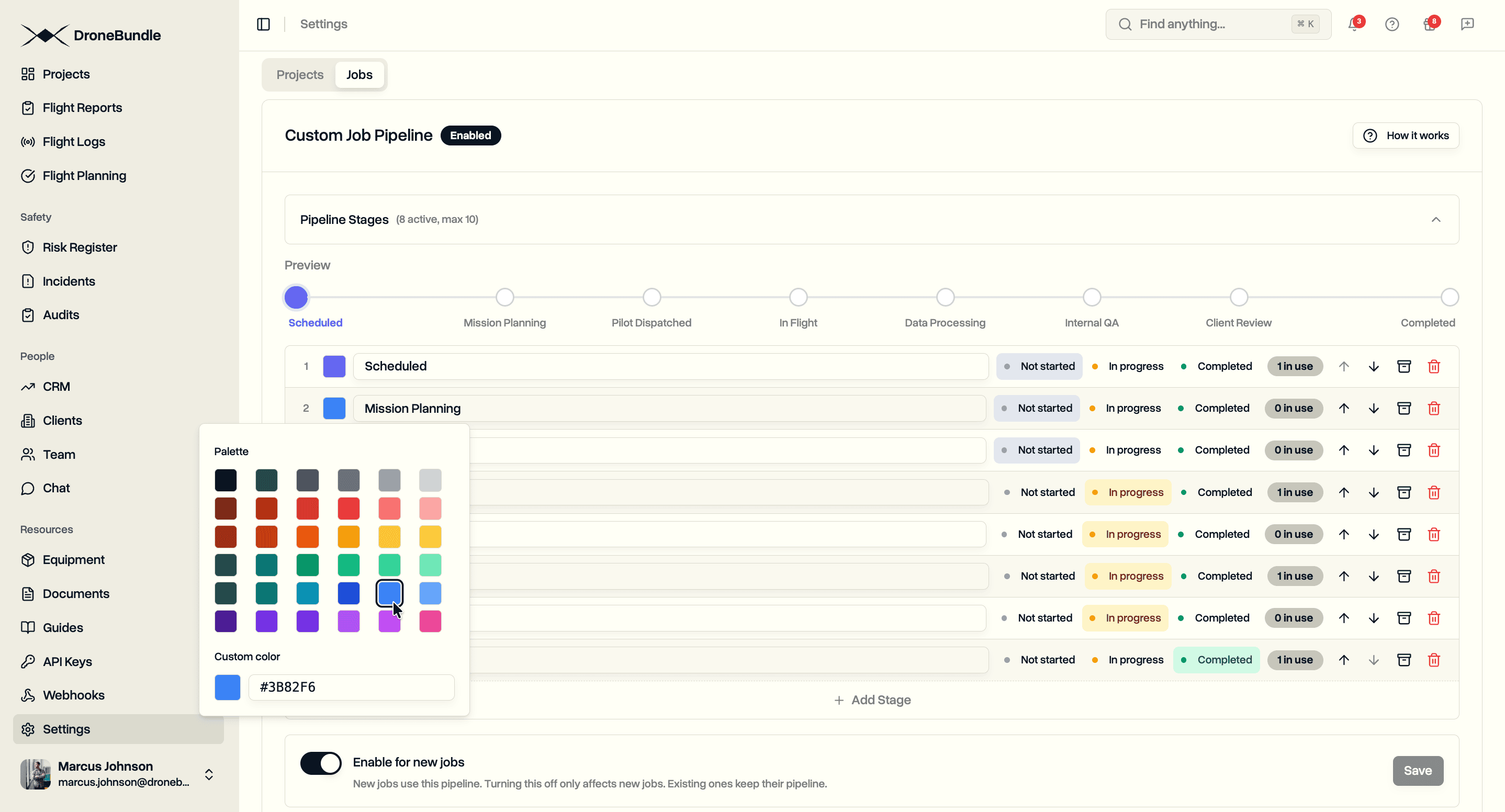
- Color. A palette of preset swatches plus a custom hex input, so status pills and stepper dots match any brand.
- Order. Up and down arrows reorder stages. The first non-archived stage is where new records start.
- Archived. Hides a stage from new pickers without deleting it. Records already on an archived stage keep their value and remain editable.
A pipeline supports one to ten stages. Rename a stage later and every record using it picks up the new label on the next render.
Enabling a Pipeline
Once the stages pass validation, flip the Enable for new projects (or jobs) switch. From that moment, every newly created record in the workspace uses the pipeline. Records created before the toggle keep their original status.
Disabling the switch later is non-destructive. Only new record creation reverts to the default statuses. Existing pipeline-using records continue rendering against the saved pipeline, so nothing you built goes missing if you turn the feature off.
Pipeline Stepper
Open any project or job that uses a pipeline and the detail view shows a horizontal stepper at the top of the overview. Filled dots mark completed stages, the current stage is highlighted, and hollow dots mark what is still ahead. The edit dialog renders the same stages vertically next to the dropdown so you can scan the full sequence while picking a new status.
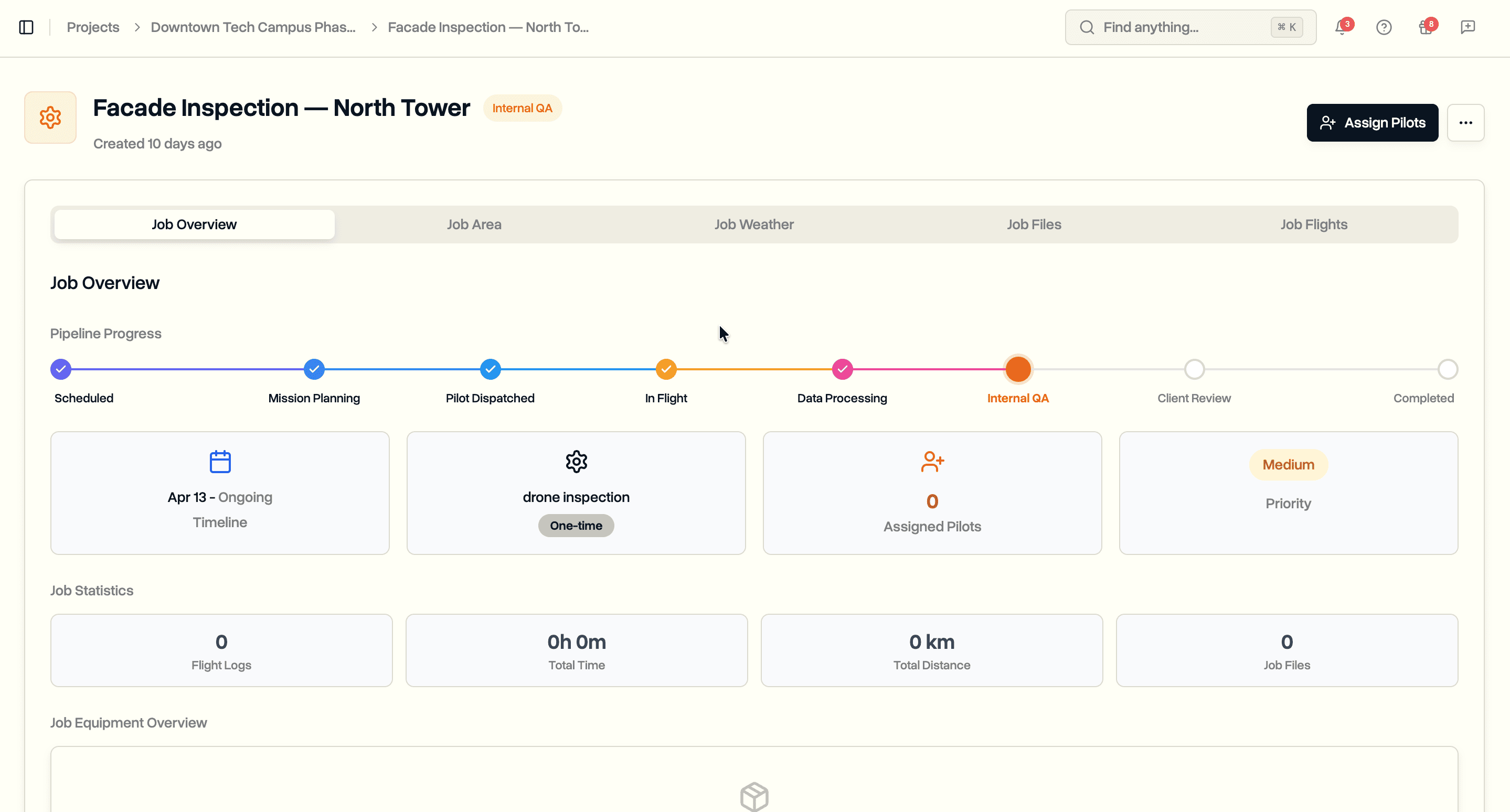
Archived stages are skipped from the forward path. The only exception: if the record itself sits on an archived stage, it shows muted with an Archived tag so the user knows where they are before moving off.
The status pill next to the title stays as the control. The stepper is a read-only visualization so there is no ambiguity about how to change state.
Job Categories and Pilot Stats
Jobs have one wrinkle projects do not. Every pilot profile tracks how many jobs that pilot has not started, has in progress, and has completed. Team dashboards roll those counts up. A custom status like Scheduled or Flight Ops has no obvious home unless you tell the system which bucket it belongs to.
Job pipeline stages carry a required category field alongside label and color:
- Not started. Job has not been worked on yet.
- In progress. Job is actively being worked.
- Completed. Job is done. Triggers the completion email and is excluded from active-job queries.
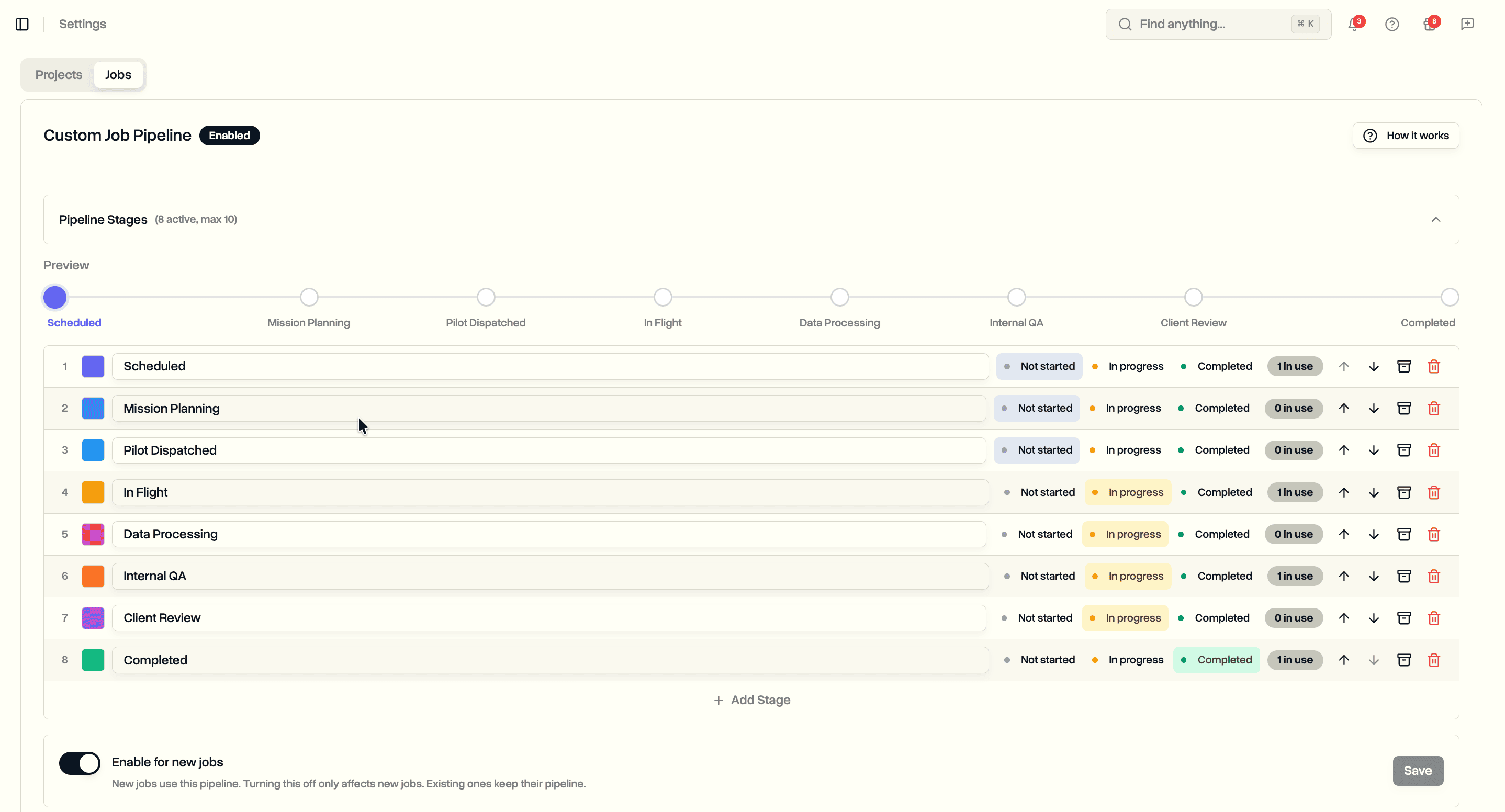
The builder picks smart defaults (first stage → Not started, last non-archived → Completed, everything in the middle → In progress) but the admin has the final say. Validation requires at least one stage in Not started and at least one in Completed, so a valid pipeline can always start and always finish.
Short pipelines work fine. A two-stage Scheduled → Done is valid. A five-stage Planned → Prepped → Active → Reviewed → Delivered is valid. Pilot counters follow the category you picked for each stage, so they keep working regardless of the labels.
Live Edits with Guardrails
Pipelines are editable at any time and changes apply live. Rename a stage, recolor it, reorder the list, or add a new one and every record using the pipeline picks up the edit on the next render.
Two edits have guardrails:
- Archive a stage at any time. It disappears from pickers but records already on it keep their value and can be moved off at the owner's pace.
- Delete a stage only when no records are sitting on it. The settings UI shows an in-use count next to every stage. Hit delete on a stage that has records on it and the app prompts you to archive it instead, so nothing goes stale and nothing gets orphaned.
Renaming or recoloring a stage is always safe. Historical statuses never vanish because an admin reworded a label.
Filtering Across Both Taxonomies
Workspaces that enable a pipeline will usually have a mix of records: ones created before the toggle (using the default statuses) and ones created after (using the pipeline). The filter popover on project and job lists reflects that.
When the toggle is on, the status filter shows two tabs: Default and Custom. Each tab has its own checklist. Selections from both tabs union on submit, so filtering for Delivered (custom) together with completed (default) returns every record in either world that has finished.
When the toggle is off, the filter shows the default eleven exactly as before. Customers who do not enable custom pipelines see no change in their filtering UI.
Bulk Status Updates
Bulk status edits respect the two worlds. Select records that all use the pipeline and the bulk dialog shows the pipeline stages. Select records that all use the default statuses and the dialog shows the default eleven. Selections that mix both modes disable the dialog with a tooltip explaining why, because a split UI would be more confusing than helpful.
Search
AI-powered search indexes the admin-defined labels, so natural language queries like "projects in post-processing" match the same wording you chose in the builder.
Roles and Plans
Editing pipelines is gated to admins. Workspace members with the Admin or Project Manager role can build, enable, disable, and edit pipelines. Everyone else can see and use the resulting stages but cannot change them. Regular customization fields (labels on existing default statuses, hidden statuses) keep their current permissions.
Custom status pipelines are an Enterprise plan feature. Projects and jobs can be enabled independently, so a workspace can run custom job stages while keeping the default project statuses, or the other way around. Trial workspaces get access during the trial period.
Use Cases
Inspection teams that run every project through the same stages. Define Scope → Schedule → Fly → Process → Deliver once and every new project starts at Scope with a visible stepper showing the remaining steps. No more training new staff on which of the eleven default statuses means what.
Survey and mapping operators with multi-week post-processing pipelines. A stage like Orthomosaic Processing or Client Review maps poorly to the default set. Build your own and the platform reflects the work instead of forcing it into a generic bucket.
Enterprise operators running different workflows per workspace. DroneBundle already supports multiple workspaces. Each can now carry its own pipeline, so a workspace for construction sites and a workspace for film shoots can run independent processes without fighting over a shared status list.
Integration builders driving projects and jobs through the API. Custom stages work on the existing create and update endpoints without any new fields. Read the enabled pipeline from the workspace endpoint and feed the stage list into your CRM or scheduler.
Teams preferring the defaults. Nothing forces you to enable a pipeline. The eleven default statuses remain a first-class experience, not a legacy fallback. Teams that never touch the feature see no change.
Availability
Custom status pipelines are available now on the Enterprise plan. Projects and jobs can be enabled independently from Settings → Customization by a workspace admin.
Start your free trial to try custom status pipelines with full Enterprise features for 14 days.
Book a demo to see how DroneBundle's workspace customization fits your operation.