Connect DJI FlightHub 2 to your workspace once and every dock flight shows up in DroneBundle on its own, about ten minutes after landing. It finds its job, credits the pilot who was rostered, closes out the scheduled flight, and updates equipment and maintenance counters. Nothing to export, nothing to upload.
A dock changes what a drone operation looks like. The aircraft flies on a schedule, lands, charges, and flies again, with nobody standing next to it. What does not change is the paperwork. Every one of those flights still has to end up somewhere as a record: which aircraft, which battery, how long, where, and for which job. With a dock that can mean dozens of flights a day, and every one of them sitting inside DJI FlightHub 2 rather than in the system that runs the rest of the business.
For operators in the United States it has been worse than a chore. DJI stopped its flight record cloud sync for US customers in 2024, so the usual route of pulling flight records out of FlightHub and into a logbook has simply not been available there. The flights happen, and the log stays in DJI's platform.
DroneBundle now connects directly to DJI FlightHub 2. You paste four values into FlightHub once, and from then on every flight from your dock arrives in your workspace by itself. It works with DJI Dock, Dock 2, and Dock 3, and because it uses FlightHub's own forwarding rather than DJI's flight record sync, it works for US operators too.
Connect Once, in About Five Minutes
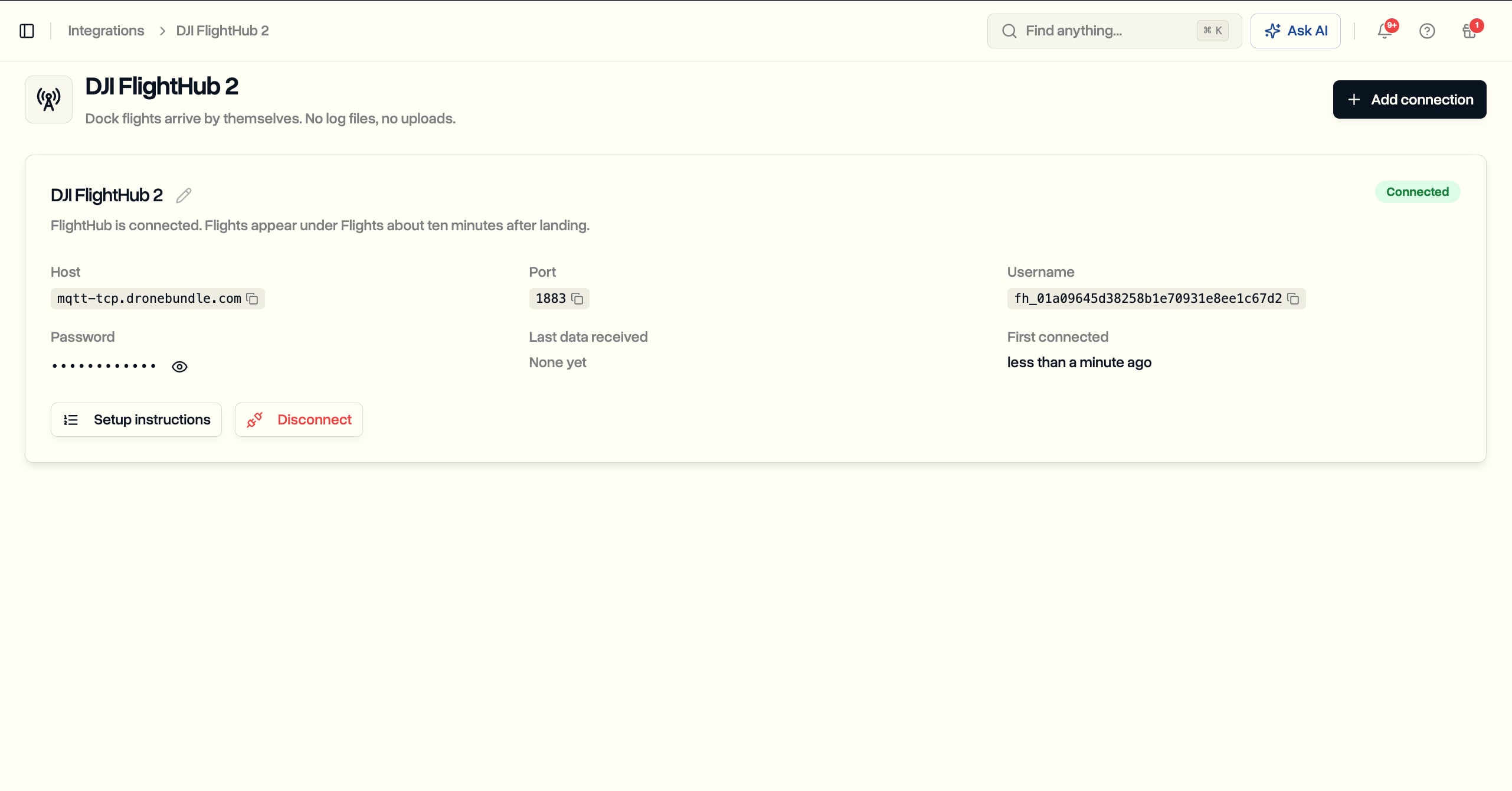
Open Integrations from the sidebar and choose DJI FlightHub 2. Click Add connection and DroneBundle gives you four values: a host, a port, a username, and a password. There is nothing to install on the dock or the controller.
The rest happens in FlightHub 2, and the setup panel walks you through it with DJI's own menu names. Sign in as an organization administrator, open My Organization, then FlightHub Sync. Turn on Forwarding under Device Information Synchronization, click Configure Server, and paste in the four values. Test the connection, then Save and Connect. FlightHub shows the service as Running, and back in DroneBundle the connection changes from Waiting for FlightHub to Connected on its own.
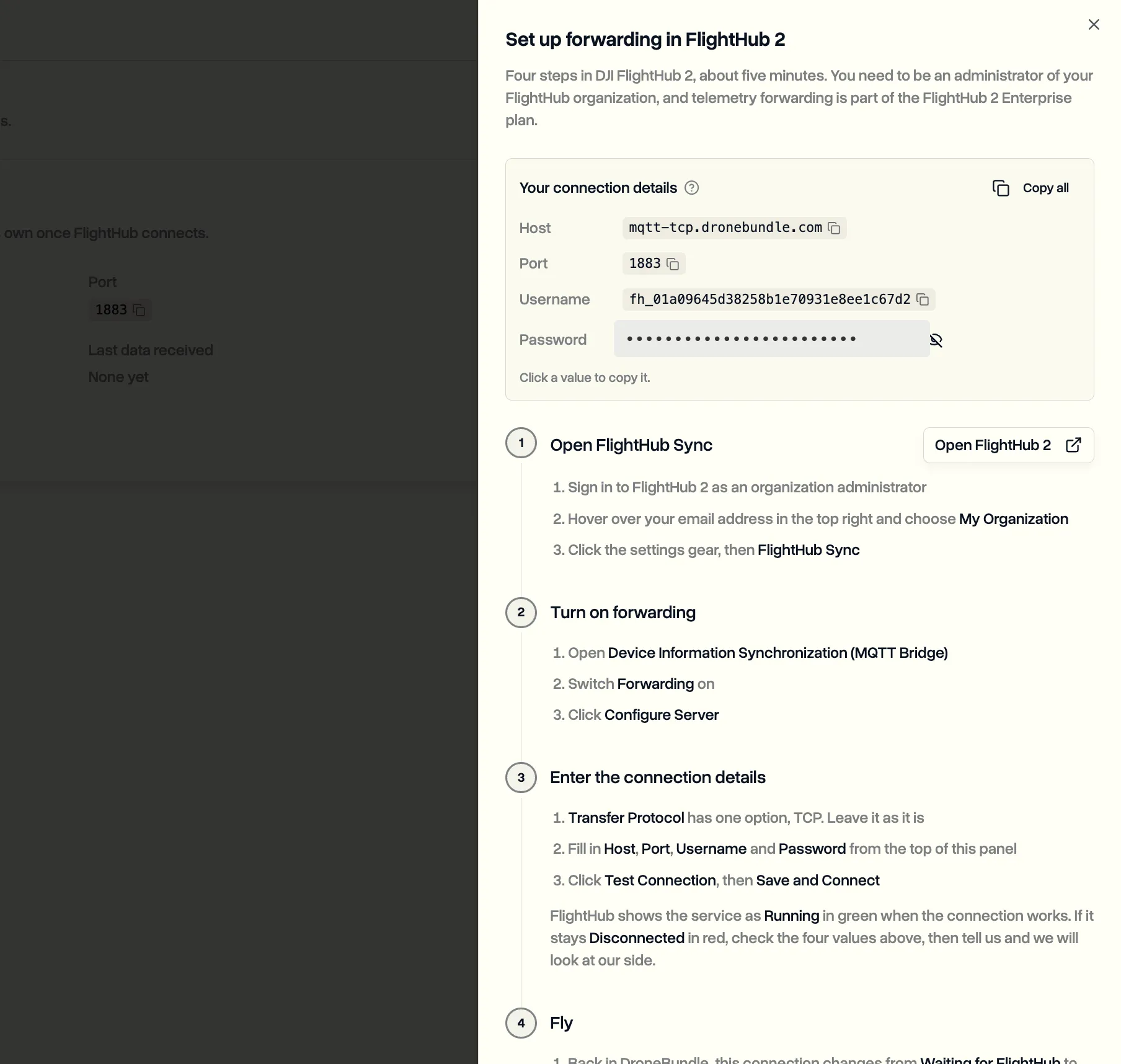
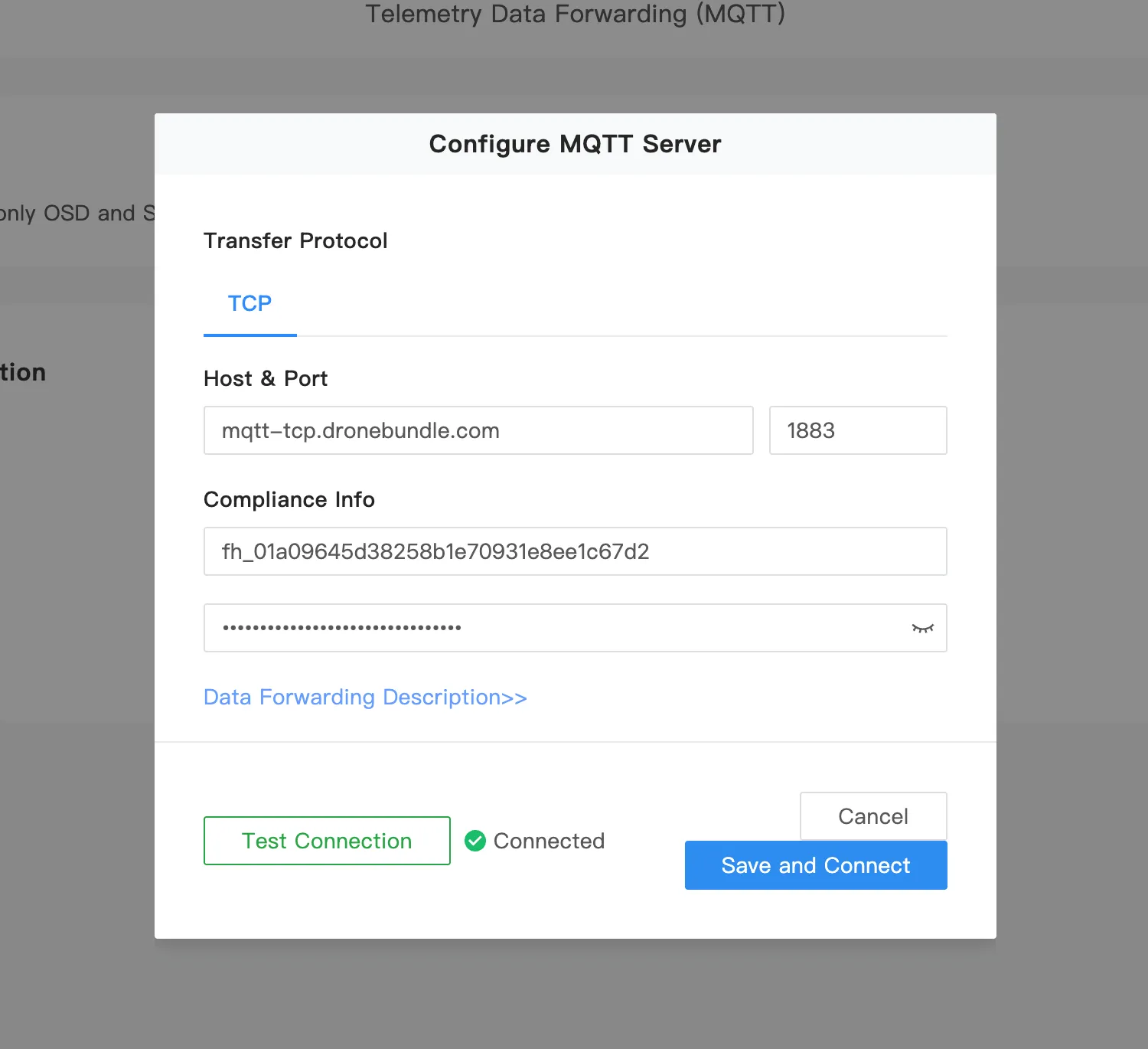
That is the whole setup. You need to be an administrator of your FlightHub organization, and forwarding is part of DJI's FlightHub 2 Enterprise plan. On the DroneBundle side, workspace owners and project managers can set up the connection.
Flights Arrive on Their Own
Fly a mission. About ten minutes after the aircraft lands, the flight is under Flights in DroneBundle with the dock and the aircraft named. In the flight list it carries a Dock badge, so you can tell at a glance which flights came from the dock and which were flown by hand.
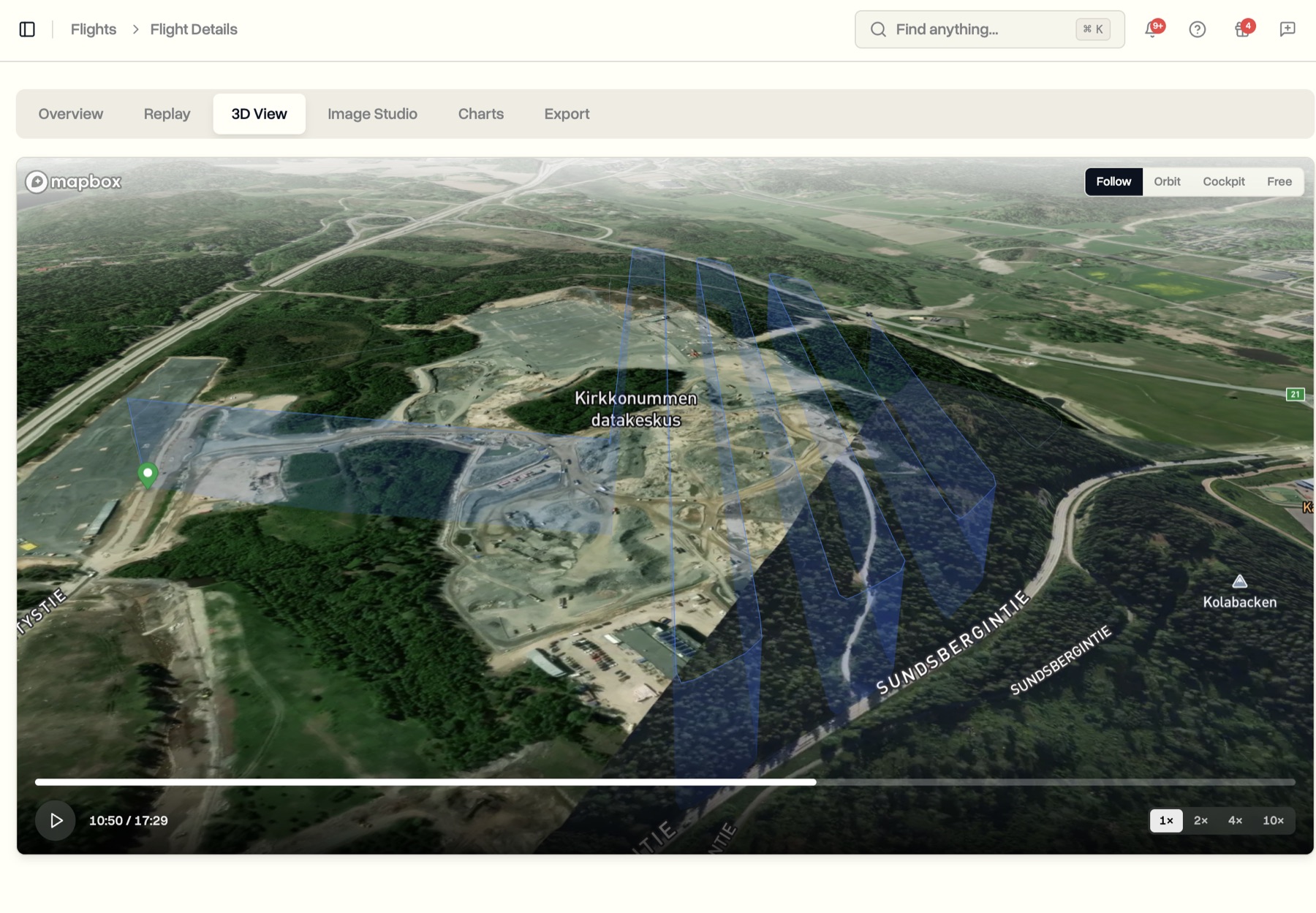
Open one and it is a full DroneBundle flight. The overview shows the aircraft model, duration, distance, maximum altitude, top speed, and how much battery the flight used. The path is on the map, the replay and 3D view work, the charts show altitude, speed, battery percentage, voltage, and temperature over the flight, and Export produces the same report you get for any other flight. Aircraft serial, battery serials, and firmware versions come across as well.
The flight data comes from what FlightHub forwards while the aircraft is in the air, which is a slightly different source than a log file copied off a controller. If a capture only covers part of a flight, for example because the connection dropped mid-mission, the flight says so plainly at the top of the page rather than pretending the shorter duration is the whole story.
Each Flight Files Itself
A flight that arrives on its own is only useful if it ends up in the right place. Each dock flight works out where it belongs in three steps, and stops at the first one that gives a clear answer.
The dock's own job comes first. If the dock is attached to a job as equipment, and that job is active on the day of the flight, the flight goes to that job. For a dock that runs the same site every day, this is the answer almost every time.
Then the area. If the dock is not attached to a job, or is attached to more than one, DroneBundle checks the flight path against the areas drawn on your jobs and projects. A job wins over its project, and an active job wins over a finished one, so a flight over a site with a live inspection job goes to that job rather than to last month's completed one.
Otherwise it waits for you. A flight that matches nothing stays in the workspace as unlinked, and a notification tells you it arrived. You can connect it to a project or job from the flight list whenever you get to it. Nothing is dropped.
Matched or not, the notification names the connection that sent it, so the feed reads the way any other flight upload does.
The Schedule Closes Itself Out
Once a flight has found its job, it looks at that job's schedule for the day. If there is a scheduled flight whose time window covers the takeoff, the dock flight is attached to it and the scheduled flight is marked Completed, with a small mark showing that a flight log from the dock backs it. Someone who planned a week of dock missions in the Pilot Schedule can watch them tick over to Completed as the dock flies them, without anyone touching a status.
Pilot credit follows the same schedule. A dock does not have a pilot in the usual sense, so DroneBundle credits the flight to whoever was rostered on that scheduled flight. If exactly one pilot was assigned, the flight shows their name and counts toward their flight hours, with a note that it was synced from DJI FlightHub 2. If nobody was rostered, the flight says No pilot and explains why. If more than one pilot was rostered, it is not credited to anyone, because guessing would be worse than leaving it open.
Equipment and Maintenance Register Themselves
The first flight from a dock creates the dock as a piece of equipment in your workspace, named after its model and serial, and pairs it with the aircraft it flew. The aircraft, batteries, and cameras are created from their serial numbers in the same way if they are not already there, and reused if they are. If you have already set up the dock or the aircraft by hand, that record is kept and the flight attaches to it.
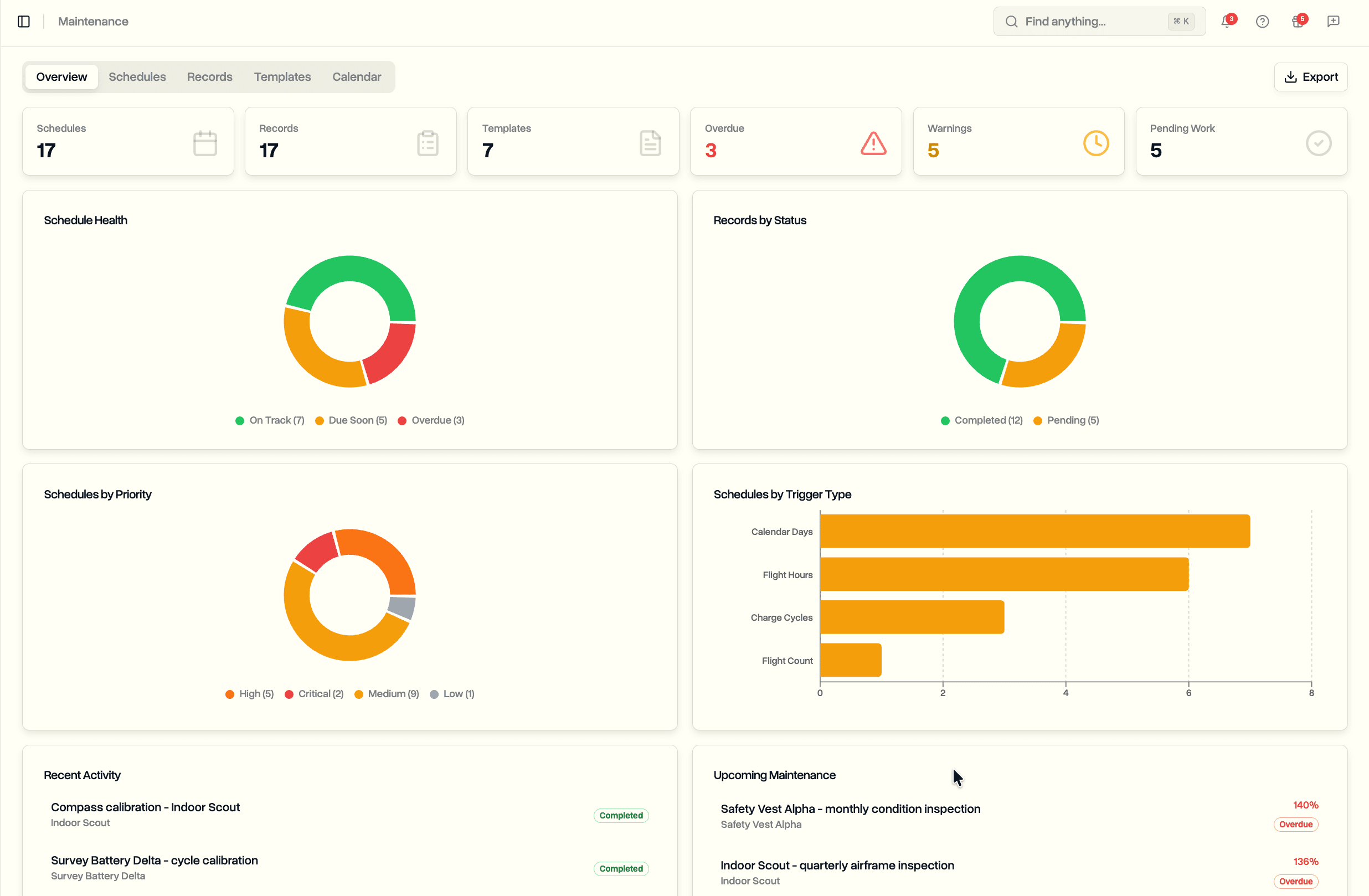
From there, every dock flight feeds the same maintenance counters as a hand-flown flight: flight hours and flight counts on the aircraft, cycle counts on each battery. A dock that flies twenty times a day moves those counters quickly, and the service reminders fire when they should.
Dock flights also roll up into workspace, project, and job statistics, alongside everything flown by hand.
Built for US Operators Too
DJI's flight record cloud sync is not available to US operators, and neither is the flight record file sync in FlightHub 2. This integration does not depend on either. It uses the forwarding feature in FlightHub Sync, which sends live flight data to a server of your choosing and is available in the US. Your dock stays on FlightHub 2 for planning and control, and DroneBundle receives a copy of each flight as it happens.
A Password That Does One Thing
Each connection gets its own password. It only works for that connection, it can only send flights in, and it cannot read anything from your workspace. You can reveal it from the connection page when you need it and replace it at any time. FlightHub 2 currently connects without encryption, which is a limitation on DJI's side, so the connection details are worth treating as private, and the setup panel says so.
Disconnecting takes effect within the hour. Flights already received stay in DroneBundle, and reconnecting later means creating a new connection and entering its details in FlightHub again.
Availability
DJI FlightHub 2 sync is available on the Team and Enterprise plans, and a workspace can have up to ten connections. It works with DJI Dock, Dock 2, and Dock 3 and the aircraft they carry, including the Matrice 4D and 4TD, the Matrice 3D and 3TD, and the Matrice 30 series. Forwarding requires the FlightHub 2 Enterprise plan from DJI. Workspace owners and project managers can add and manage connections. For how the sync fits a whole dock operation, from client jobs and pilot shifts to invoicing, see DroneBundle for dock operations.
If you fly by hand rather than from a dock, the Android sync app still covers DJI controllers, and manual DJI log upload works as before. Dock flights and hand-flown flights sit in the same list, feed the same flight reports, and count toward the same maintenance schedules.
Start your free trial and connect your dock to see the first flight arrive on its own.
Book a demo to see how dock flights file themselves to jobs, pilots, and maintenance in DroneBundle.