Upload an insurance certificate, a waiver, an aircraft registration, or a training record to Documents and DroneBundle reads it, finds every expiry date printed on it, and reminds you 30 days before, 7 days before, and on the day. Nobody types a date, sets a calendar reminder, or keeps a list of renewals on the side.
A drone operation runs on paperwork that runs out. The liability policy renews once a year. A waiver has an end date. Each aircraft’s registration lasts three years, and first aid cards, site safety courses, and manufacturer training each run on their own clock, one per pilot. Every one of those dates is printed on a document.
DroneBundle has had a home for those documents for a long time, with categories, sharing, and version history. What it did not have was the date. A file called insurance-2025.pdf in the Compliance category tells you the certificate exists. It does not tell you the policy ended two weeks ago. Someone had to open the file to find out, or keep the dates in a spreadsheet and remember to look at it.
Document expiry tracking closes that gap. Every document uploaded to Documents is read, its dates are found, and the rest of DroneBundle starts using them: the Documents table, your notifications, DroneBundle AI, and the Monday report. It is on for every workspace and there is nothing to set up.
The Date Comes Off the Page
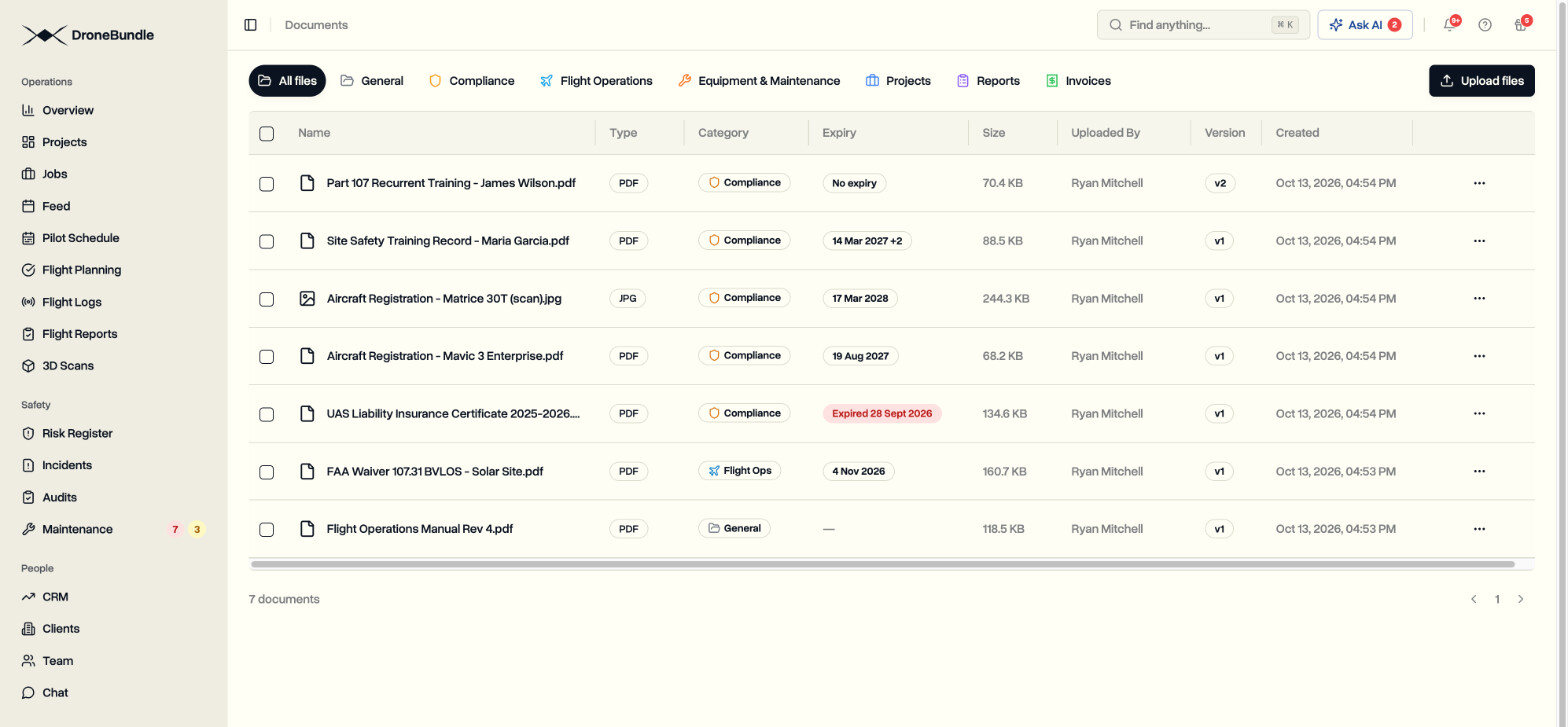
Upload a document the way you always have. Usually within a couple of minutes, the Documents table shows what was found in a new Expiry column. An expired document gets a red Expired label with its date. A document that is still valid shows the day it runs out. A certificate with no end date printed on it says No expiry, and a file that is not a certificate at all, an operations manual for example, is left alone.
PDFs, JPGs, PNGs, and TIFFs are all read, up to 50 MB each. It makes no difference whether the file is a clean export from an insurer’s portal, a scan from the office printer, or a photo of a card taken on a phone.
Along with the date, DroneBundle records what the document is and who it belongs to: the holder, the issuer, the certificate or policy number, the aircraft serial number when there is one, and the issue and effective dates. Insurance, registrations, pilot certificates, training, and permits or waivers are each recognised for what they are.
Only Dates the Document States
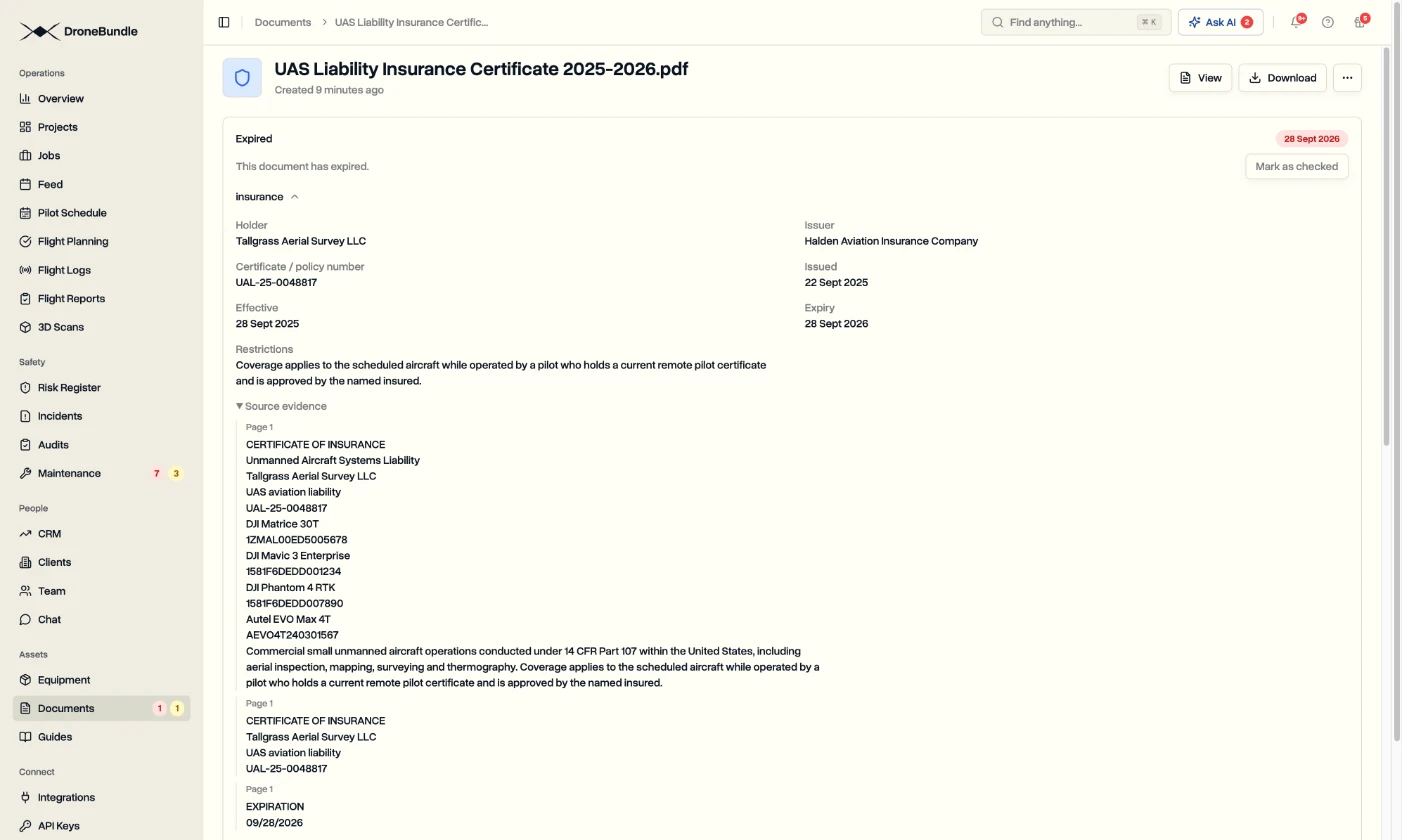
A wrong expiry date does more harm than a missing one, so the rule is strict. DroneBundle reports a date only when it is printed on the document, and it shows you where.
- Every date has its source. Open a document and each entry shows the exact line the date was read from and the page it is on. Checking a date against the original takes seconds.
- An issue date is never treated as an expiry date. A training certificate that shows only the day the course was completed gets No expiry. An owner or project manager can add an expiry date to it by hand, and from then on it is tracked like any other.
- Day and month order is worked out, not assumed. 03/04/2027 is 3 April in Europe and March 4 in the United States. DroneBundle reads the order from the country that issued the document. A date that could still be read two ways is marked Check date, and no reminder goes out until someone confirms it.
- Month-only dates stay month-only. A card that says valid through 3/2031 is kept as March 2031. No day is invented, and the reminders count down to the last day of that month.
- Other languages are read too. Dates written with month names are understood in English, German, French, Spanish, Italian, Dutch, Portuguese, the Scandinavian languages, and Finnish.
If a date was read wrongly, or a document should not be tracked at all, an owner or project manager can correct the date or clear it on the document.
One Document, Several Dates
Plenty of documents carry more than one date. A training record can list three courses, each valid for a different length of time. DroneBundle keeps them apart: each course becomes its own entry with its own expiry date.
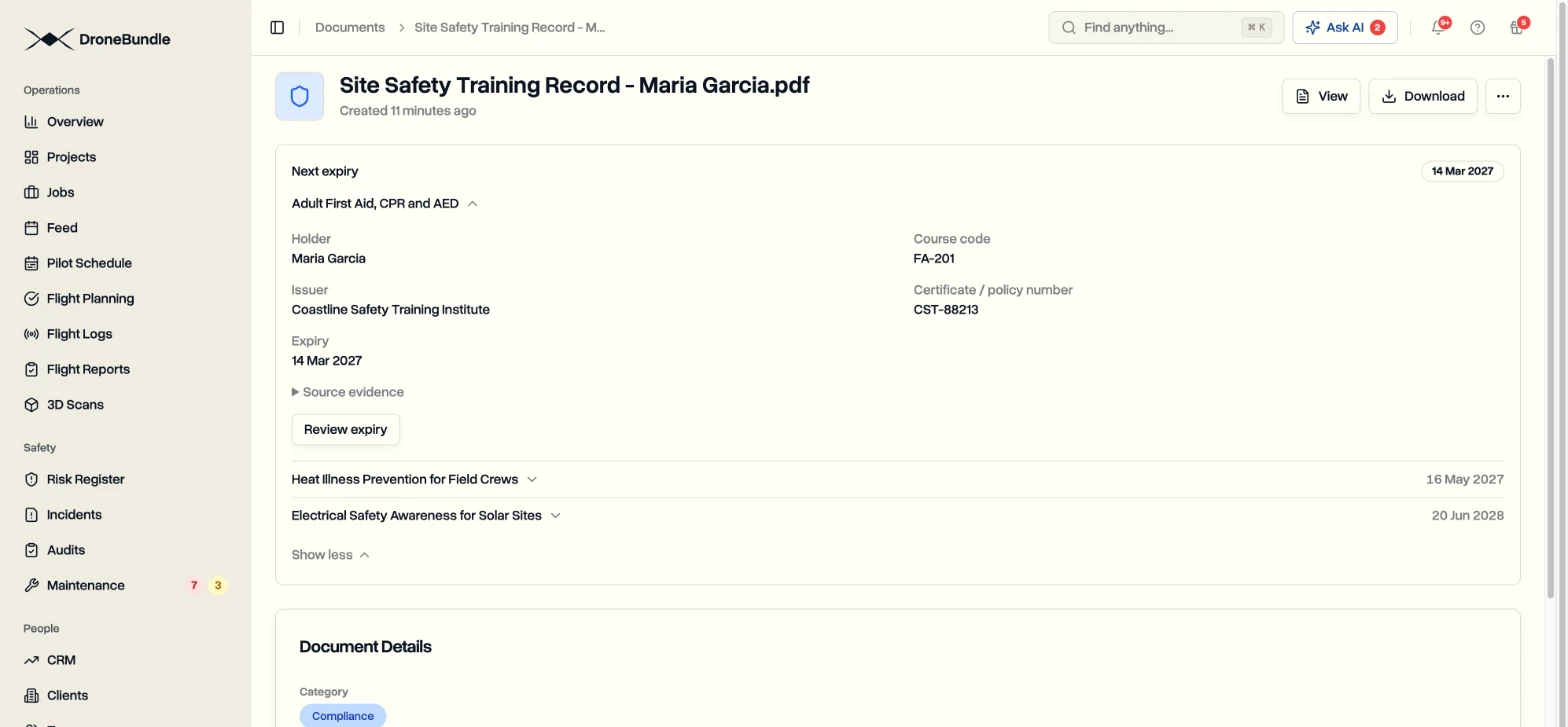
The Documents table shows the nearest date, with a +2 beside it when two more are behind it. Reminders are sent per entry and name the course, so a notice about a first aid card that runs out in March is never confused with the electrical safety course on the same sheet that is good until the year after.
Reminders at 30 Days, 7 Days, and on the Day
Once a date is known, DroneBundle watches it. Workspace owners and project managers get a notification 30 days before a document expires, another at 7 days, and a last one on the day itself. Each says which document it is, what on it is running out, and when.
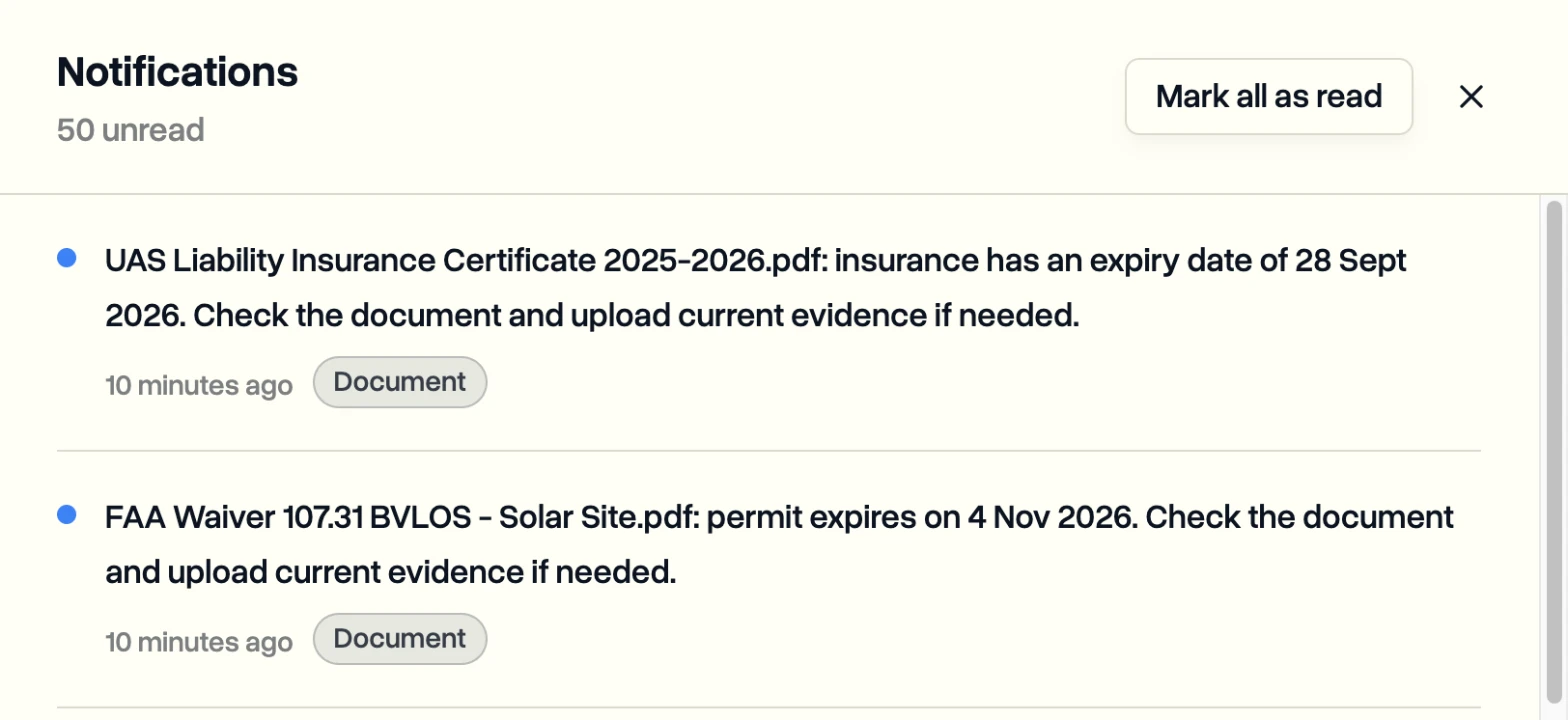
Every reminder is sent once. A document that is already inside a window when you upload it gets only the most urgent notice, not three at the same moment.
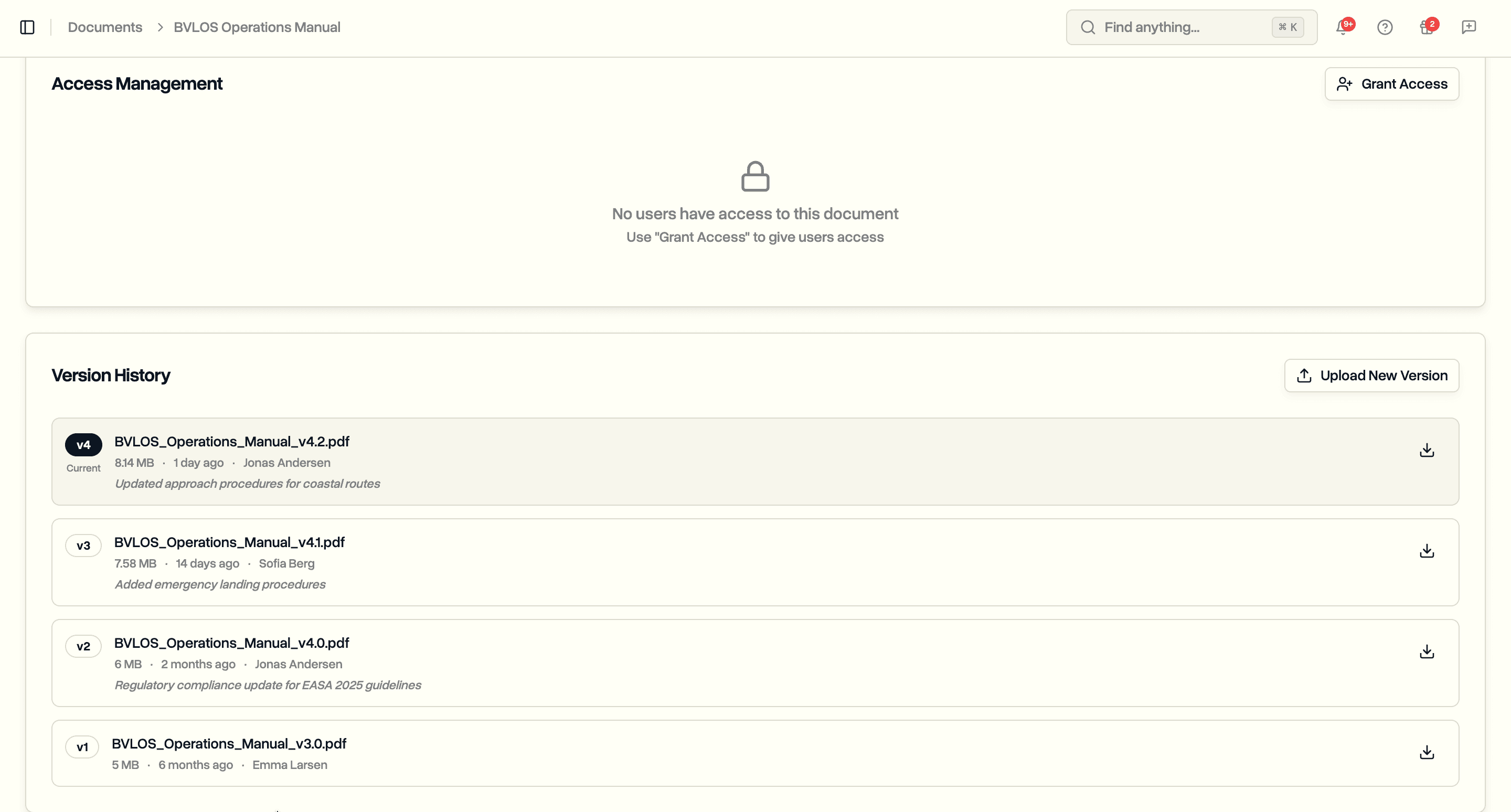
When the renewed certificate arrives, upload it as a new version of the same document. The new file is read, the old dates are replaced, and the countdown starts again from the new one.
What Needs Attention Is Waiting for You
Notifications get read and forgotten, so expired and expiring documents also stay in view until someone deals with them. Owners and project managers see three things:
- A count on Documents in the sidebar, red for expired and amber for anything expiring within 30 days.
- A count on the Ask AI button in the top bar.
- A Needs your attention list at the top of the assistant panel, with each document, its date, and how many days are left.
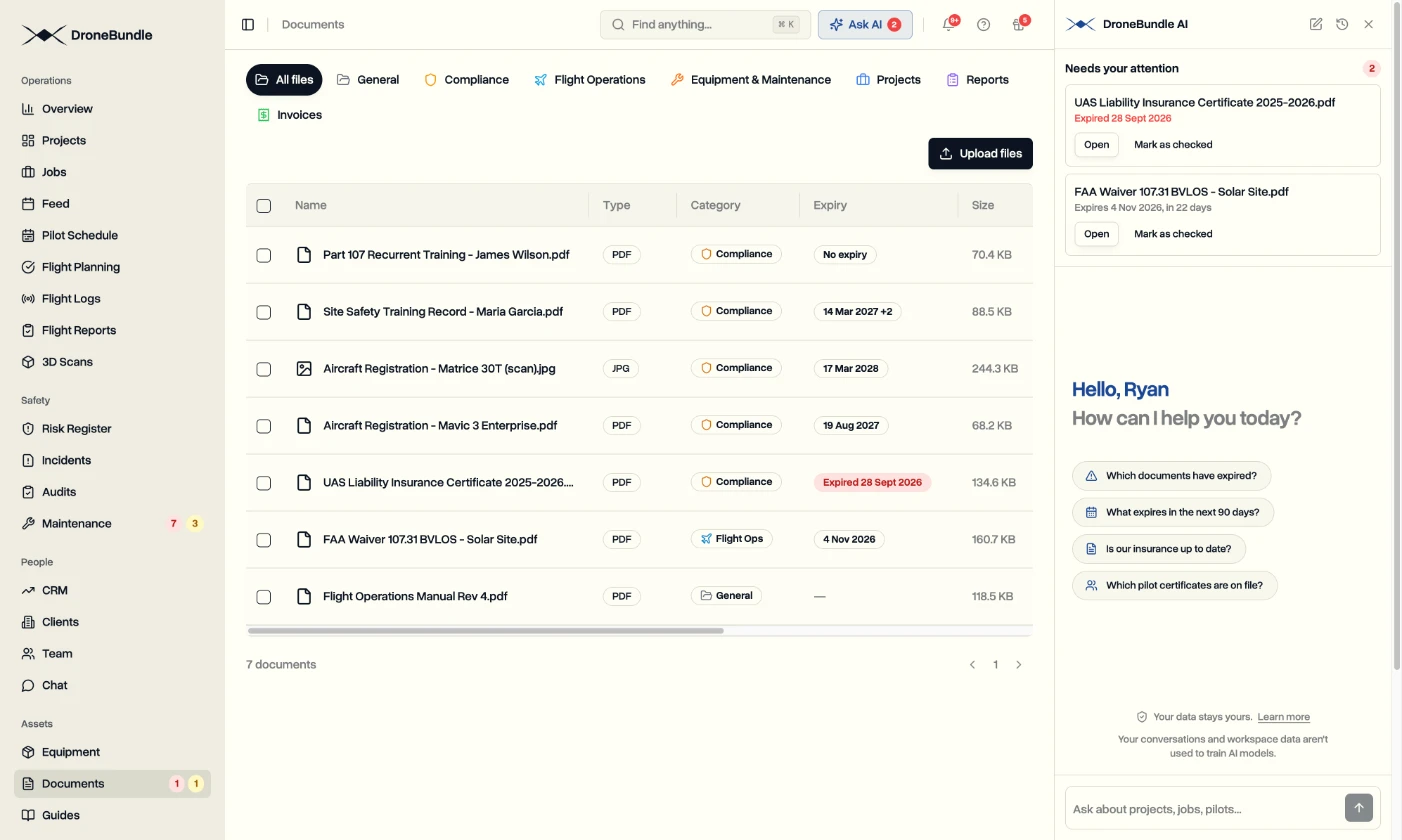
When you have looked into a document, mark it as checked. That clears it from all three places for the whole workspace, so two managers never chase the same certificate. The document keeps its Expired label, now with a tick, and its page shows who checked it and when.
A check does not last forever. It lapses on its own when a new version is uploaded, when a document that was checked as expiring actually expires, or when another date on the same document comes within 30 days.
Ask About Your Paperwork
The same dates are available to DroneBundle AI. Open the assistant on the Documents page and ask in plain words:
- Which documents have expired?
- What expires in the next 90 days?
- Is our insurance up to date?
- Where does the expiry date on this document come from?
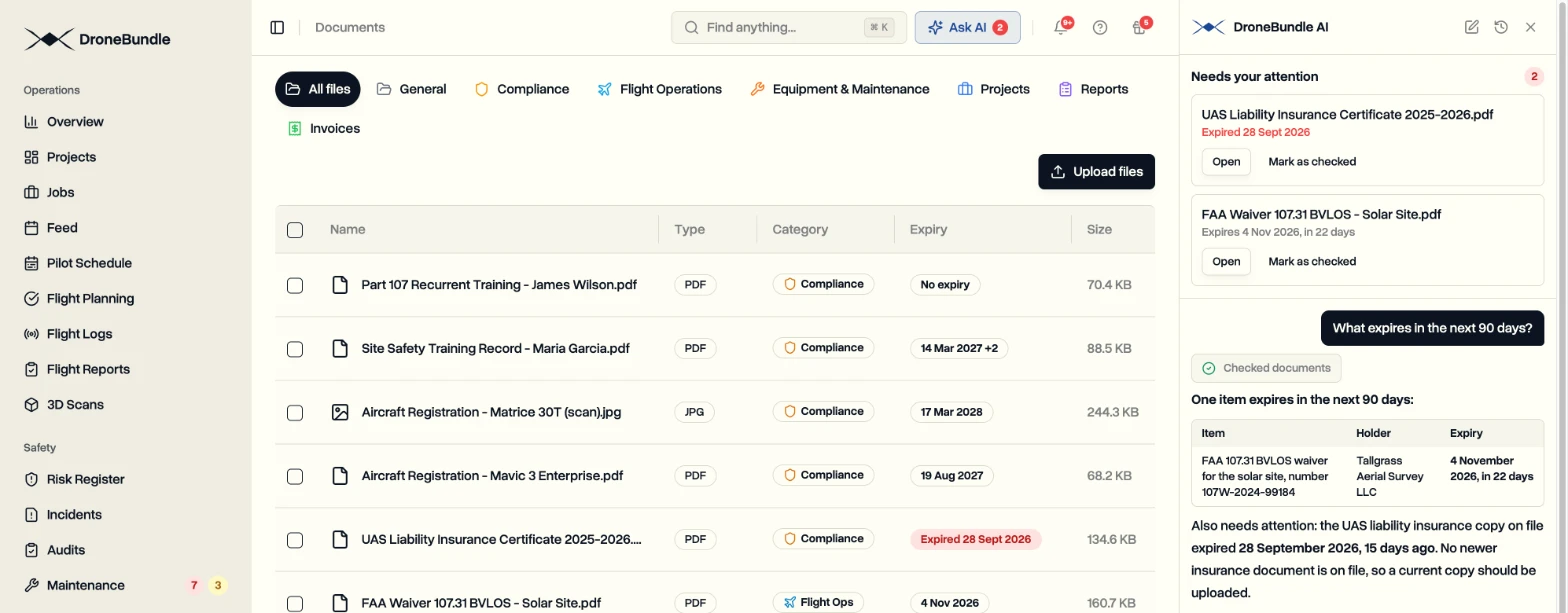
The assistant answers from what was read, names the certificate and not only the file, and can quote the line the date came from. Before it says cover has lapsed, it looks for a newer document for the same holder. If you connect Claude or ChatGPT to your workspace, the same answers are available there.
In the Weekly Report
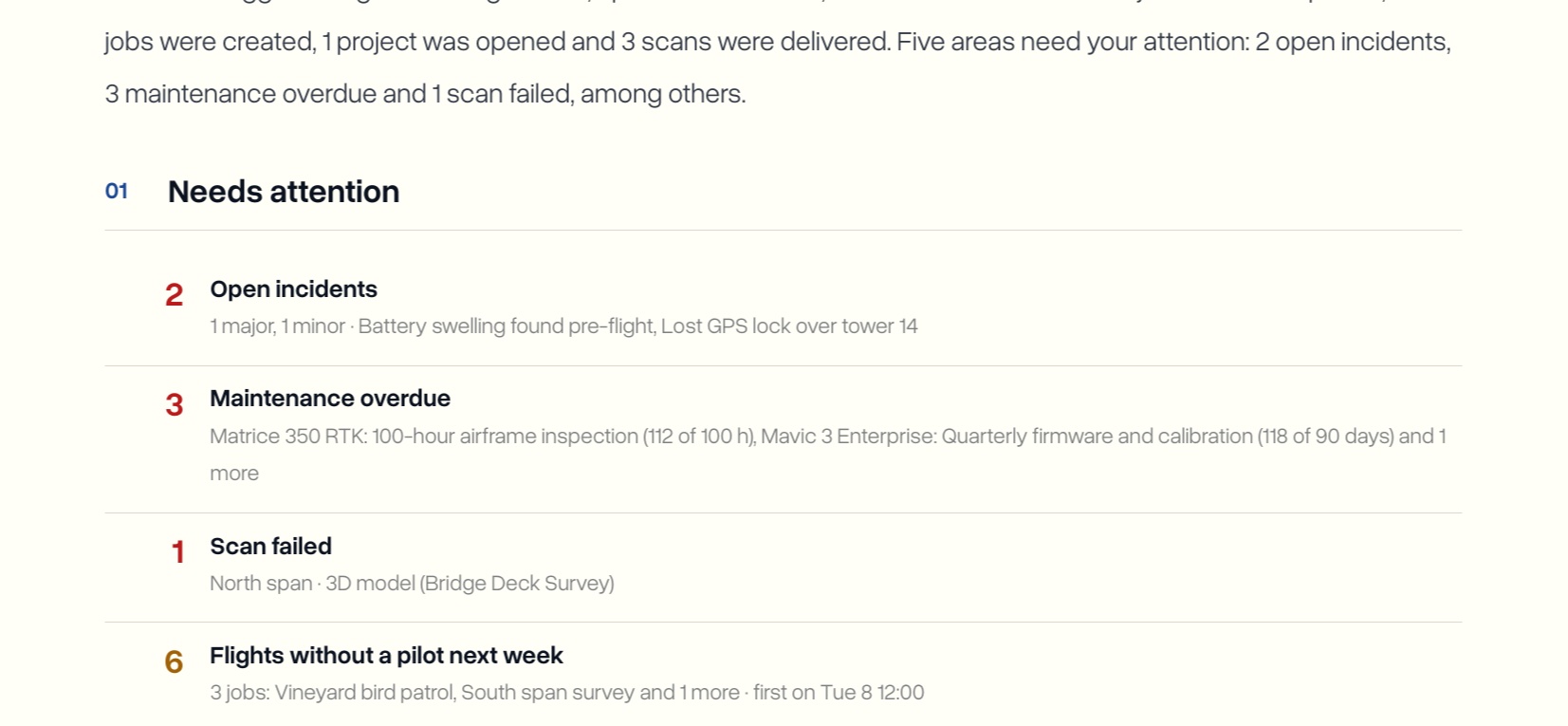
The weekly report that goes out every Monday picks the same documents up. Its Needs attention list gains two rows: Expired documents in red and Documents expiring within 30 days in amber, each with a count and the first file names and dates.
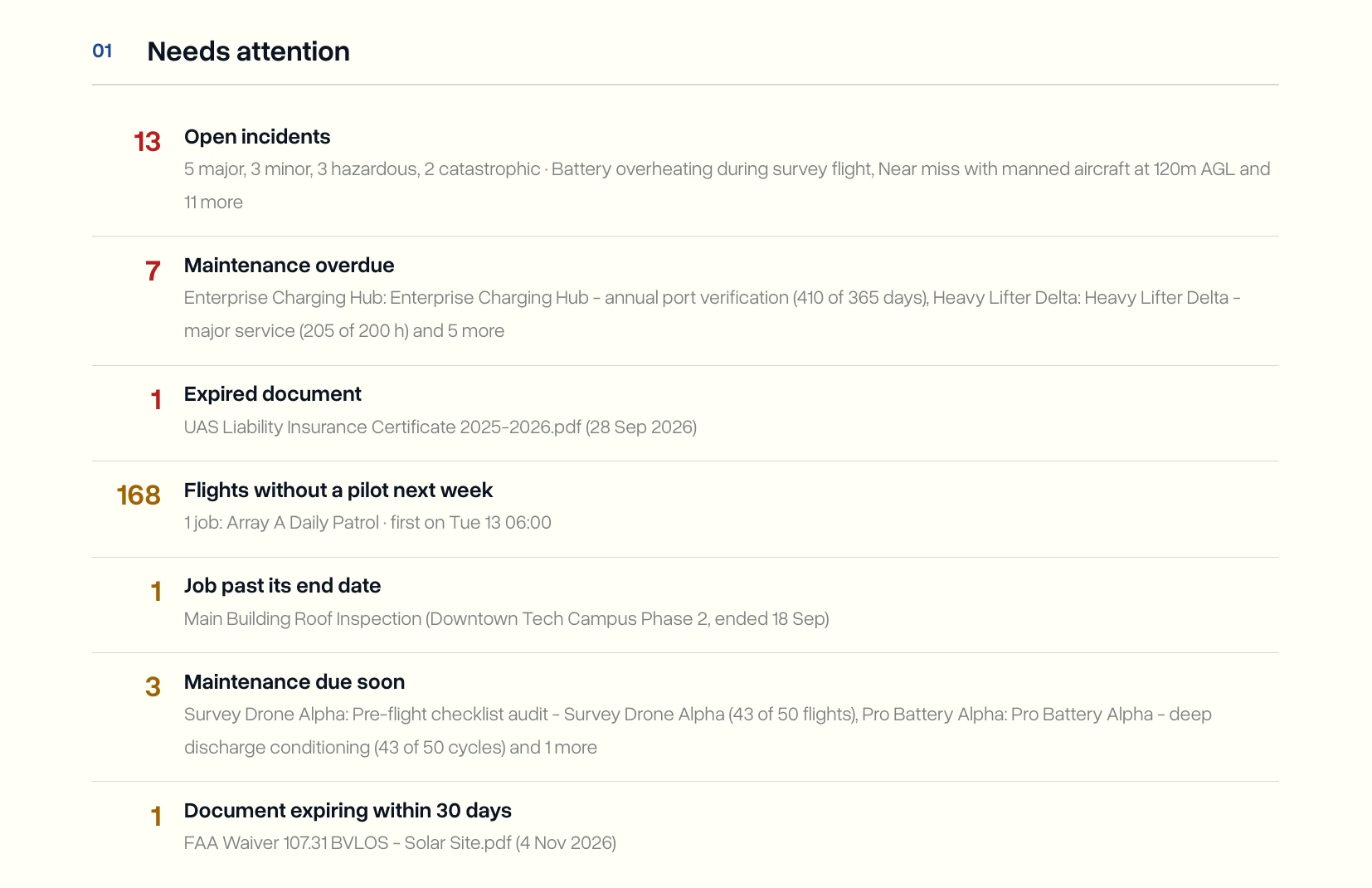
A document someone has marked as checked is left off, so the report shows only what is still open.
Search Finds What Is Written Inside
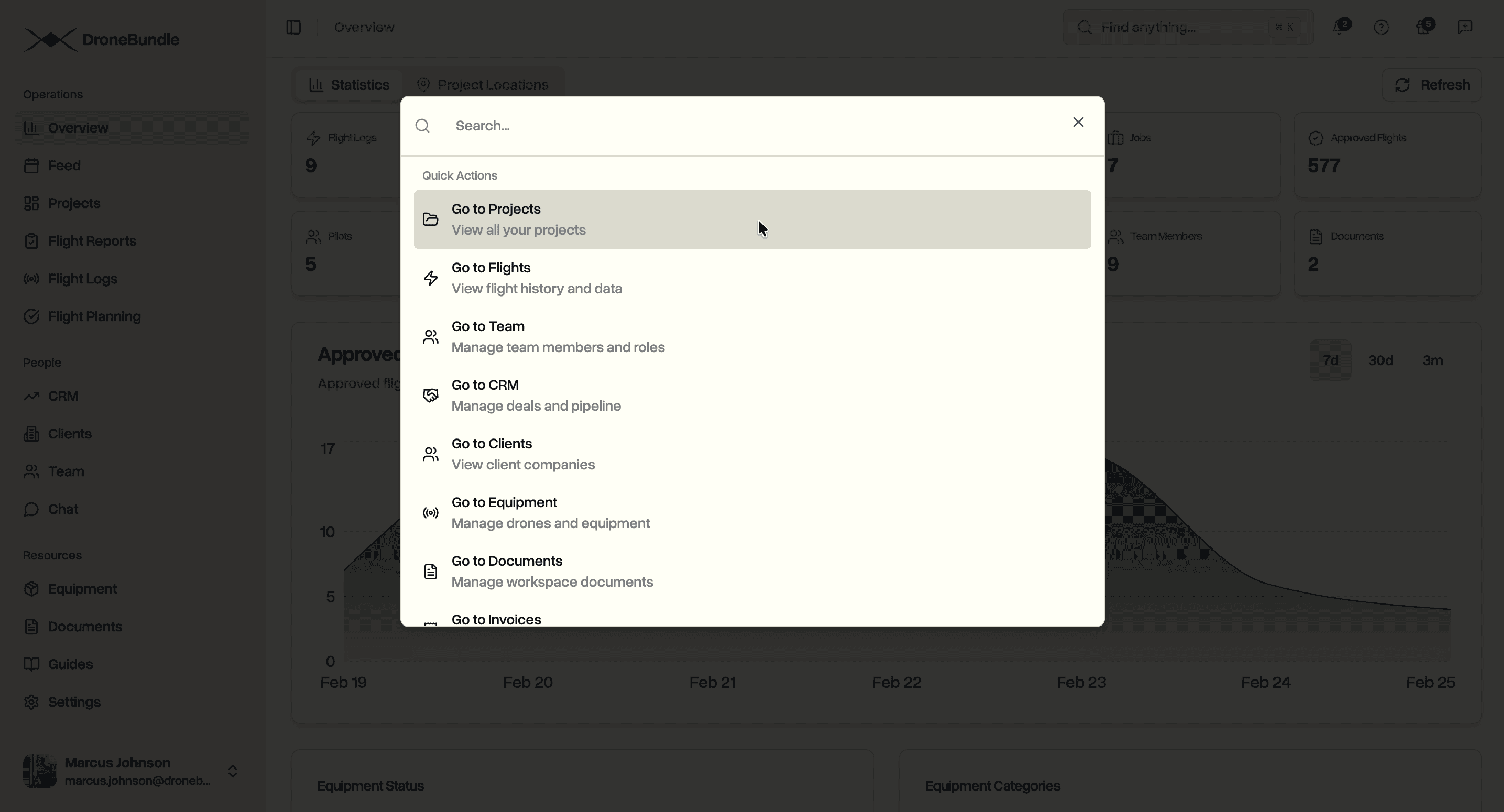
Reading a document makes its text searchable. Type a policy number, an aircraft serial number, or a certificate number into search and the document that contains it comes back, even when the file is a scan with a name like scan_0042.pdf.
What Gets Read
Only the documents on the Documents page are read. Files on projects and jobs are never touched, which is where flight photos and client deliverables live. They are not paperwork, and there is no reason for them to be read.
A document can be up to 500 pages. Uploading stays as fast as before, because the reading happens in the background and the file is usable the moment it lands.
Use Cases
The insurance renewal. For example, a liability policy that renews every autumn. The 30-day reminder arrives while there is still time to chase the broker, the renewed insurance certificate goes up as a new version, and the date in the table moves on a year.
Waivers that end quietly. A waiver for a dock site runs for a fixed period and nothing happens on the day it ends, except that the flights are no longer covered. Ask the assistant what expires in the next 90 days and it is on the list while there is still time to reapply.
A fleet’s registrations. Each aircraft has its own certificate with its own date. Upload them once and the registration renewals arrive one aircraft at a time, each with its serial number attached.
Crew training. One training record per pilot, several courses on each. Every course is tracked on its own, alongside the pilot certifications you already keep on file.
The client who asks for proof. A client wants a current insurance certificate before a job starts. Search the policy number or ask the assistant, and you know in one step whether the copy on file is still good to send.
Availability
Document expiry tracking is available now on every DroneBundle plan, including the free trial. There is nothing to switch on. Upload a document under Documents and it is read on its own.
Reminders, the sidebar counts, and the Needs your attention list go to workspace owners and project managers. Anyone who can open a document sees what was read from it.
Documents that were already in your workspace before this release are read when you upload a new version of them. If you would like everything on file read in one go, tell us and we will run it for you.
Start your free trial and upload your insurance certificate to see its expiry date found for you.
Book a demo to see how DroneBundle keeps the paperwork of a drone operation current.