Every scheduled flight in DroneBundle is checked against its flight log. When the log comes in from the dock, the controller, or an upload, the flight is marked flown with the log as proof. Flights with no log, or with answers still missing, are flagged for review. Manager approval is off by default, so nobody has to sign off each flight before it counts.
A flight on the schedule is a plan. Someone still has to say whether it happened. If a team flies a few jobs a week, that is a quick message. If a site is patrolled every half hour, it is dozens of flights a day, and the question "did this one actually fly?" turns into a spreadsheet, a round of messages to pilots, and a manager approving flights one by one before they count.
The flight log already knows. It records when the drone took off, where it flew, and when it landed. So in DroneBundle the log does the reporting, and people only step in where the log cannot help. Here is the whole flow in 75 seconds.
The Flight Log Is the Proof
Flight logs reach DroneBundle in three ways:
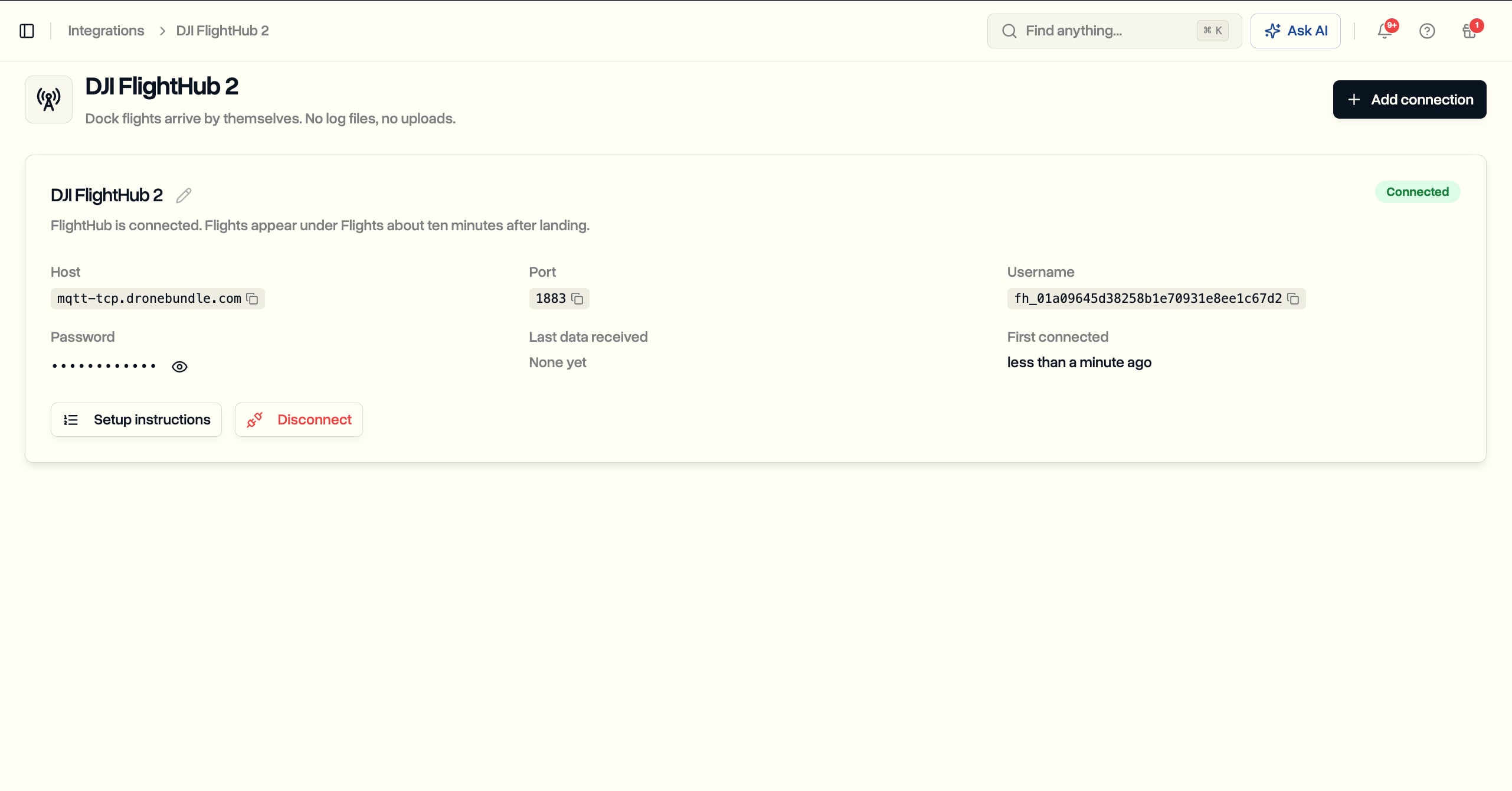
- From the dock. With DJI FlightHub 2 sync, dock flights come in on their own after each mission.
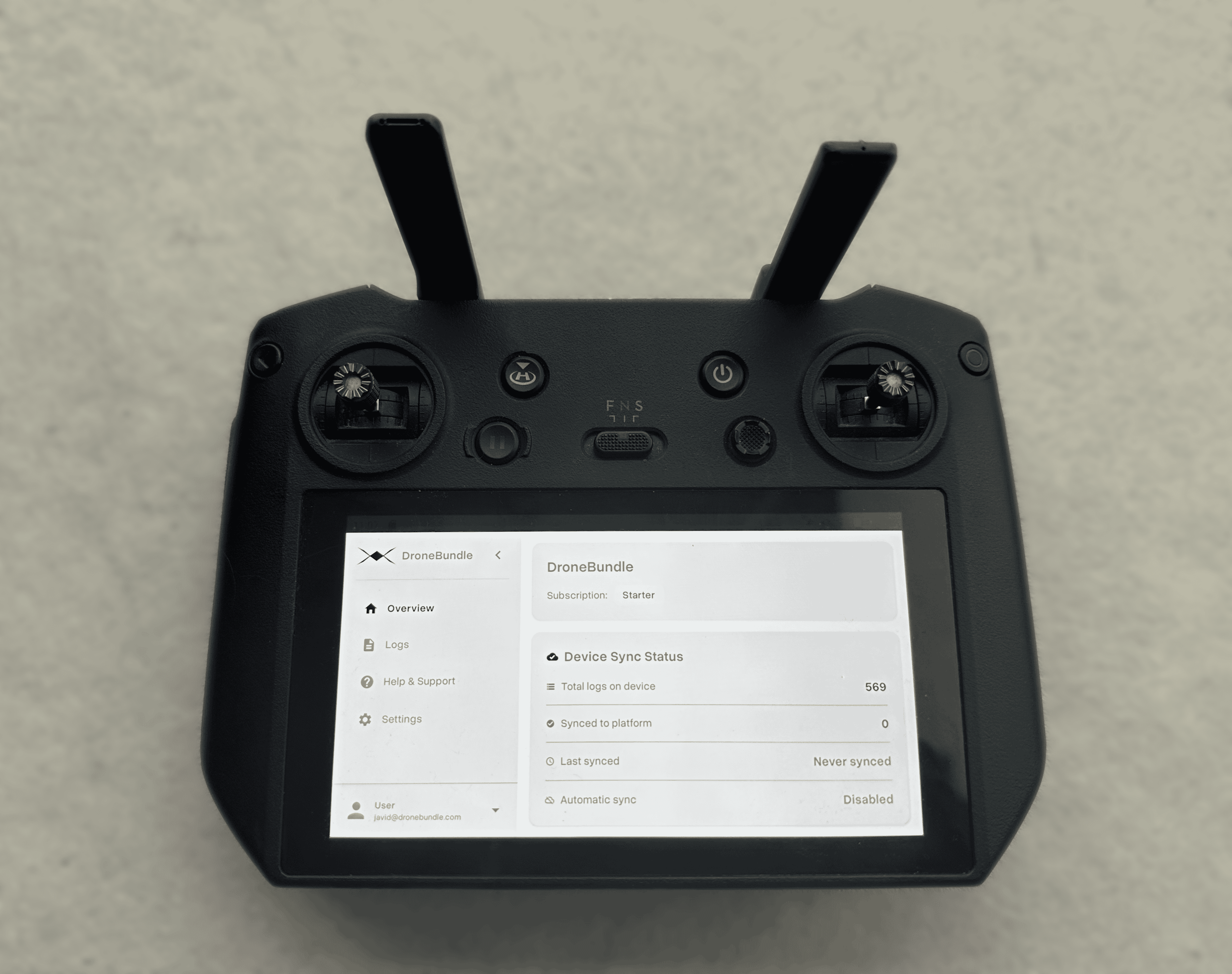
- From the controller. The DroneBundle Android app on a DJI controller syncs logs in the background after landing.
- From an upload. Any log uploaded on the web goes through the same checks.
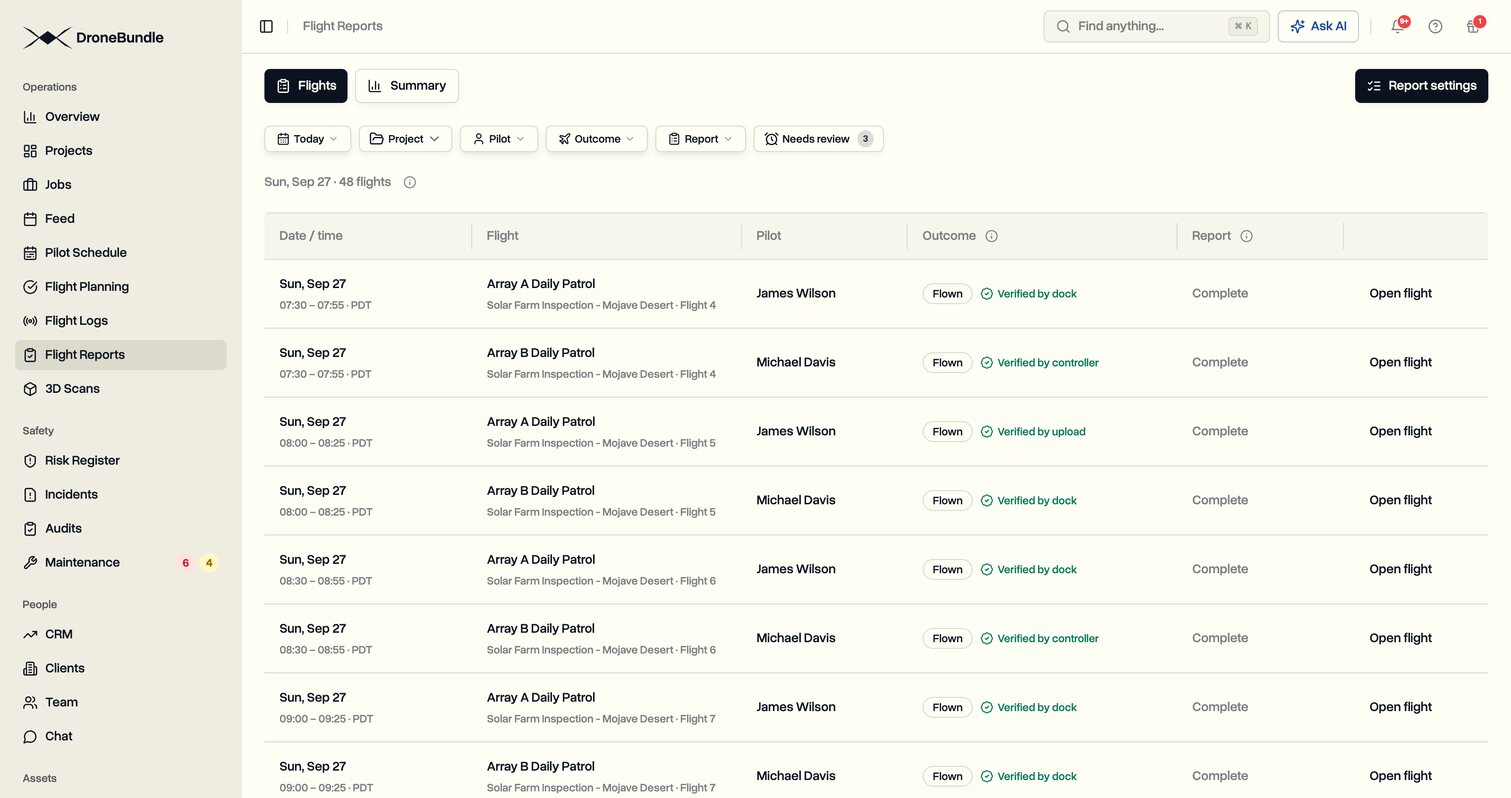
Each log finds its job, then the scheduled flight whose time window covers the takeoff. That flight is marked Flown, with a mark showing what backs it: verified by dock, verified by controller, or verified by upload. Nobody has to touch a status.
If the pilot already marked the flight complete by hand, the log still attaches to it, so the flight carries the same proof. And if a flight was marked not flown but a log says otherwise, DroneBundle flags the mismatch instead of trusting either side.
Only the Exceptions Need You
The Flights list shows every scheduled flight with its outcome and report status. The one filter worth checking each day is Needs review. It collects the flights that still need a person, and nothing else:
- Missing outcome. The flight's time has passed, no log matched, and nobody has recorded what happened.
- Missing answers. The flight was flown, but a required report question is still empty.
- Log says flown. Someone marked the flight not flown, and a log matched it anyway.
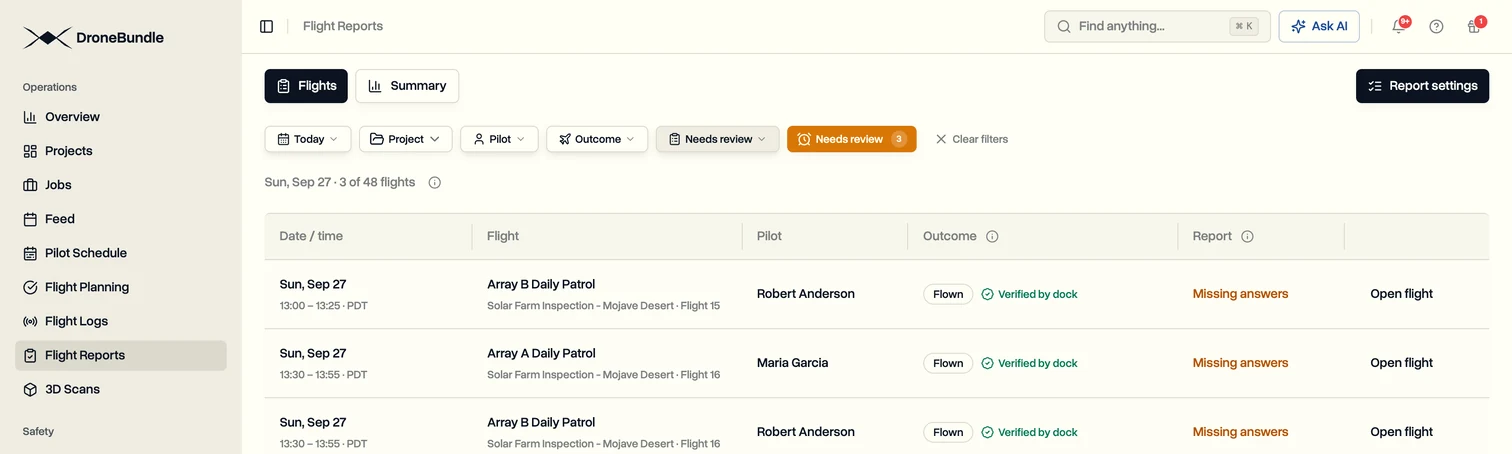
On a day where the logs cover everything, the list is empty. On a busy month it might hold a handful of flights out of hundreds, which is a few minutes of work instead of a day of reconciling.
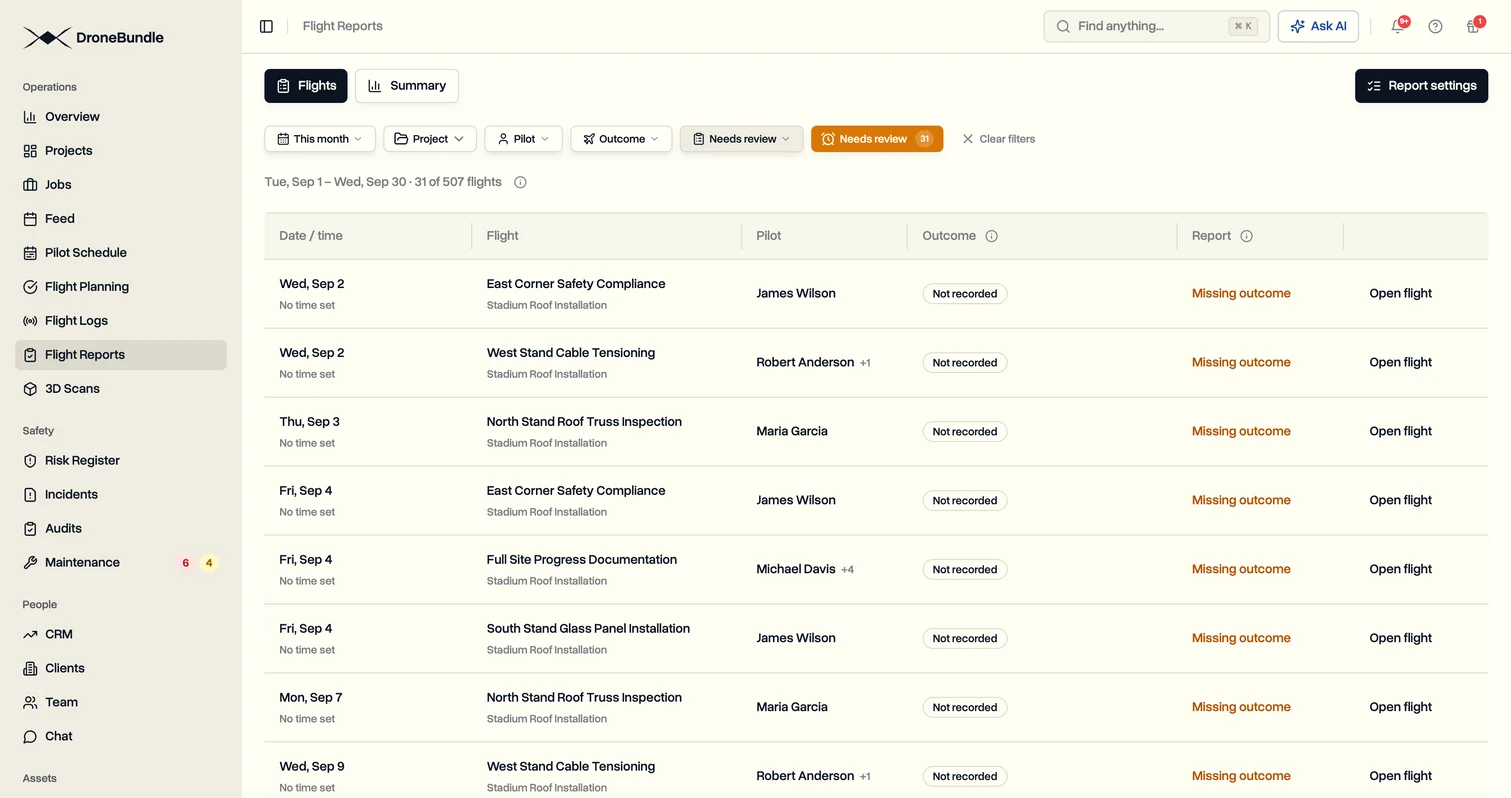
A flight with no log did not necessarily fail. The weather may have closed in, or the site was not accessible. The pilot or the office records it as not flown and picks the reason, and the Flight Summary keeps that reason for billing.
Manual Input, Only Where You Need It
The log answers whether the flight happened. It cannot say how many panels showed a hot spot, or whether a follow-up visit is needed. That is what report questions are for: your own short form, answered by the pilot on the web or in the mobile app.
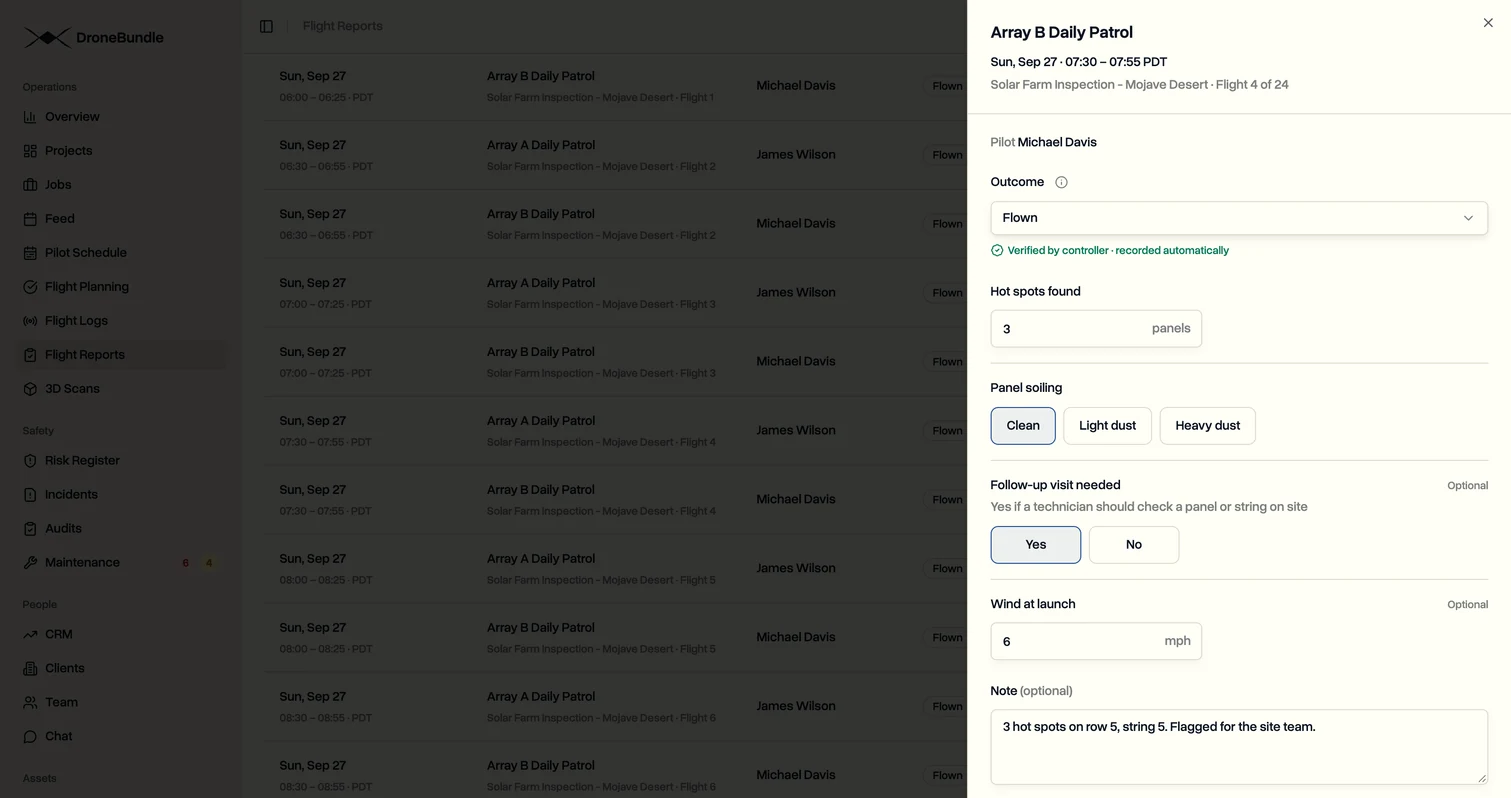
Each question can be optional or required, and can apply to every job or only to certain job types. If you have no required questions, a flight backed by a log needs nothing else from anyone. If you do, the flight stays in Needs review until the answers are in.
Manager Approval Is Optional
Flight Reports used to send every completed flight to a review queue for a manager to approve. That made sense when a flight was marked complete by hand and nothing else backed it up. With the log as proof, the extra sign-off mostly adds a queue.
Approval is now a switch in Report settings, and it is off by default. With it off, a flight counts as flown as soon as it is verified or recorded, in the summary, on the overview, and in pilot flight history.
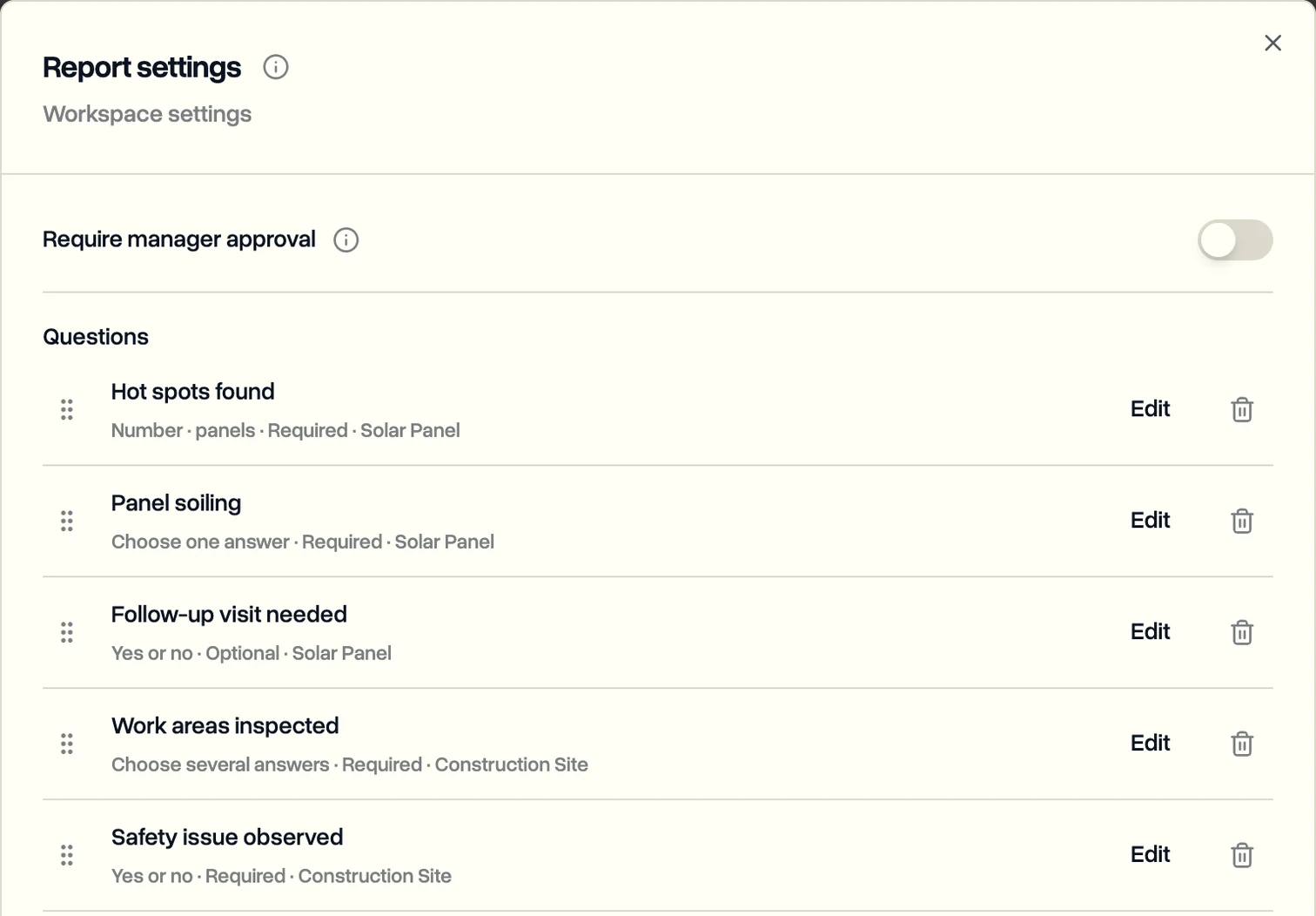
If your team does need a sign-off, for example for a contract that asks for one, switch it on. Flown flights then wait for approval before they count toward billing, and an Approved tab appears. It applies to flights scheduled after you turn it on, so older flights are not suddenly waiting. Turning it off again releases anything still pending, and past approvals stay in the history.
The Month Adds Itself Up
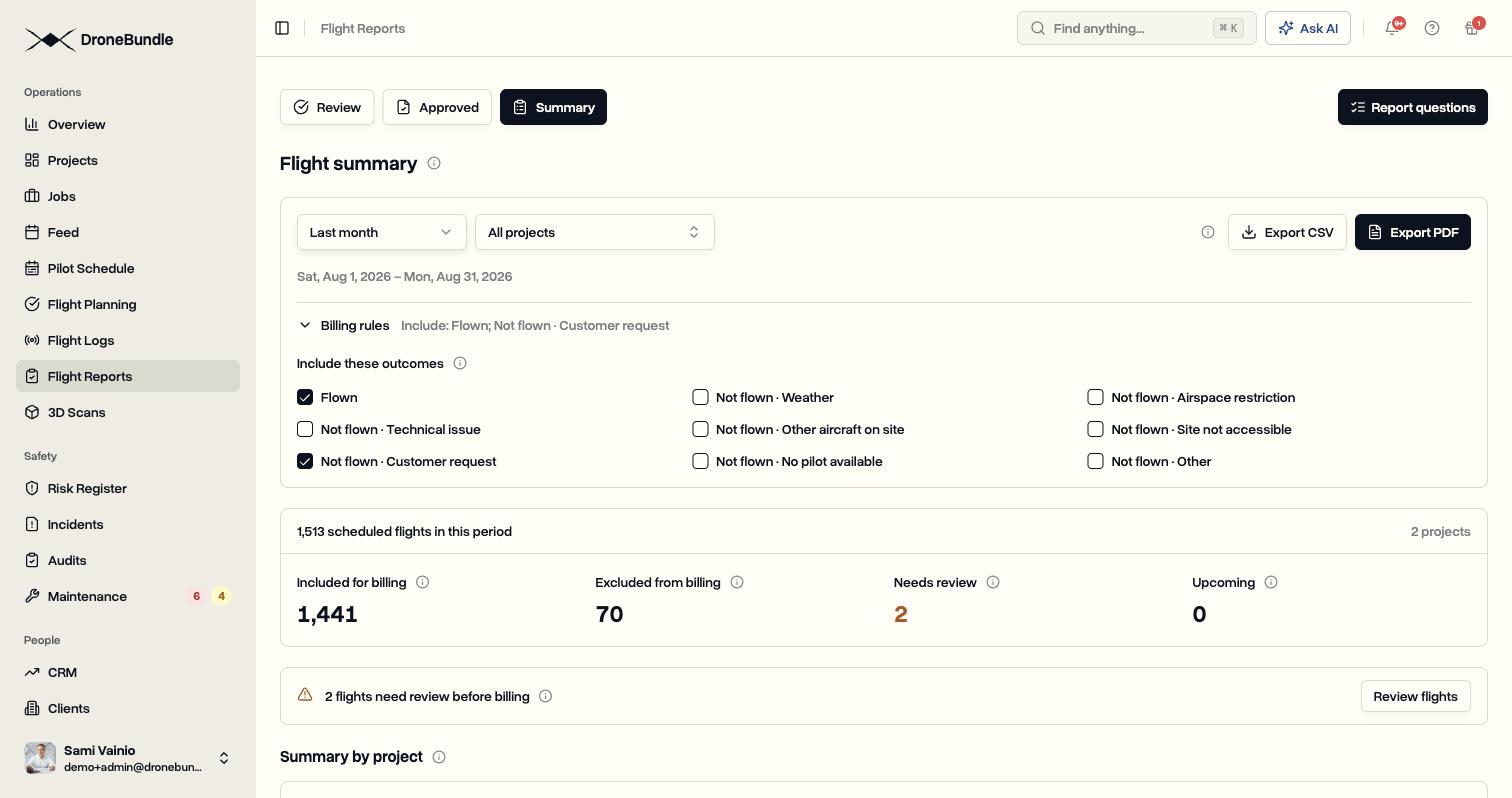
Because every verified flight already has an outcome, the monthly count builds as the month goes. The Summary tab shows what is included for billing, what is excluded and why, what still needs review, and what is still to come, with PDF and CSV exports that match the screen.
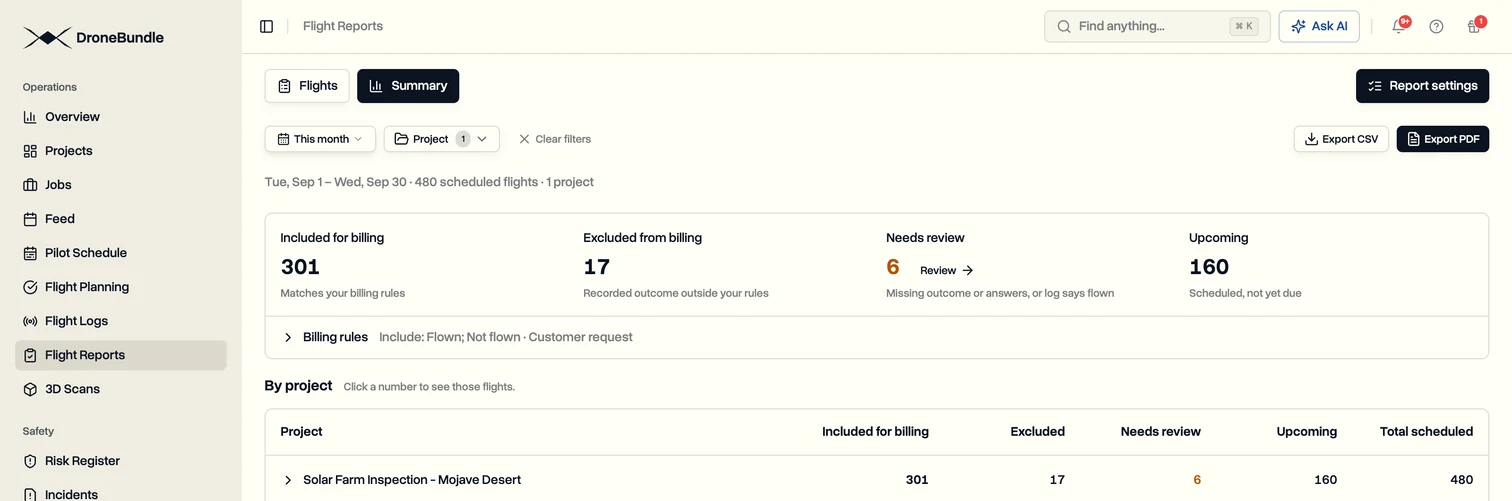
The Review link next to the needs review number opens the same list as the Flights tab, for the month you picked. Get it to zero and the month is ready to invoice. The Flight Summary post covers billing rules and exports in detail.
Use Cases
Dock patrols on a fixed schedule. For example, two docks flying a site every half hour produce dozens of flights a day. Each one closes itself when its log lands, and the only flights anyone looks at are the ones that did not.
Controller flights without the paperwork. A pilot lands, the controller syncs the log, and the flight is marked flown. If your workspace asks questions after each flight, the pilot answers them and that is the whole report.
Checking a pilot's day. The Flights list for today shows every flight, who flew it, and what backs it. A flight marked flown by hand has no verified mark next to it, and a flight marked not flown that has a log is flagged.
Closing the month. Needs review lists what is left. Clear it, export the summary, and attach it to the invoice.
Availability
Flight Reports, including the Flights list, Needs review, and the Summary, is available on the Professional, Business, and Enterprise plans and on every free trial, for workspace owners, project managers, and ops leads. Report settings, including the approval switch and report questions, are managed by owners and project managers.
Logs count as proof from any source. DJI FlightHub 2 sync is available on every plan and needs DJI's FlightHub 2 Enterprise plan for forwarding. The Android app for DJI controllers is free for every DroneBundle user.
Start your free trial and let your next month of flights report themselves.
Book a demo to see automatic flight verification on a workspace with dock patrols, controller flights, and report questions.