Flight Summary counts every scheduled drone flight in a date range and sorts it into one of four piles: flown, not flown with a reason, still missing an outcome, or still to come. You decide once which outcomes are billable, and the month closes into a PDF or CSV you can attach to an invoice. Report questions sit alongside it: your own short form that pilots fill in when they mark a flight complete.
When a job is one inspection, billing it is easy. The trouble starts when a job repeats. A site flown every morning for a month is thirty flights. A dock patrol every half hour from six to six is forty-eight a day across two arrays. At the end of the month someone has to say how many of those actually happened, which ones did not, and why.
That count used to come from the flight log, a spreadsheet, and a few messages asking pilots what happened on the 17th. The flights were already scheduled in DroneBundle. What was missing was an outcome on every one of them and a single place to add them up.
Flight Summary is that place. It is the third tab under Flight Reports, next to Review and Approved.
Every Flight Gets an Outcome
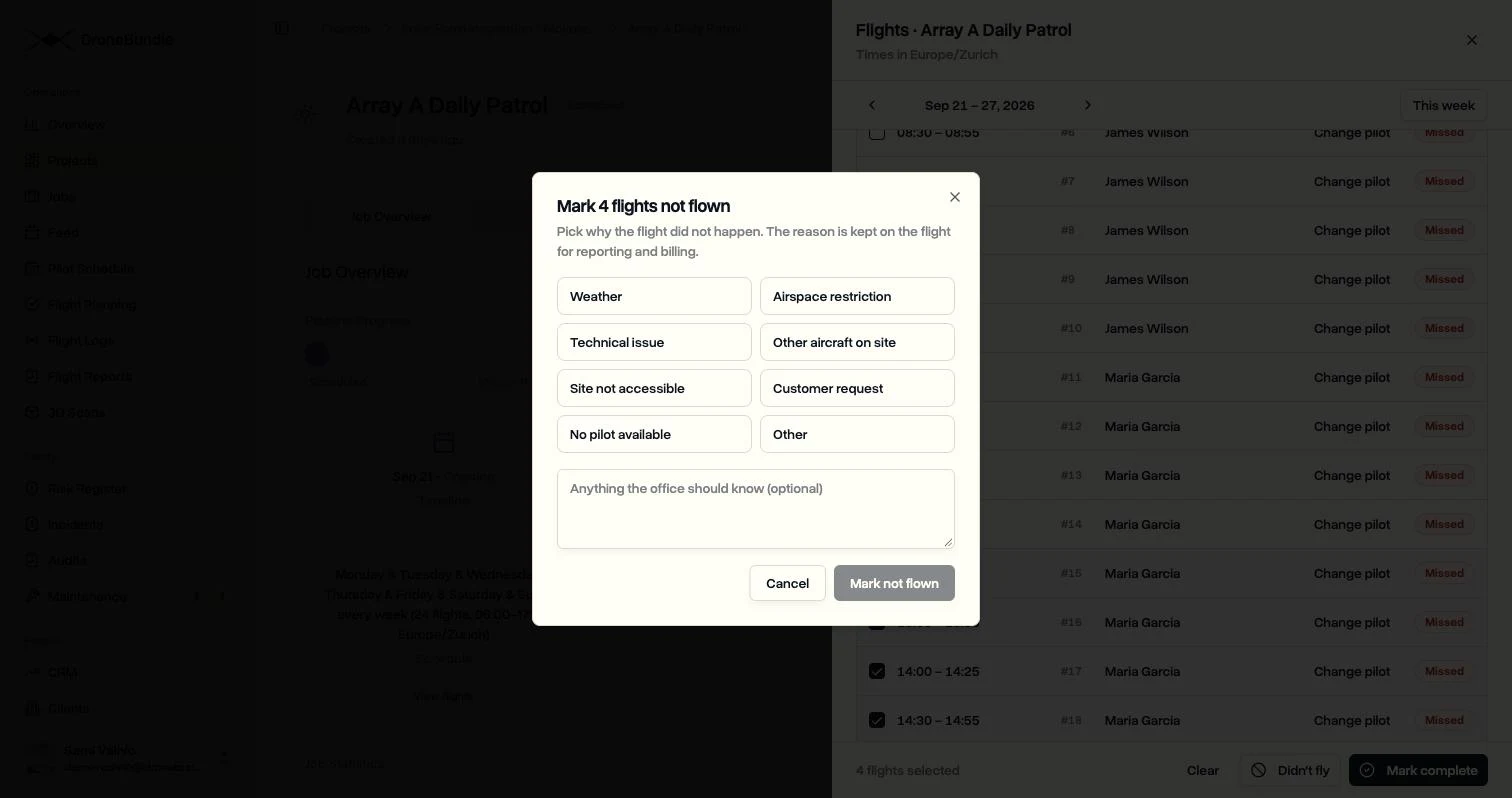
A scheduled flight in DroneBundle now ends in one of two ways. It was flown, or it was not flown, and a flight that was not flown always carries a reason:
- Weather
- Airspace restriction
- Technical issue
- Other aircraft on site
- Site not accessible
- Customer request
- No pilot available
- Other
Pilots record it from the mobile app, and the office can record it from the job. Tick a few flights, press Didn't fly, pick the reason, and add a line for context if it helps, for example "Gusts over 30 mph from 1 pm, picking up tomorrow at 06:00". A whole afternoon of flights takes one go.
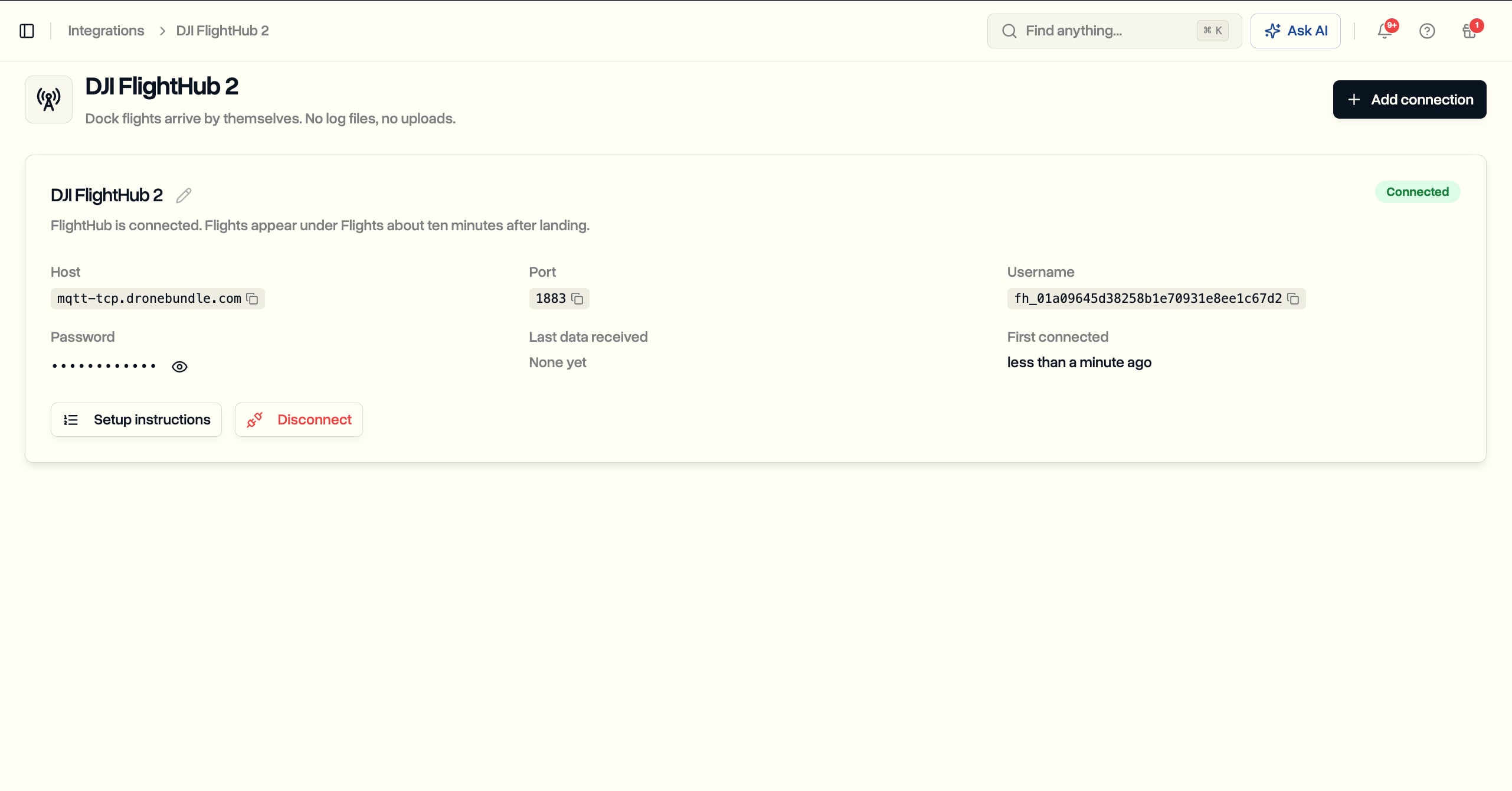
Flights from a DJI dock can close themselves. With FlightHub 2 sync switched on, a dock flight that lands in the log is matched to its scheduled slot and marked flown, so nobody has to tick those by hand.
Custom Flight Reports: Your Questions After Every Flight
A flight that was flown usually has a result worth writing down. How many panels showed a hot spot. Which parts of the site got covered. Whether anyone saw a safety issue. That used to go in a free text note, if it was written down at all.
Report questions turn it into a short form. You write the questions, and pilots answer them when they mark a flight complete, on the web or in the mobile app. There are four kinds of answer:
- A number, with a unit, such as panels, acres, photos, or minutes
- A choice from a list, one answer or several, such as Clean, Light dust, or Heavy dust
- Yes or no, such as Follow-up visit needed
- A note, for anything that needs a sentence
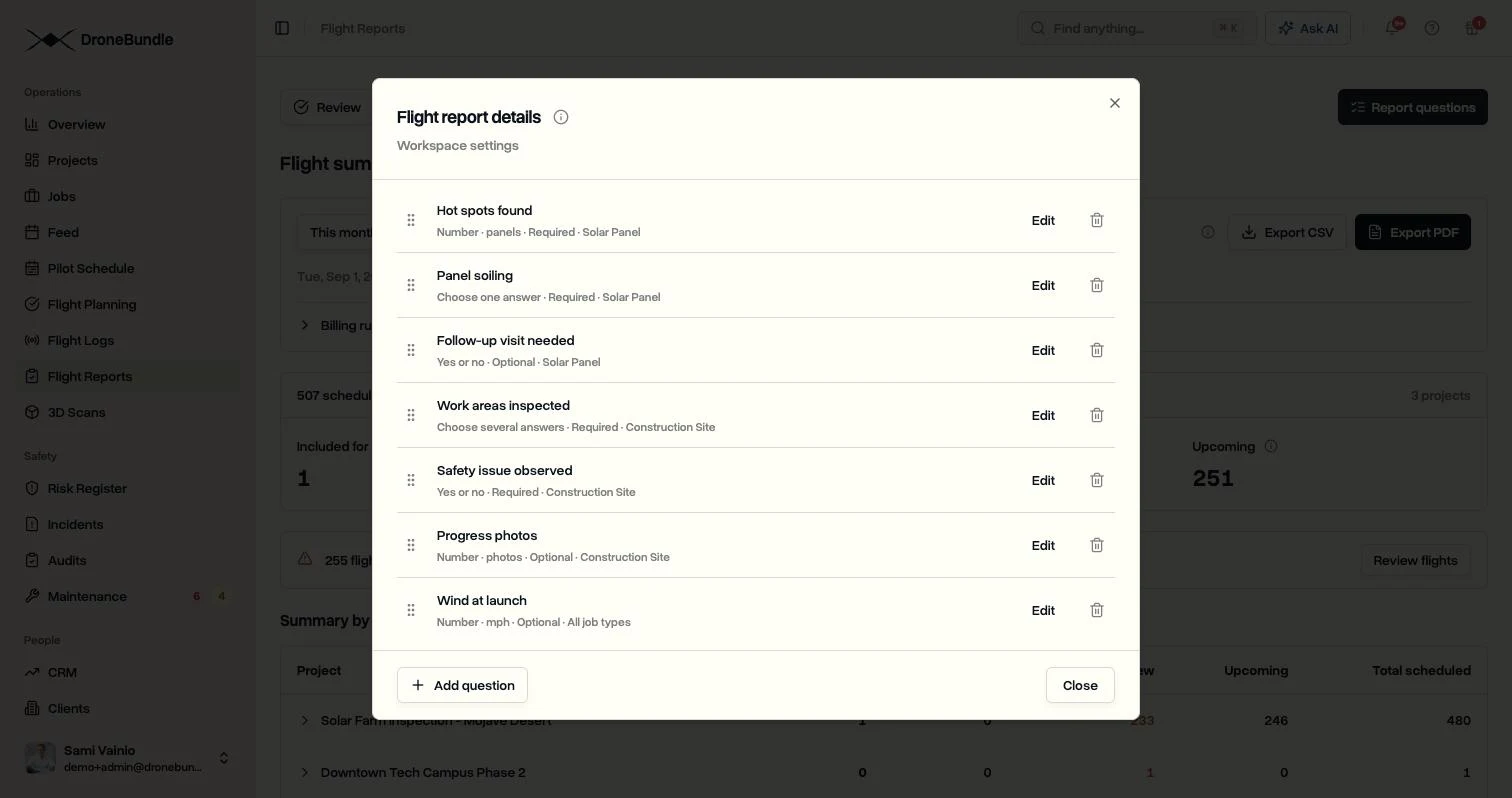
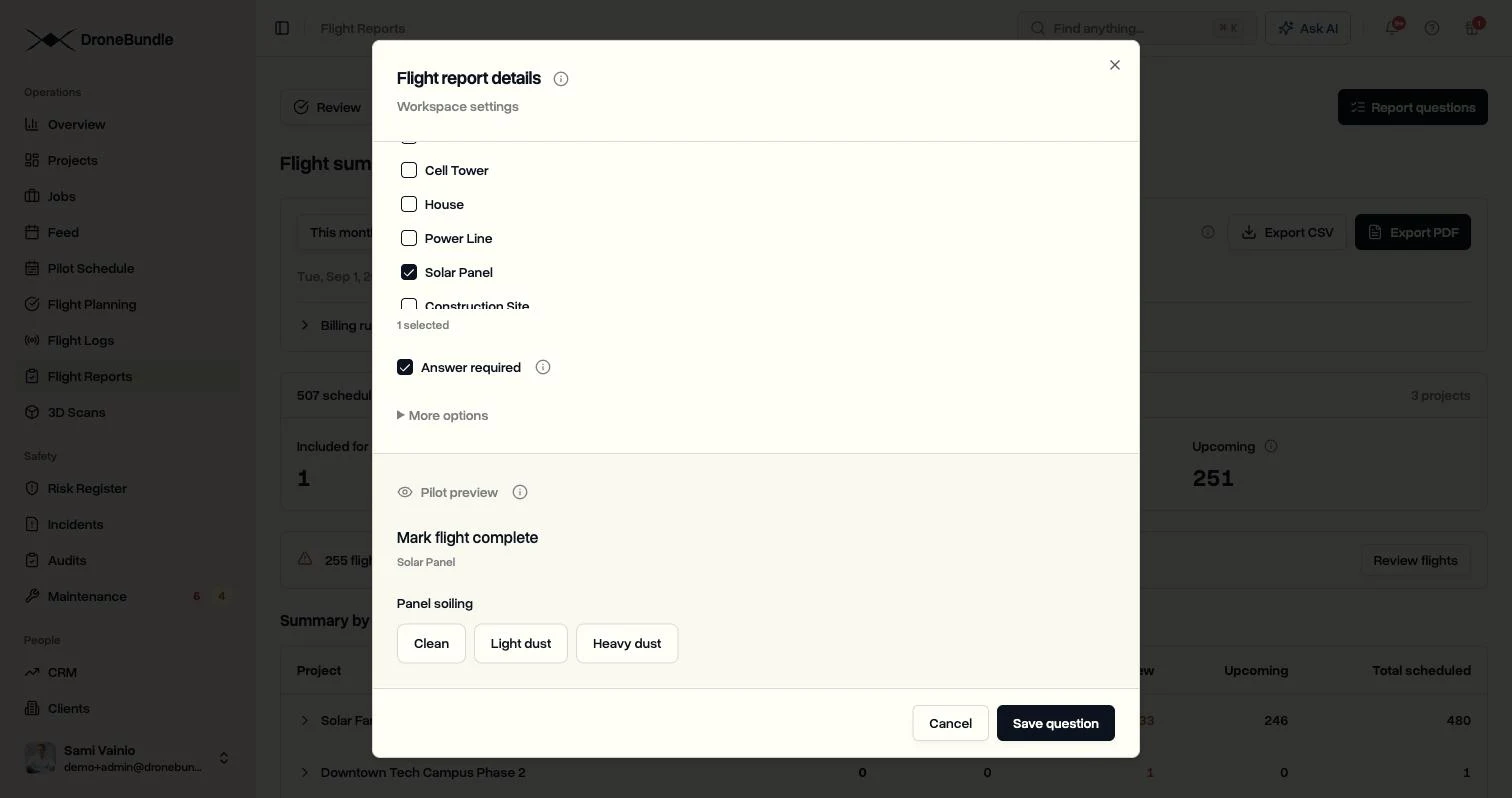
Each question can apply to every job or only to certain job types. A solar patrol asks about hot spots and soiling. A construction flight asks which work areas were inspected and whether there was a safety issue. Wind at launch can apply to everything. A pilot only ever sees the questions that fit the flight in front of them.
Questions can be optional or required. A required question has to be answered before the flight can be marked complete, which is how a count ends up on every flight instead of most of them. While you write a question, a preview shows exactly what the pilot will see.
What the Pilot Fills In
For the pilot, it is one short form after the flight. Type a number, tap a choice, tap yes or no, and save. The note they already wrote stays at the top.
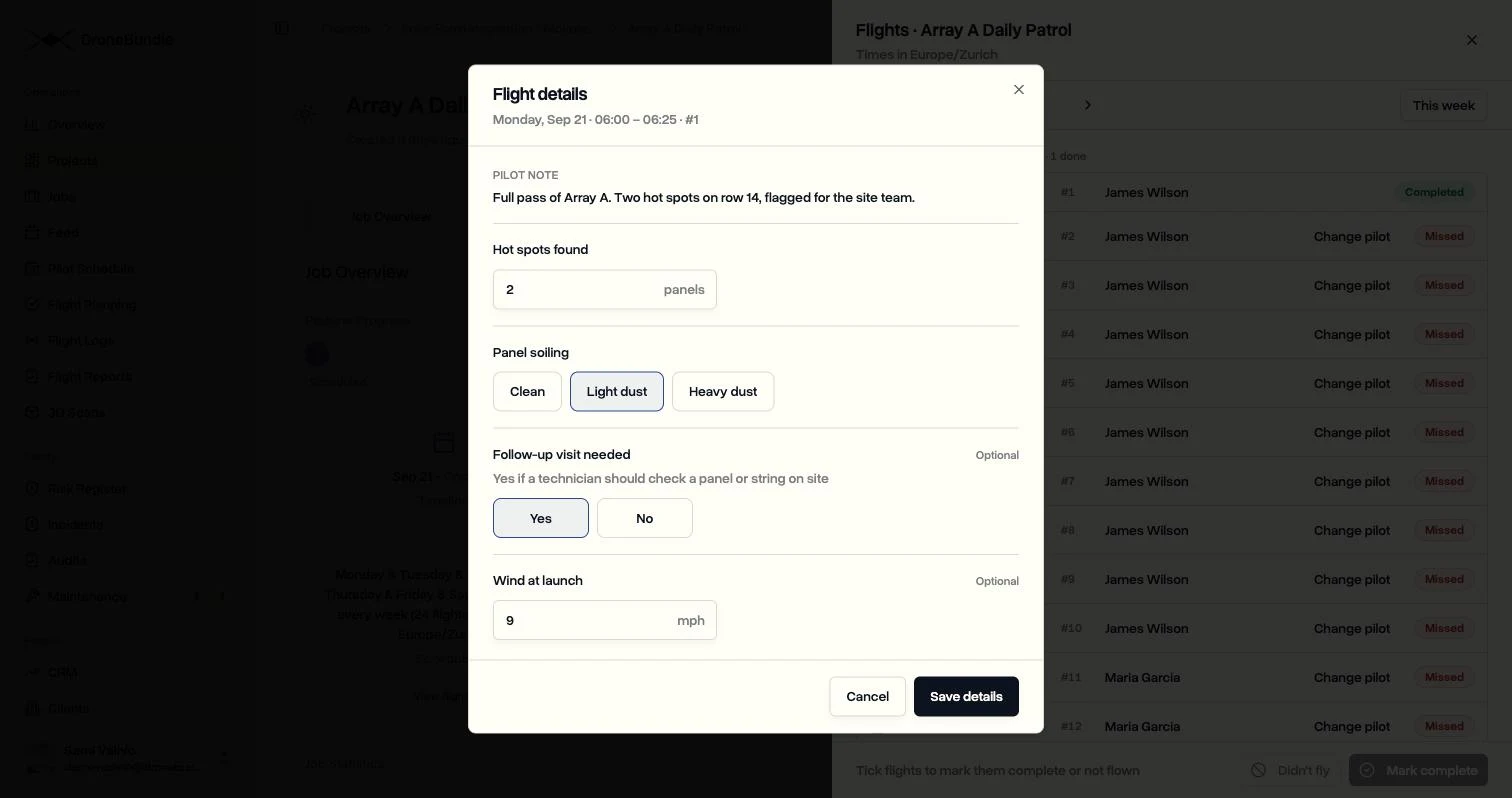
Answers can be corrected afterwards from the flight's report. If a question is renamed or removed later, old flights keep the question they were actually answered against, so a report from last spring still reads correctly.
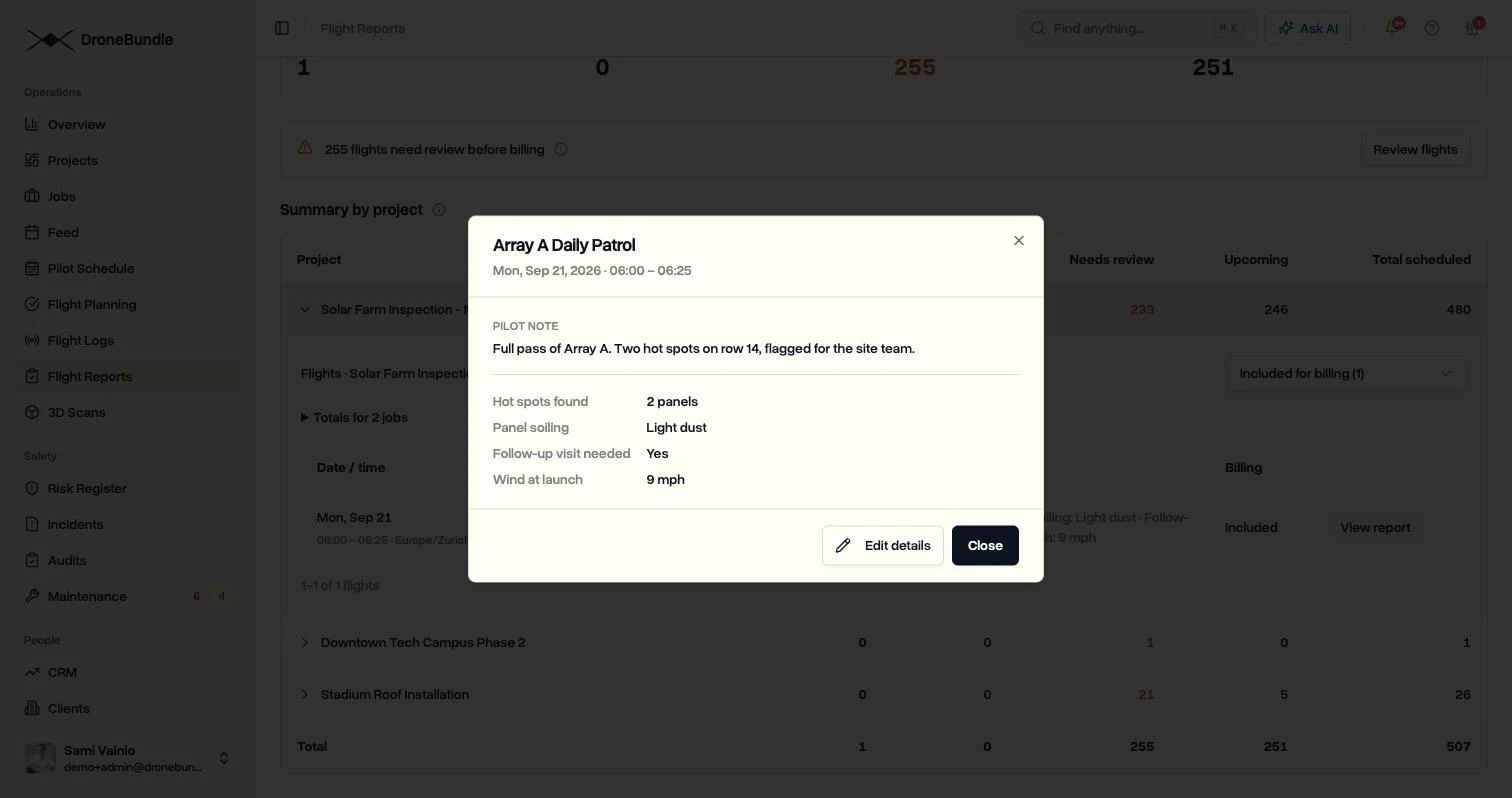
The answers also show up in the places you already read flights: the flight reports, the summary, both exports, and DroneBundle AI, which reads them when you ask about a flight.
Billing Rules, Set Once
Not every flight that did not happen is the operator's problem. If the customer asked you to stand down while their washing crew was on the array, you may well bill that slot. If the drone had a gimbal fault, you probably do not.
Billing rules put that decision in one place. Flown flights are included by default, and you tick any not-flown reasons that should count as well. The rules are saved for the workspace, so the same logic applies every month, for everyone who opens the summary.
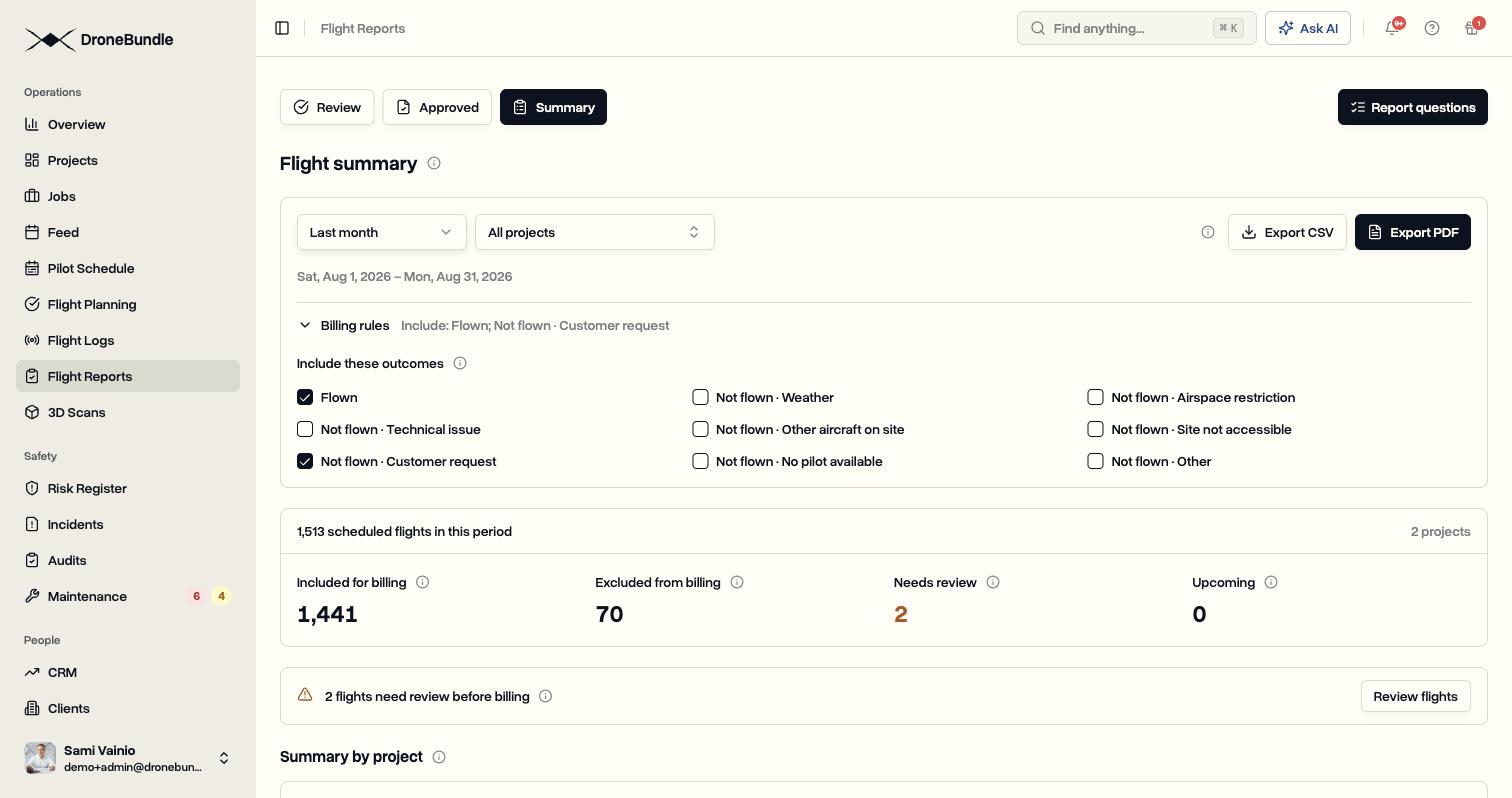
Change a rule and the totals change with it. In the example above, counting customer-requested stand-downs moves 24 flights from excluded to included.
The Summary, Project by Project
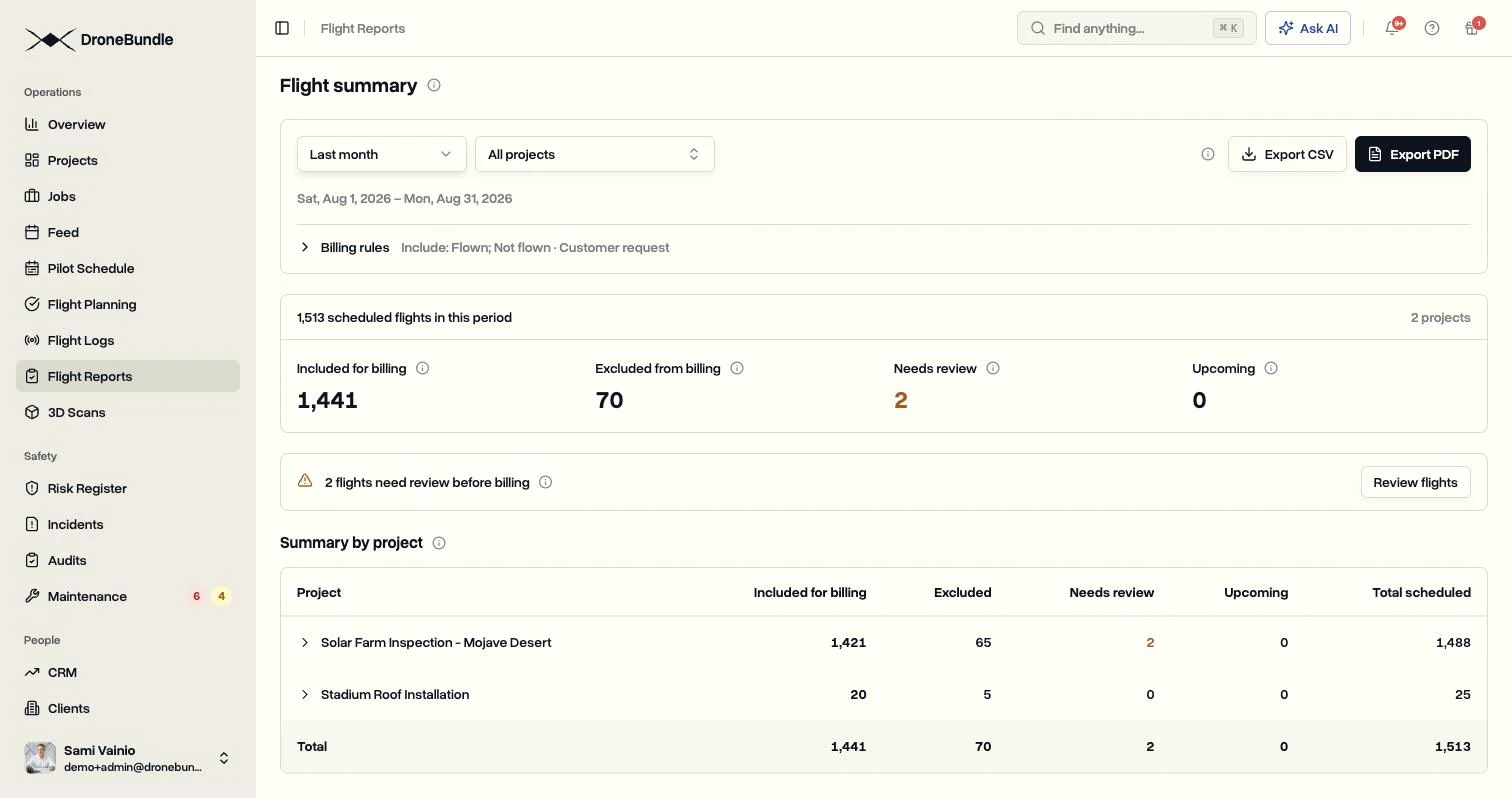
Pick a range, such as this month, last month, the last 7 or 30 days, or any custom range up to three months. Pick one project, a few, or all of them. The summary then shows four numbers:
- Included for billing: flown, plus any not-flown reasons your rules count
- Excluded from billing: not flown, for a reason your rules do not count
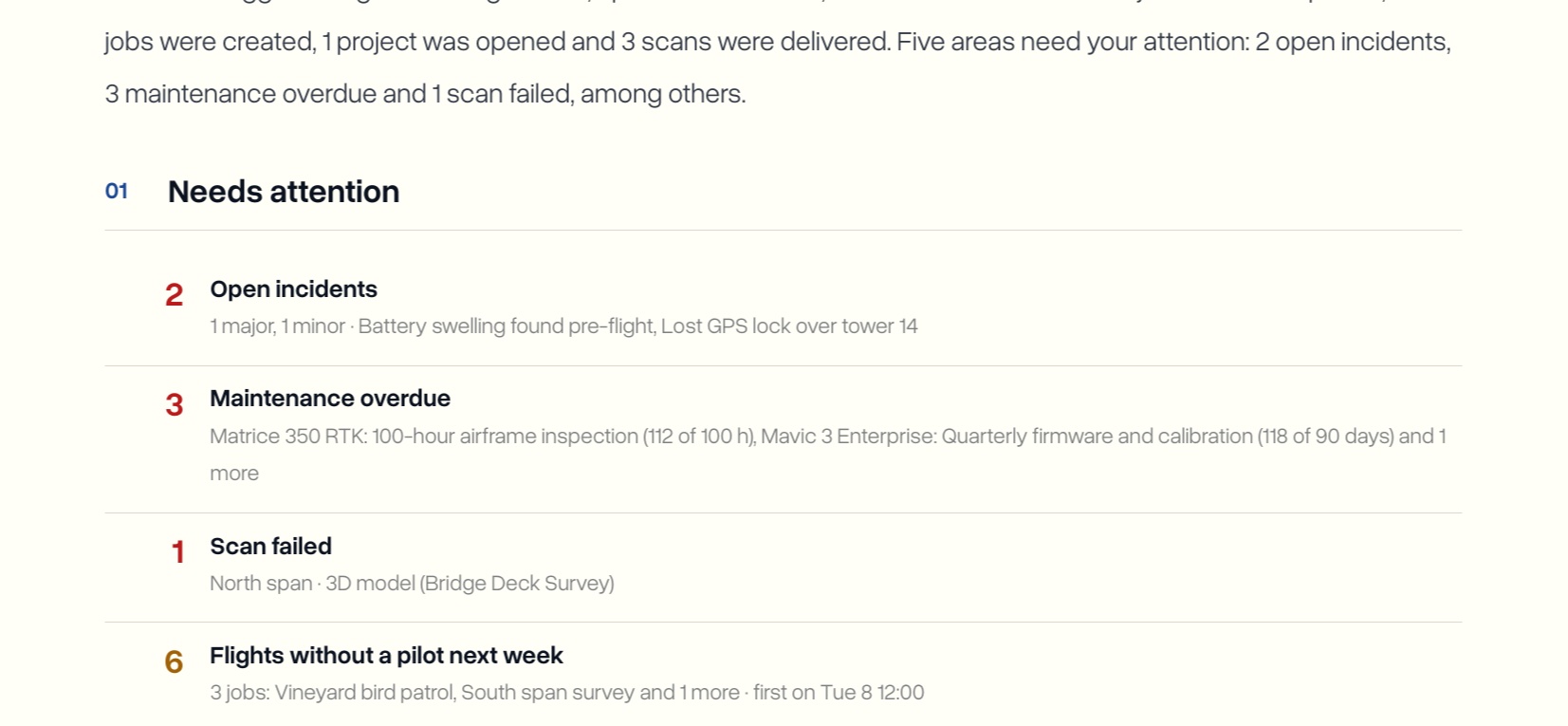
- Needs review: flights whose time has passed with no outcome, or flights sent back for changes
- Upcoming: flights that have not happened yet
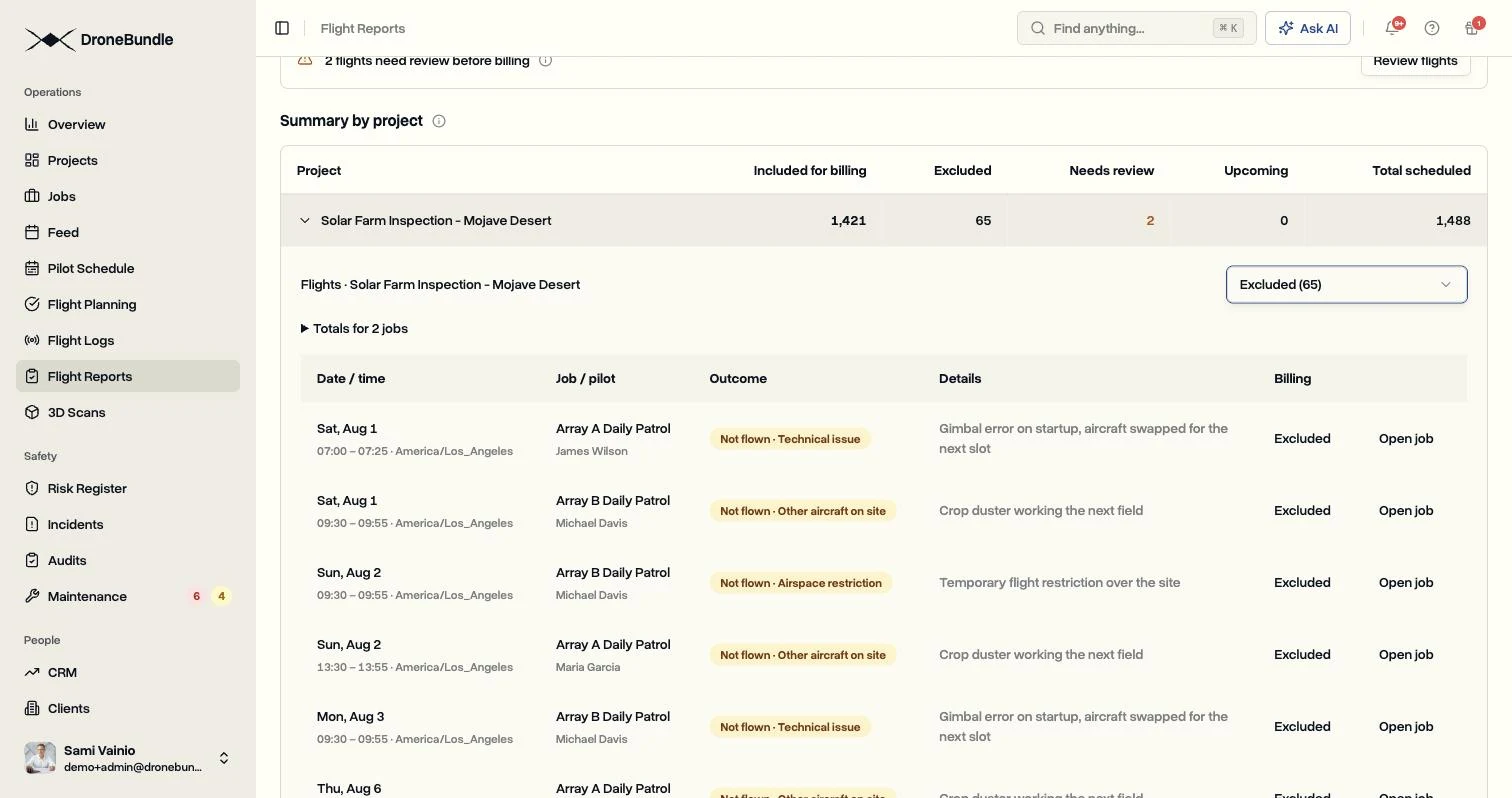
Below that is a row per project, and each project opens into its jobs and then into the flights themselves: date, time, pilot, outcome, and the answers to your questions.
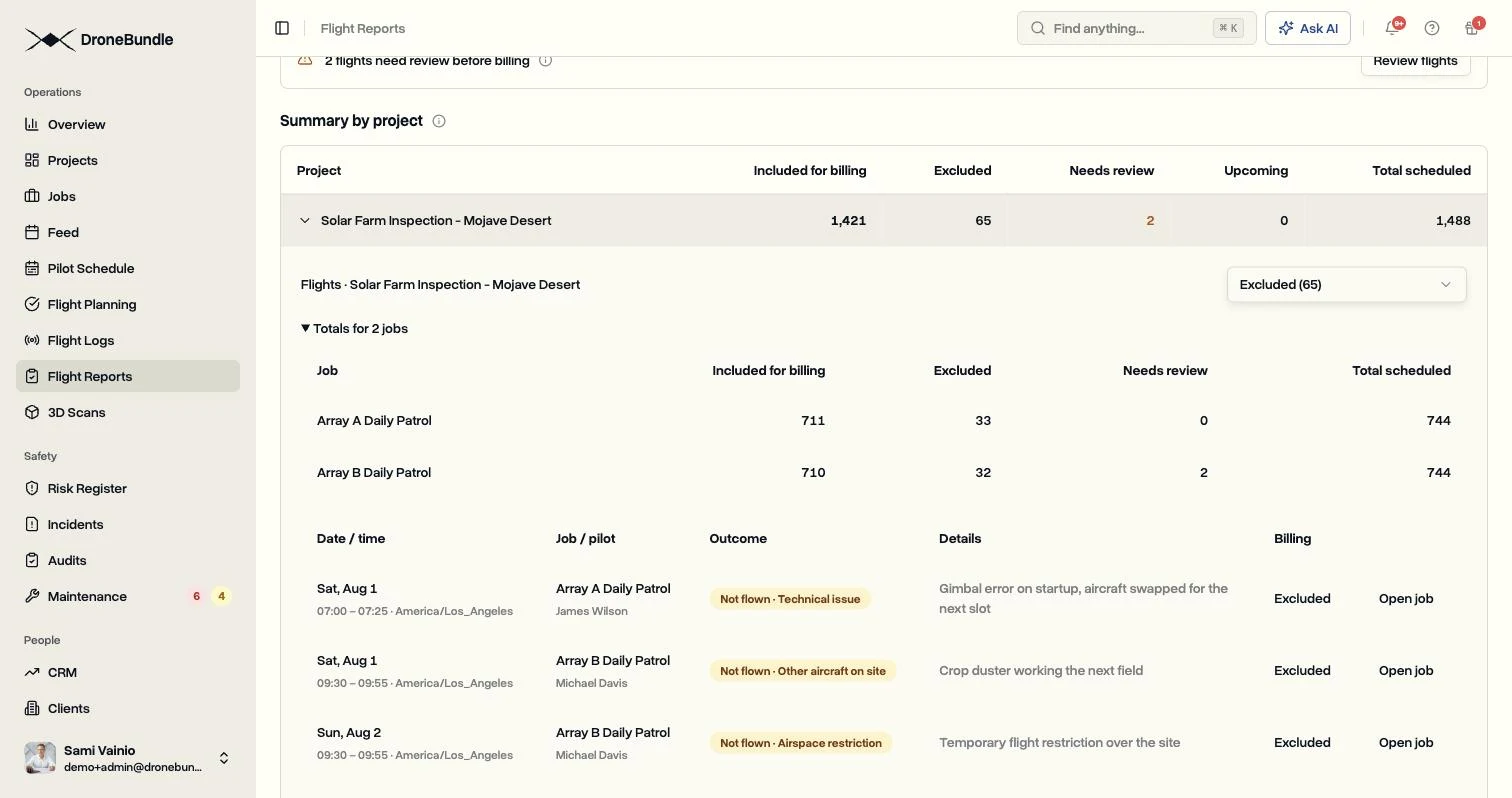
Switch the list to Excluded and you have the answer to the question a customer is most likely to ask: which flights did not happen, and why.
Close the Month Before You Bill
Needs review is the number to get to zero. It lists every flight whose time has passed without anyone saying whether it happened. One click takes you to those flights, and a few minutes of marking outcomes turns a guess into a count.
That is also the point where the summary stops being a report and becomes something you can defend. Every flight in the total has an outcome, every excluded flight has a reason, and every flown flight has the pilot's answers attached.
Export for the Invoice
Two exports come out of the same view.
The PDF is the one to attach to an invoice or send to a customer. It covers the range and projects you picked, with the totals, the billing rules that were applied, and the flights behind them.
For your accounting tool or a spreadsheet, the CSV has one row per flight with project, job, date, time, time zone, outcome, the reason and its note, whether it was included, the pilots, when it was completed, and whether a pilot or a dock log marked it flown. Each report question gets its own column, so hot spots or photos taken can be totalled per job without retyping anything.
Neither export needs cleaning up first. The numbers match what is on screen, because they come from the same flights.
Use Cases
Monthly billing for recurring work. For example, a team running daily patrols on a solar farm closes August with 1,441 billable flights, a list of the 70 that did not happen, and the reason for each.
Answering "why was this missed?" A customer asks about the gap on the 17th. The excluded list shows weather from 1 pm onwards with the pilot's note, and the question is answered in one message.
Consistent results from every pilot. Required questions mean every flight on a site reports the same things in the same format, whoever flew it.
Reporting without a separate form. Counts and observations that used to live in a paper form or a shared sheet go straight into the flight, then into the summary, the CSV, and the client portal conversation.
Availability
Flight Summary is available on the Professional, Business, and Enterprise plans and on every free trial. It is under Flight Reports, in the Summary tab, for workspace owners, project managers, and ops leads.
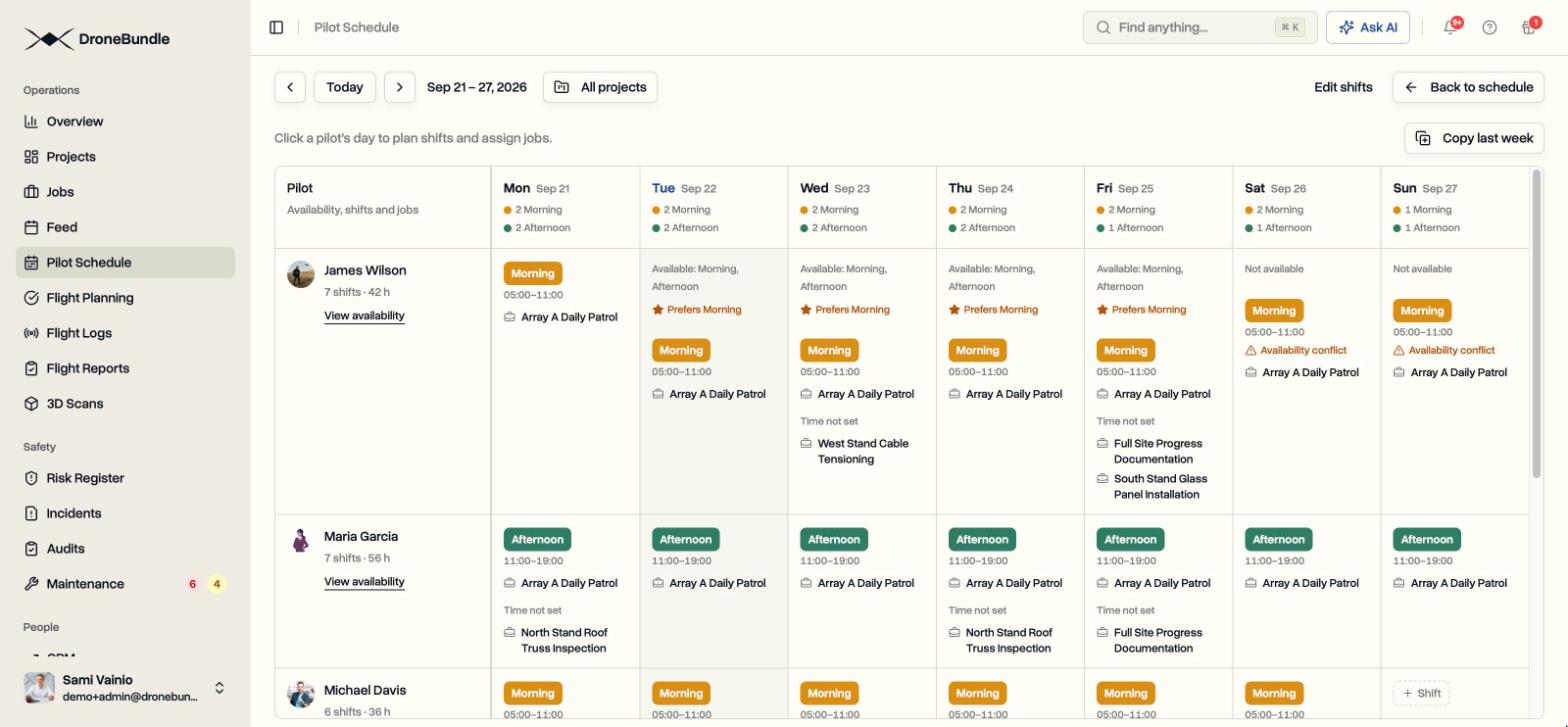
Report questions are set up by owners and project managers, from the Report questions button on Flight Reports or under Settings, Customization, Flight report details. Pilots answer them on the web and in the mobile app. Flight outcomes and not-flown reasons work with the scheduling you already have, including Pilot Schedule and recurring jobs, and with the flight reports your team files today.
Start your free trial and close your first month of flights with a summary instead of a spreadsheet.
Book a demo to see Flight Summary on a workspace with recurring patrols, dock flights, and report questions.