Set up a recurring job with flight times
For work that repeats, like a daily patrol or a monthly inspection, make one recurring job and give it fixed flight times. The schedule then places every flight by hour.
Operations leads can do this only on the projects they are given.
A recurring job is one job that repeats on a schedule. Pilots, files and flights for every occurrence stay together in one place, and the Pilot Schedule shows each flight at its time.
Make the job repeat
- Open the project and click Create Job, or open an existing job and edit it.
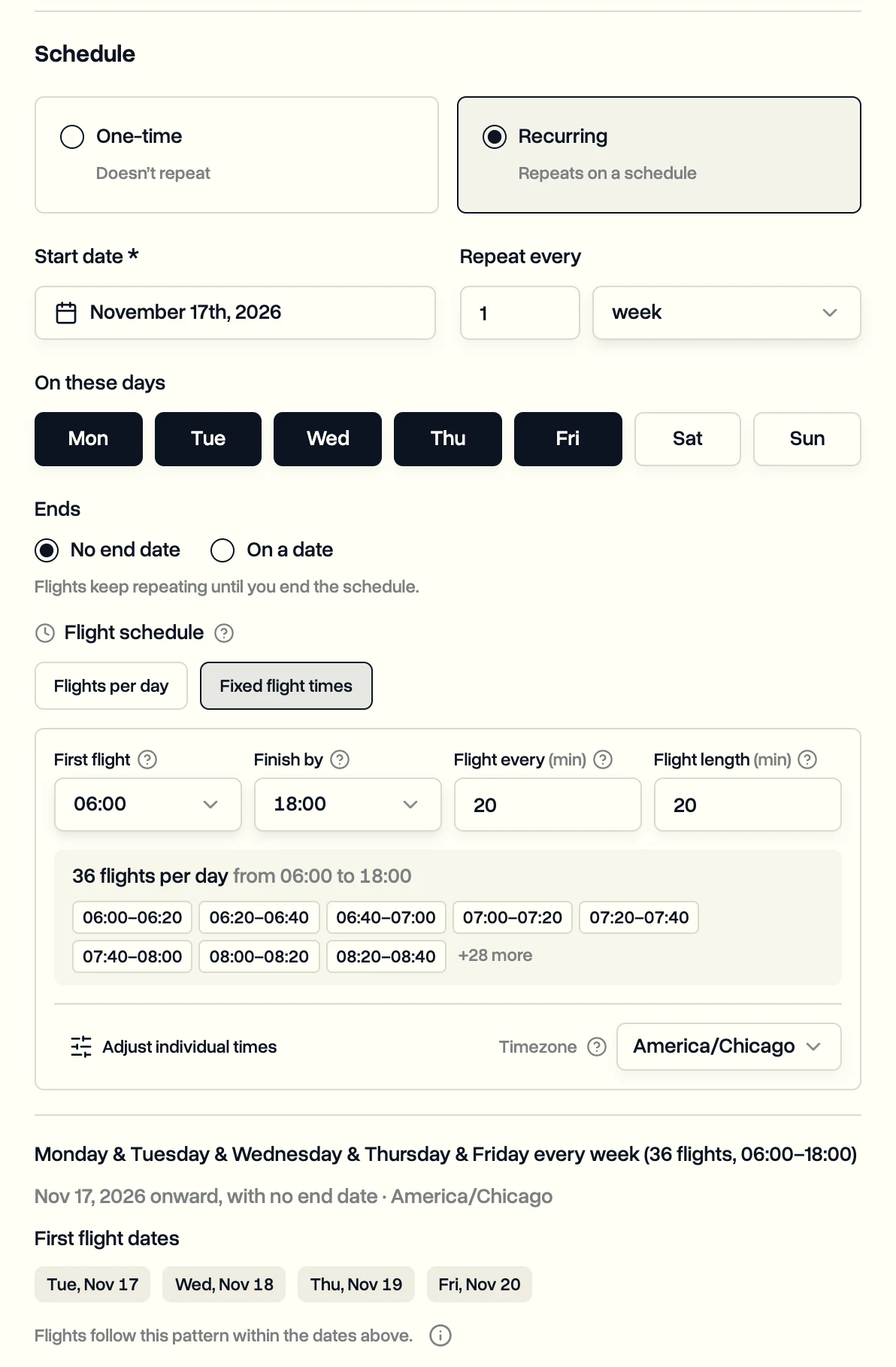
- Under Schedule, choose Recurring.
- Set Repeat every: a number and day, week, month or year. Choose Flexible when the work repeats but not on a fixed rhythm.
- For weekly jobs, pick the weekdays under On these days.
- Pick the start date. Under Ends, keep No end date and the flights keep repeating until you end the schedule, or choose On a date.
Set the flight times
Under Flight schedule, choose how many flights happen each day.
- Flights per day only: pilots can fly them at any time during the day.
- Fixed flight times: every flight has a set start. Fill in:
- First flight: when the first flight of the day starts.
- Finish by: no flight may end after this time.
- Flight every: minutes from the start of one flight to the start of the next.
- Flight length: how long each flight takes.
The flight times use the time zone of the job site, and pilots see them exactly as entered.
Want the job on the Pilot Schedule by hour? It needs fixed flight times. Without them it shows as Time not set. See Plan the week on the Pilot Schedule.
Click Create Job to save. Then assign a pilot to every day, one shift, or single flights.
Last updated Nov 17, 2026
Did this answer your question?
Still stuck?
Ask DroneBundle AI in the app, or email us and a person will answer.