Manage all your jobs on the Jobs page
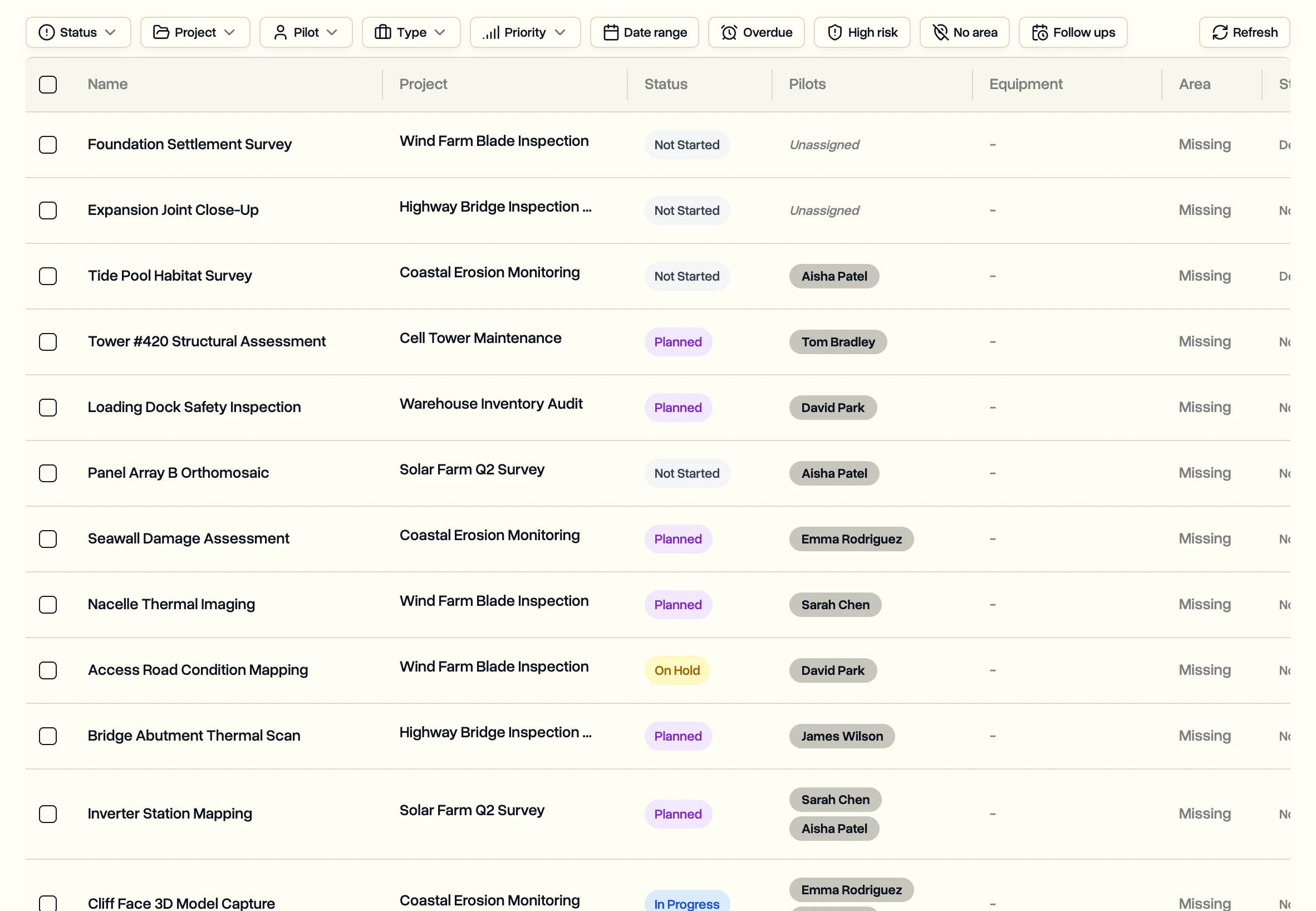
See every job across every project in one table, filter it down, edit jobs right in the list, and change the status, priority or pilots of many jobs at once.
The project page shows one project's jobs. The Jobs page shows all of them, which is where you plan the week and clean up in bulk.
Find the jobs you want
In the sidebar, click Jobs. Narrow the table with the filters at the top:
- Status, Pilot, Project, Priority and Type
- a date range
- quick toggles: Overdue, High risk and No area for jobs with no area drawn yet
Clear all resets the filters.
Edit a job right in the list
Click a job's name, status, dates, pilots, priority or type in the table to change it on the spot. Each change saves as you make it. Click the project name to open the project.
Change many jobs at once
- Tick the jobs you want, or tick the box at the top to select every job on the page.
- In the bar that appears, pick what to do:
- Change status, with a reason when the status needs one
- Change priority
- Assign pilots or Unassign pilots
- Delete
If some jobs can't be changed, click View errors to see why, then Retry failed to try those again.
Add a job
New jobs are created inside their project. See Create a job. In Jobs only mode, there are no projects, so click New job on this page instead.
Last updated Nov 18, 2026
Did this answer your question?
Still stuck?
Ask DroneBundle AI in the app, or email us and a person will answer.