Assign pilots to a job
Put one or more pilots on a job, on every flight or only some of them. Each pilot gets an email straight away and sees the job in their assignments.
Operations leads can do this only on the projects they are given.
Assign a pilot
- Open the project. In its job list, open the menu at the end of the job's row and click Assign Pilot.
- If the job has several flights, choose which ones need pilots: All day, one of your shifts, or Pick flights. Then choose the days, or Every scheduled day to cover flights added later too.
- Pick one or more pilots. Each pilot shows whether the flights fit their working hours and any other job they are booked on.
- Click Assign.
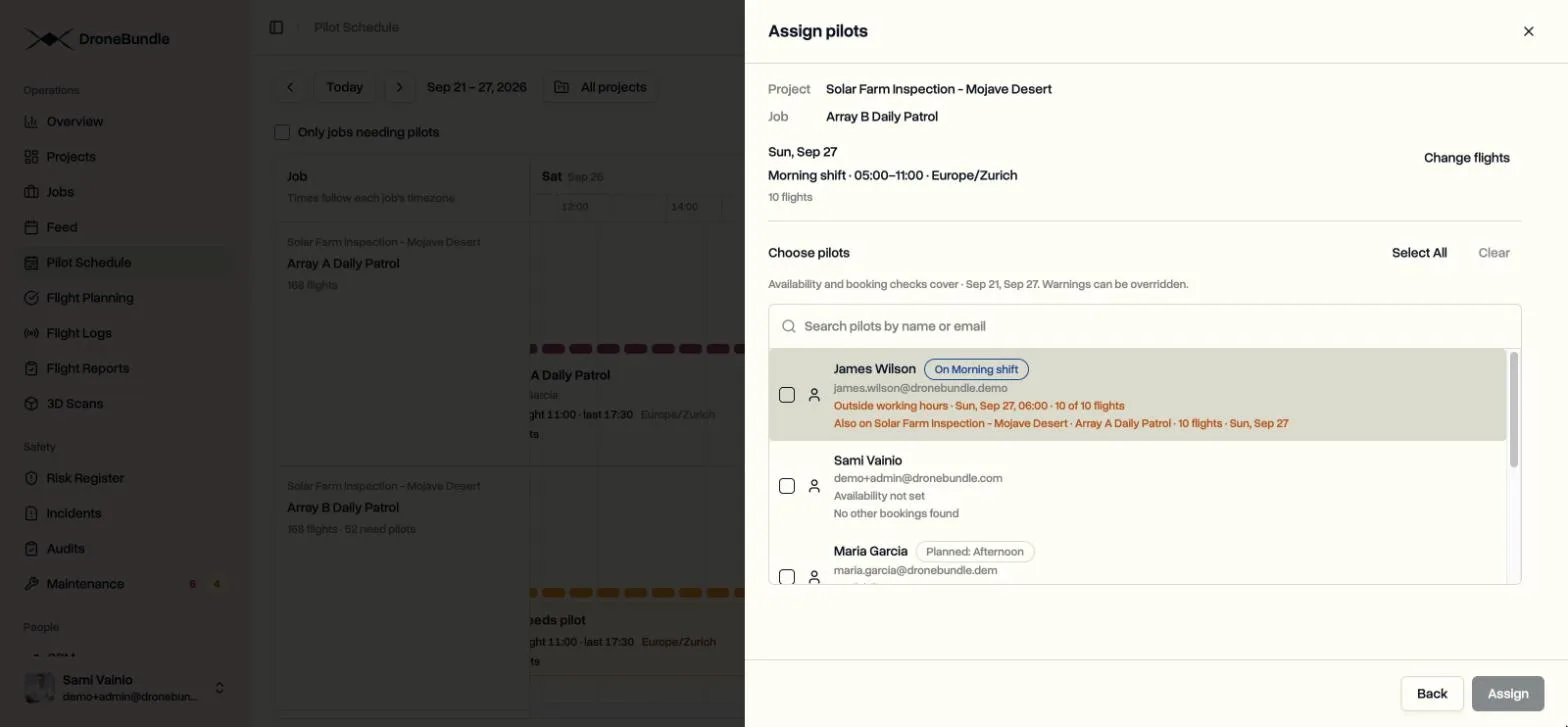
Warnings never stop you. They tell you about a clash, and you can still assign on purpose.
What the pilot sees
- An email the moment the assignment is saved.
- The job and its flight times under Assignments, on the web and in the DroneBundle app.
Assign several jobs at once
Tick the jobs in the project's job list and click Assign Pilot above the list. Bulk assignments still email each pilot, but skip the notification bell in the app.
You can also assign straight from the week view. See Plan the week on the Pilot Schedule.
Last updated Nov 17, 2026
Did this answer your question?
Still stuck?
Ask DroneBundle AI in the app, or email us and a person will answer.