Plan the week on the Pilot Schedule
See every pilot and flight for the week on one screen, plan shifts, and put a pilot on every flight that still needs one.
Operations leads can open the schedule, but only admins and project managers plan shifts and assign flights.
This is only available on the Team and Enterprise plans and during the free trial.
The Pilot Schedule shows one week, Monday to Sunday, with a row for each pilot and every flight drawn at its time. The line above the grid counts the flights that still need a pilot. Click it to jump to them.
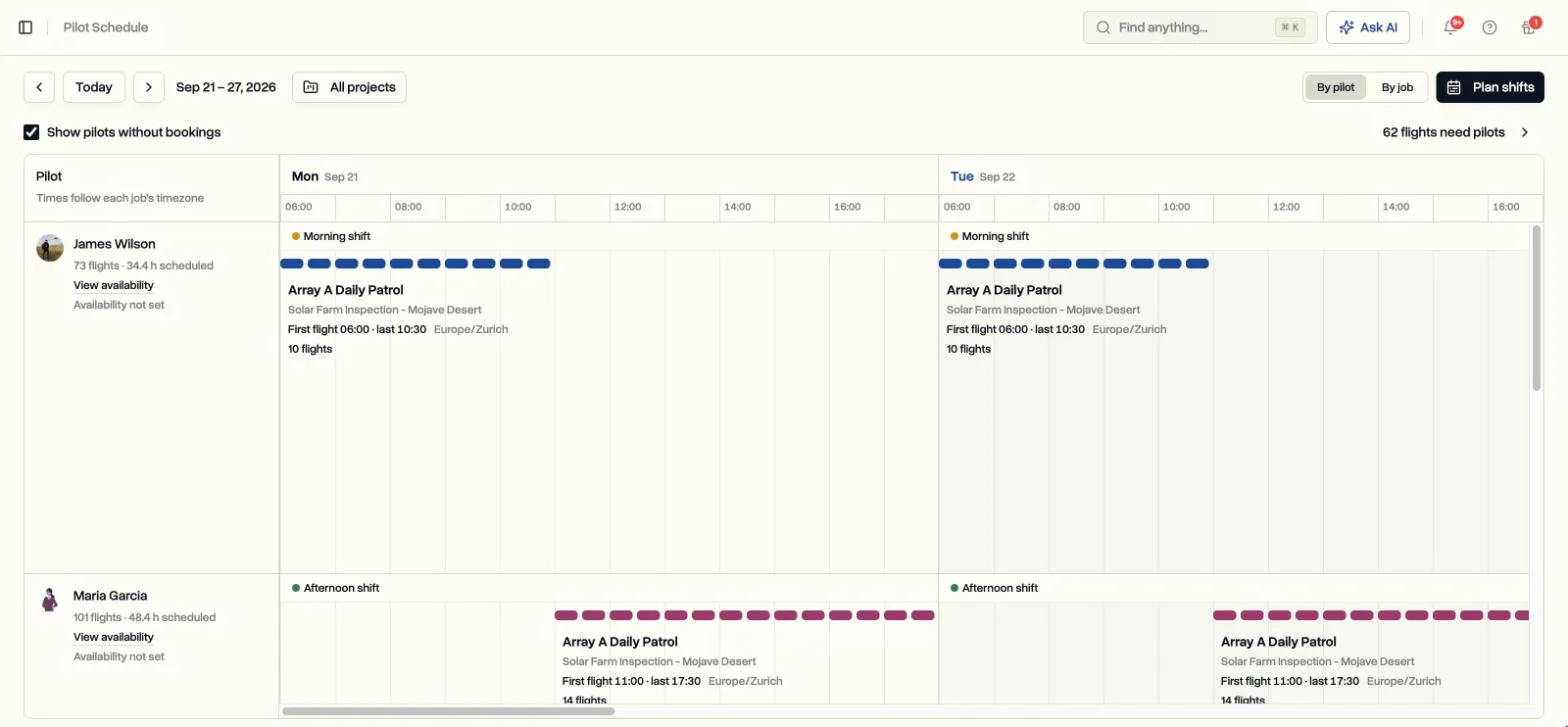
Open the schedule
- In the sidebar, click Pilot Schedule, under Operations.
- Use the arrows to move between weeks.
- Switch between By pilot and By job. By job shows one row per job and marks every gap as Needs pilot.
Set up your shifts
Shifts are named blocks of time, like Morning or Night. A new workspace starts with a suggested Morning, Afternoon and Night that you can rename or retime. You can change them from Plan shifts, or in Settings, then Customization.
Shifts can cross midnight. They belong to the day they start.
Plan each pilot's week
- Click Plan shifts.
- Click a pilot's day and tick their shift. It saves on its own.
- The panel lists the jobs with flights that day. Ticking a job assigns the pilot to the flights inside their shift, and no others.
- To do the same on other dates, click Apply to more days.
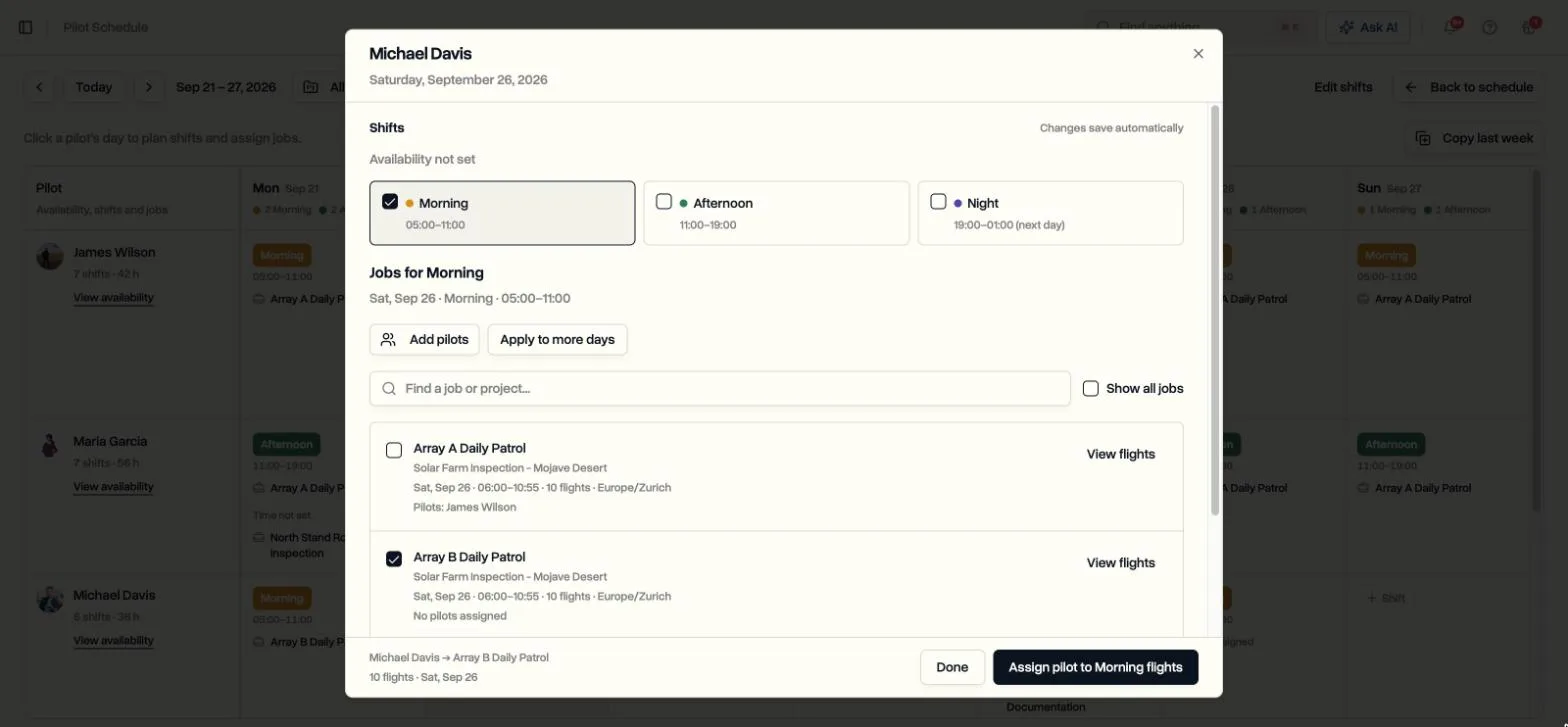
Copy last week gives every pilot the same shift they had on the same weekday last week. It does not copy flight assignments.
Assign a single flight
Click any flight on the schedule. The assign dialog opens for that flight only, with one button to assign the whole block instead.
Each pilot in the dialog shows their shift, whether the flight fits their working hours, and their other bookings. Warnings never stop you.
A job shows Time not set? The schedule needs fixed flight times to place a job by hour. Set them on the job as a first flight, a finish time and the gap between flights.
Pilots tell you when they can fly on their own page. See Set your availability.
Last updated Nov 17, 2026
Did this answer your question?
Still stuck?
Ask DroneBundle AI in the app, or email us and a person will answer.