Set your availability
Tell your managers which days and hours you can fly. Set your usual week once, then add time off or different hours for specific dates.
Admins and project managers who also fly can use it after turning on Pilot Mode.
This is only available on the Team and Enterprise plans and during the free trial.
Your availability shows on the Pilot Schedule, so managers can see who is free before they assign a flight. Changing it does not move or cancel flights you are already booked on.
Open My Availability
- On the web: in the sidebar, click My Availability, right below Assignments.
- On your phone: in the DroneBundle app, tap Profile, then My availability.
The page shows one week at a time. Green is when you can fly.
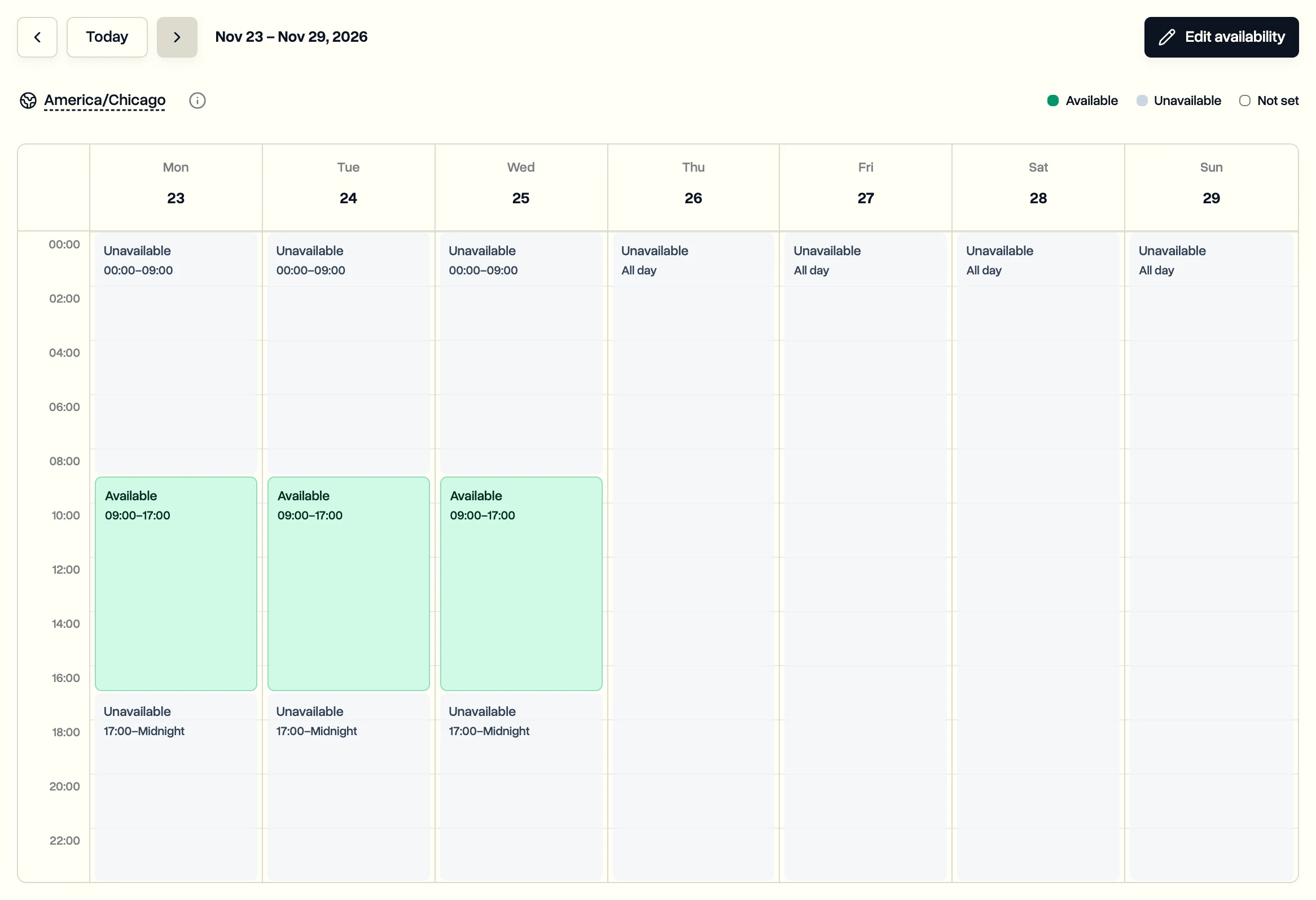
Admin or project manager who also flies? Click your name at the bottom of the sidebar and choose Pilot Mode first. My Availability then shows in the sidebar.
Set your usual week
-
Click Edit availability.
-
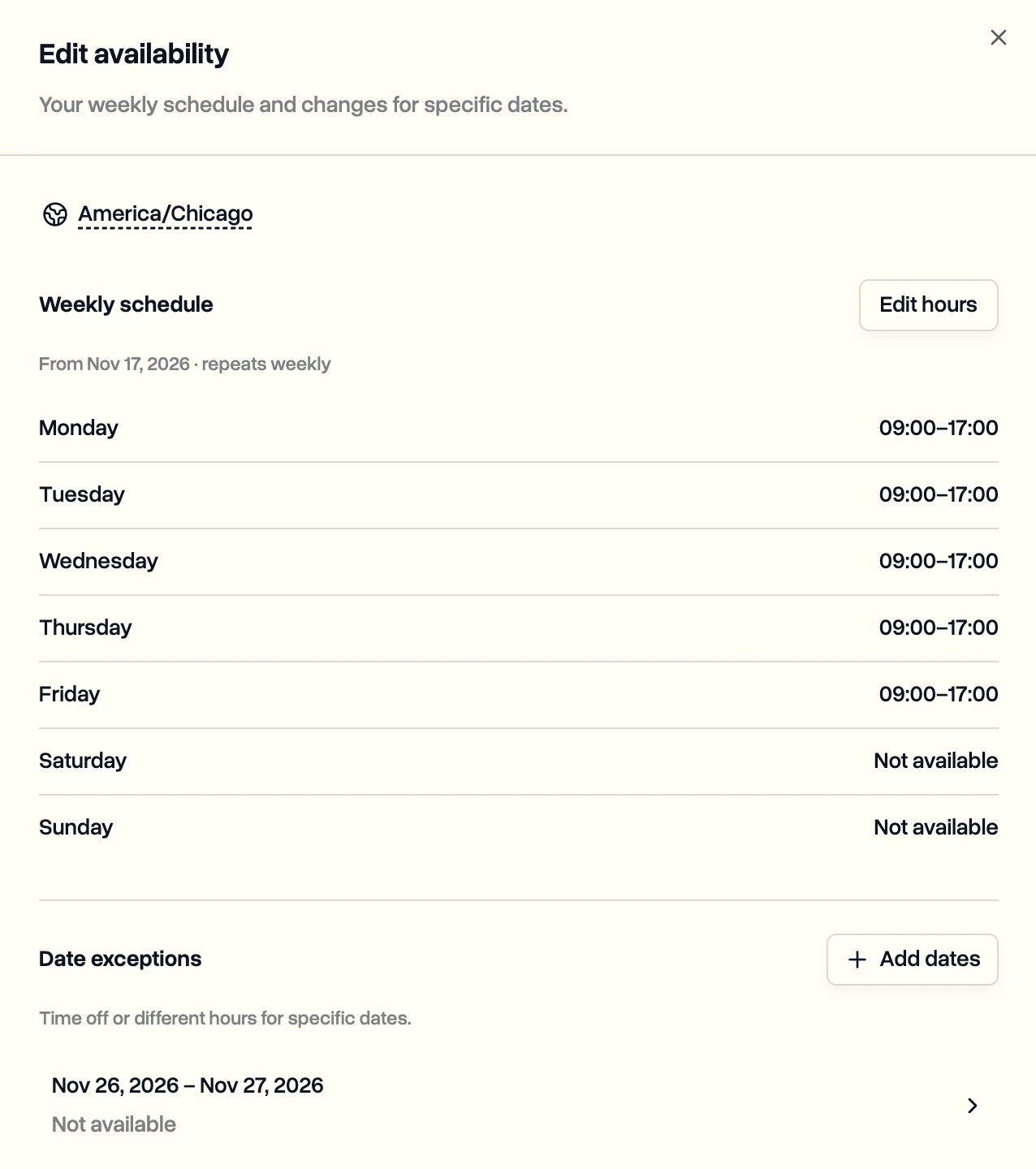
Next to Weekly schedule, click Set hours. It says Edit hours once you have saved a week.
-
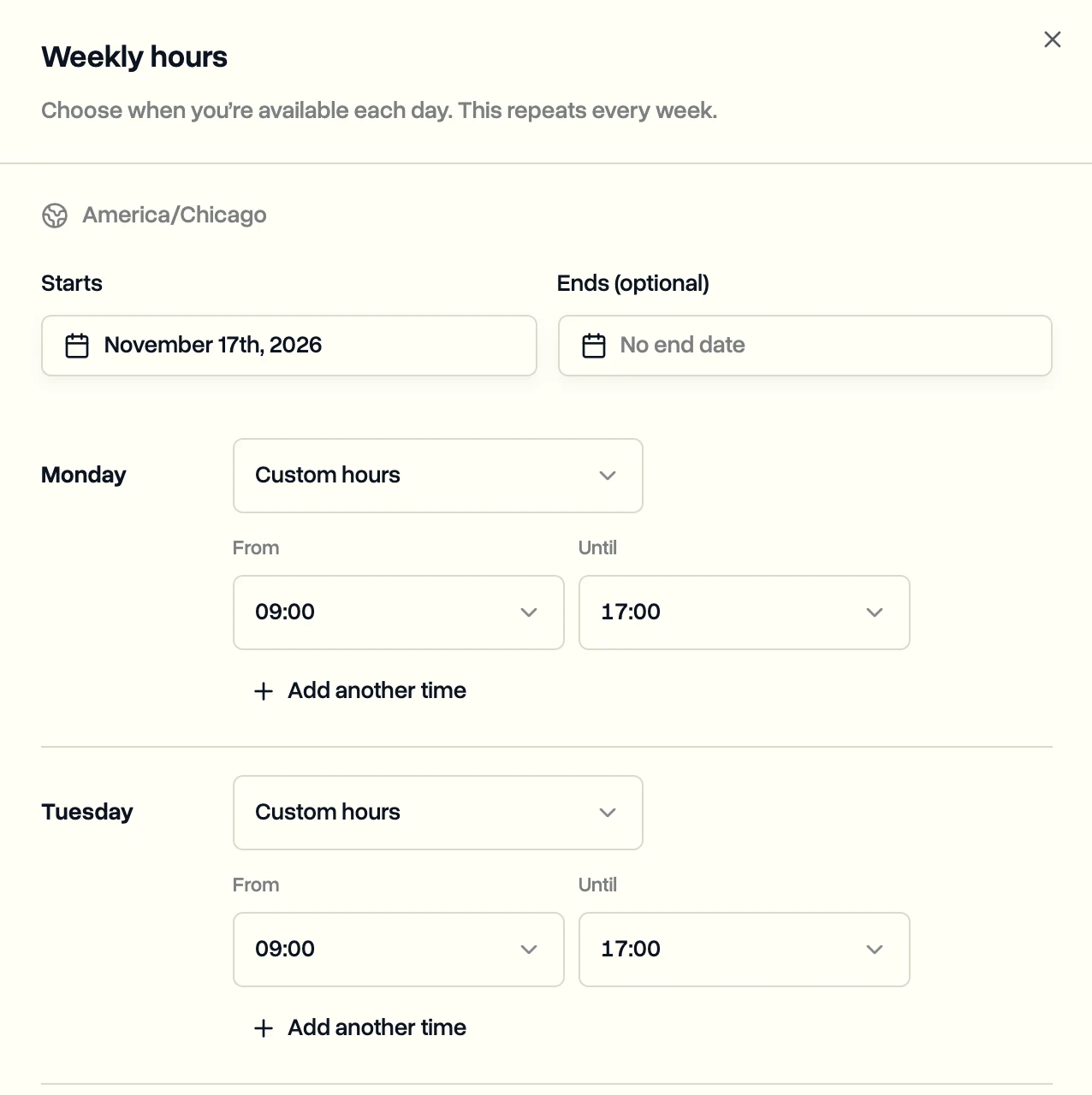
For each day, pick one option:
- Not available
- Available all day
- Choose shifts, then star the shifts you prefer. This shows when your manager has set up shifts.
- Custom hours, with one or more From and Until times
-
To give Tuesday to Friday the same hours as Monday, click Copy Monday to Tue–Fri, then Copy Monday hours.
-
Check the Starts date. Leave Ends empty and the week repeats.
-
Click Save.
Not set is not the same as unavailable. Hours outside the periods you choose count as unavailable. A day left on Not set stays unknown, so your manager cannot tell whether you can fly.
Add time off or different hours
-
Click Edit availability.
-
Under Date exceptions, click Add dates.
-
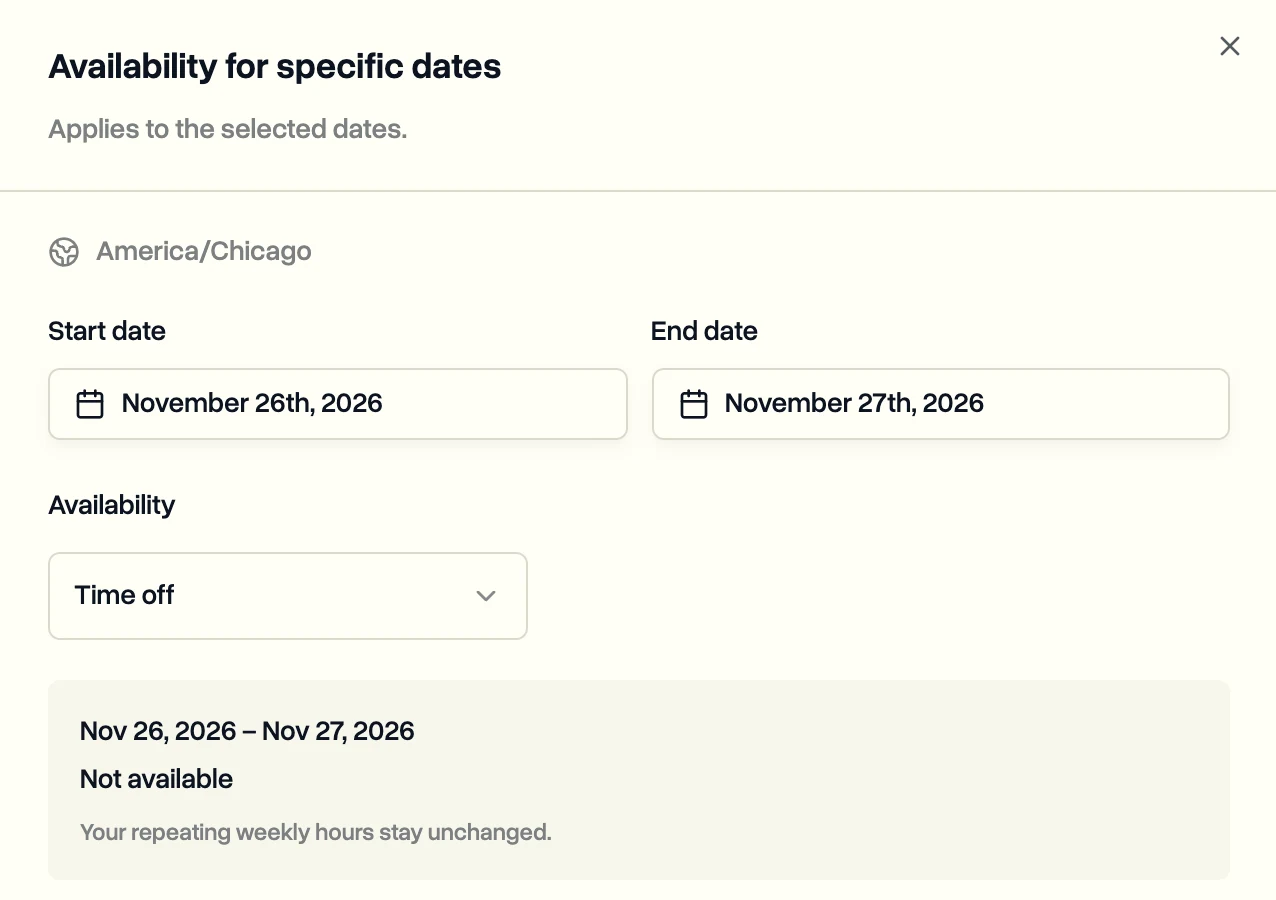
Pick the Start date and End date.
-
Leave Availability on Time off, or choose the hours you can fly on those days.
-
Click Save.
To change one day quickly, click that day on the calendar.
To undo a change, open it under Date exceptions and click Use usual week. Those days go back to your normal hours.
Change your timezone
All your hours use one timezone, shown above the calendar. Click it to pick another one, for example when you are working in another region for a few weeks. Your hours keep the same clock times in the new timezone.
What your manager sees
- Your hours on each day of the Pilot Schedule.
- A warning when a flight is booked outside your hours.
- A check of every selected flight against your hours when they assign you.
Managers can also view and edit your hours from your page under Team.
Last updated Nov 17, 2026
Did this answer your question?
Still stuck?
Ask DroneBundle AI in the app, or email us and a person will answer.