See the whole operation on the Overview and Feed
The Overview gives managers the numbers and a map of every site. The Feed shows all scheduled work as a timeline or a calendar, for everyone on the team.
The Overview is for admins and project managers. Everyone sees the Feed, limited to the work they can reach.
The Overview
In the sidebar, click Overview. It's the first page admins and project managers see.
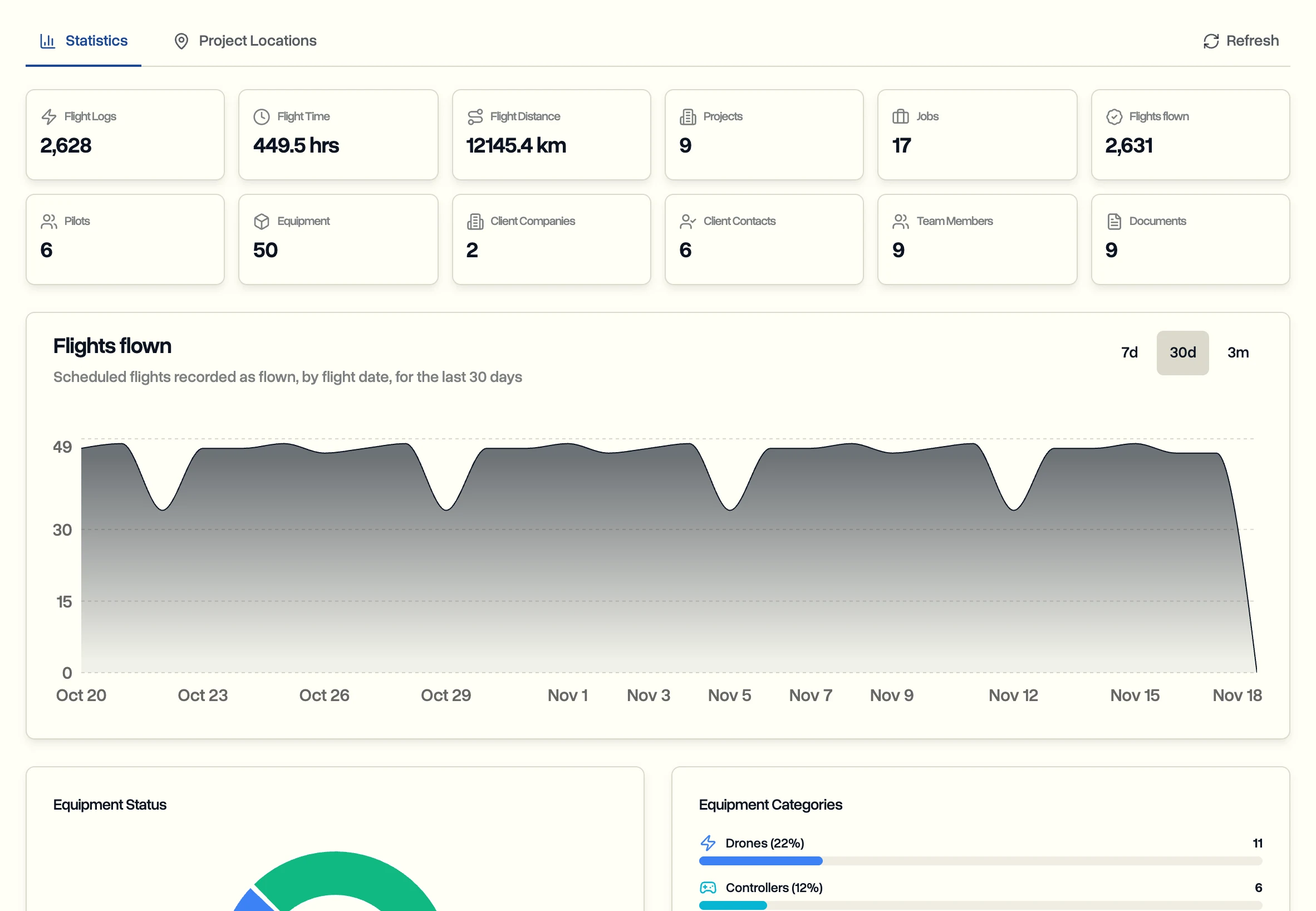
- Statistics: counts for projects, jobs, flights flown, flight time and distance, pilots, equipment, clients, team members and documents, plus a chart of flight activity over time.
- Project Locations: every project with a drawn area on one map. Click Fit all to zoom to all of them, and click a site to open its project.
The Feed
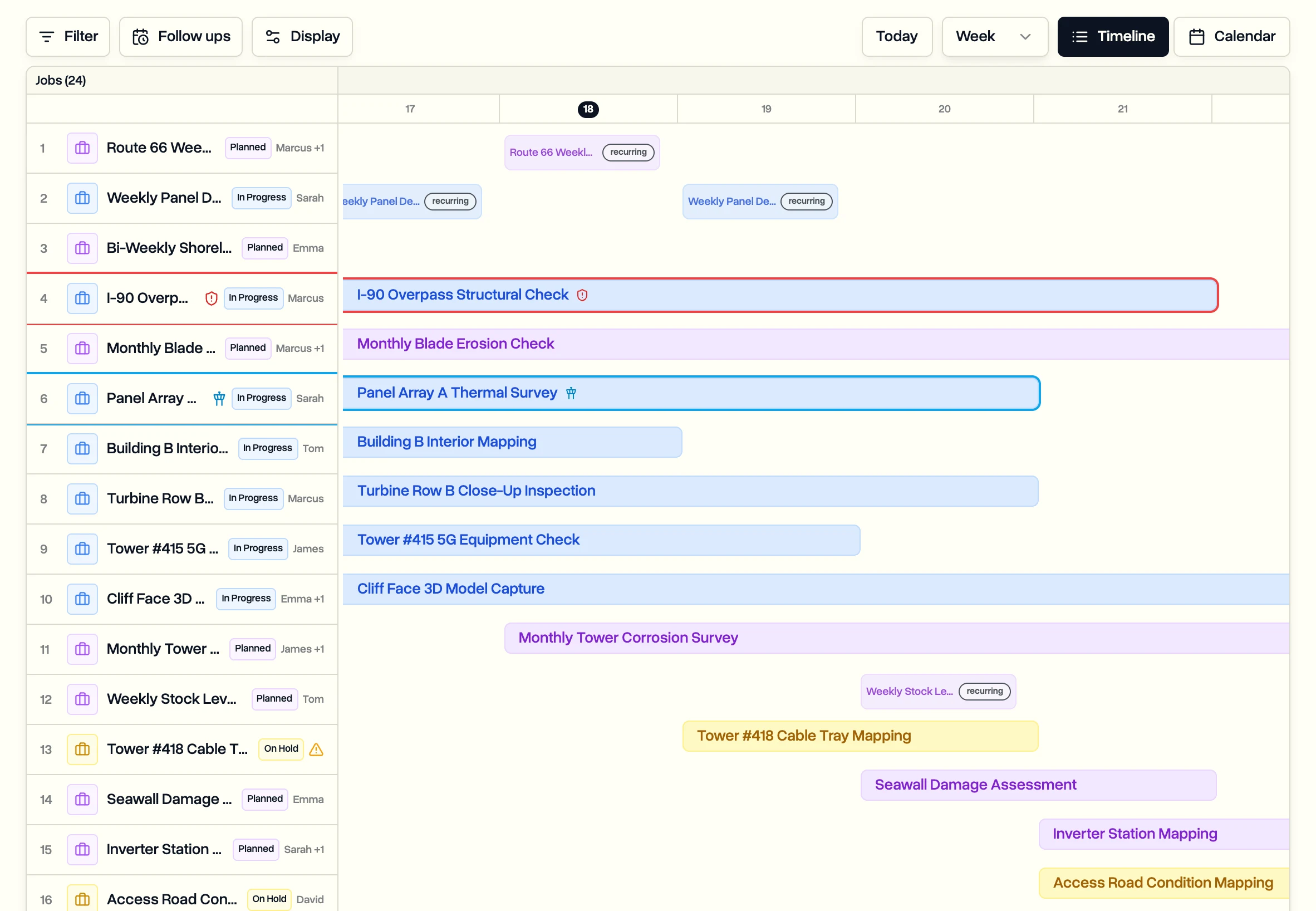
In the sidebar, click Feed. It shows every scheduled job, so you can see who is flying where and when. Pilots see their own jobs, and clients see the work on their projects.
- Switch between Timeline, with each job as a bar across the days, and Calendar, with jobs on each day.
- Pick a week, month, quarter or year, and click Today to jump back.
- Click Filter to narrow it by status, pilot, priority or job type.
Click Display to change how it's laid out:
- Grouping: by project, status or pilot, or no grouping.
- Sort by: start date, newest or oldest first.
- Completed jobs: show or hide finished work.
Icons on a job warn you when it has no pilot, is high risk or needs an airspace authorization.
Planning pilots for the week? The Pilot Schedule shows people and their availability instead of jobs.
Last updated Nov 18, 2026
Did this answer your question?
Still stuck?
Ask DroneBundle AI in the app, or email us and a person will answer.