Upload drone photos from your DJI controller
After landing, the DroneBundle app on your controller copies the new photos off the drone, puts them on the right job and uploads them. After a mapping flight it starts the 3D map too.
Adding a job or starting a map from the controller needs a role that can do the same in the dashboard.
You don't need to pull the SD card or open a laptop. After you land, the DroneBundle app on your controller copies the new photos off the drone, finds the job they belong to and uploads them. After a mapping flight it also starts the 3D map.
Before you start
- Install the app on your controller: open dronebundle.com/app in the controller's browser, download it and sign in. The same app uploads your flight logs, see Get your DJI flight logs into DroneBundle.
- You need an Android controller or phone (Android 8.0 or later) and a DJI drone that DJI opens to other apps. To see if yours works, switch on the drone, open Help & Support in the app and tap Run the drone check. It copies one photo and changes nothing on the drone.
- If your account is in more than one workspace, the app asks you to Choose a workspace. Photos and flight logs from this controller go to that one. To change it later, tap your name at the bottom left, then Switch workspace.
After a flight
- Fly with your usual flight app.
- After landing, leave the drone switched on and close the flight app.
- Open DroneBundle. It opens on Flights, connects to the drone and copies the new photos.
- Wait for All photos are copied. You can switch off the drone. The upload carries on by itself.
Each flight gets a card with its job, a photo from the flight and a plot of where the photos were taken. The card says Done when every photo is on the job.
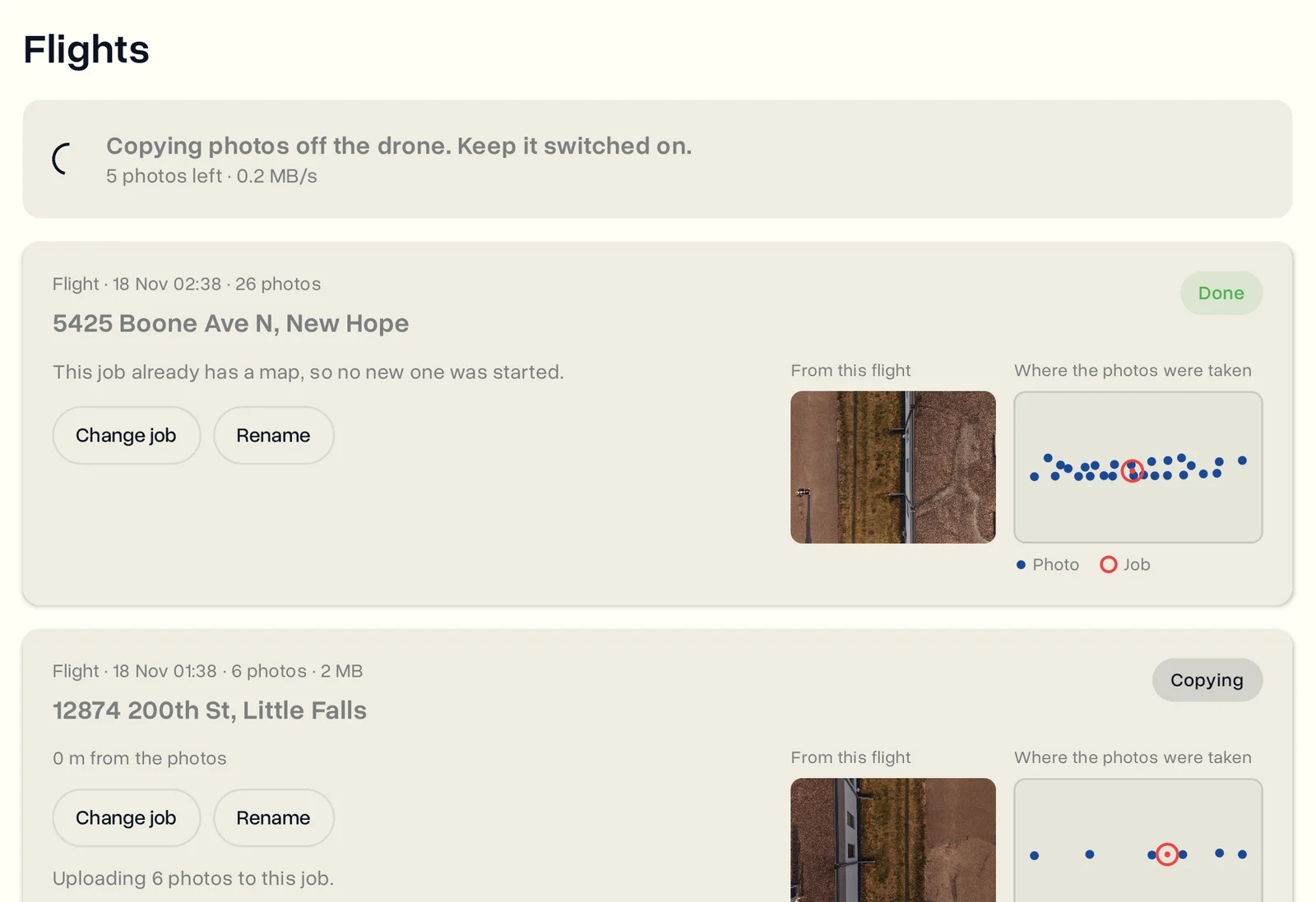
Not sure when to open the app? With Tell me when a flight has finished switched on in Settings, a notice appears on the controller after landing, while your flight app is still open.
How the app finds the job
Photos always go to a job. The app looks at where the photos were taken and finds the job at that place.
- One job there: the photos go to it.
- More than one job nearby: the card asks you to choose. Tap the right one.
- No job there, in a Jobs only workspace: after a mapping flight the app adds the job at that address by itself. For any other flight, tap Create job.
- No job there, in a workspace with projects: tap Create a job here, then choose the project and the job type. Admins and project managers can also add a New project right there.
If your role cannot add jobs, choose an existing job or ask a manager to add one. The photos stay on the controller until then.
Photos on the wrong job? Tap Change job on the card and pick the right one. The photos move to it. Rename changes the job's name.
The map
A mapping flight is 20 or more photos taken with the camera pointing down, at a steady height. After one, the app starts a 3D map on the job as soon as the last photo is uploaded, and you get the usual notification when it is ready. Make a map from drone photos explains credits and what you get.
- To skip the map for one flight, switch off Build a 3D map on its card.
- To skip it for every flight, open Settings and switch off Build a 3D map after a mapping flight.
- If the job already has a map, a second one is not started.
- If your role cannot make maps, the photos still upload, and someone with access starts the map from the job.
Earlier flights and skipping a flight
Flights from the day you signed in on this controller upload by themselves. Older ones wait under Earlier flights. Tap Add this flight to upload one.
Skip this flight leaves a flight out. Nothing from it is uploaded and nothing is deleted from the drone.
Uploads and storage
- Switch on Upload on Wi-Fi only in Settings to make photos and flight logs wait for Wi-Fi. A phone hotspot counts as Wi-Fi.
- If the connection drops, the upload waits and carries on when it is back.
- Copies are removed from the controller once a flight is fully uploaded.
- The drone's card is only read. Nothing is written to it or deleted from it, so you can still pull the SD card as before.
- If a photo could not be copied, the card names it. Keep the drone switched on and tap Try again.
Last updated Nov 19, 2026
Did this answer your question?
Still stuck?
Ask DroneBundle AI in the app, or email us and a person will answer.