Get your DJI flight logs into DroneBundle
Sync logs automatically from your DJI controller, upload log files from your phone or computer, or connect FlightHub 2 for docks. Each flight then finds its job by location.
There are three ways to bring flights in. Pick the one that matches how you fly. Once a flight is in, you get its path on a map, a 3D replay, and its time, distance and conditions.
Sync from your DJI controller
Works on DJI controllers that allow other apps, such as the DJI RC Plus 2 and DJI RC Pro, and on Android phones (Android 8.0 or later).
- On the controller, open dronebundle.com/app in the browser.
- Download and install the DroneBundle app.
- Sign in with your DroneBundle login. If your account is in more than one workspace, choose the one this controller uploads to.
- Tap Grant Permission and allow file access, so the app can read the flight logs.
After a flight, open the app and the new flight logs upload. To have them go up while the app is closed, open Settings in the app and switch on Upload flight logs in the background. Logs from before you signed in wait under Earlier flights until you add them. Empty log files are skipped.
The same app uploads your photos. After landing it copies the new photos off the drone, puts them on the right job and starts the map. See Upload drone photos from your DJI controller.
Upload log files
- In the sidebar, click Flight Logs.
- Click Upload Flight Data and choose your log files, up to 100 at a time.
- Check the list. Click Add More Files if you missed some.
- Click Upload. The button shows how many files will go up.
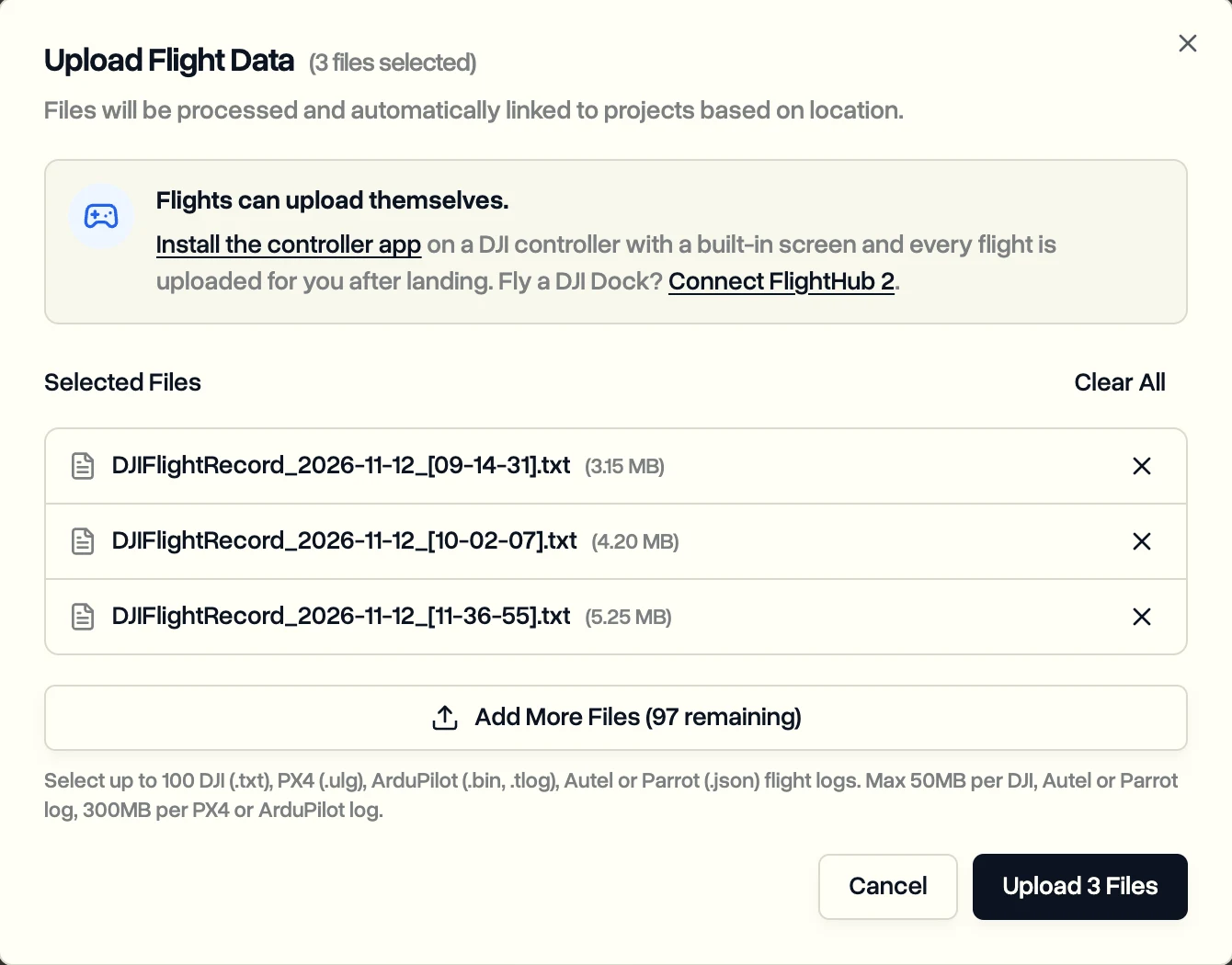
Where DJI Fly keeps its logs:
- iPhone or iPad: in the Files app, go to On My iPhone, then DJI Fly, then FlightRecords.
- Android: Android, then data, then dji.go.v5, then files, then FlightRecord.
DroneBundle also reads PX4 (.ulg), ArduPilot (.bin, .tlog), Autel and Parrot (.json) logs. DJI, Autel and Parrot logs can be up to 50 MB each, PX4 and ArduPilot logs up to 300 MB.
Upload from the job instead and the flight is linked to that job straight away. Open the job and click Upload Flight Data in its flights section.
Connect DJI FlightHub 2 for docks
If you fly DJI Docks, connect FlightHub 2 once and every dock flight syncs after it lands. In the sidebar, click Integrations, then DJI FlightHub 2, and follow the steps. Available on Team and Enterprise.
How flights find their job
DroneBundle matches each flight to a project and job by where it flew. The Source column on Flight Logs tells you how each one got there:
- Direct: uploaded from a project or job.
- Auto-matched: matched by the flight's location.
- Unmatched: no project or job nearby. Open the flight and link it by hand.
- Manual: linked by hand after upload.
Last updated Nov 19, 2026
Did this answer your question?
Still stuck?
Ask DroneBundle AI in the app, or email us and a person will answer.