Invite your team
Add pilots, project managers and operations leads to your workspace by email. Each person gets their own login, and the role you pick decides what they can see and do.
Project managers can invite anyone except admins. Operations leads can invite pilots only.
This is only available on the Team and Enterprise plans and during the free trial.
Everyone who works in DroneBundle gets their own login. You invite them by email and pick a role.
Send an invite
- In the sidebar, click Team.
- Click Invite Member.
- Enter their Email.
- Pick a Role. The line under it says what that role can do. See Roles and what each one can do.
- Click Invite.
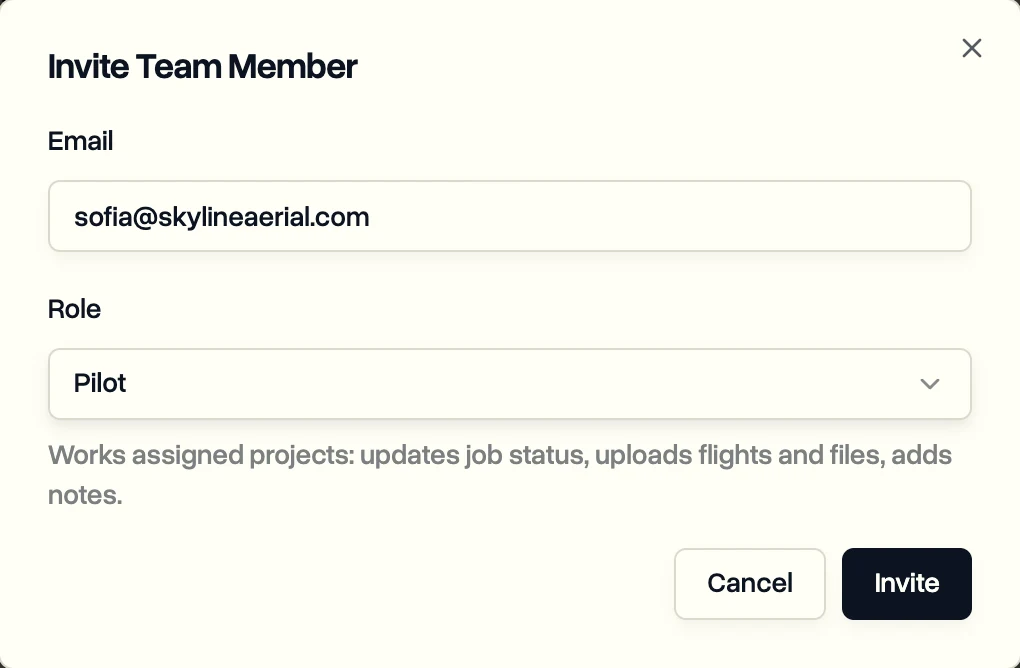
No company name yet? The dialog asks for it first, because it goes in the invitation email.
Clients are added from the Clients page instead. See Share a project with a client.
What they receive
- New to DroneBundle: an email called "Invitation to join DroneBundle" with a temporary password. They sign in and choose their own password.
- Already use DroneBundle: an email saying they were added to your company. They sign in with their usual password.
Until they sign in, they show as Pending on the Team page.
Change a role or remove someone
On the Team page, open the menu at the end of the person's row:
- Change Role to give them a different role.
- Delete to remove them from your workspace.
The Team plan includes up to 10 team members. Enterprise has no limit.
Last updated Nov 17, 2026
Did this answer your question?
Still stuck?
Ask DroneBundle AI in the app, or email us and a person will answer.