Use Pilot Mode if you manage and fly
Admins and project managers who also fly can turn on Pilot Mode. You can then be assigned to jobs and switch to a pilot view of your own assignments and availability.
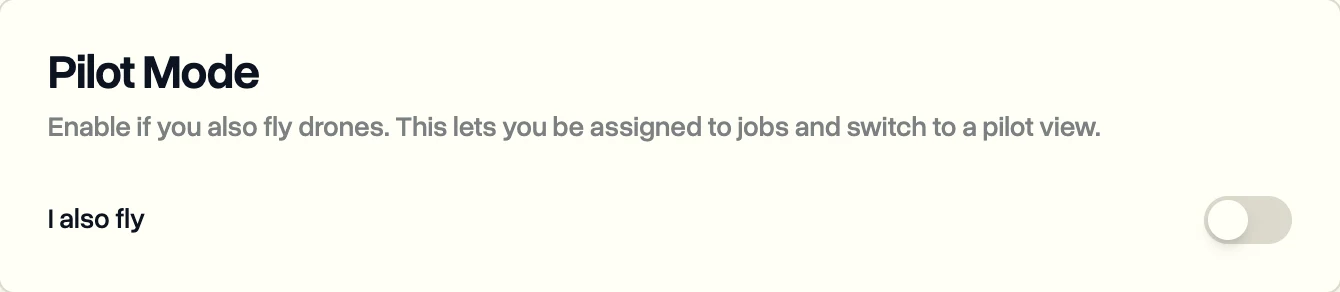
Pilot Mode gives your account a pilot profile next to your manager role. You keep all your manager access and gain your own assignments, flight hours and availability.
Turn it on for yourself
- In the sidebar, click Settings.
- On the Profile tab, turn on I also fly under Pilot Mode.
You now show up in the pilot list when anyone assigns a job, so you can assign yourself too.
Switch between manager and pilot view
- Click your name at the bottom of the sidebar.
- Click Pilot Mode. The sidebar changes to your Assignments, My Availability and flights.
- To go back, click your name again and choose Manager Mode.
DroneBundle remembers which view you used last.
Turn it on for someone else
Admins and project managers can do this from the Team page: open the menu at the end of the person's row and click Enable Pilot Mode.
Turning Pilot Mode off later keeps the flight history and hours already recorded.
Last updated Nov 17, 2026
Did this answer your question?
Still stuck?
Ask DroneBundle AI in the app, or email us and a person will answer.