Connect Slack for daily posts and DroneBundle AI
Ask DroneBundle AI from Slack by mentioning @DroneBundle, and get tomorrow's schedule, yesterday's flights, due dates and the weather posted to your channels every day.
DroneBundle AI in Slack works on every plan. Daily posts are on the Team and Enterprise plans and during the free trial.
Connect your Slack workspace
- In the sidebar, click Integrations, then Slack.
- Click Connect Slack, then Add to Slack, and allow access.
Ask DroneBundle AI
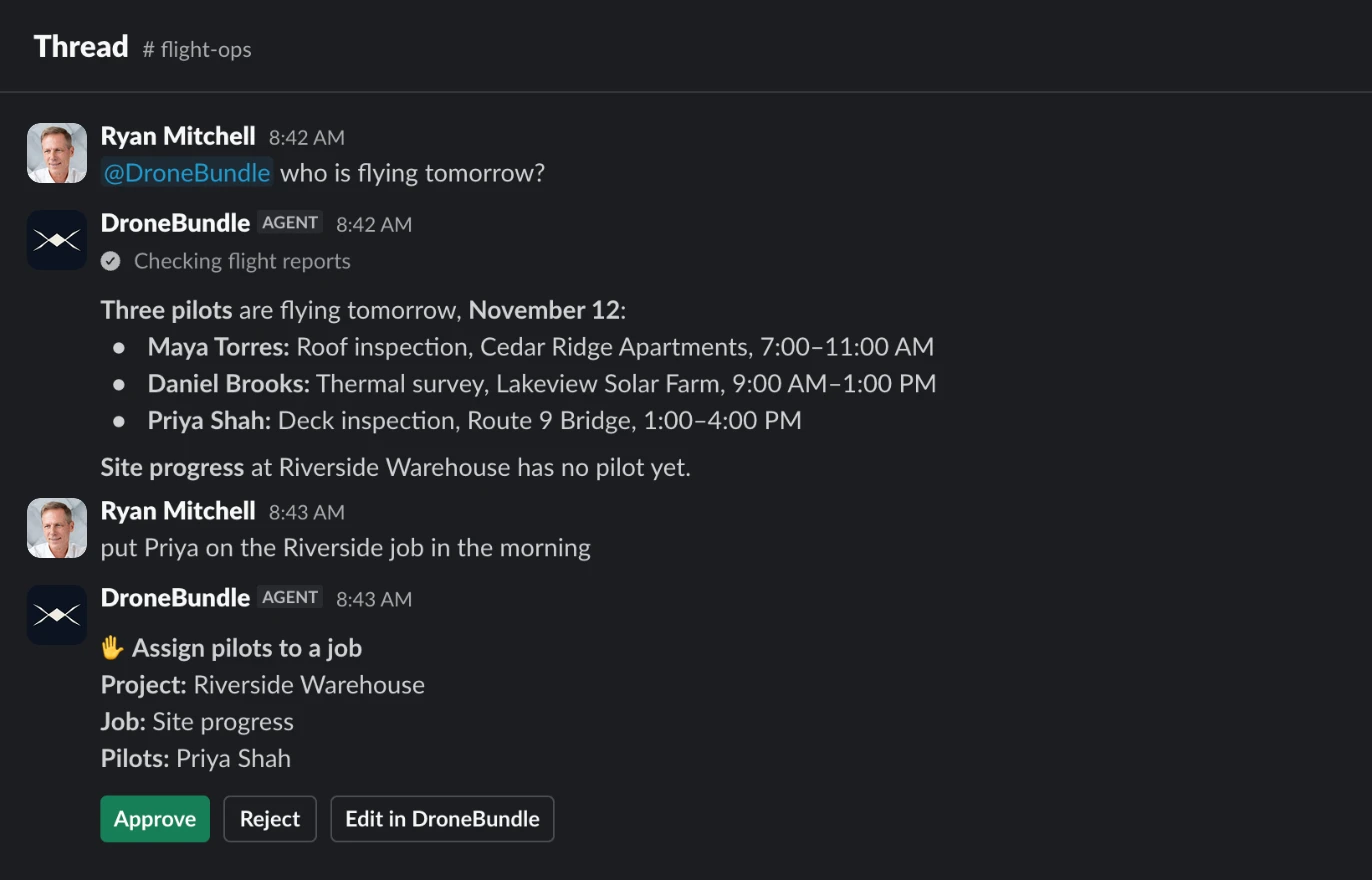
- Mention @DroneBundle in a channel, or send it a direct message.
- It answers from your live projects, jobs, pilots and flights, and shows each step while it works.
- Reply in the thread to keep going without mentioning it again.
- Ask it to create a job, assign a pilot or update a status. Each change arrives as a card with Approve and Reject, and only the person who asked can approve it.
Private channel? Type
/invite @DroneBundlein the channel first.
Add a daily post
- On the Slack page, add a daily post and pick what it shows:
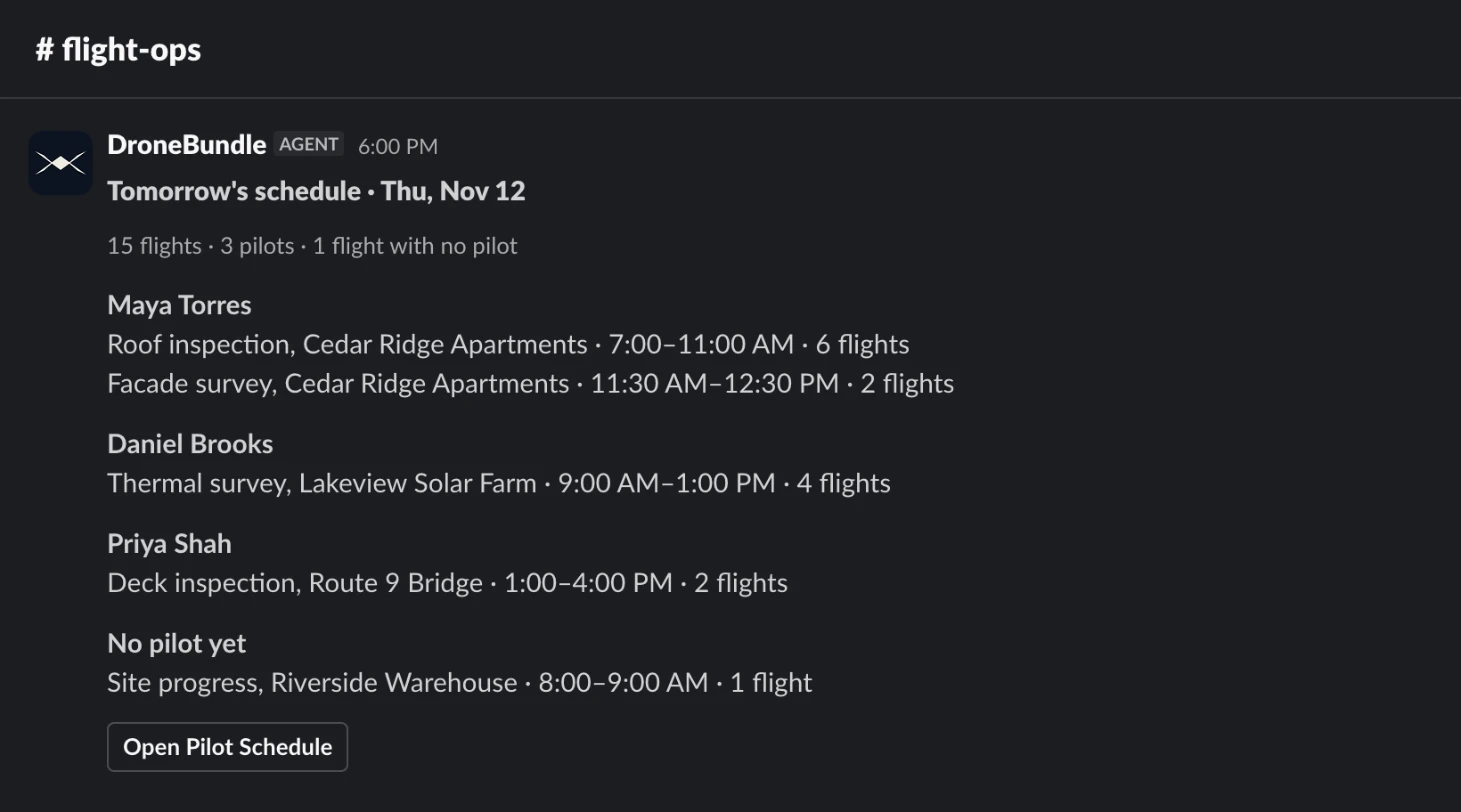
- Tomorrow's schedule: each pilot's jobs and times, plus flights with no pilot.
- Yesterday's flights: what was flown, what has no report, and why others did not fly.
- Due soon: overdue and upcoming maintenance, and expired or expiring documents.
- Tomorrow's weather: the daytime forecast for each job, with windy or wet jobs first.
- Under Post to, pick the channel, then the time, time zone and days.
- Send a test post to check it, then save.
DroneBundle AI can make mistakes, so check important answers before acting on them.
Last updated Nov 17, 2026
Did this answer your question?
Still stuck?
Ask DroneBundle AI in the app, or email us and a person will answer.