Report and investigate an incident
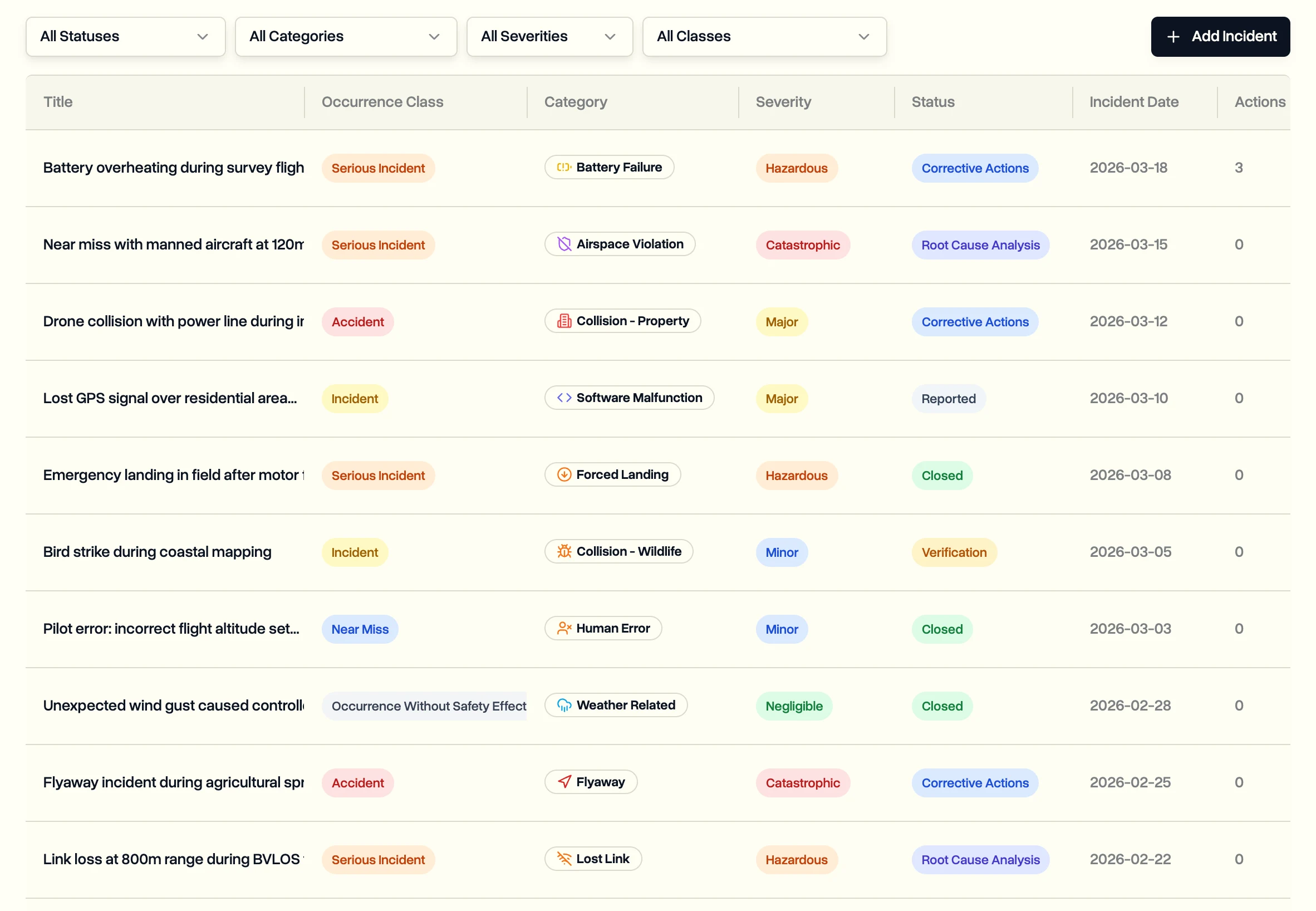
Record a safety event like a near miss, a lost link or a flyaway, investigate what caused it, and track the corrective actions until they are done.
Operations leads can view incidents. Admins and project managers report and update them.
This is only available on the Enterprise plan and during the free trial.
Report it
- In the sidebar, click Incidents.
- Click Add Incident.
- Pick the category, like near miss, lost link, flyaway, battery failure or property damage, and how serious it was.
- Add when and where it happened, the type of operation (VLOS, EVLOS or BVLOS), the weather and wind, and who was involved.
- Record the outcome: injuries, damage to the aircraft or property, and an estimated cost.
- Click Report Incident to save it.
Investigate it
Open the incident and move it through its stages as you work: reported, under investigation, root cause analysis, corrective actions, verification and closed. Record the root cause, what contributed, and the lessons learned.
If you reported it to an aviation authority, note the authority and its reference number on the incident.
Fix what caused it
- Under Corrective Actions, click Add Corrective Action.
- Describe the action, pick the type and priority, assign someone and set a deadline.
- When it's done, record how it was checked and how well it worked.
Filter incidents by status, category, severity or occurrence class to see what's still open.
Last updated Nov 17, 2026
Did this answer your question?
Still stuck?
Ask DroneBundle AI in the app, or email us and a person will answer.