Customize your Overview dashboard
Build the Overview your team needs from ready-made cards or your own, arranged the way you like. Change the shared Workspace dashboard, or keep a My dashboard only you see.
Admins and project managers change the Workspace dashboard. Everyone who can open the Overview can build their own My dashboard.
This is only available on the Enterprise plan and during the free trial.
Custom dashboards are included on the Enterprise plan and in every free trial. On other plans the Overview shows the standard cards, and Customize and Build with AI show a lock.
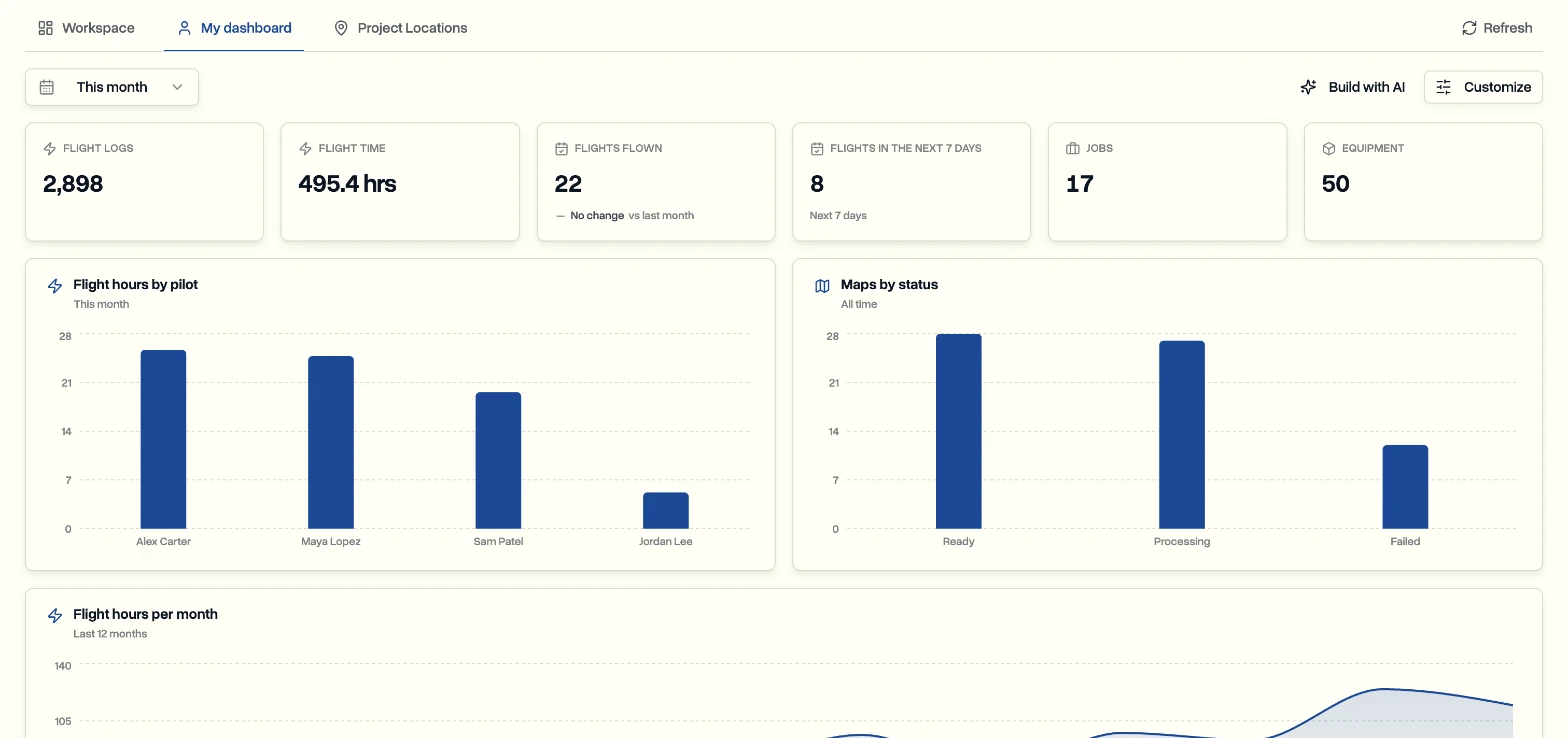
The Overview is made of cards: numbers, bar charts, line charts, donuts and ranked lists. You choose which cards it shows, what each one counts and where it sits. Every card uses your own records and status names.
There are two dashboards on the Overview:
- Workspace is shared. Everyone who can open the Overview sees it.
- My dashboard is yours alone. It starts as a copy of the Workspace dashboard until you change it.
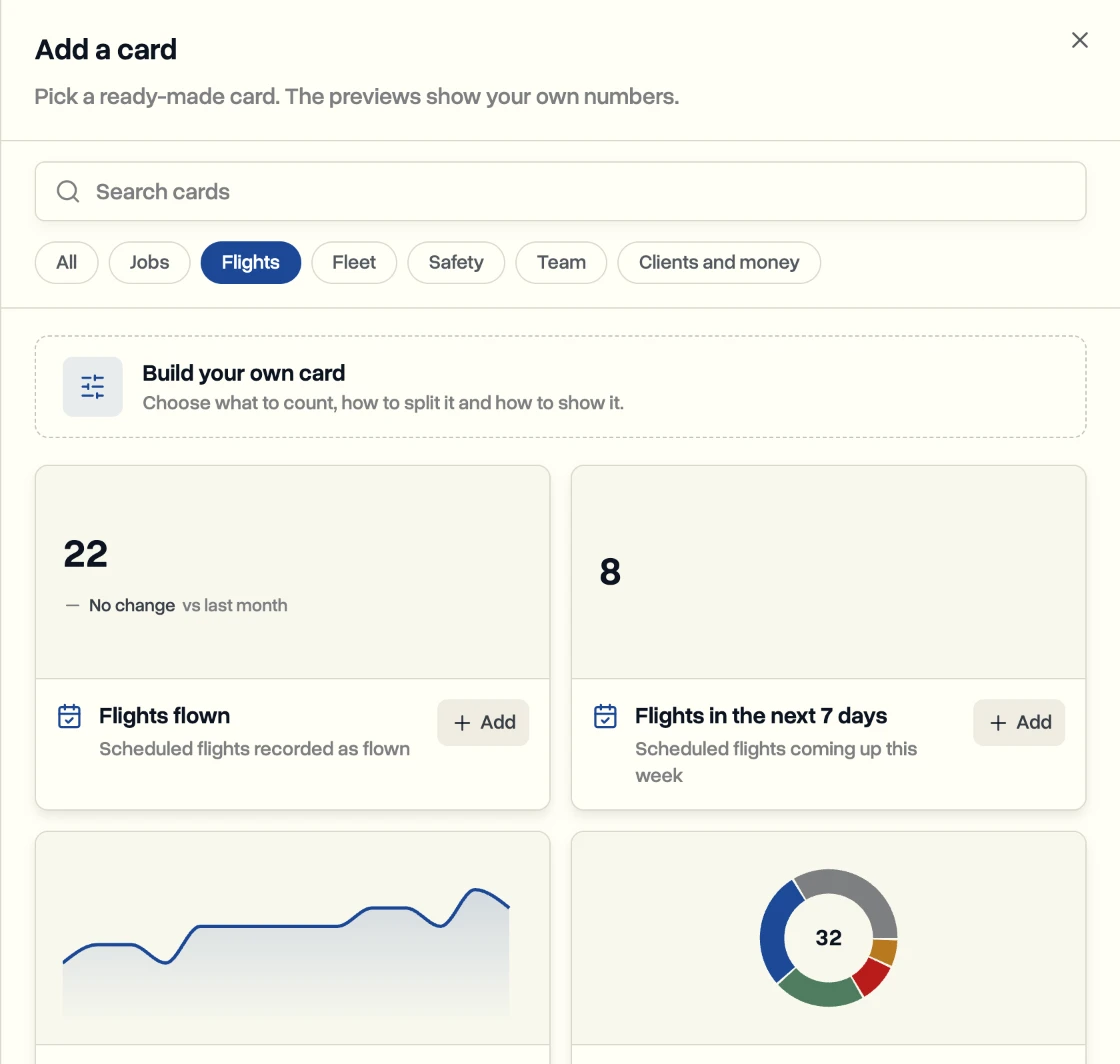
Add a ready-made card
- In the sidebar, click Overview and pick Workspace or My dashboard.
- Click Customize.
- Click Add card.
- Pick a card. The previews show your own numbers, and the filters at the top group them by jobs, flights, the fleet, safety, the team and clients.
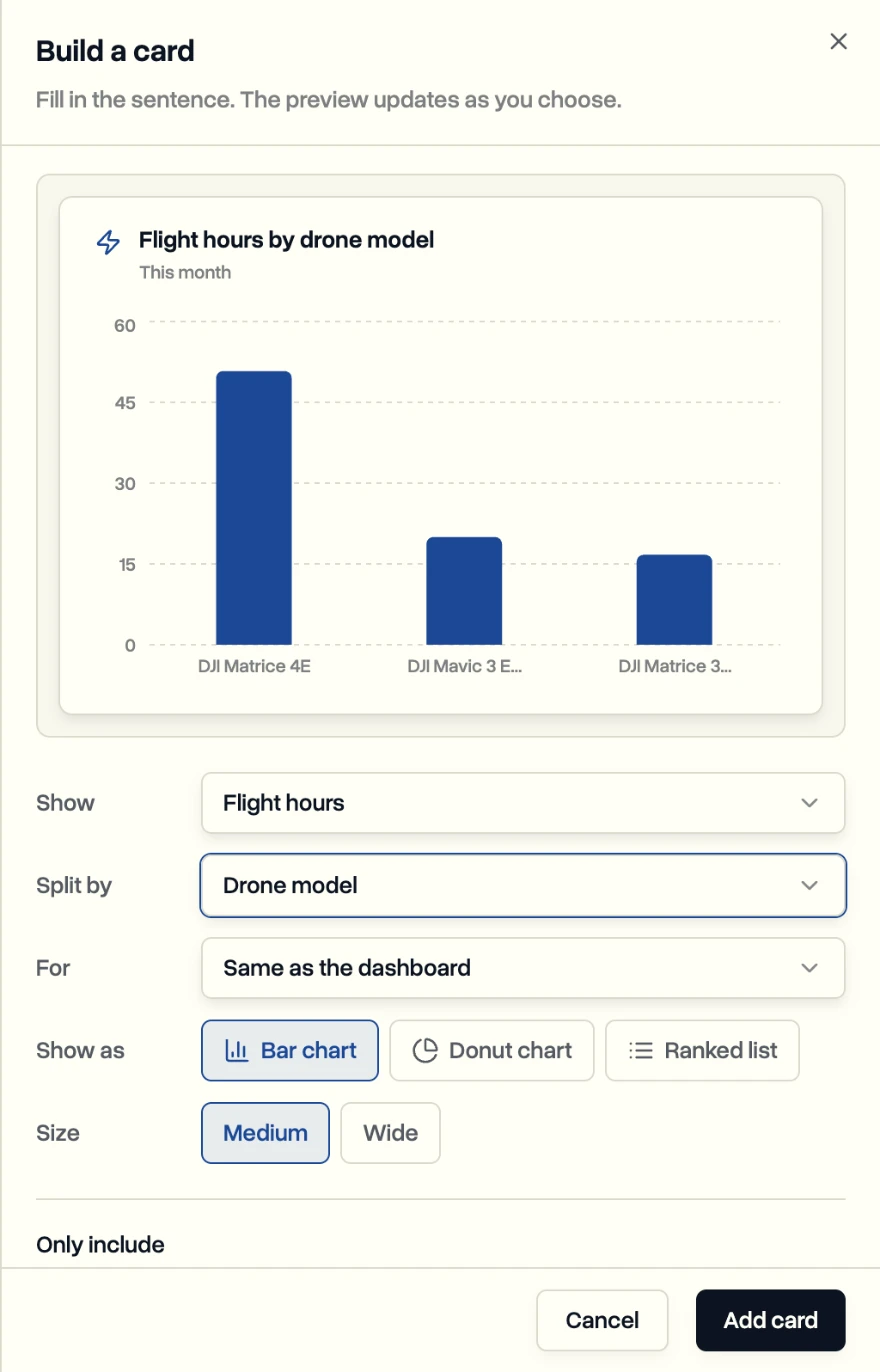
Build your own card
A card is one sentence. Fill it in and the preview updates as you go.
- In Customize, click Add card, then Build your own card.
- Under Show, pick what to count, like the number of jobs, flight hours or invoice amounts.
- Under Split by, pick how to break it down, like by pilot, status, drone model, or over time per week or month. Leave it on one total for a single number.
- Under For, pick the period, or keep it the same as the dashboard.
- Under Show as and Size, pick the chart and how wide it is.
- To count only some records, add a filter under Only include.
- Click Add card.
Move, change and remove cards
In Customize, drag a card to move it. Click a card to change what it shows, then click Save card. Hover a card to resize it or remove it.
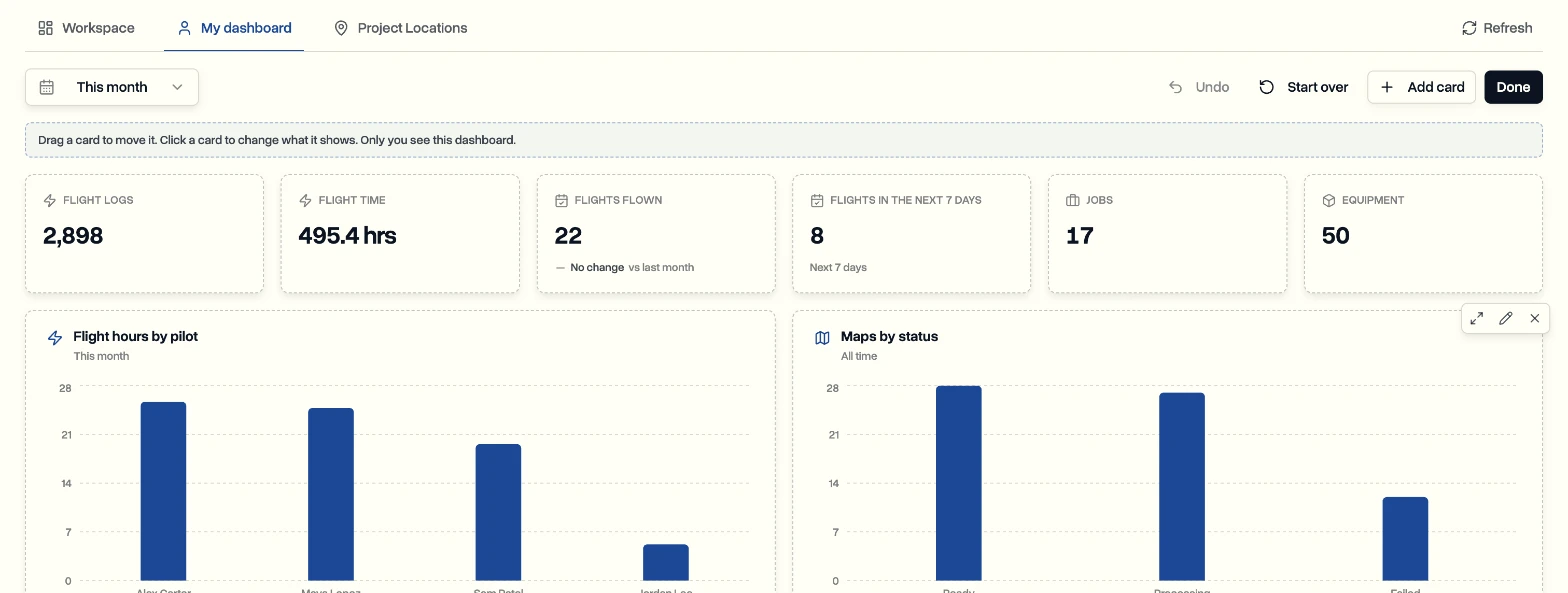
- Click Undo to take back the last change.
- On My dashboard, changes save as you go. Click Done when you're finished, or Start over to go back to the Workspace dashboard.
- On Workspace, nobody else sees your changes until you click Publish. Reset to default puts back the standard cards.
Let DroneBundle AI build it
- Click Build with AI next to Customize.
- Click Look at our workspace and suggest a dashboard, or describe the dashboard you want, like "a safety dashboard for this quarter".
- DroneBundle AI looks at which records you have, explains what it suggests and shows each new card with a preview.
- Check whether the change is for Workspace or My dashboard, then click Approve.
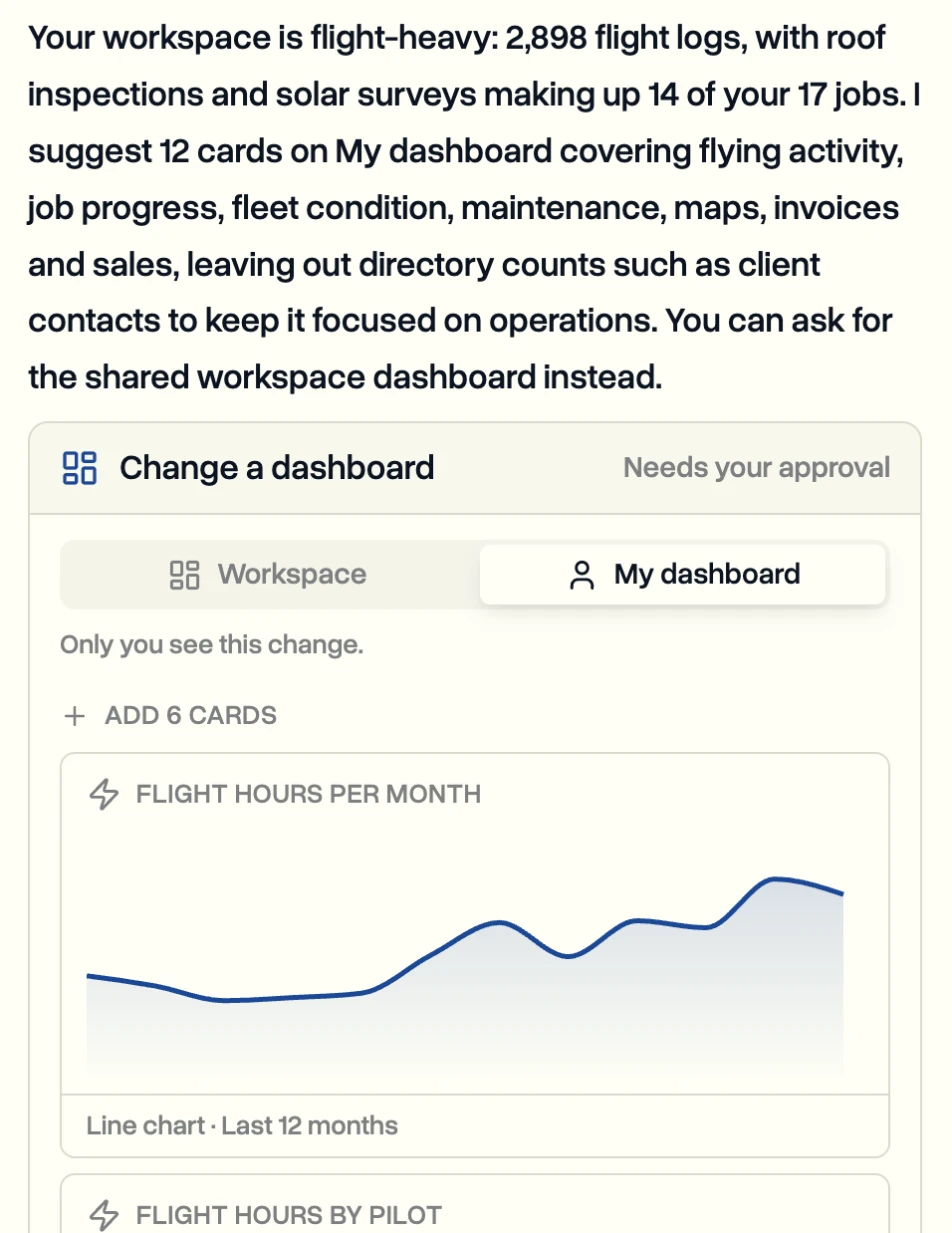
When it builds or suggests a dashboard, it puts the numbers together in a row at the top and pairs the charts below, grouped by topic. To tidy a dashboard you arranged yourself, click Organize this dashboard into tidy rows.
You can also ask it for a single number without adding a card, like "How many flight hours did we log this year?". See Ask DroneBundle AI about your work.
Give someone else the right to change it. Admins and project managers can change the Workspace dashboard. To let a custom role do it, switch on "Edit the workspace dashboard" in the role.
Last updated Nov 24, 2026
Did this answer your question?
Still stuck?
Ask DroneBundle AI in the app, or email us and a person will answer.