Track maintenance by flight hours, cycles and days
Set service schedules per drone or battery by flight hours, number of flights, calendar days or charge cycles. Flight logs move them forward on their own, and you log each service when it is done.
Operations leads can log service. Admins and project managers create schedules and templates.
This is only available on the Enterprise plan and during the free trial.
Each schedule counts toward its next service from the flight logs. Nobody types in hours: when a log is processed, the drone's flight time, flight count and battery cycles go up, and the schedule moves with them.
Create a schedule
- In the sidebar, click Maintenance, then Schedules.
- Click New Schedule.
- Give it a name and pick the equipment.
- Pick the trigger: Flight Hours, Flight Count, Calendar Days or Charge Cycles. Only the triggers that fit that kind of equipment are offered.
- Set the Interval Value, for example 50 flight hours, and a priority from low to critical.
- Save.
A schedule shows as on track, due soon at 80% of the interval, or overdue at 100%. Set it to Paused while the equipment is out of service.
Log a service
- Open the schedule, or find it in the list, and click Log Service.
- Mark it completed or pending, and pick who did it under Performed By.
- Add notes on what was done and attach photos, receipts or reports.
- Save.
Logging a completed service resets the schedule and starts the next interval. Every record keeps its status history.
Reuse a set of schedules
Under Templates, click New Template to bundle several services for one kind of equipment, like a manufacturer's service plan or your own programme. Then click Apply Template and pick the equipment to add all of its schedules in one step.
Keep an eye on it
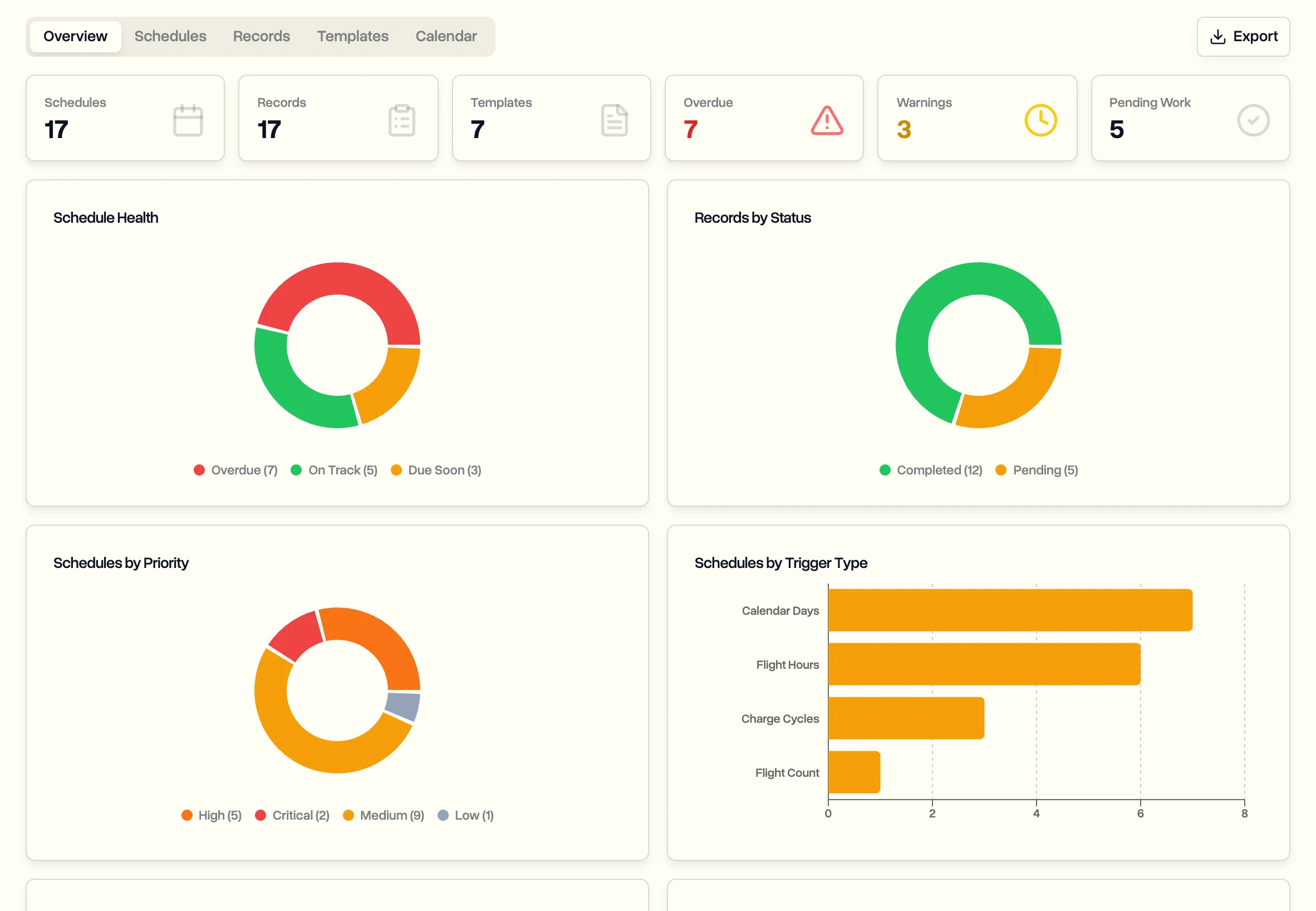
- Overview: overdue, due soon and pending counts, recent work and what's coming up.
- Calendar: upcoming services by date.
- Records: every logged service, with filters.
Last updated Nov 17, 2026
Did this answer your question?
Still stuck?
Ask DroneBundle AI in the app, or email us and a person will answer.