New FeatureNew
Pilot Schedule: Plan Shifts and Put a Pilot on Every Flight
pilot-scheduleshiftsshift-planningpilot-assignmentpilot-availabilityschedulingrecurring-jobsflight-times
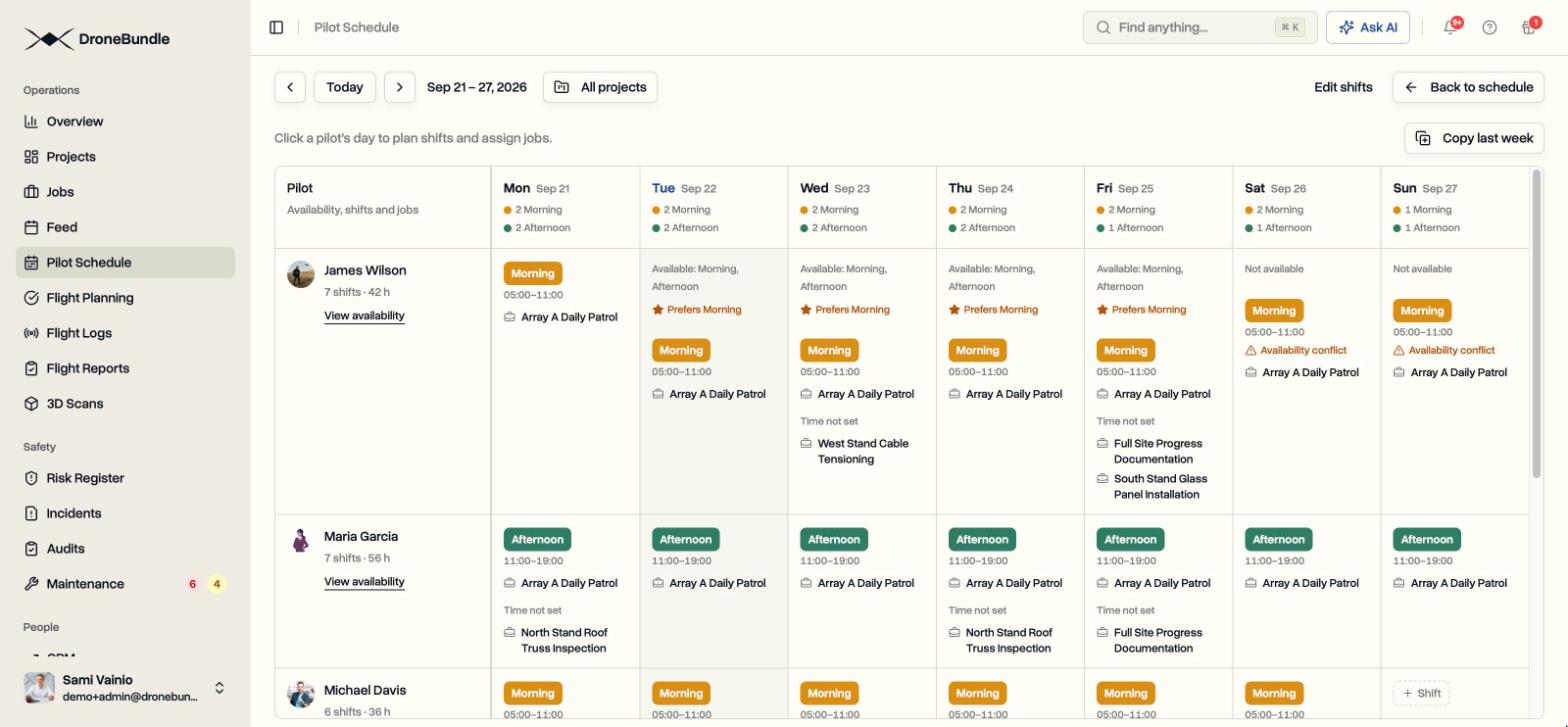
Pilot Schedule is a week view of your whole operation: one row per pilot, their flights laid out by day and hour, and a count of every flight that still has nobody on it. Set up your shifts once, plan each pilot's week, assign a whole shift or a single flight, and the pilot sees it on their phone.
The Whole Week on One Screen
Pilot Schedule is in the sidebar under Operations, right after Feed.
- Monday to Sunday, one row per pilot, with every flight drawn at its time on an hour scale and the job, project, first and last flight, and flight count underneath
- Overlapping flights are stacked in lanes so nothing hides behind anything else
- A line above the grid counts the flights this week that still need a pilot, and clicking it jumps to those jobs
- By job flips the same week to one row per job, with every gap highlighted as Needs pilot and an Assign pilots link on the block
- A project filter narrows the week to one site or one client
- Times follow each job's own timezone, and jobs without flight times are marked Time not set
Set Up Your Shifts Once
- Name your shifts with a start and end time, from Plan shifts or Settings and Customization
- A workspace without shifts opens on a suggested Morning, Afternoon, and Night to rename or retime
- Shifts can cross midnight and belong to the day they start
Plan Each Pilot's Week
- Press Plan shifts and click a pilot's day to tick their shift, which saves on its own
- The same panel lists every job with flights that day and shows which of its flights fall inside the shift, so one tick assigns the pilot to those flights and no others
- Apply to more days assigns the same job on the other dates you tick
- Each cell shows the shift, the jobs, the pilot's stated hours, and a warning when a booking falls outside them
- Copy last week gives every pilot the same shift they had on the same weekday, without touching flight assignments
Assign a Shift, a Day, or a Single Flight
The Assign pilots dialog asks which flights need pilots when a job has more than one.
- Time of day: All day, one of your named shifts, or Pick flights to turn each flight time on and off
- Days: Every scheduled day, which also covers flights added to the job later, or Pick days with a flight count under each date and Weekdays and Weekend shortcuts
- Each pilot in the list shows the shift they are planned on, whether the flights fall inside their working hours, and any other job they are booked on with the flights and dates
- Warnings advise and never block an intentional assignment
- Clicking a single flight on the schedule opens the same dialog for that flight only, with one button to assign the whole block instead
Pilots Tell You When They Can Fly
- Pilots set each weekday on their My Availability page, right below Assignments: Not available, Available all day, a set of your named shifts with a star for the ones they prefer, or custom hours
- One button copies Monday to the rest of the working week, and date exceptions add time off or different hours for specific dates
- Managers can view and edit any team member's hours
- Hours nobody has entered count as unknown, not as unavailable
- The schedule labels each day with the pilot's hours, flags bookings outside them, and the assign dialog checks every selected flight before you confirm
What the Pilot Sees
- An email the moment an assignment is saved
- Assignments list the flights with their times, on the web and in the iPhone app
- The schedule, the shift plan, and availability are on the phone too
- Flights are marked complete from the same list, managers can mark a job's flights complete in bulk, and DJI FlightHub 2 sync closes out dock flights on its own
Where It Lives
- Pilot Schedule in the sidebar for workspace owners, project managers, and operations leads
- Workspace owners and project managers plan shifts and assign flights, operations leads can open the schedule
- Pilots see their own assignments and manage their own availability
- Available on every plan, including the free trial, with nothing to switch on
- Jobs need fixed flight times for the schedule to place them by hour, set on any recurring job as a first flight, a finish time, and the gap between flights