New FeatureNew
Controller App 2.0: From Landing to a Map, Without a Laptop
controller-appphotosmapsflightsdji
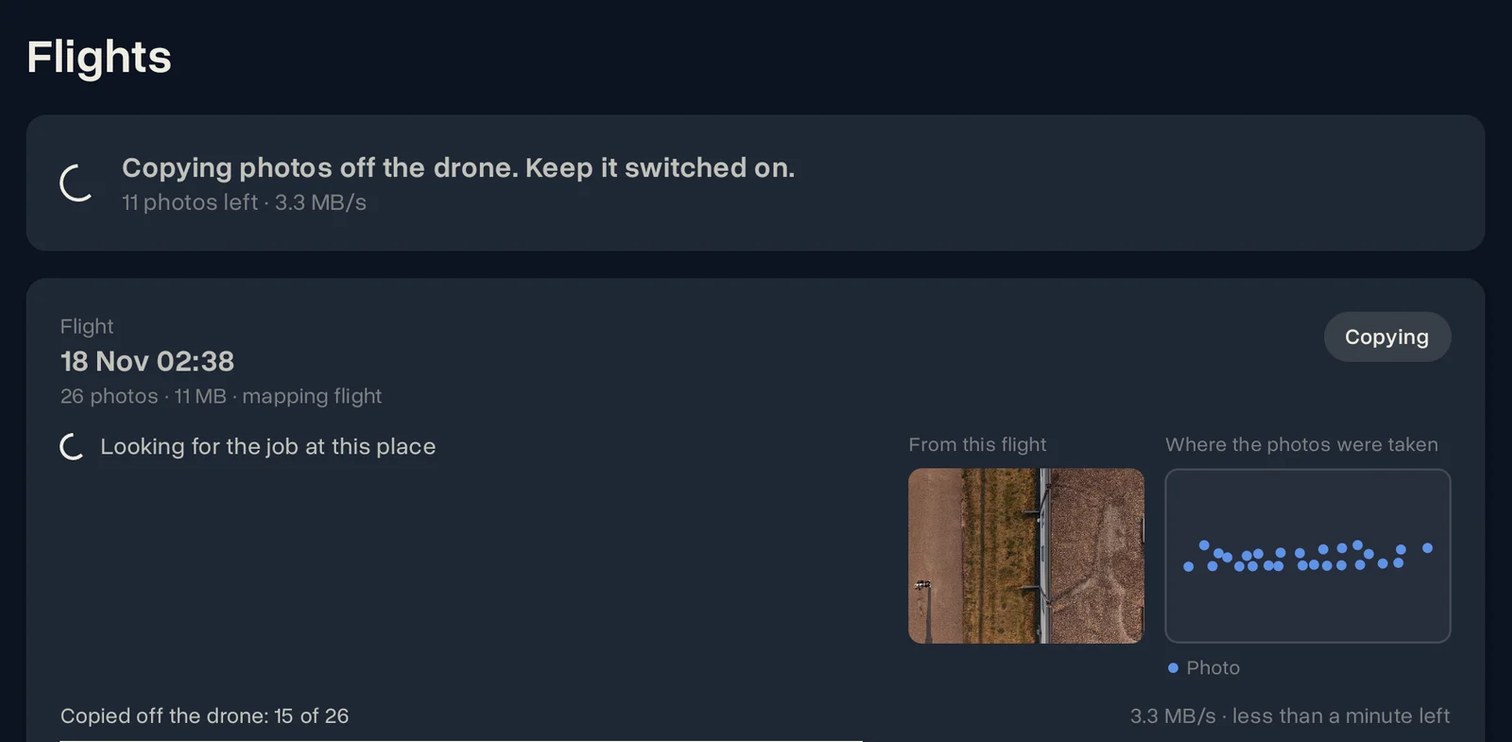
The DroneBundle app for DJI controllers now handles your photos too. After you land, it copies the new photos off the drone, puts them on the right job, uploads them and starts the 3D map. You don't pull the SD card and you don't open a laptop.
Photos Straight Off the Drone
- Leave the drone switched on after landing and open DroneBundle on the controller
- The app copies the new photos and tells you when you can switch off the drone
- The upload carries on by itself and waits when the connection drops
- The drone's card is only read: nothing on it is changed or deleted
Every Flight on the Right Job
- The app finds the job by where the photos were taken
- If more than one job is nearby, you tap the right one
- No job at that place yet? In a Jobs only workspace a mapping flight adds its job by itself. In other workspaces you tap Create a job here and choose the project
- Change the job or rename it from the flight's card at any time
Maps That Start Themselves
- After a mapping flight, the 3D map starts as soon as the last photo is uploaded
- You get the usual notification when the map is ready
- Switch the map off for one flight on its card, or for every flight in Settings
Also New
- A notice on the controller when a flight has finished, so you know when to open the app
- A workspace choice for accounts in more than one workspace
- A drone check that shows in a minute whether photo sync works with your drone
- Upload on Wi-Fi only, for photos and flight logs
- Flight logs keep uploading from the same app, as before
Who Can Use It
- Every plan and every free trial
- Android controllers and phones with Android 8.0 or later, and a DJI drone that DJI opens to other apps
- Already have the app? Install the new version on top of the old one. You stay signed in