Track certificate and insurance expiry
Upload insurance certificates, waivers, registrations and training records to Documents. DroneBundle reads the expiry dates off them and reminds you before they run out.
Anyone can upload documents. Admins and project managers get the expiry reminders and can correct dates.
Nobody types a date. DroneBundle reads each document, finds every expiry date on it and tracks them for you.
Upload a document
- In the sidebar, click Documents.
- Click Upload files.
- Pick a Category, like Compliance for licenses, certificates and insurance, then click Select Files. PDF, JPG, PNG and TIFF all work, including photos and scans, up to 50 MB.
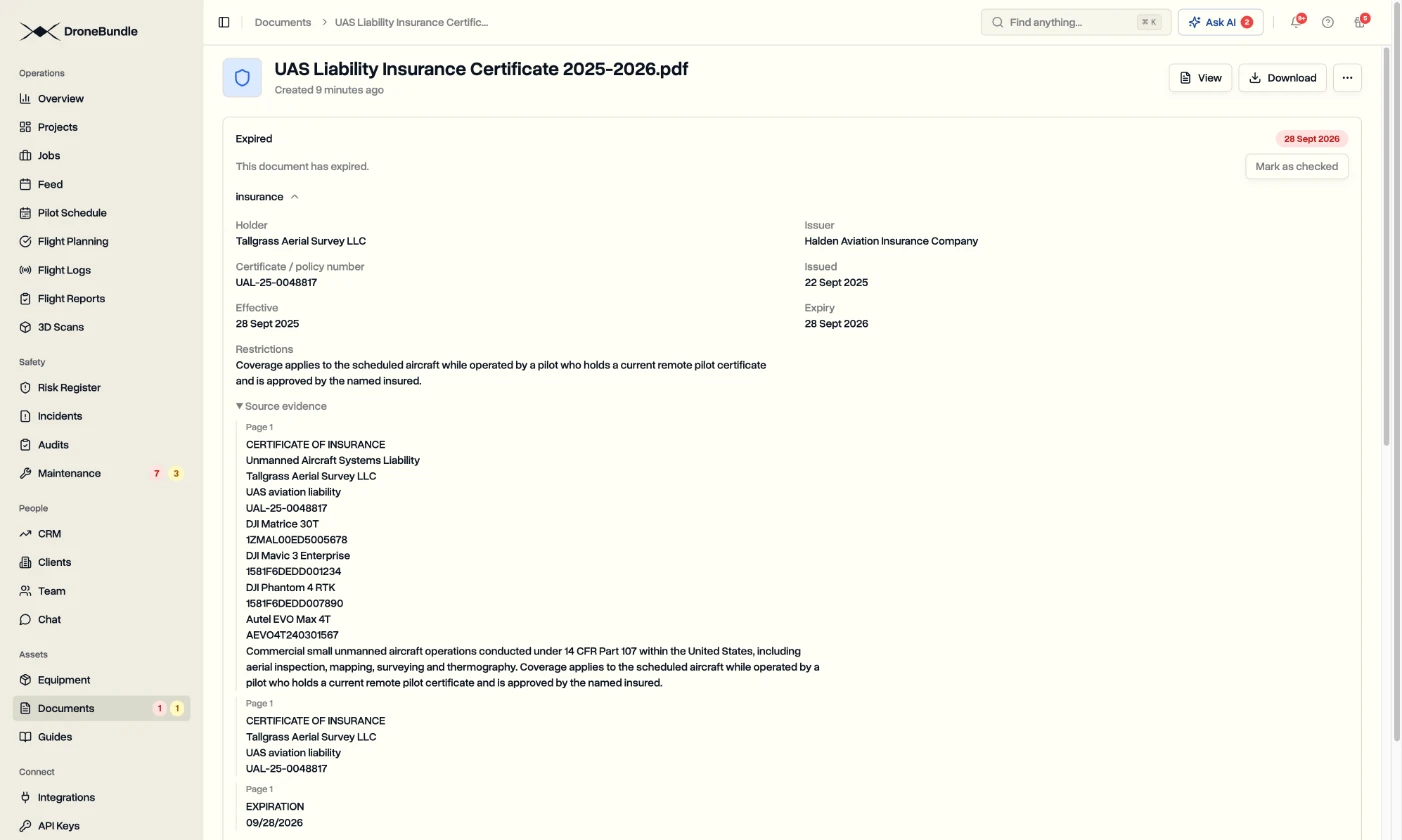
- Open the document to see what was found: the holder, the issuer, the certificate or policy number and the issued, effective and expiry dates.
A document with several dates, like a training record with three courses, gets each one tracked on its own. A document that states no end date shows No expiry.
See what needs attention
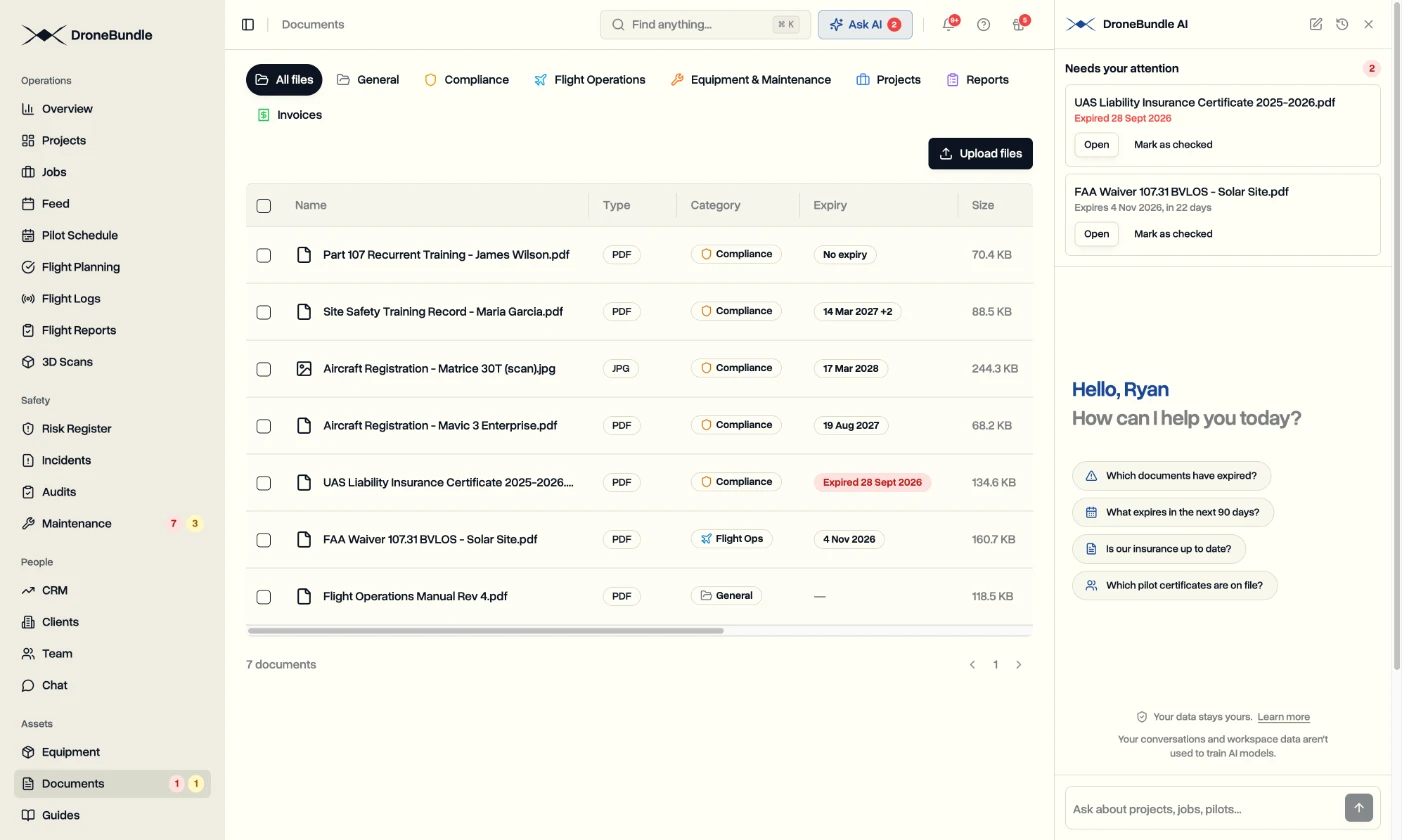
- The Expiry column shows the next date, or Expired in red.
- Red and amber counts next to Documents in the sidebar show what has expired and what expires within 30 days.
- Click Mark as checked once you've dealt with one. It leaves the attention list and records who checked it.
- Admins and project managers can set or correct a date by hand.
Reminders
Admins and project managers get a notification 30 days before a document expires, 7 days before, and on the day. The weekly report lists them too, and you can ask DroneBundle AI what expires in the next 90 days.
Who sees which documents
Documents are sorted into categories: General, Compliance, Flight Operations, Equipment & Maintenance, Projects, Reports and Invoices.
- Admins and project managers see every category.
- Pilots and operations leads see Compliance, Flight Operations, Equipment & Maintenance and Reports, so keep contracts and policies in General or Projects.
Upload a renewed certificate
On Enterprise and during the free trial, open the document and click Upload New Version under Version History. The new file is read again and the old one stays in the history. On other plans, upload the renewed file as a new document.
Last updated Nov 18, 2026
Did this answer your question?
Still stuck?
Ask DroneBundle AI in the app, or email us and a person will answer.