DJI FlightHub 2 Sync: Dock Flights Arrive on Their Own
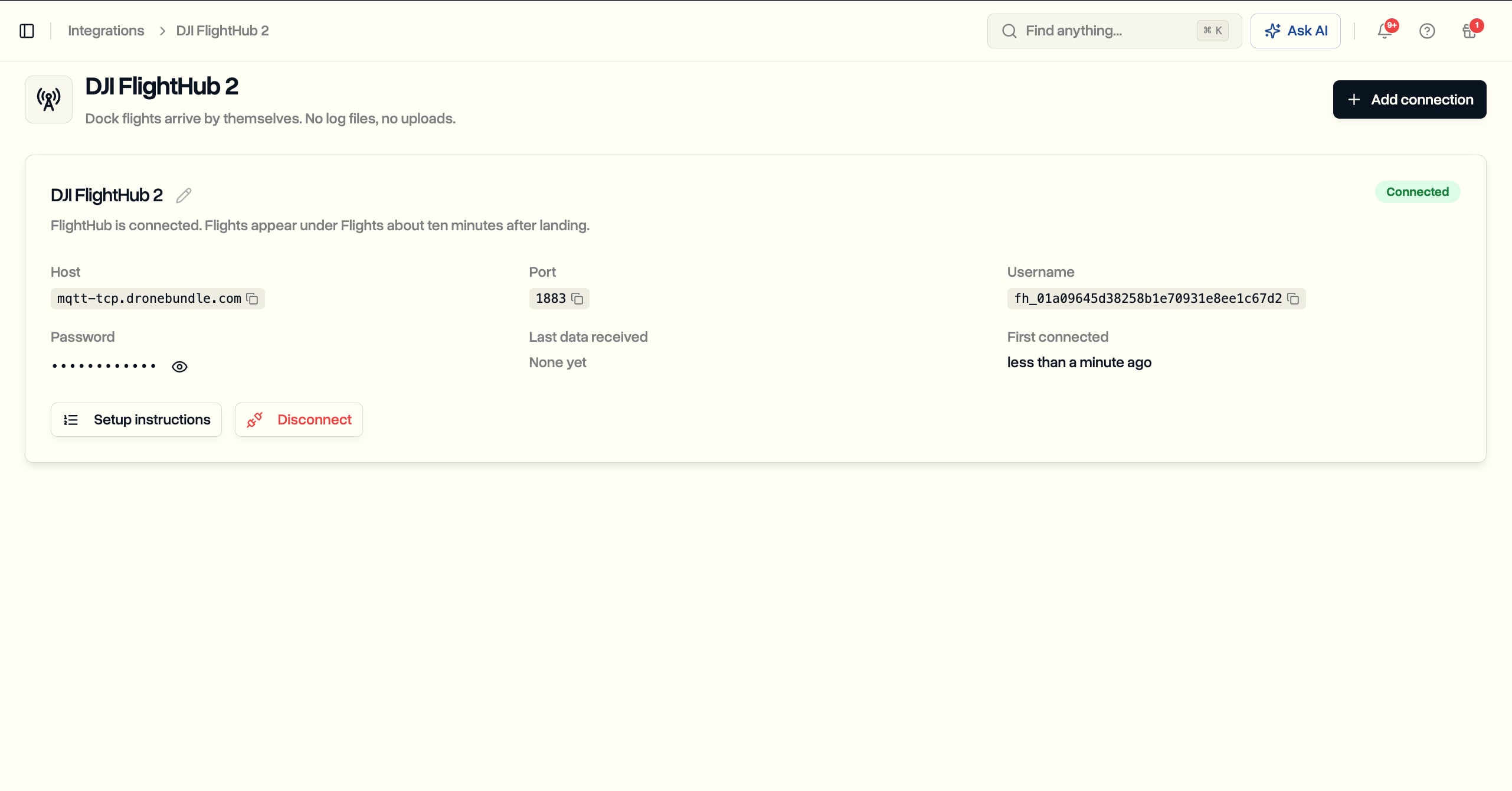
Connect DJI FlightHub 2 once and every flight from your dock lands in DroneBundle about ten minutes after the aircraft does. It finds its job, credits the rostered pilot, closes out the scheduled flight, and updates equipment and maintenance counters. No log files, no uploads, and it works for US operators.
Connect in About Five Minutes
Four values pasted into FlightHub 2, nothing installed on the dock or the controller.
- Open Integrations, choose DJI FlightHub 2, and click Add connection
- Copy the host, port, username, and password into FlightHub Sync, following the step-by-step panel that uses DJI's own menu names
- Test the connection, then Save and Connect
- The connection turns from Waiting for FlightHub to Connected on its own
- Works with DJI Dock, Dock 2, and Dock 3, and needs the FlightHub 2 Enterprise plan on DJI's side
Flights Arrive by Themselves
Fly a mission and the flight is under Flights about ten minutes after landing.
- The dock and the aircraft are named, and the flight carries a Dock badge in the list
- Full flight review: overview, map, replay, 3D view, charts, and export, like any other flight
- Aircraft serial, battery serials, firmware, battery percentage, voltage, and temperature come across
- A flight that was only partly captured says so at the top of the page instead of hiding it
Each Flight Files Itself
Three checks, stopping at the first clear answer.
- The job the dock is attached to as equipment, if that job is active on the day
- Otherwise the job or project whose area the flight path crosses, with jobs winning over projects and active jobs over finished ones
- Otherwise the flight waits as unlinked in the workspace, with a notification, and you connect it from the flight list whenever you like
- Nothing is dropped, and the notification names the connection that sent the flight
The Schedule Closes Itself Out
Dock flights attach to the scheduled flight they were flown for.
- A scheduled flight whose time window covers the takeoff is marked Completed, with a mark showing a flight log from the dock backs it
- The flight is credited to the pilot rostered on that scheduled flight and counts toward their flight hours
- If nobody was rostered, the flight says No pilot and explains why
- If more than one pilot was rostered, nobody is credited rather than guessing
Equipment and Maintenance Register Themselves
- The first flight creates the dock as equipment, named by model and serial, and pairs it with its aircraft
- Aircraft, batteries, and cameras are created from their serials if new and reused if not, and records you set up by hand are kept
- Flight hours, flight counts, and battery cycles feed the same maintenance counters as hand-flown flights
- Dock flights roll into workspace, project, and job statistics alongside hand-flown flights
Built for US Operators Too
- Does not depend on DJI's flight record cloud sync, which is unavailable in the United States
- Uses the forwarding feature in FlightHub Sync, so the dock stays on FlightHub 2 for planning and control
One Password, One Purpose
- Each connection has its own password that can only send flights in and cannot read anything
- Reveal it from the connection page when needed and replace it at any time
- FlightHub 2 connects without encryption, a limitation on DJI's side, so keep the details private
- Disconnecting takes effect within the hour, and flights already received stay
Where It Lives
- Integrations, DJI FlightHub 2
- Workspace owners and project managers can add and manage connections, up to ten per workspace
- Available on every plan