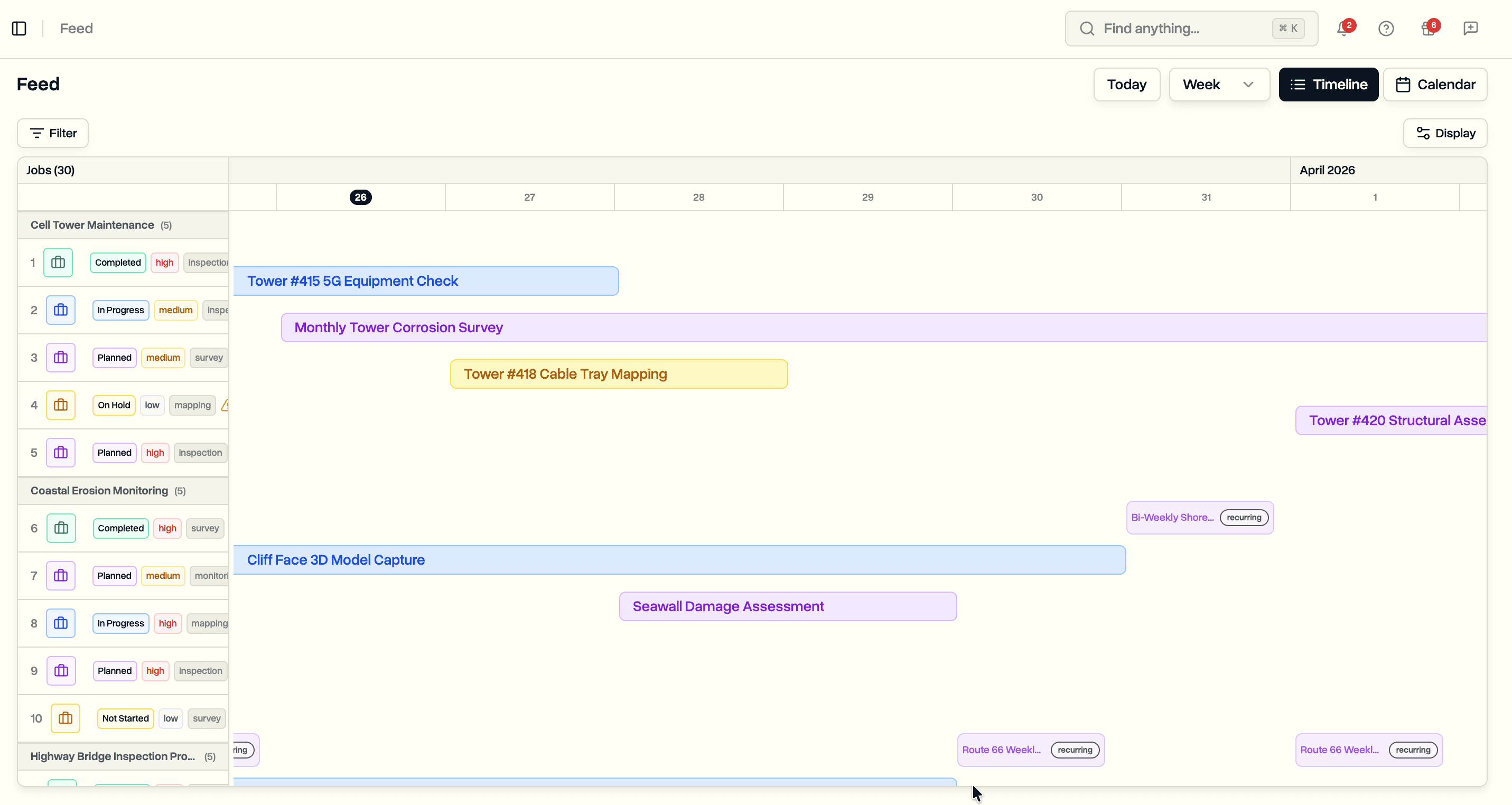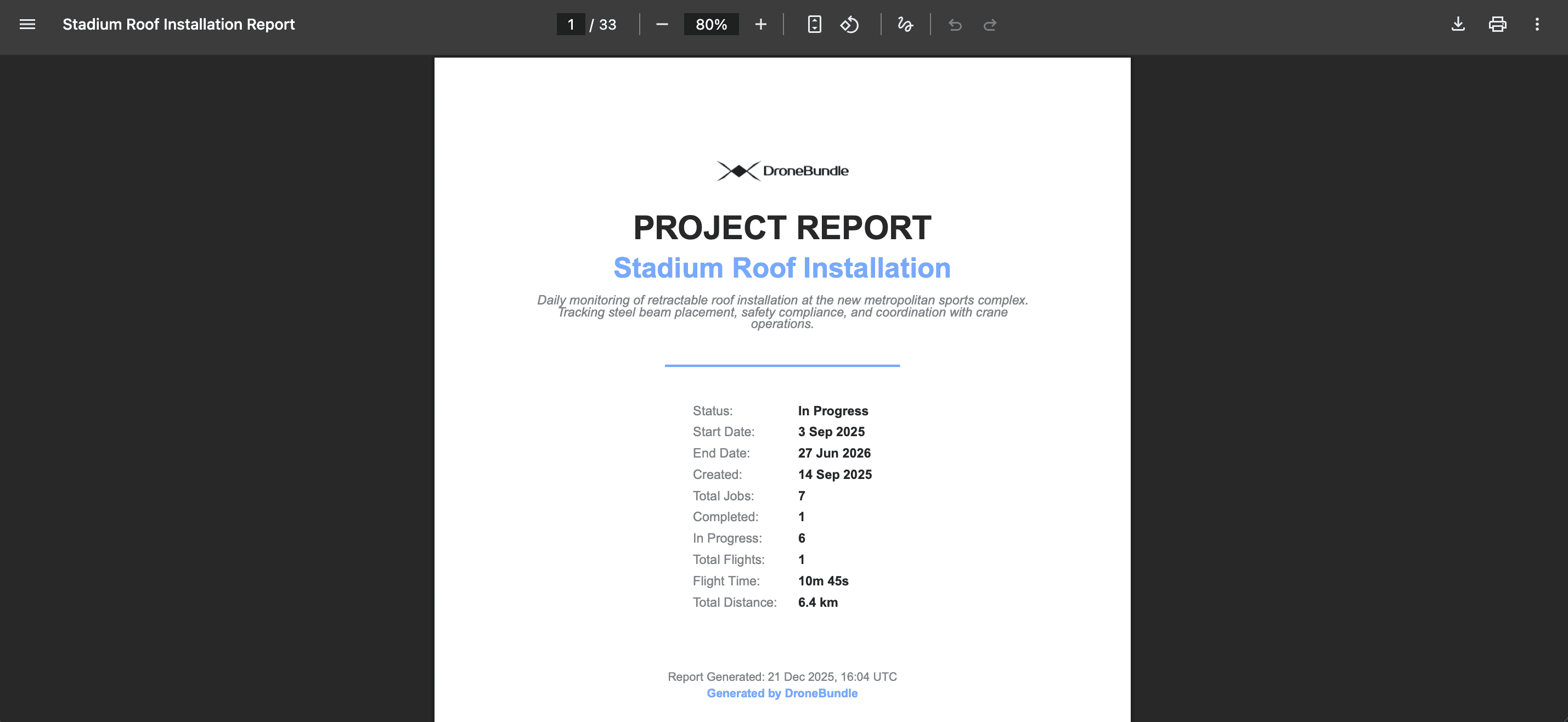
Define the job set for a project type once at the workspace level. Pick it from the create-project dialog and every job is pre-filled, editable, and submitted in one go.
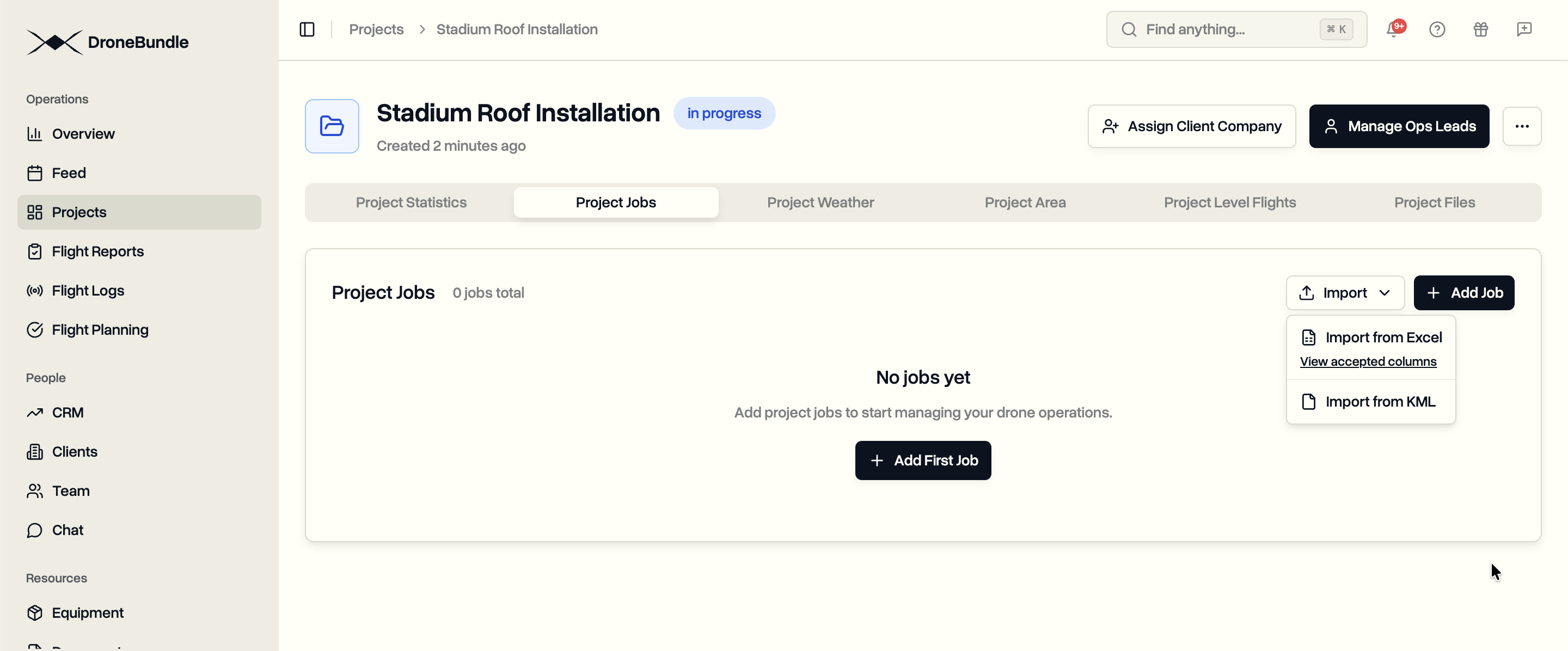
Some projects repeat. For example, a roof inspection in your workspace might mean four jobs every time (perimeter, deck overhead, thermal pass, ground reference). A cell tower visit could be top, mid, base, and antenna passes. If that is how your team runs, the create-project flow today asks you to set up the project, save, click into it, and add each of those jobs one at a time.
Project Templates collapse that loop. Define the job set once at the workspace level, pick the template at the top of the create-project dialog, and every job appears as an editable preview card pre-filled with type, priority, capture types, and inspection notes. Edit what needs editing, deselect what does not apply, submit once.
Defining a Template
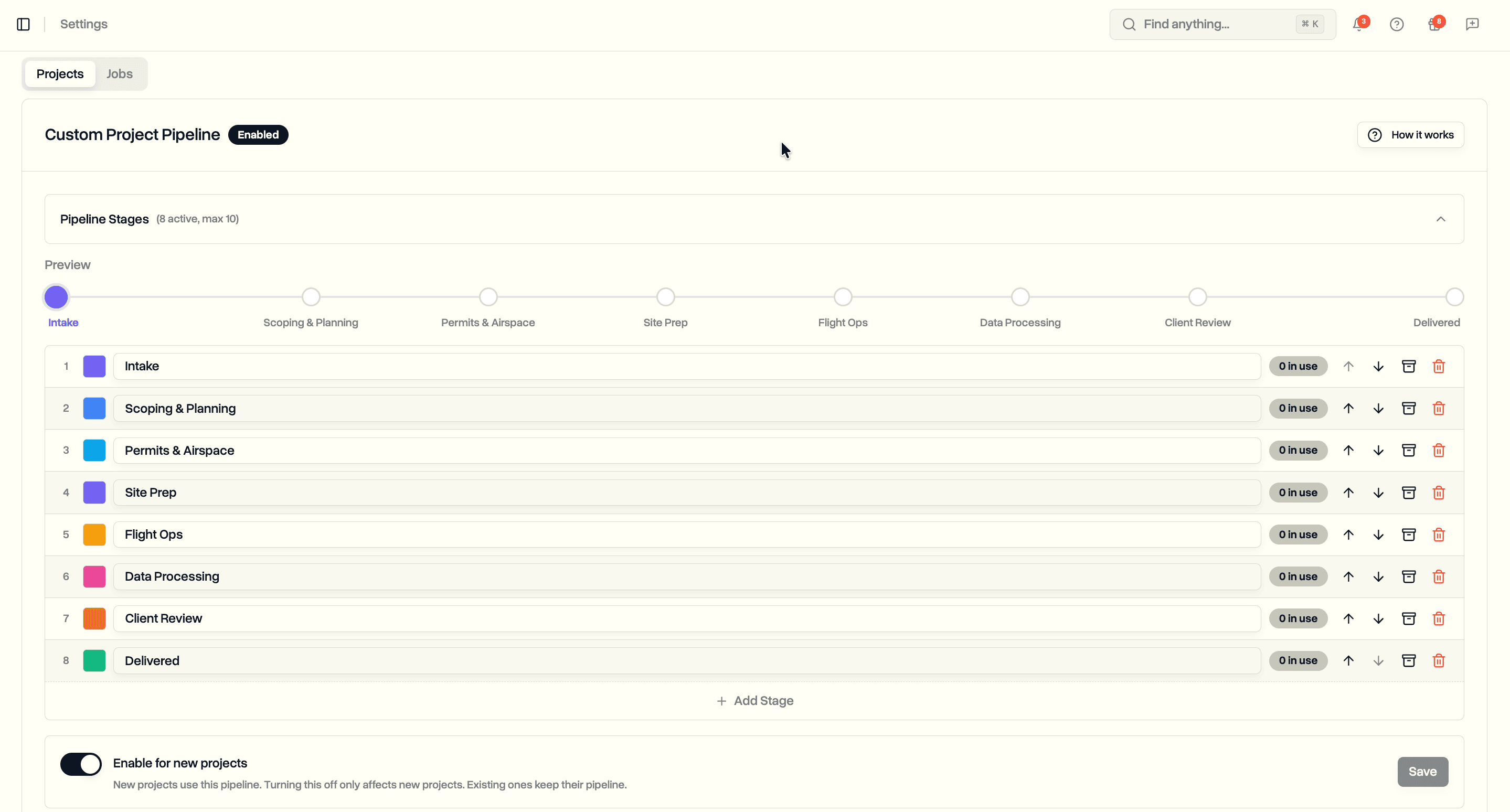
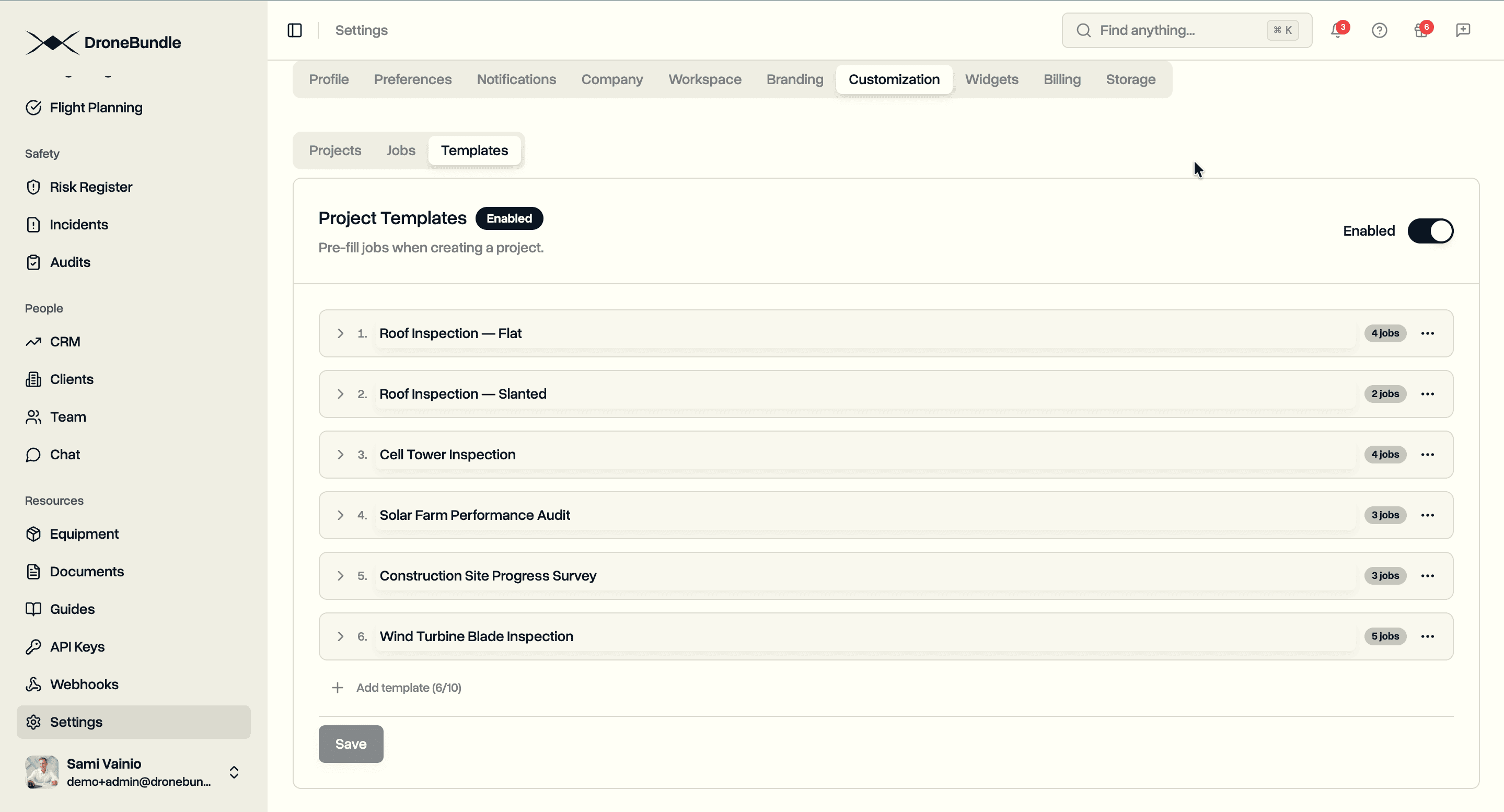
Templates live in Settings → Customization → Templates, alongside custom status pipelines. Workspace admins toggle the feature on and build templates from scratch. Up to 10 templates per workspace, up to 20 jobs each.
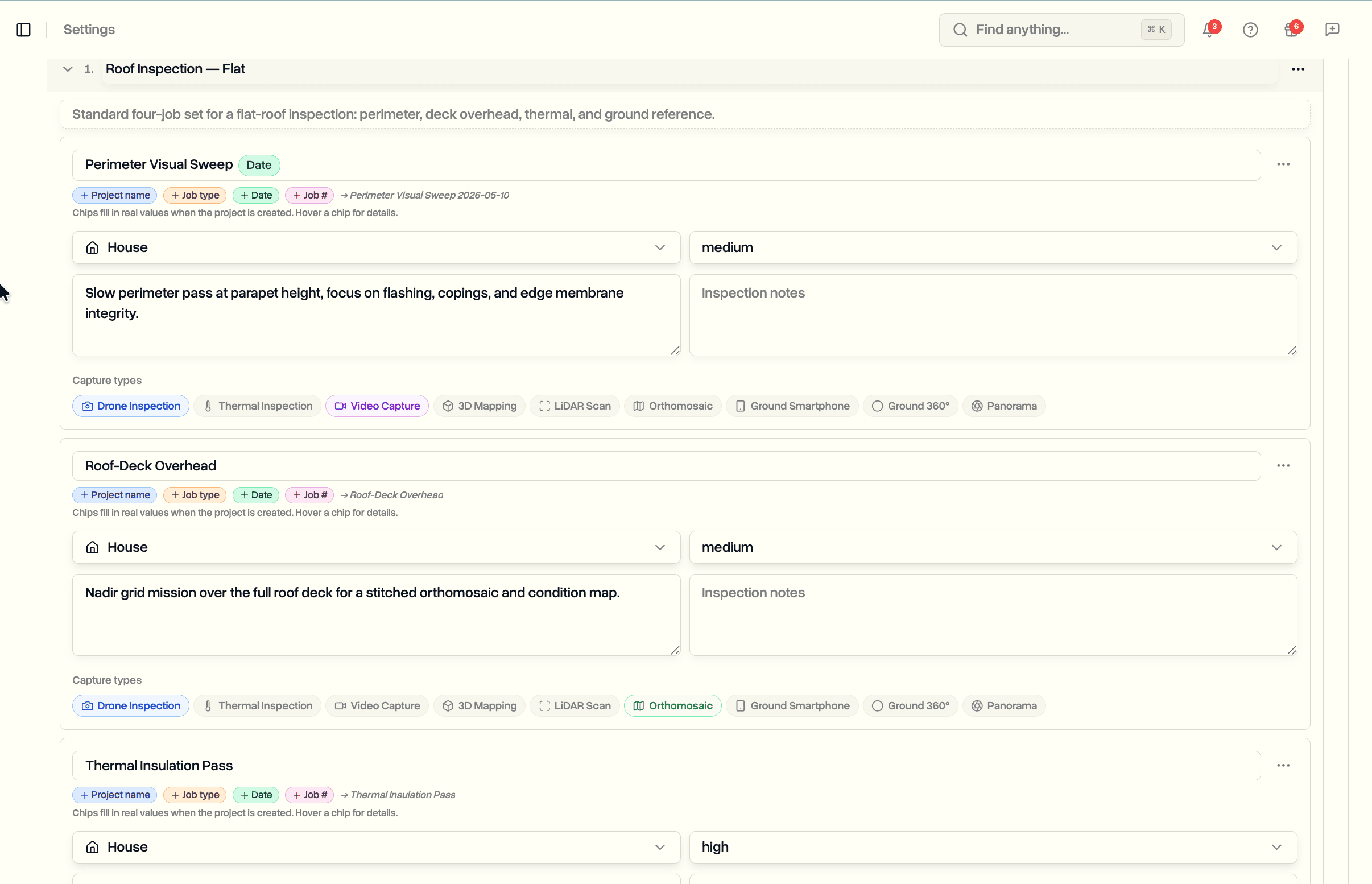
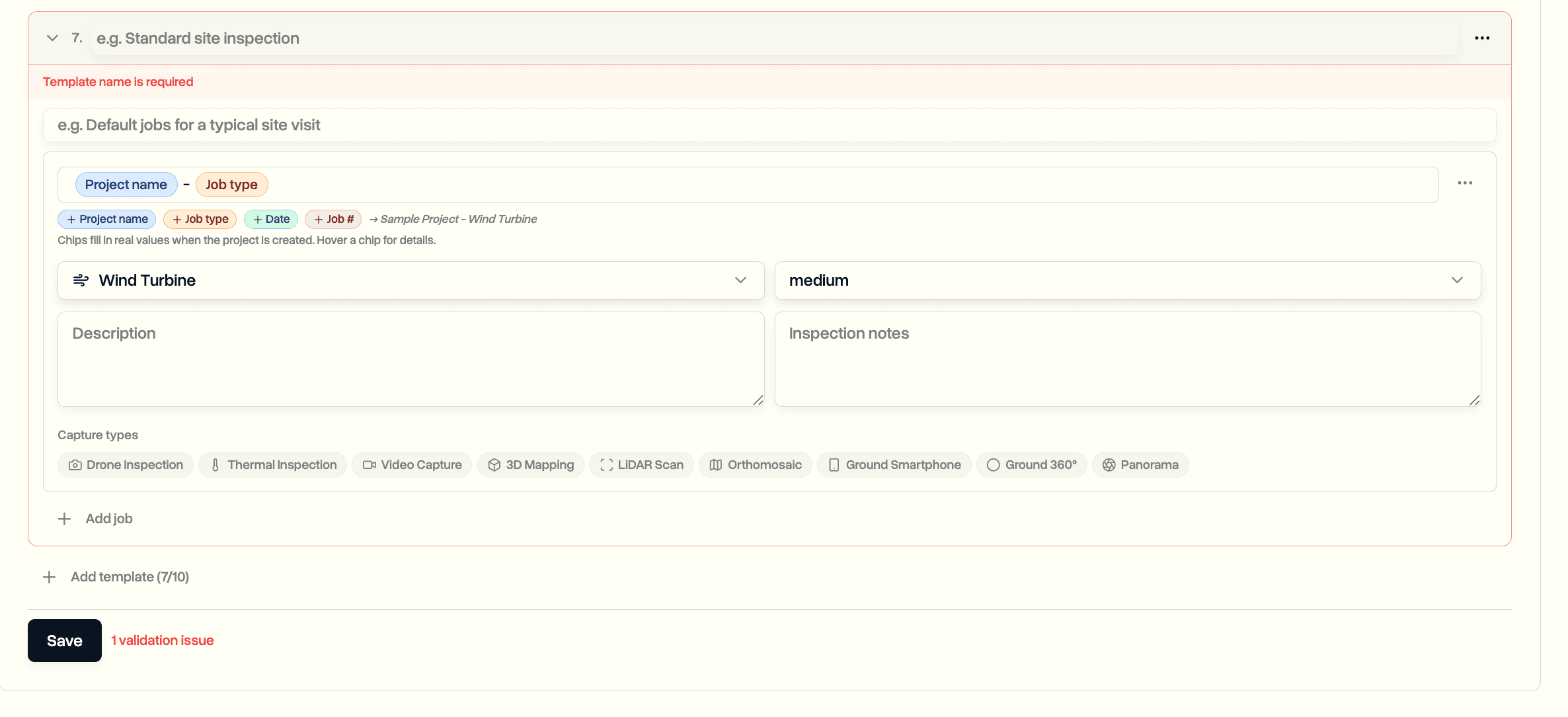
What Goes In a Template Job
A template job stores only the fields that are stable across sites:
- Name. With optional auto-fill placeholders (more on those below).
- Description. Free-text context for the pilot.
- Type. A drone job type from your workspace, or a new one created on the spot.
- Priority. Low, Medium, or High.
- Capture types. Pick from the same library used everywhere else in DroneBundle, including thermal, LiDAR, and orthomosaic.
- Inspection notes. Standing instructions, regs references, or briefing text.
Auto-Fill in Job Names
Drop placeholders into the job name and they fill in by themselves when the project is created. There are four:
- Project name fills in the project's name
- Job type fills in the job's type, like "Cell Tower" or "House"
- Date fills in the project start date
- Job # fills in the position of the job in the template (1, 2, 3, and so on)
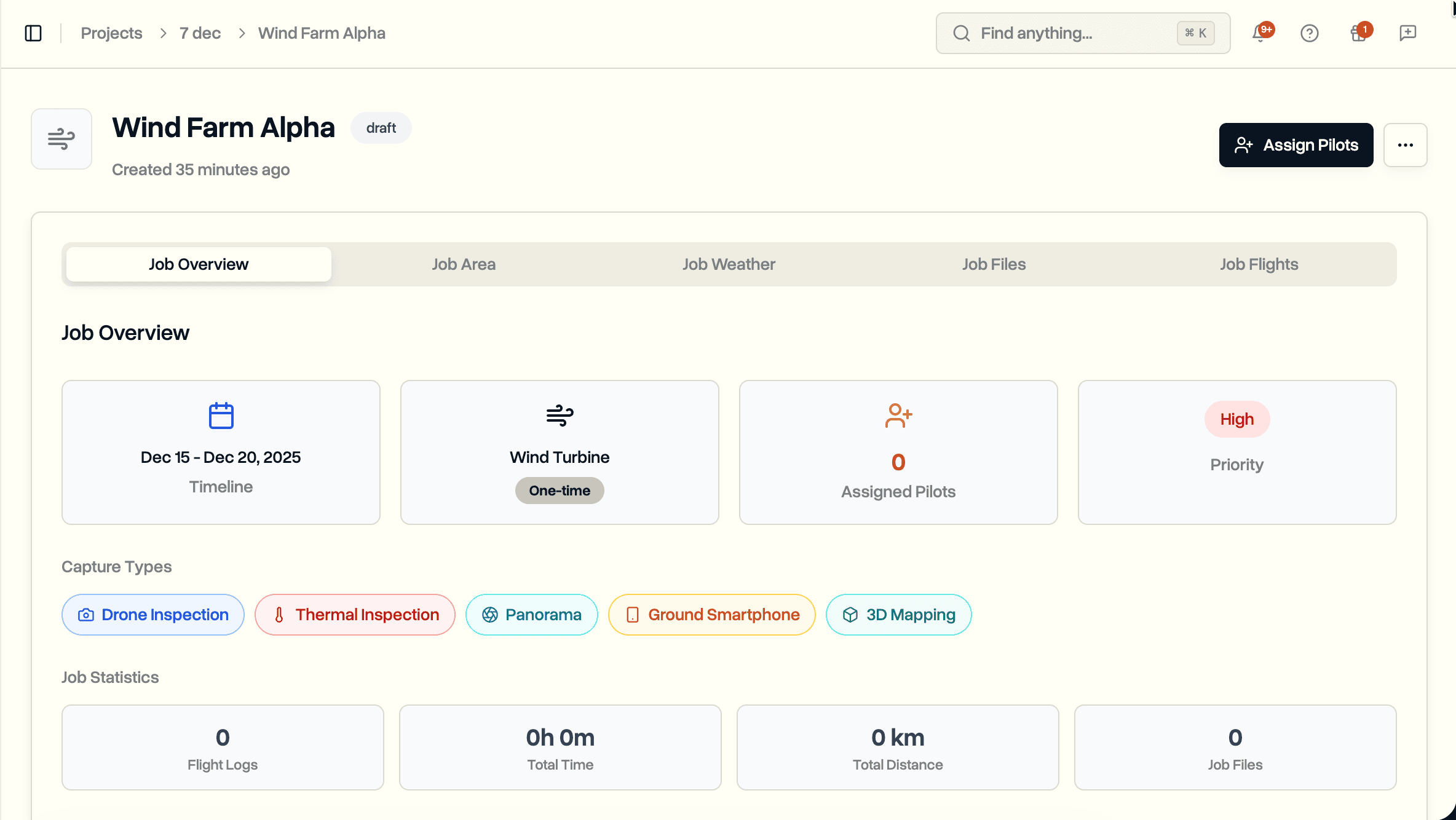
A template job named "Project name - Roof Job #" applied to a project called "123 Main St" produces "123 Main St - Roof 1", "123 Main St - Roof 2", and so on. Names you edit by hand stay edited; the rest stay live, so renaming the project after picking a template updates every job that still uses the Project name placeholder.
Creating a Project From a Template
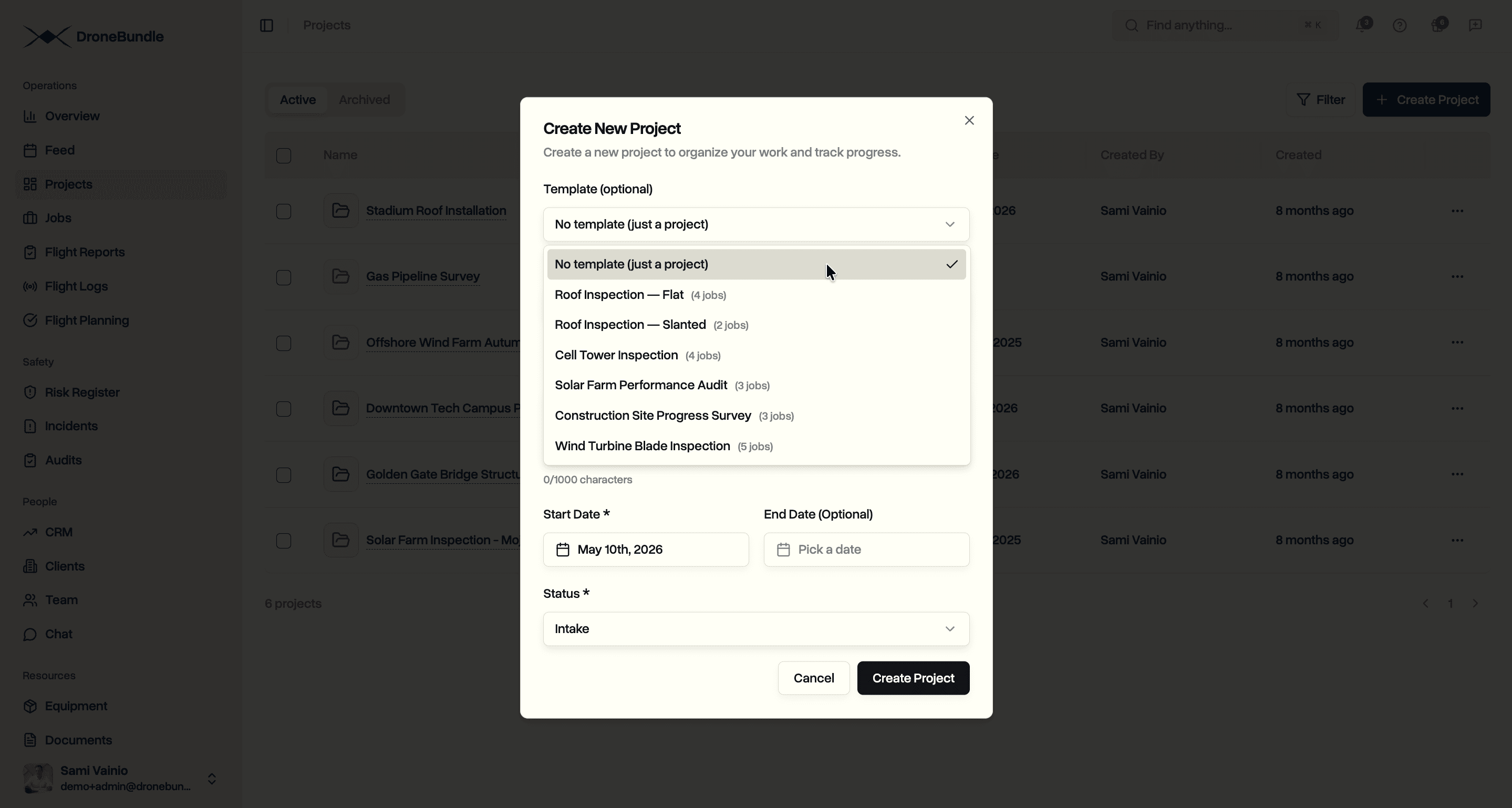
When templates are enabled, the Create Project dialog gets a "Template (optional)" dropdown at the top. Pick one and every job shows up as an editable card with a checkbox.
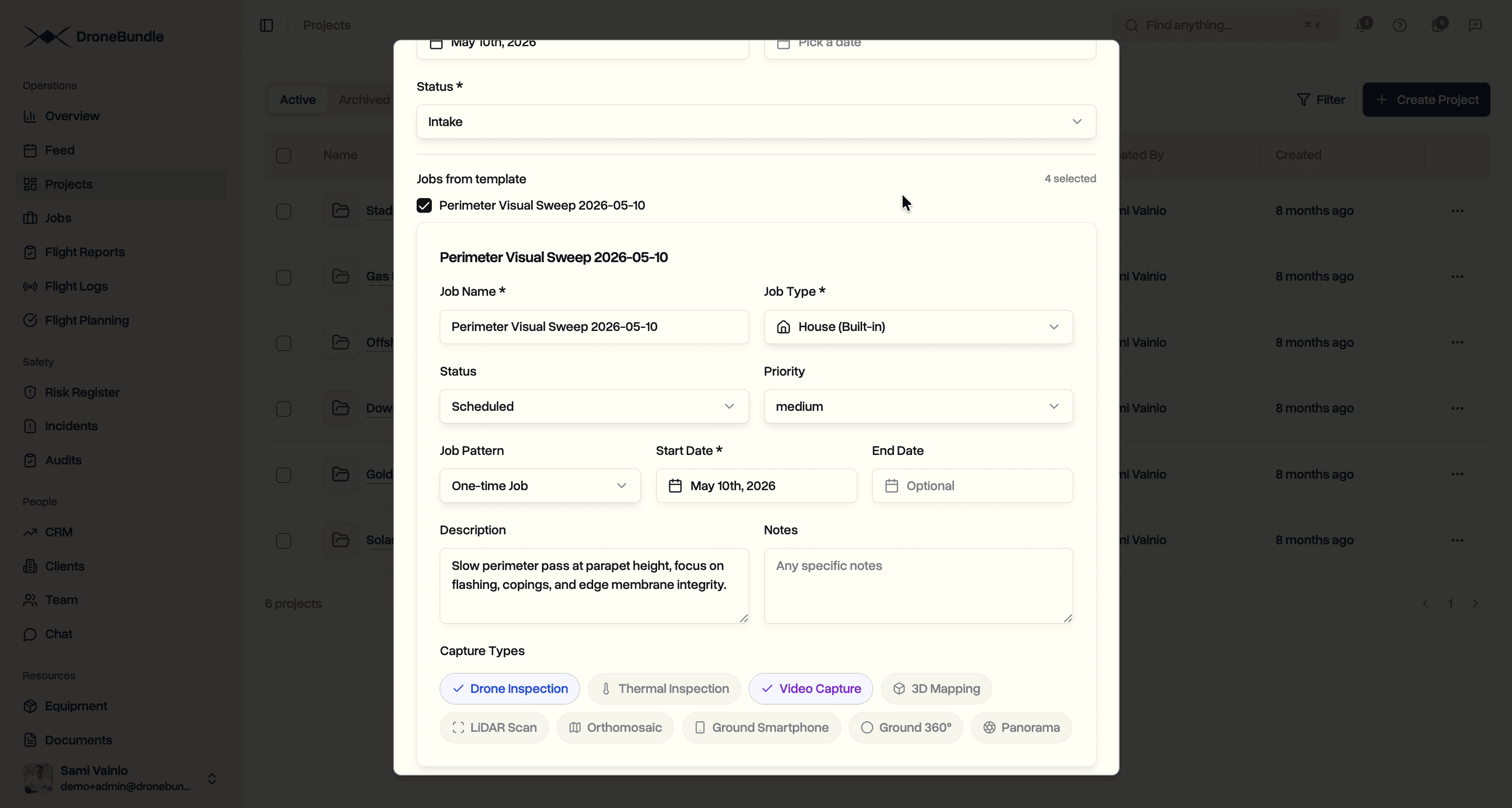
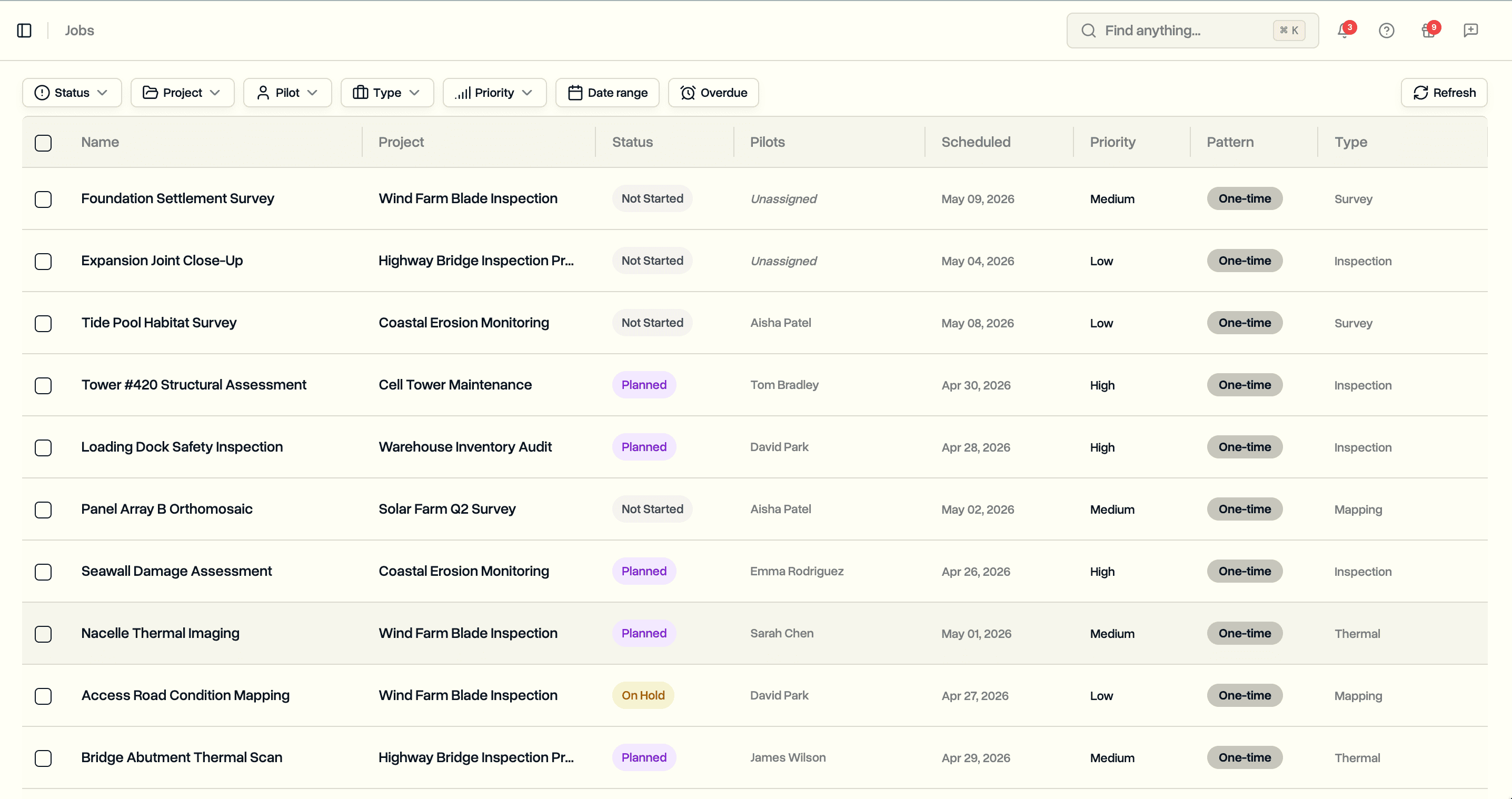
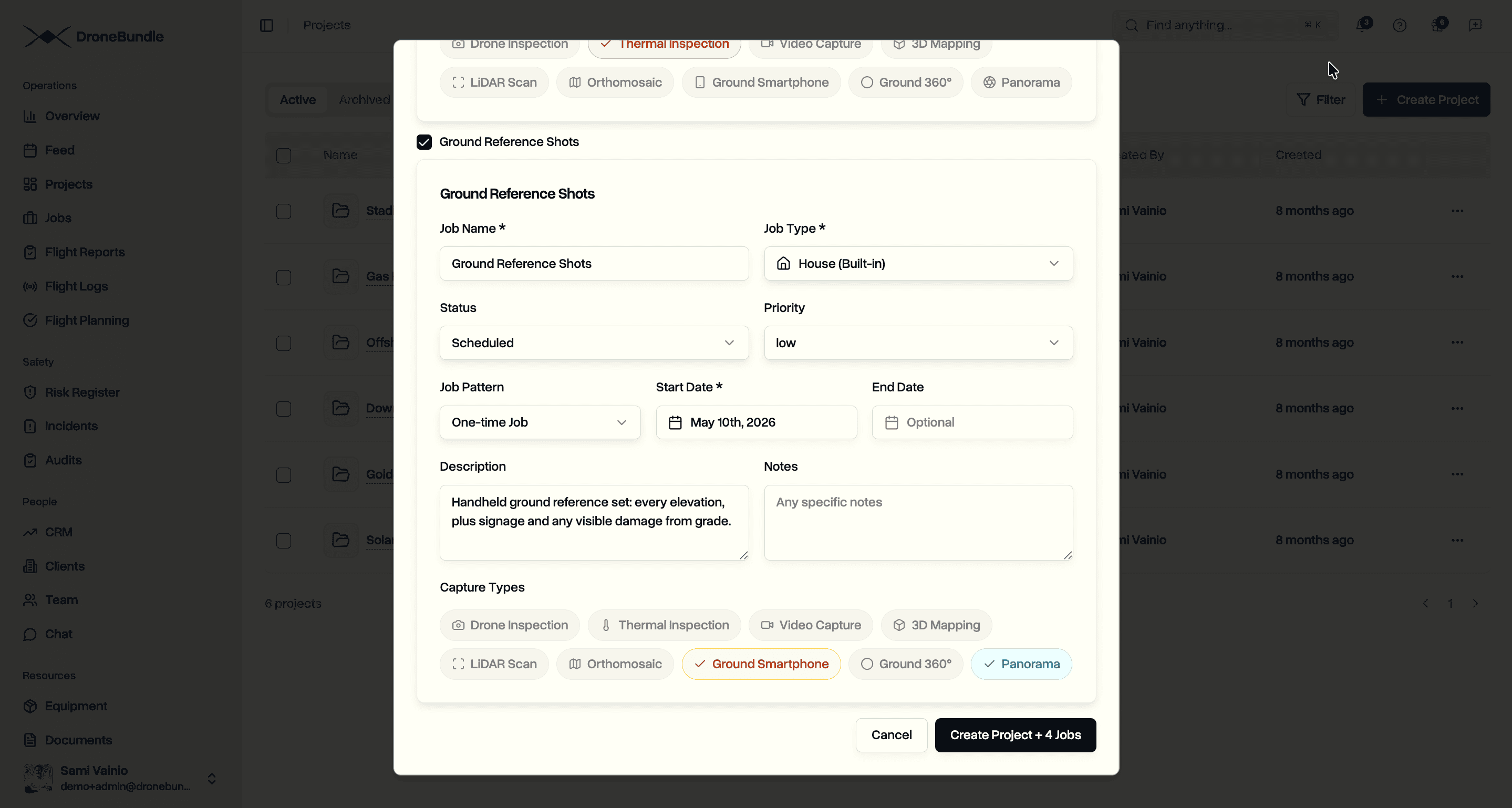
Each card carries the same fields as the Excel bulk import flow: name, description, type, priority, status, dates, capture types, inspection notes, and recurring pattern. Project dates flow into every job by default; per-job overrides stick.
Progress and Partial Failure
Submission runs with a live counter ("Creating jobs (3/4)..."). On success you get a confirmation and land on the new project. If a job or two fails, the dialog stays open with a list of what failed plus two buttons: Retry failed and Continue to project. The project itself is already saved, so nothing is lost.
Use Cases
Roof inspection. A flat-roof template with four jobs (perimeter, drone-deck overview, thermal pass, ground reference shots) and a slanted-roof template with two. Pick whichever matches the site, edit the job names if needed, submit.
Tower inspection. A telecom tower template with one job per lift height and capture types pre-set for each. The pilot opens the project on site and works the cards top to bottom.
Survey company. An orthomosaic + LiDAR + ground 360 trio bundled into one template, with inspection notes that quote your survey procedure verbatim. New survey projects land with the right capture types selected, no checklist required.
Availability
Project Templates are available now on the Enterprise plan and during the Enterprise trial. Open Settings → Customization → Templates to enable the feature and build your first one.
Try it now at app.dronebundle.com, or check it yourself in the interactive demo.