DroneBundle is now on Zapier. Connect your drone operations to 7,000+ apps and automate the work that slows your team down.
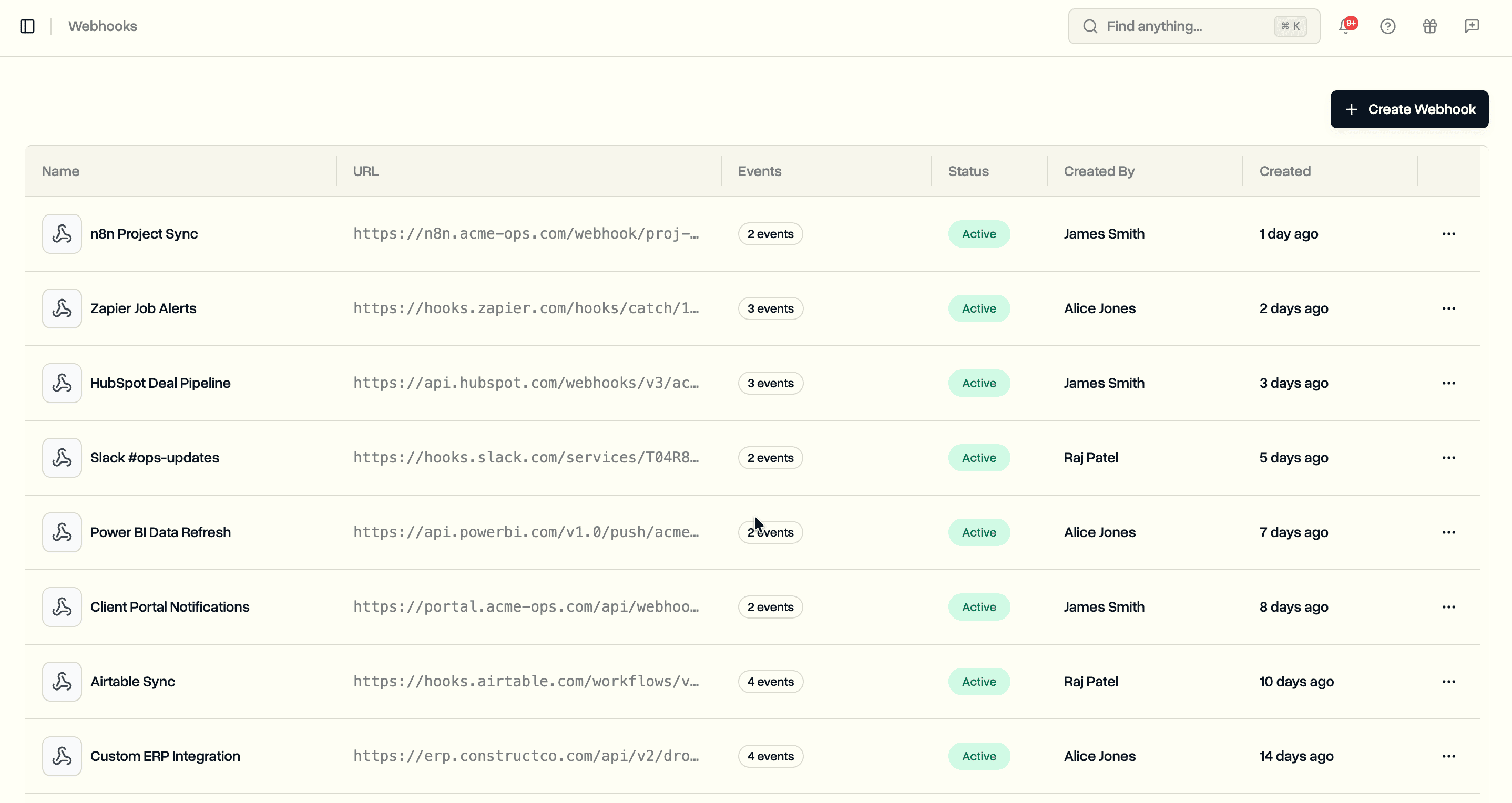
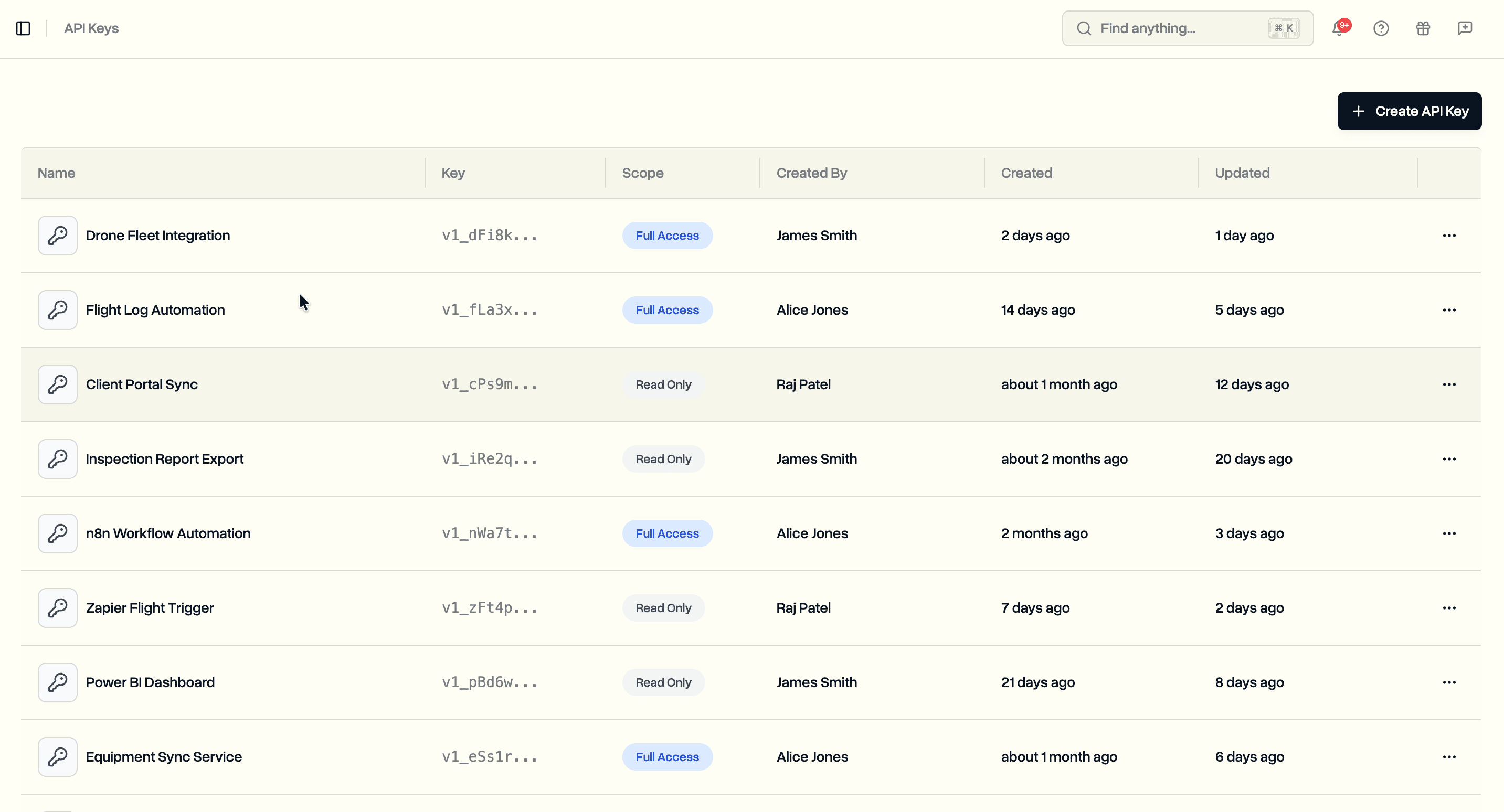
A few days ago we shipped API keys and webhooks. Those give developers full control over pushing data in and getting data out. But not every team has a developer on hand, and not every workflow needs custom code.
Zapier changes that. If you can fill in a form, you can build an automation. DroneBundle triggers, actions, and searches are all available as building blocks inside Zapier's visual editor.
What You Can Do
Triggers
Triggers fire when something happens in DroneBundle. Use them to start a Zap:
- Project Created. A new project is added to your workspace.
- Project Updated. A project's status, name, or details change.
- Project Deleted. A project is removed.
- Job Created. A new job is added to a project.
- Job Updated. A job's status, assignment, or details change.
- Job Deleted. A job is removed.
- Job Type Created. A new job type is added to the workspace.
- Job Type Deleted. A job type is removed.
All triggers use webhooks under the hood, so they fire in real time. No polling delay.
Actions
Actions let other apps push data into DroneBundle:
- Create Project. Set name, description, status, start date, end date, and external ID.
- Update Project. Change any field on an existing project.
- Delete Project. Remove a project by ID.
- Create Job. Set project, job type, priority, location, schedule, and more.
- Update Job. Change any field on an existing job.
- Delete Job. Remove a job by ID.
- Create Job Type. Add a new job type with name and icon.
- Delete Job Type. Remove a job type by ID.
Searches
Searches look up existing records so you can use them in later steps:
- Find Project. Look up a project by ID.
- Find Job. Look up a job by ID.
Example Workflows
Here are a few Zaps that take minutes to set up:
HubSpot to DroneBundle. When a deal is marked as won in HubSpot, create a project in DroneBundle with the deal name and client details. Your ops team gets the project ready before anyone sends an email.
DroneBundle to Slack. When a new job is created, post a message to your team's Slack channel with the job name, project, and assigned pilot. Everyone knows what's scheduled without checking the dashboard.
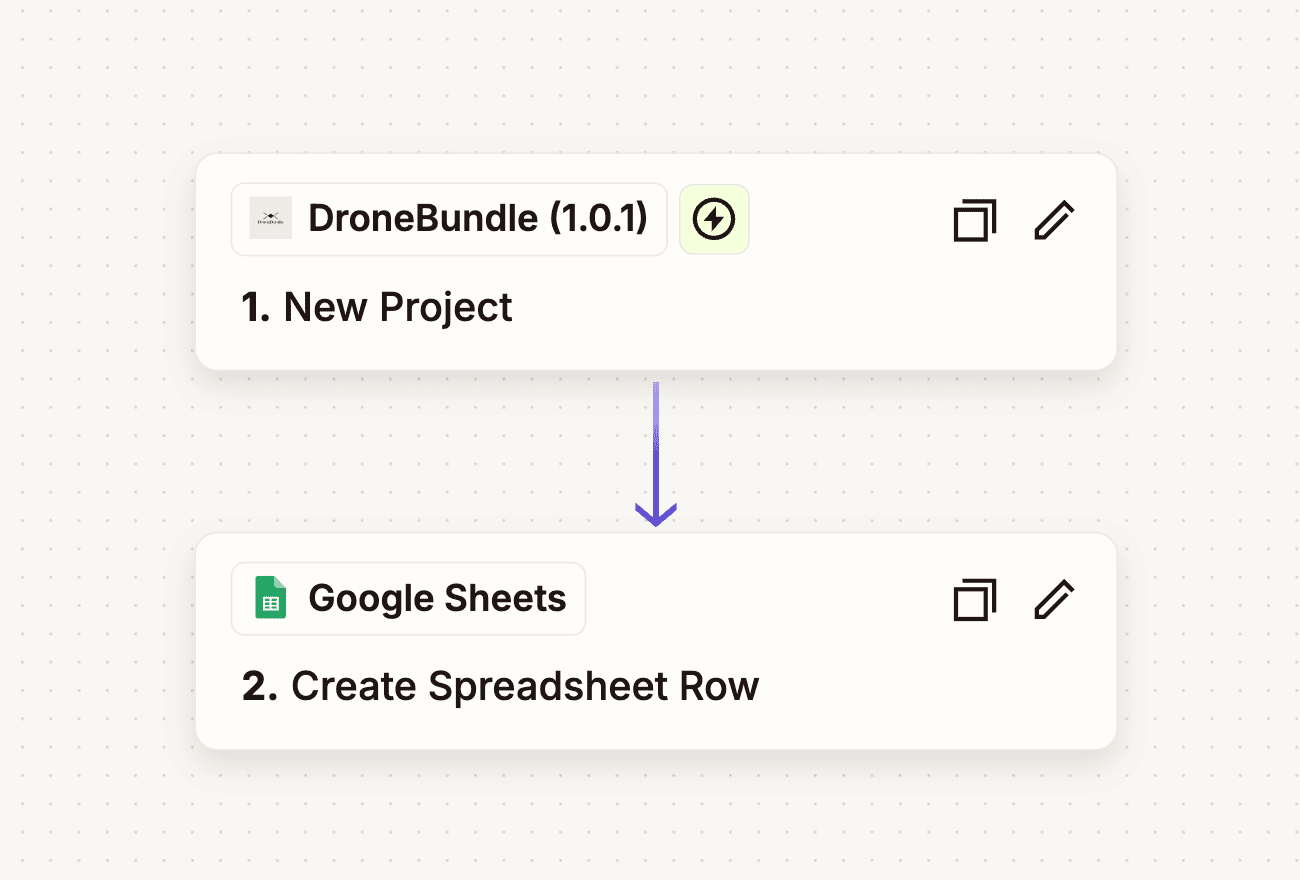
DroneBundle to Google Sheets. When a project status changes, add a row to a tracking spreadsheet. Finance, account managers, or clients can follow progress from a shared Sheet without needing a DroneBundle login.
Typeform to DroneBundle. When a client submits an inspection request through a Typeform, create a project and a job automatically. Cut the time between request and scheduling down to zero.
DroneBundle to Email. When a job is updated, send a summary email to the project manager or client. Keep stakeholders informed without manual follow-up.
Setting It Up
- Go to your DroneBundle workspace settings and create an API key with full access scope.
- Open Zapier and search for DroneBundle (or use the direct invite link).
- Connect your DroneBundle account by entering your API key.
- Pick a trigger, add an action, and turn on your Zap.
The API key authenticates all Zapier requests on your behalf. One key can power as many Zaps as you need.
Zapier + Webhooks + API
Zapier, webhooks, and API keys are three different ways to do the same thing: connect DroneBundle to everything else.
Zapier is for teams that want visual, no-code automation. Build a workflow in the browser without writing a line of code.
Webhooks are for developers who want raw HTTP callbacks. Point events at your own endpoint and handle them however you want.
API keys are for custom integrations. Call the REST API directly from your backend, scripts, or tools like n8n and Make.
Pick whichever fits your team. They all use the same underlying API, so the data stays consistent regardless of how you connect.
Availability
The Zapier integration is available now on the Enterprise plan. You need an API key with full access scope to authenticate.