New Feature
Data Ownership: Keep a Copy of Every Drone File in Your Own S3 Bucket
data-ownershipcloud-backups3-mirrorstoragebyobdata-residencybackupenterprise
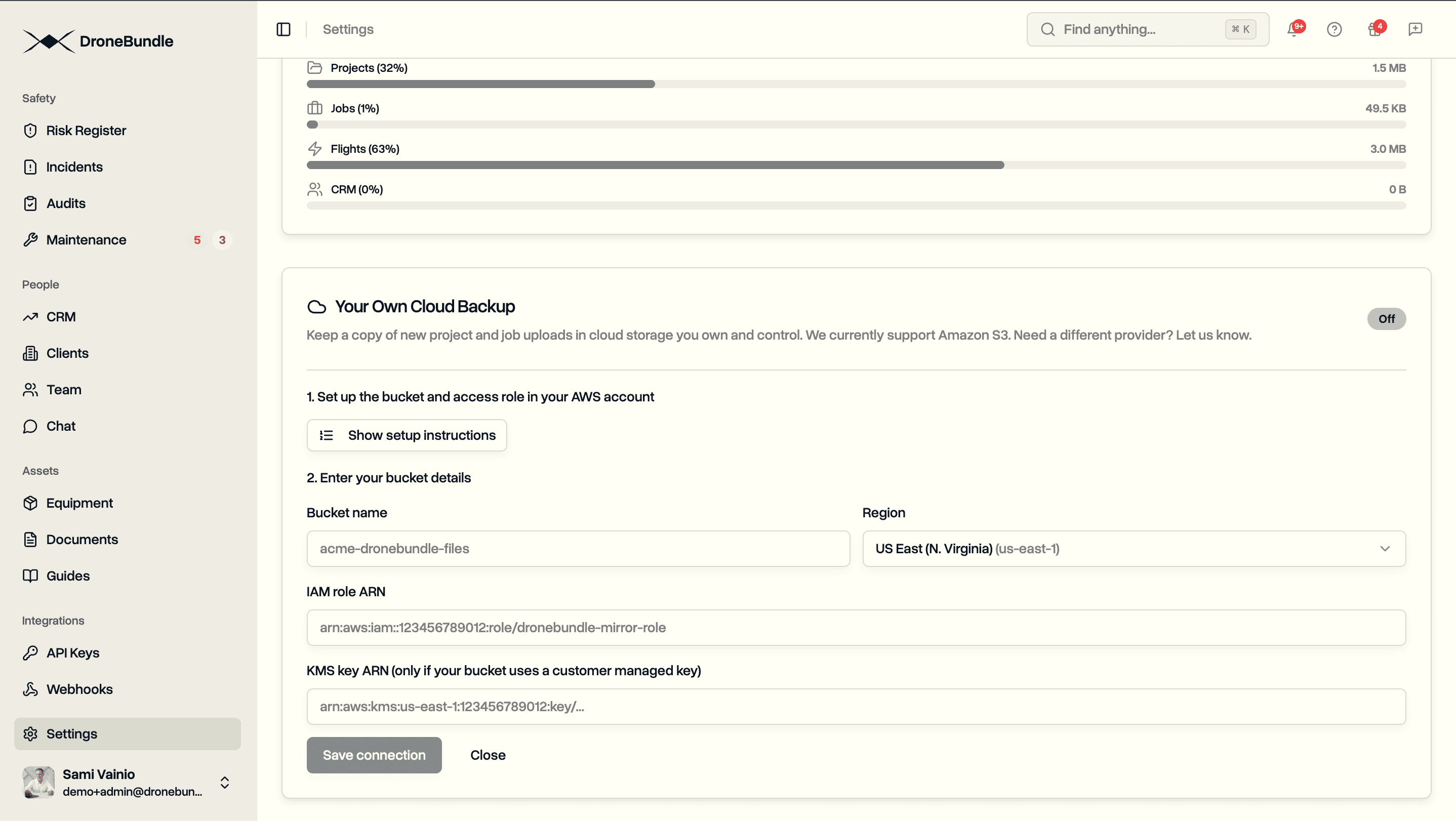
Mirror every project and job upload into an Amazon S3 bucket you own, in your own AWS account. You hold the data outright, in the region you choose, encrypted with your own key.
Your Own Cloud Backup (Enterprise)
A continuous, one-way copy of your uploads into cloud storage you control.
- Every new project and job file is copied to your bucket on its own, moments after upload
- The working copy stays in DroneBundle; your bucket gets a faithful, growing copy alongside it
- We currently support Amazon S3, with other providers on request
- An Enterprise add-on, enabled per workspace
How It Works
A one-time setup in three steps.
- Create a bucket in your own AWS account, in any region you need
- Grant DroneBundle scoped write access to that one bucket, tied to a unique ID only your workspace knows, revocable from your console anytime
- Built-in instructions generate the exact policy and trust details to paste into AWS
- Turn mirroring on, and new uploads start copying across
Your Bucket, Your Keys
The copy is yours in every sense.
- It sits in your account, billed to you, under your own access controls and logging
- Choose the region so data stays in the country or jurisdiction you need
- Point it at your own KMS key and every mirrored file is encrypted with a key only you hold
Connection Test
Confirm it works before you rely on it.
- One click runs a full dry run: connects with the role, writes a small check file, and reads it back
- Each failure maps to a specific fix: bucket name, region, permission, or key
- Connection status stays visible in Settings, Storage
What Gets Mirrored
- Project and job uploads, the files your team adds to projects and jobs
- Laid out by project and job, with original names kept
- Add and update only: deleting a file in DroneBundle never removes it from your bucket, so it becomes a durable archive
- Unchanged files are skipped, so nothing duplicates
Where It Lives
- Settings, Storage, in the Your Own Cloud Backup panel
- Root and project manager roles can connect and manage it
- Writes only into the bucket you point it at, never the rest of your account