Project Templates: Pre-fill the Jobs That Always Come With a Project
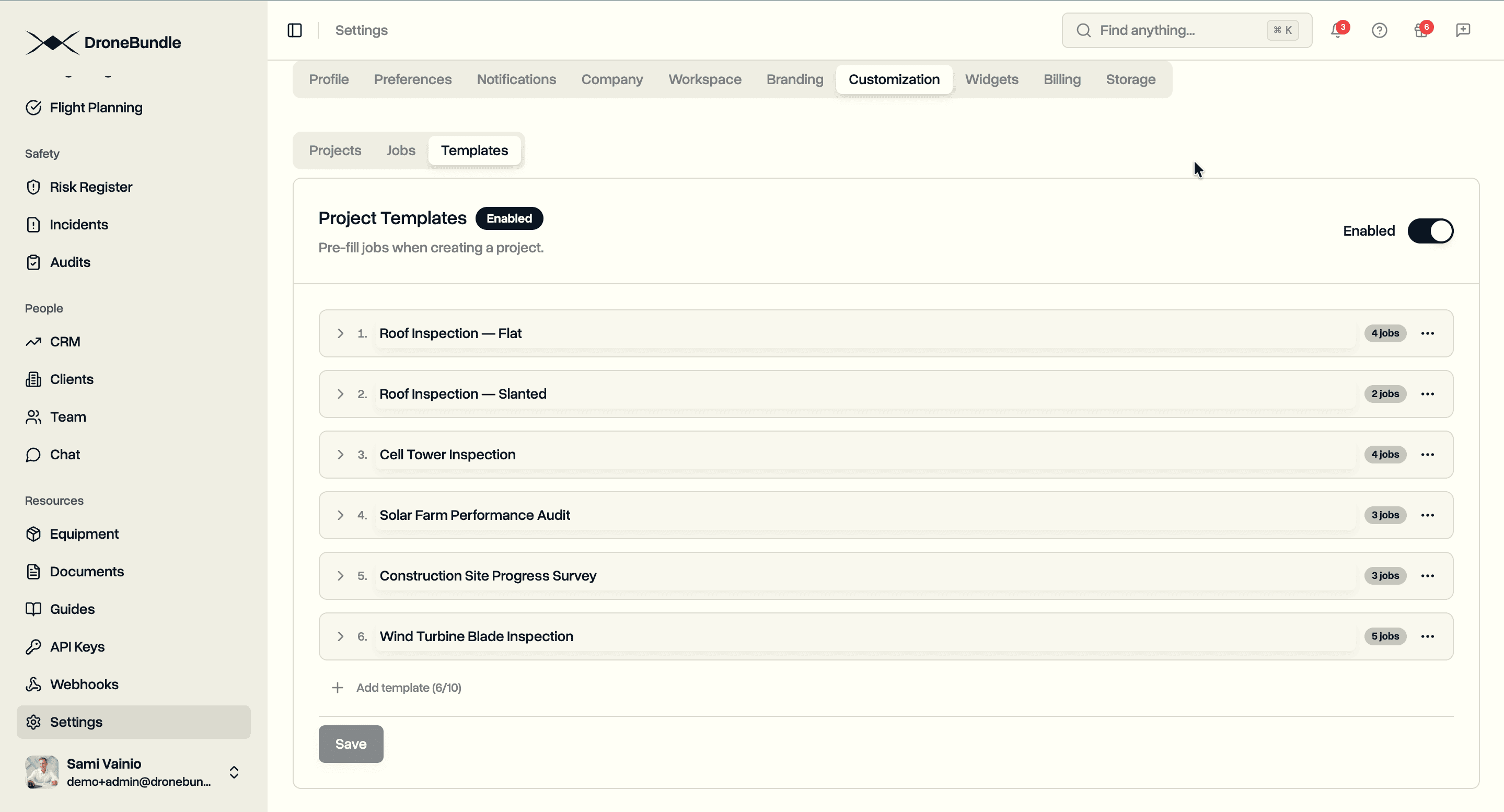
Define a workspace-level set of jobs once, pick it from the create-project dialog, and every job is pre-filled and editable before submit. One project, all its jobs, one click.
Defining a Template
Templates live in Settings → Customization → Templates, alongside custom status pipelines. Workspace admins toggle the feature on and build templates from scratch.
- Up to 10 templates per workspace, up to 20 jobs each
What Goes In a Template Job
A template job stores only the fields that are stable across sites: name (with optional auto-fill placeholders), description, type (create a new one on the spot), priority, capture types, and inspection notes.
Auto-Fill in Job Names
Drop placeholders into the job name and they fill in when the project is created. There are four:
- Project name fills in the project's name
- Job type fills in the job's type, like "Cell Tower" or "House"
- Date fills in the project start date
- Job # fills in the position of the job in the template (1, 2, 3, and so on)
Names you edit by hand stay edited; the rest stay live, so renaming the project after picking a template updates every job that still uses the Project name placeholder.
Creating a Project From a Template
The Create Project dialog gets a "Template (optional)" dropdown. Pick one and every job shows up as an editable card with a checkbox.
- Each card carries the same fields as the Excel bulk import flow: name, description, type, priority, status, dates, capture types, inspection notes, and recurring pattern
- Project dates flow into every job by default; per-job overrides stick
Progress and Partial Failure
- Submission runs with a live counter ("Creating jobs (3/4)...")
- On success: a confirmation and the app opens the new project
- On partial failure: the dialog stays open with a list of what failed plus Retry failed and Continue to project; the project is already saved, so nothing is lost
Availability
- Available on the Enterprise plan and during the 14-day Enterprise trial