New Feature
Flight Replay: See Every Drone Flight in 3D, Chart the Data, and Share the Map
flight-replayflight-review3d-visualizationtelemetryflight-chartsflight-reportimage-studiocsv-exportflight-logsdata-export
Open any flight and see the whole story. Replay it on the map, fly it again in 3D, read every reading as a chart, turn the path into a shareable image, and export a clean report. One flight, six ways to look at it.
A Rebuilt Flight Page
Every flight now opens into six tabs that all read the same flight.
- Overview, Replay, 3D View, Image Studio, Charts, and Export, across the top of every flight
- Move between the summary, the map, the charts, and the report without leaving the page
- Every measurement follows your workspace's unit setting, so there is nothing to convert in your head
- Works on the flights already in your workspace, including ones you uploaded long ago
Overview
The whole flight at a glance, and most days the only tab you need.
- Flight details, the path on a map, and the headline numbers side by side
- Duration, distance, height, top speed, and how the battery did from takeoff to landing
- A list of notable moments picked out on its own: takeoff and landing, peak height and speed, lowest battery, a low-battery stretch, a height or distance limit reached, a return-to-home
- A flight with no usable satellite fix, for example one flown indoors, shows the full summary instead of a broken map
Replay
Turn the log back into motion and scrub through it like video.
- Press play and the aircraft retraces its path while a live readout shows height, speed, heading, battery, satellites, and distance from the launch point at that instant
- Drag the timeline to jump to any moment
- The timeline is marked with the flight phases and the same notable moments, so you can jump straight to the part that matters
- Click a battery warning or other event and the whole panel snaps to that second
3D View
Fly the flight again over real terrain.
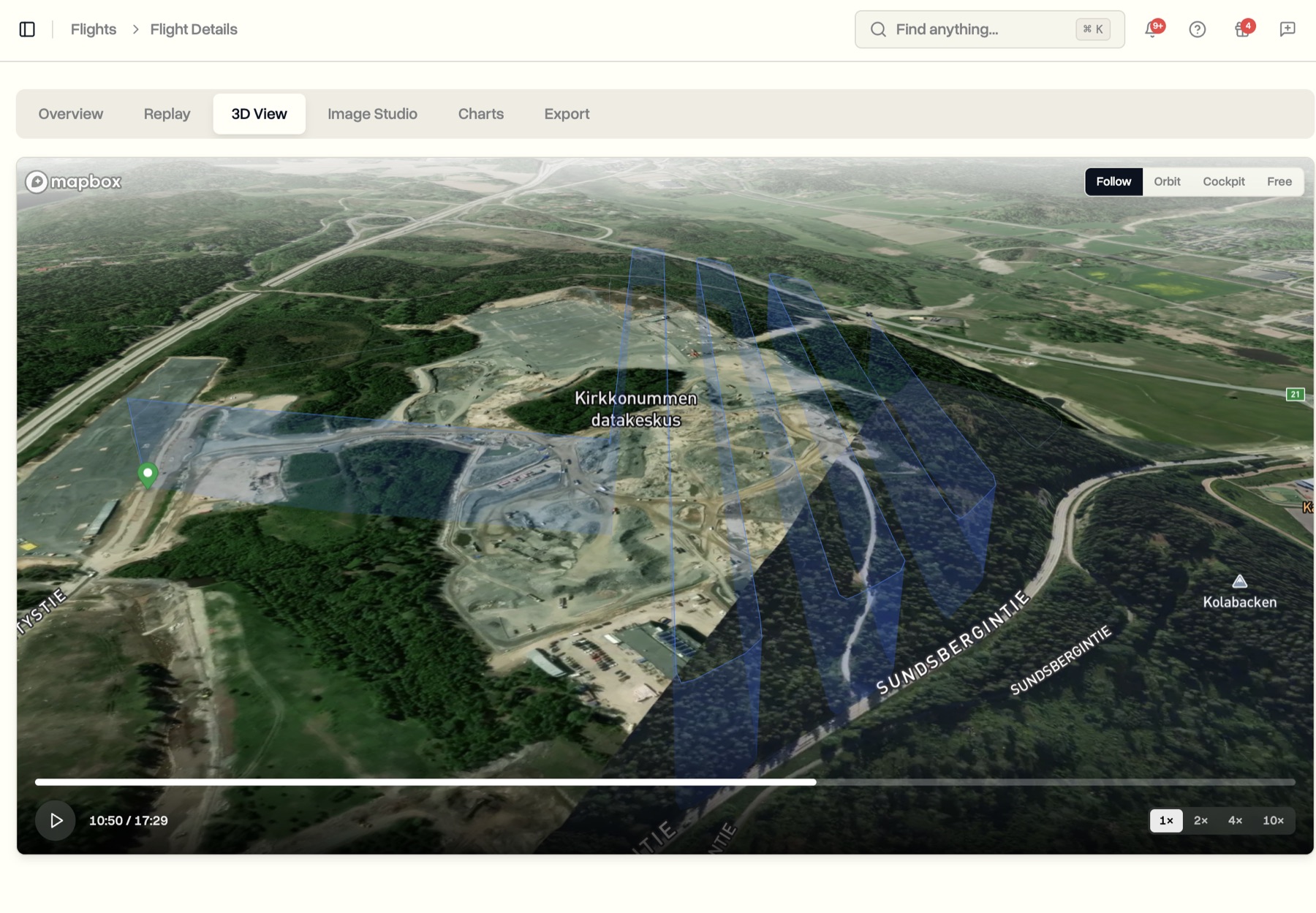
- The flight plays back as a three-dimensional scene over satellite terrain, the path drawn in the air at the height it was flown
- The camera glides and follows on its own, so it plays like a short cinematic clip
- Follow, Orbit, Cockpit, and Free camera modes
- Makes obvious what a flat map hides: how close a pass really was, how steeply it climbed, how height changed over a ridge or building
Image Studio
Make a single, polished image of the flight path to share.
- Pick a shape for where it is going, from a square for social to a wide landscape for a document
- Choose a map style, an angle, lighting, framing, and a path colour, with the image rendering live as you adjust
- Switch on start and end points, height markers, and an info card with your company name, the aircraft, the date, and the headline numbers
- One click downloads a high-resolution image
Charts
Read every reading, with context.
- Grouped the way you would look at them: Performance, Navigation, Battery, Orientation, and, where recorded, Gimbal and Camera
- Sensible reference lines, so a number means something: where to think about heading home, where battery becomes critical, where the satellite signal is weak
- A playhead runs across every chart together, drag anywhere to read exact values, shared with the Replay tab
- Anything the aircraft never recorded is named as not recorded rather than drawn as a flat line
Export
Take the flight out of DroneBundle four ways, each with a preview.
- Flight report as a clean PDF: details, summary, battery and power, phases, and notable events, ready for a client or the file
- Flight data as a CSV of every reading, ready for Excel or Google Sheets
- Processed log as one data file for your own systems
- The original raw file from the drone, exactly as it was uploaded
- The report and the studio image both carry your company name
Where It Lives
- Open any flight from the Flights page
- The six tabs appear on every flight, with nothing to switch on
- Available on every plan